
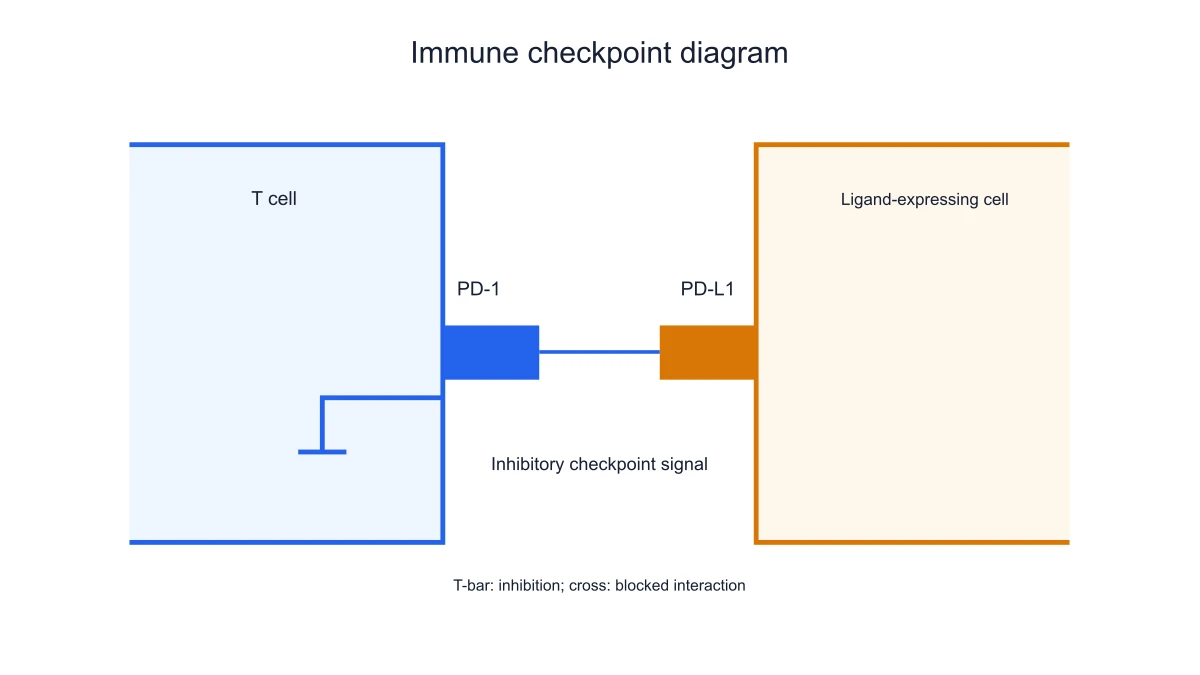
Teach PD-1 signaling
Use the PD-1/PD-L1 panel to locate the receptor and ligand on opposing cells. The inhibitory connection provides a concrete visual reference for the checkpoint mechanism being introduced.
Explore this exampleFree Immune Checkpoint Diagram Generator
Create PD-1/PD-L1 and CTLA-4/B7 schematics with distinct inhibition and blockade views. Edit cell and molecule labels and export SVG or PNG.
Start with up to 150 free credits|No credit card required
Get up to 350 free credits on day one when you join through an invite.
Free Immune Checkpoint Diagram Generator— templates & examples
Updated
Free scientific tools
Create PD-1/PD-L1 and CTLA-4/B7 schematics with distinct inhibition and blockade views. Edit cell and molecule labels and export SVG or PNG.
An immune checkpoint diagram shows receptor–ligand interactions that regulate immune-cell signaling, such as PD-1/PD-L1 and CTLA-4/B7. Create PD-1/PD-L1 and CTLA-4/B7 schematics with distinct inhibition and blockade views. Edit cell and molecule labels and export SVG or PNG.
Use SciFig to work with the specific inputs, labels and exported outputs described below.
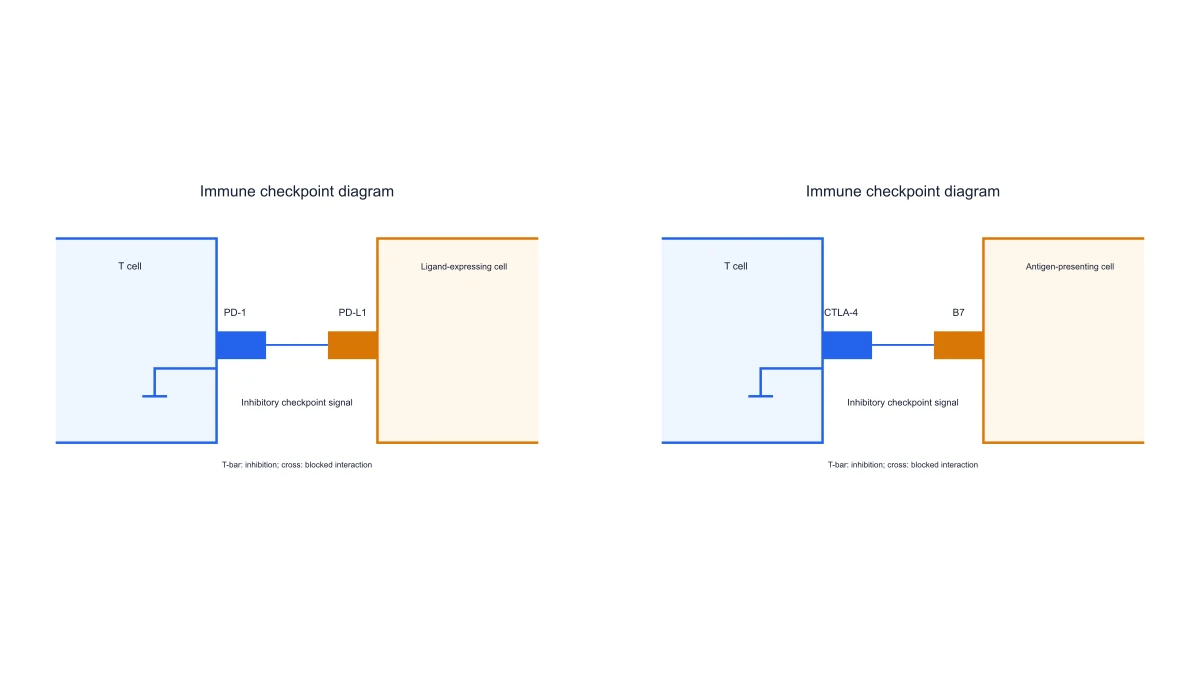
Place PD-1 on the T-cell side and PD-L1 on the opposing cell in the supported interaction schematic. SciFig’s immune checkpoint diagram retains cell boundaries and receptor labels, giving the audience a spatial reference for the checkpoint interaction.
Switch to the CTLA-4/B7 mechanism to show a different receptor–ligand pair. The view uses its own labels and cell context rather than replacing only the title of the PD-1 panel. Keep the selected checkpoint name visible when exporting panels for a comparison.
Choose the inhibitory interaction or its blockade view. SciFig uses distinct connection marks for the checkpoint signal and the interruption of that interaction. This makes blockade a change in the depicted mechanism rather than an arrow that falsely labels the checkpoint itself as a stimulatory signal.
Change the scientific annotations and colors to fit the explanation, then export SVG or PNG. Save JSON settings for a later revision. The finite local tool helps build a mechanism panel while keeping receptor placement and the chosen interaction visible.
Follow the local controls to prepare the immune checkpoint diagram from your input.
Select PD-1/PD-L1 or CTLA-4/B7. The preview shows the chosen receptor and ligand in their cell context. Use one pair per focused explanation before assembling a comparison panel.
Choose whether the figure explains the inhibitory interaction or its interruption. Follow the connection marks in the preview so the annotation distinguishes a checkpoint signal from blockade of that interaction.
Set the title and scientific annotations used in your lesson. Retain the receptor–ligand identities and cell boundaries while choosing colors that make the two sides of the interaction readable.
Export SVG or PNG and save JSON settings. Reopen the configuration to revise terminology or switch the supported view. Keep each panel labeled when placing several checkpoint diagrams in the same presentation.
Choose a focused figure for the question and document you are preparing.
Use the PD-1/PD-L1 panel to locate the receptor and ligand on opposing cells. The inhibitory connection provides a concrete visual reference for the checkpoint mechanism being introduced.
Explore this example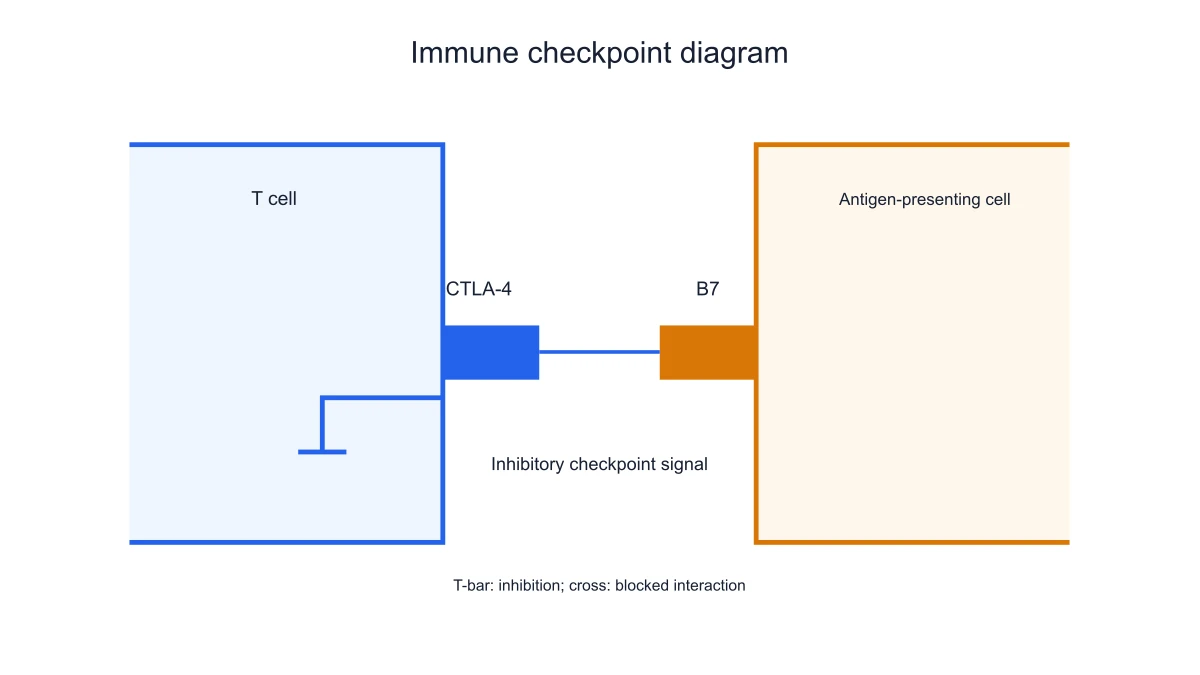
Prepare a focused CTLA-4/B7 panel for a lesson on immune regulation. Keeping the receptor names in the figure helps separate this interaction from the different checkpoint pair used in a PD-1 example.
Explore this example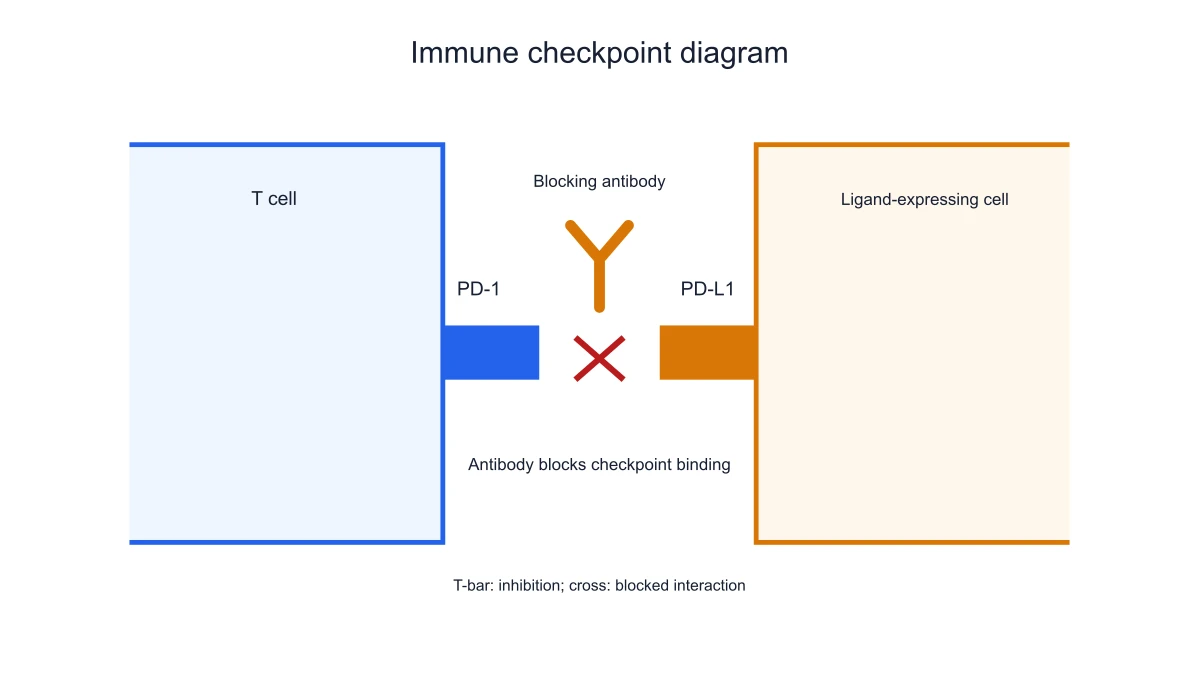
Compare interaction and blockade views while preserving the same cell arrangement. The changed connection marks help the audience follow what is interrupted, without implying a clinical outcome from the schematic alone.
Explore this exampleExport a receptor–ligand panel to introduce a broader immune-regulation discussion. Labels and cell placement make the panel understandable when it appears apart from the slide’s spoken explanation.
Explore this example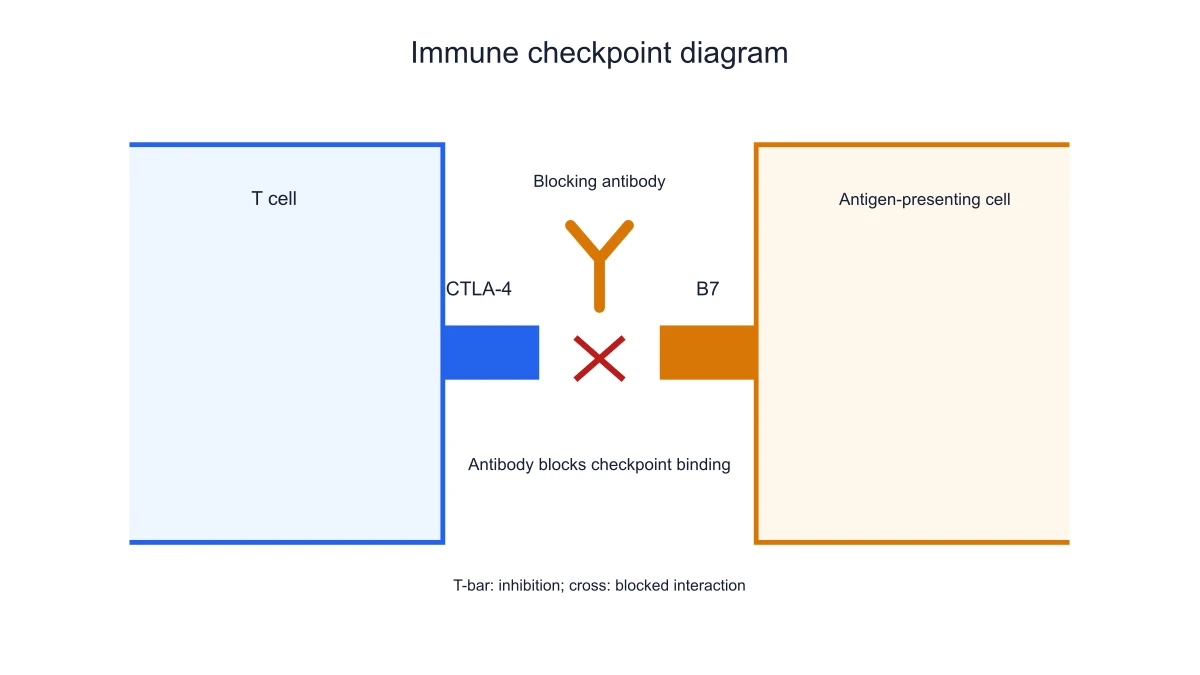
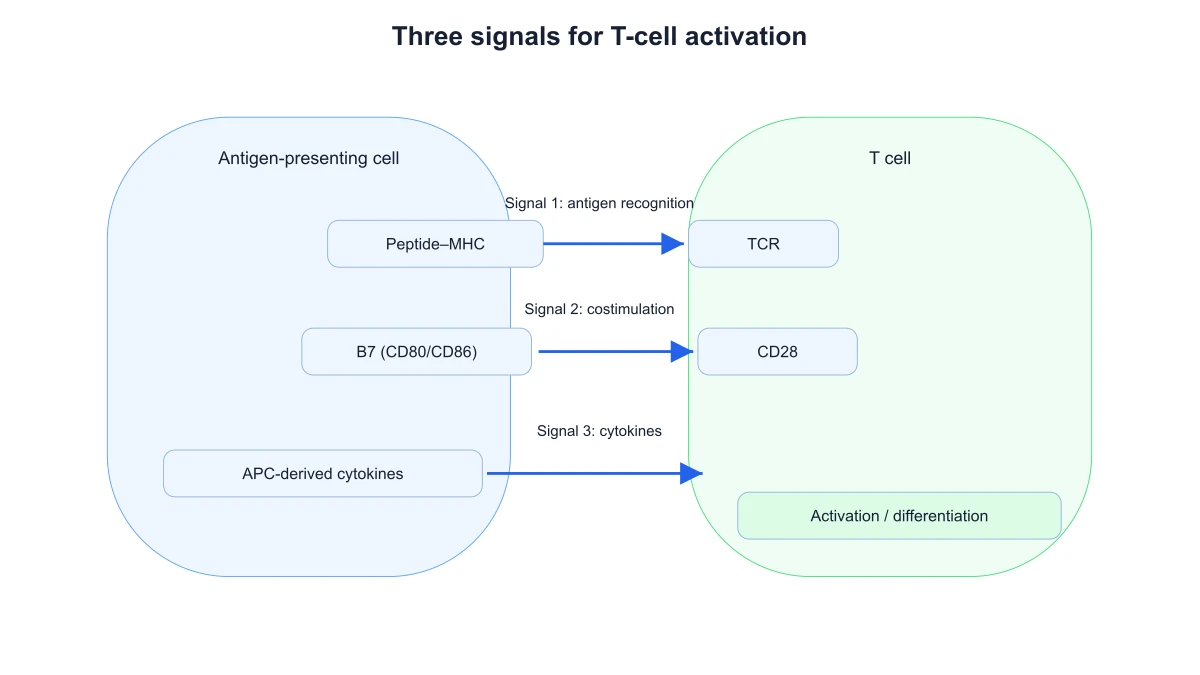
Pair the checkpoint panel with a T-cell activation schematic. The activation figure establishes the broader context, while the checkpoint figure focuses on a specific regulatory interaction between two cells.
Explore this exampleSave the chosen checkpoint and annotations in JSON when coordinating several presentation panels. Reopen the configuration to edit wording and export a revised version while retaining the interaction represented by the original panel.
Explore this exampleI needed an immune checkpoint diagram that placed PD-1 on the T-cell side and PD-L1 on the opposing cell. I selected the inhibition preset and edited the cell labels. The SVG gave our seminar a readable receptor–ligand overview, with the inhibitory signal separated from the clinical response data shown later.
Sara Mitchell
Tumour Immunology Doctoral Researcher · University of Southampton
Free tools
A tool for every scientific figure
130 focused generators for the scientific figure you need — each opens in the right workspace with a matching example.
Illustrations, structures and concept diagrams
68 tools Chemistry Structure Generator
 Graphical Abstract Maker
 Free Body Diagram Generator
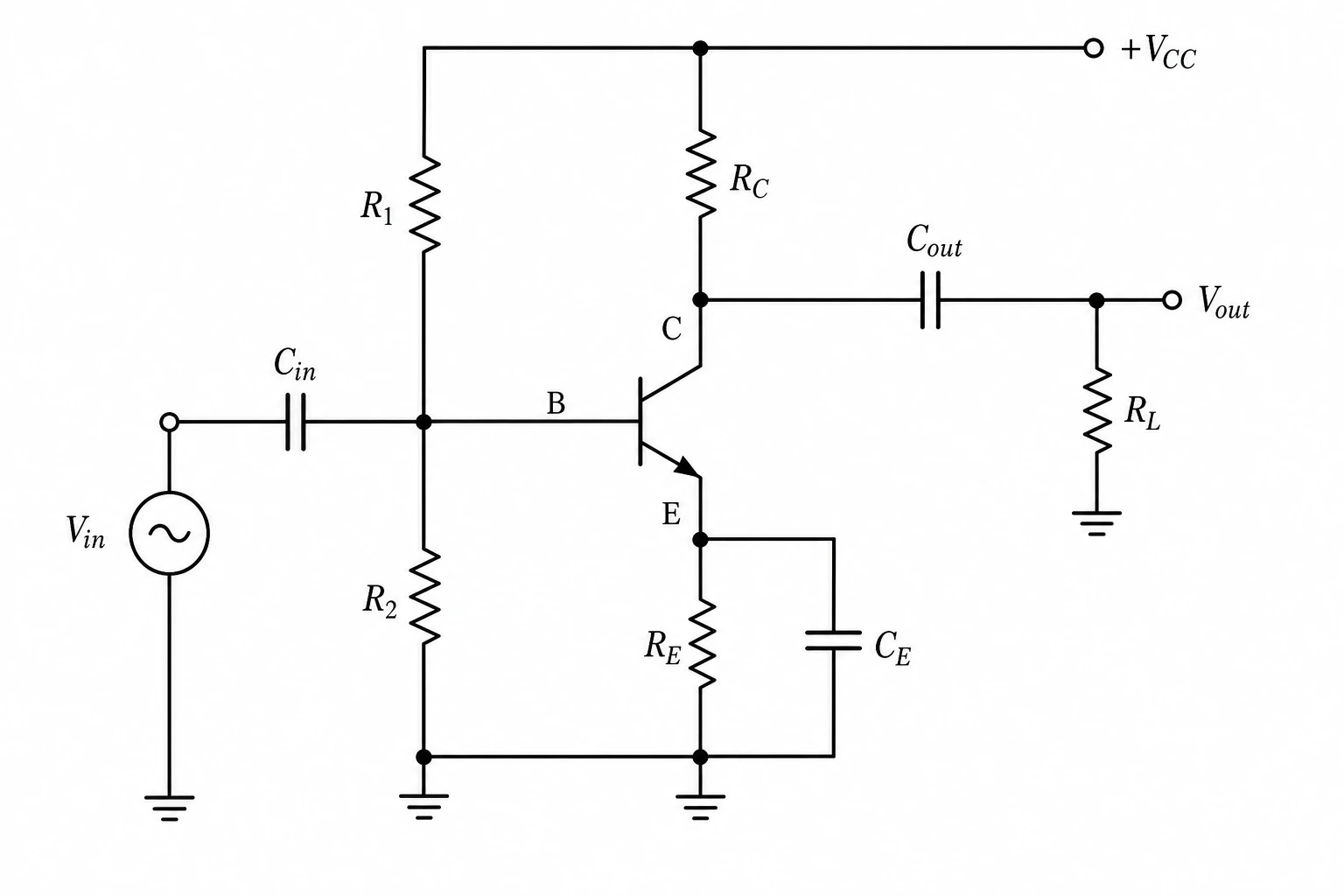 Circuit Diagram Maker
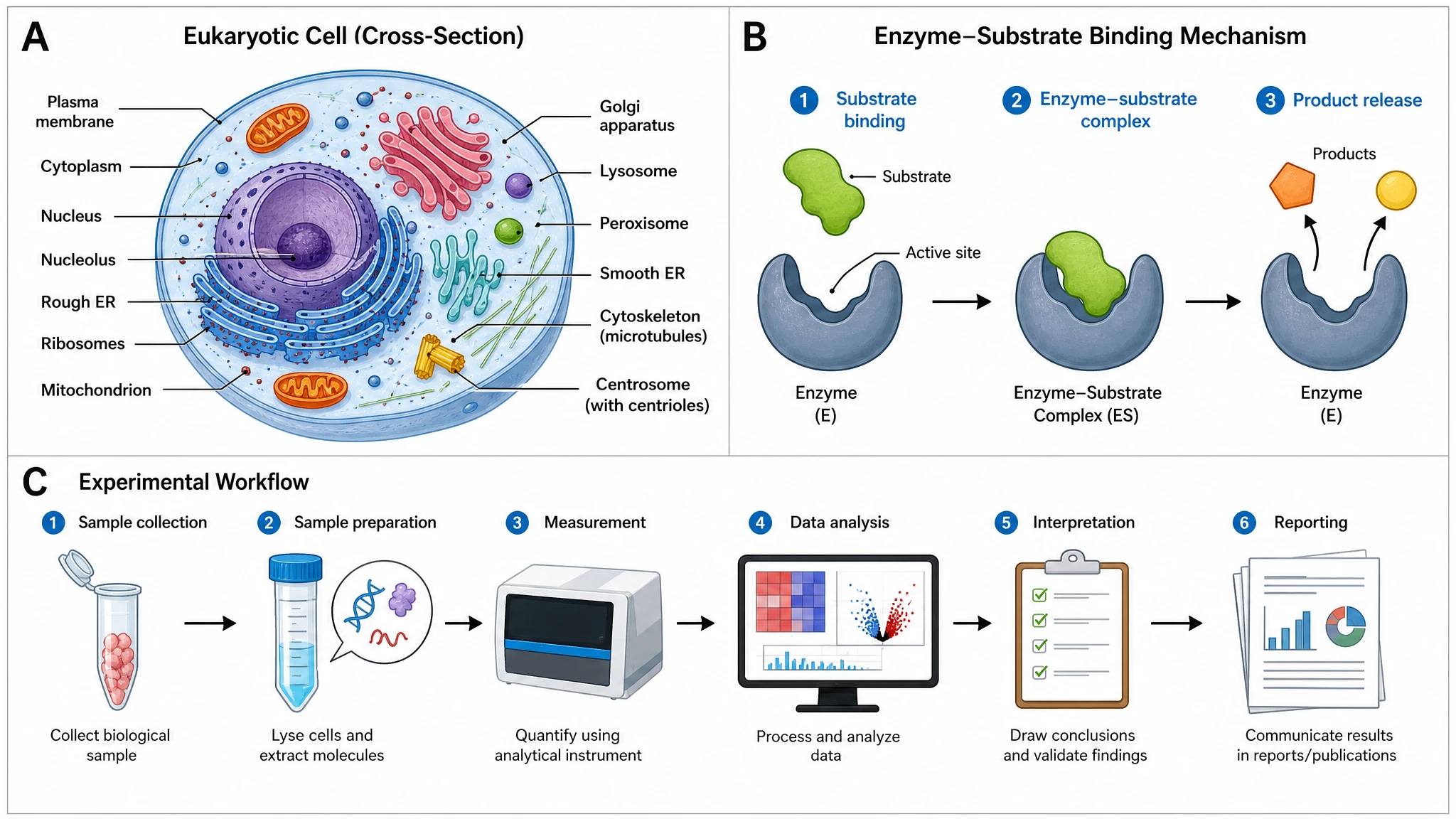 AI Scientific Image Generator
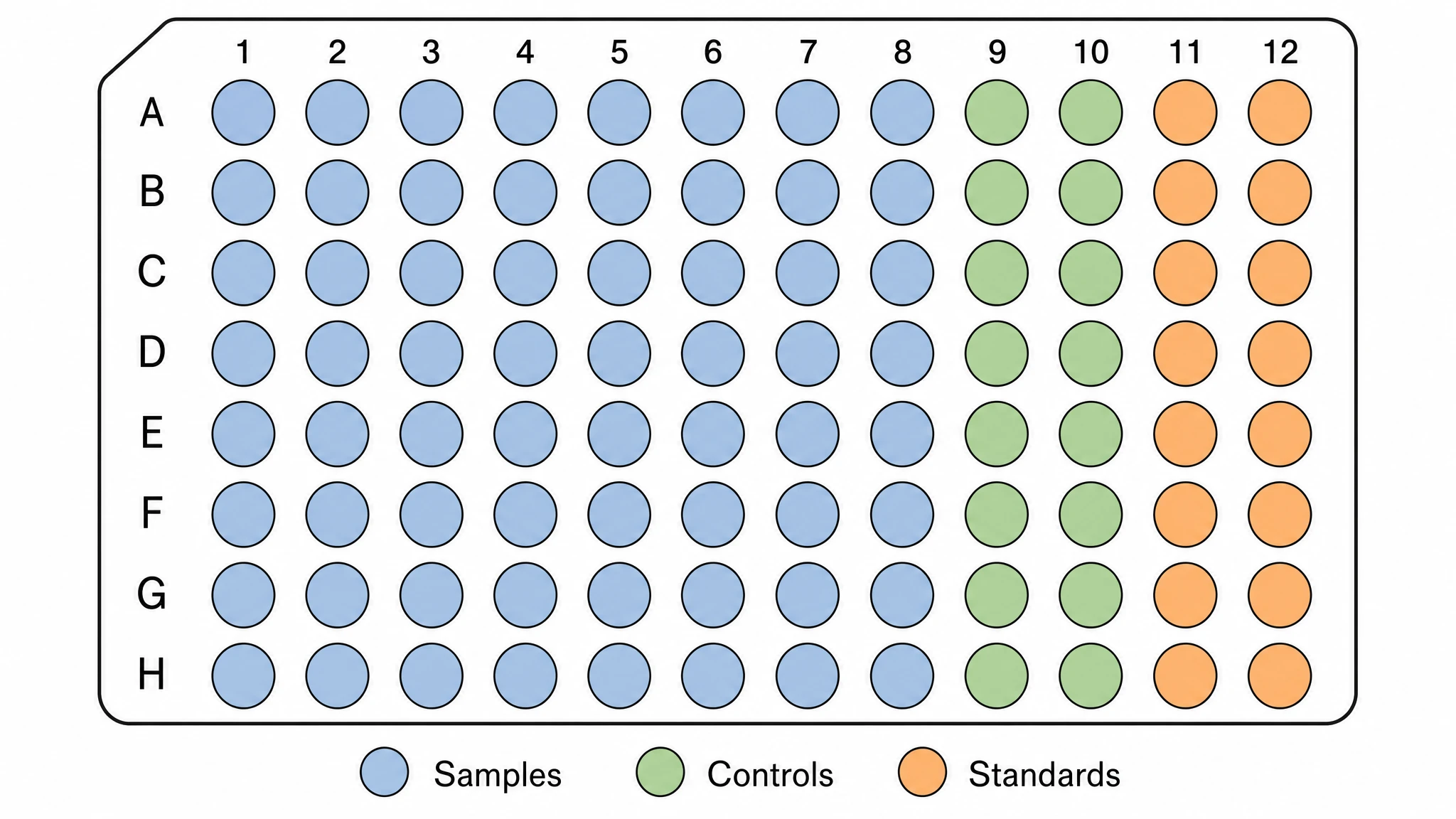 Editable 96-Well Plate
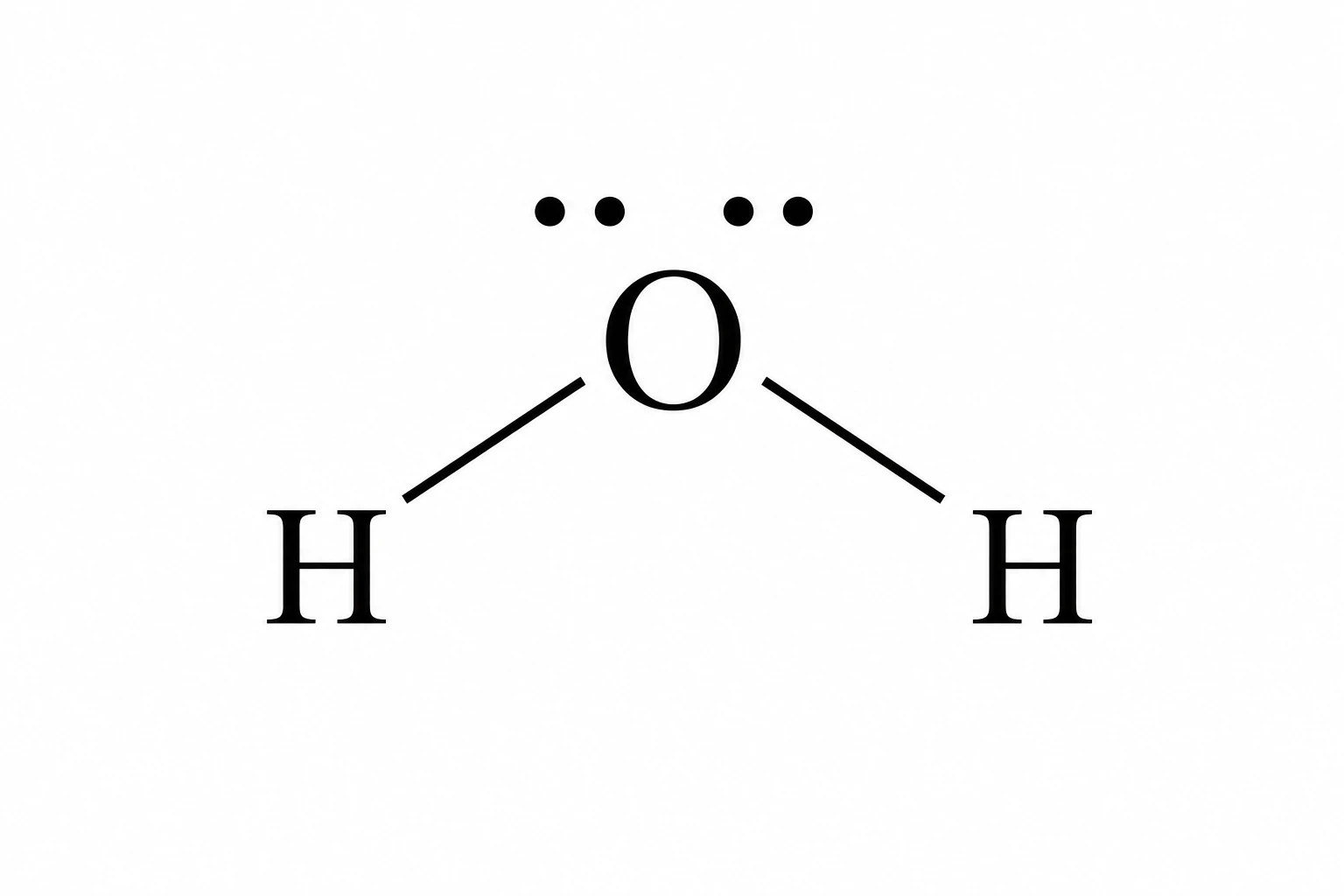 Lewis Dot Structure Generator
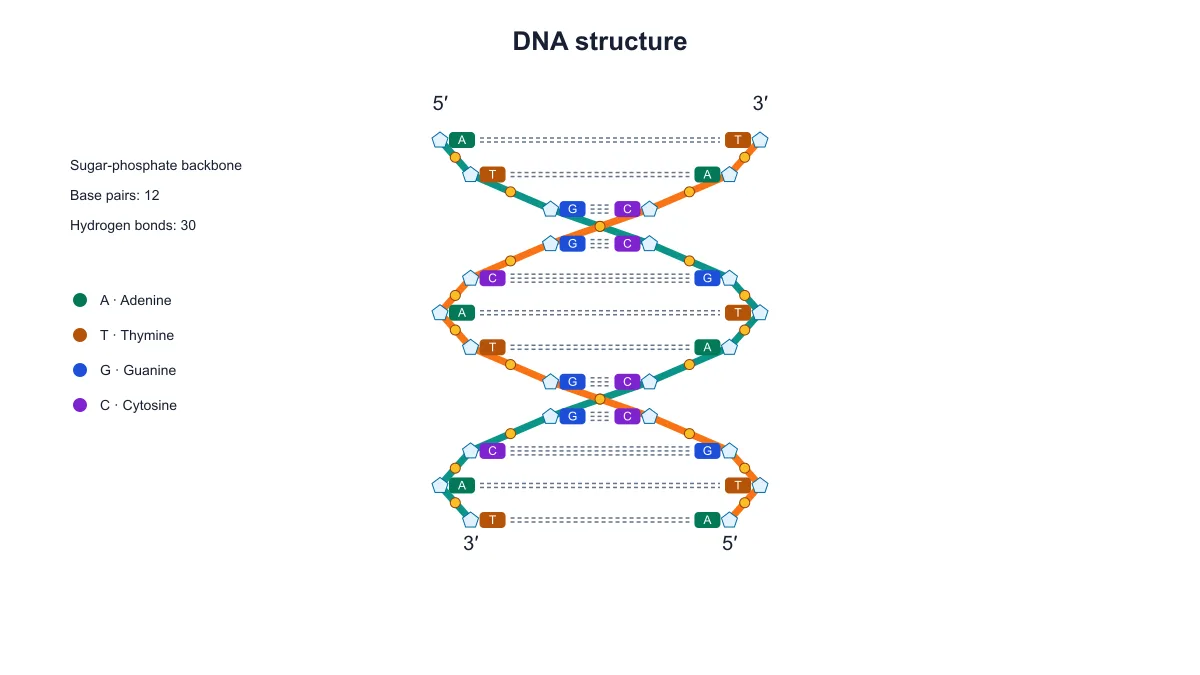 DNA Structure Diagram Generator
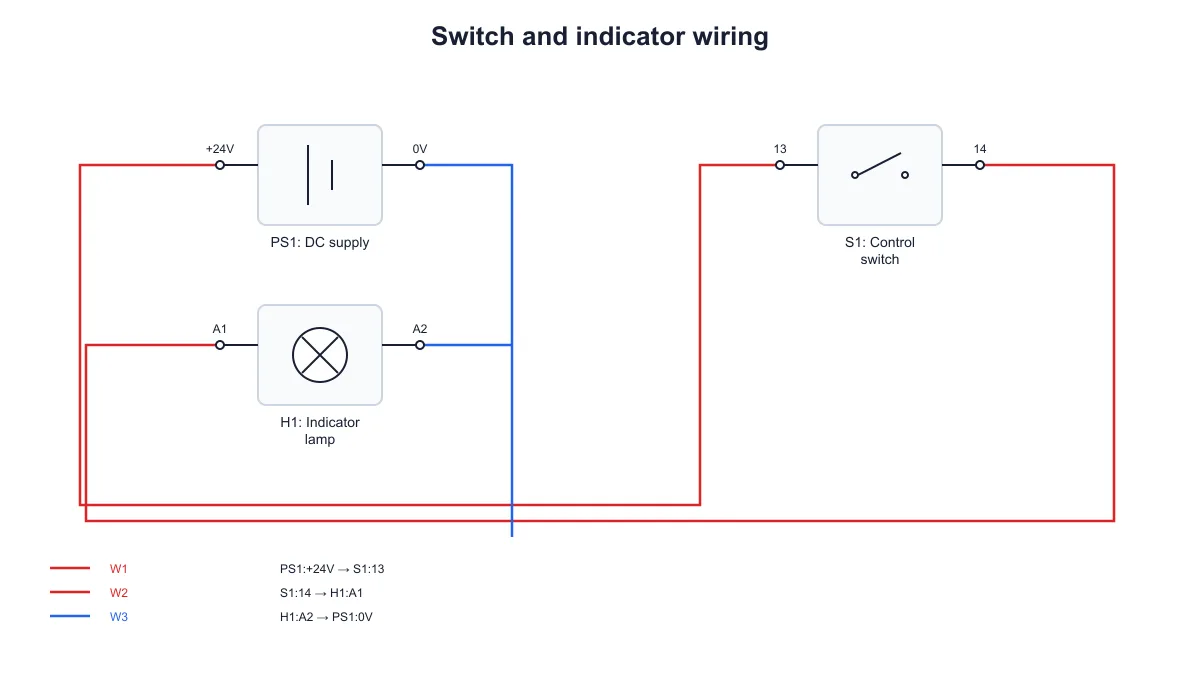 Wiring Diagram Maker
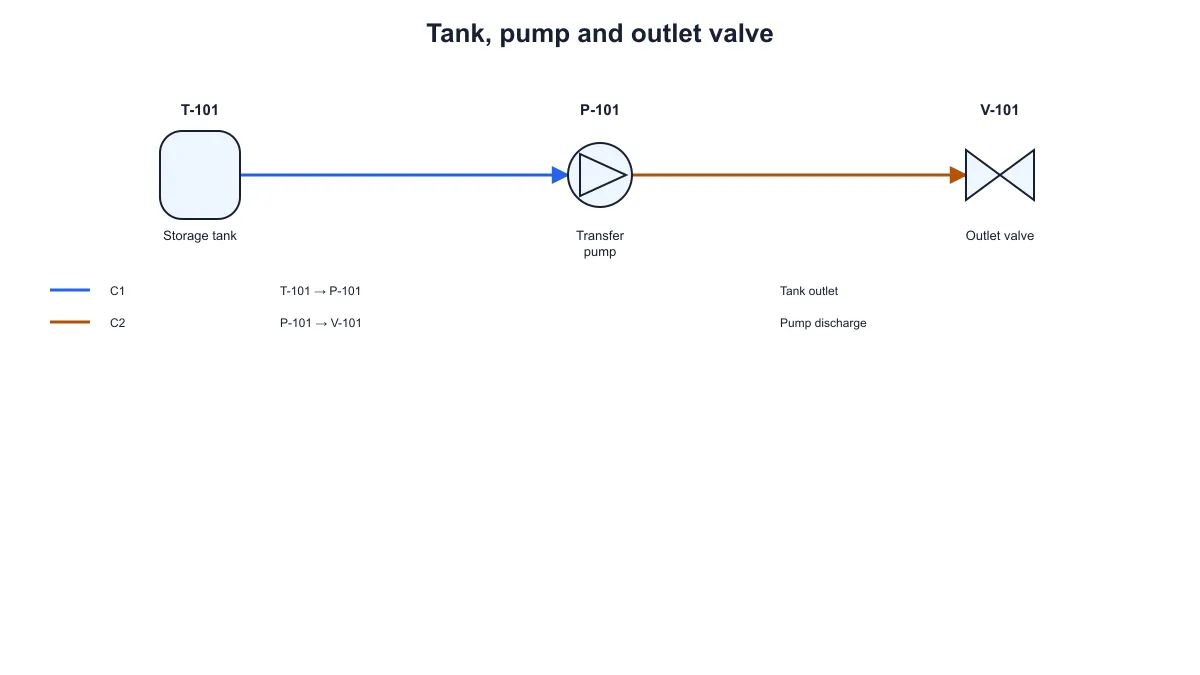 P&ID Diagram Generator
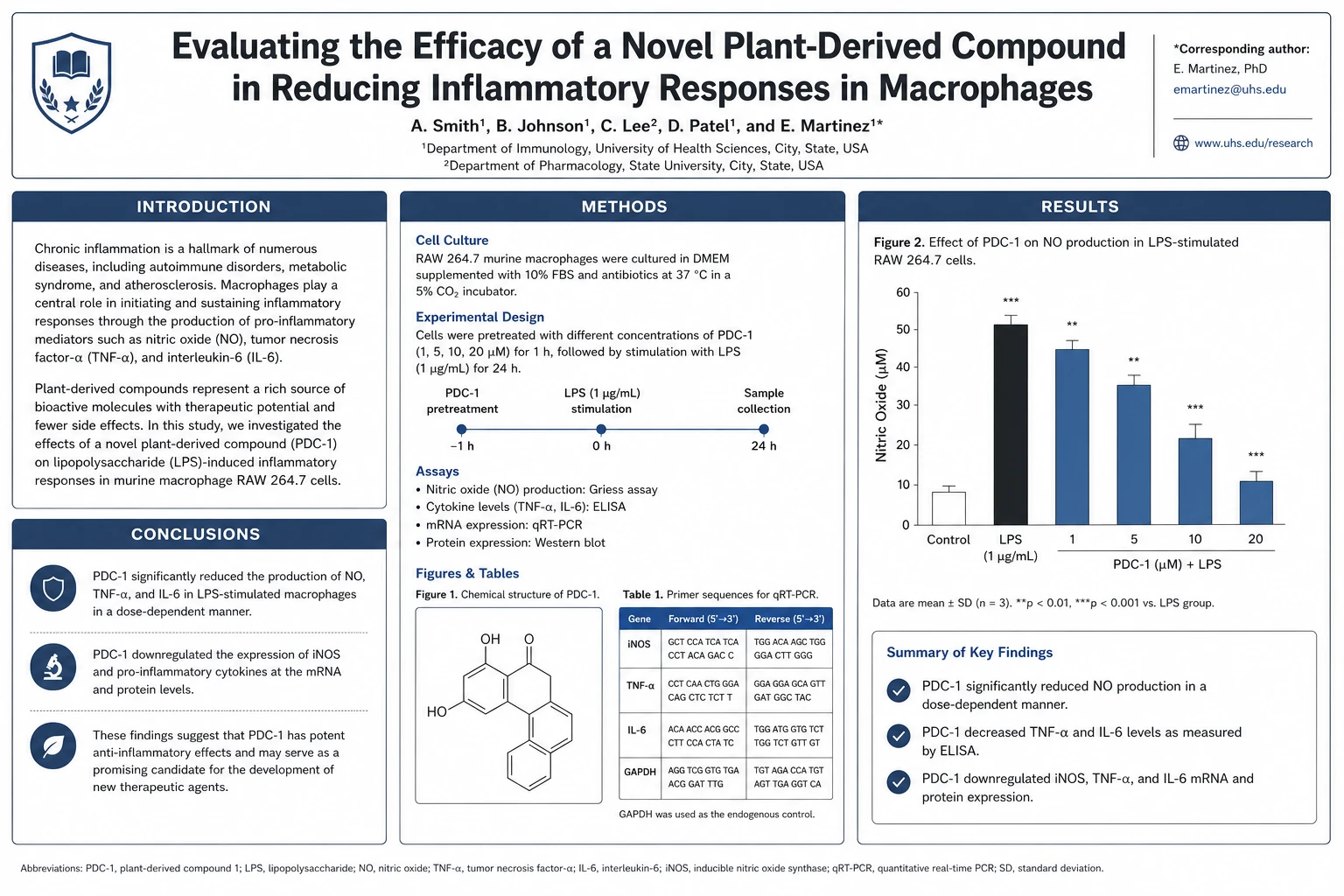 Scientific Poster Generator
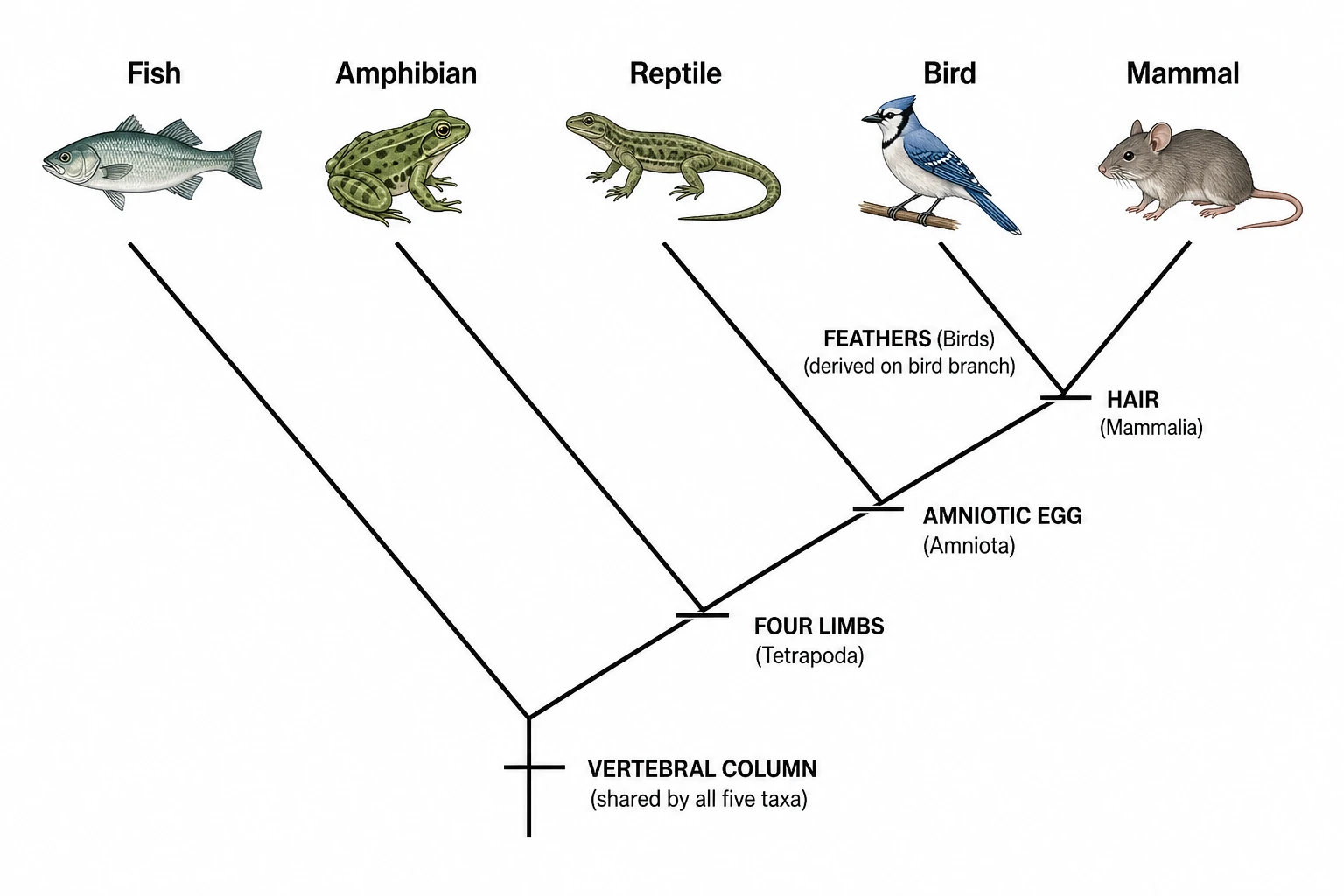 Cladogram Maker
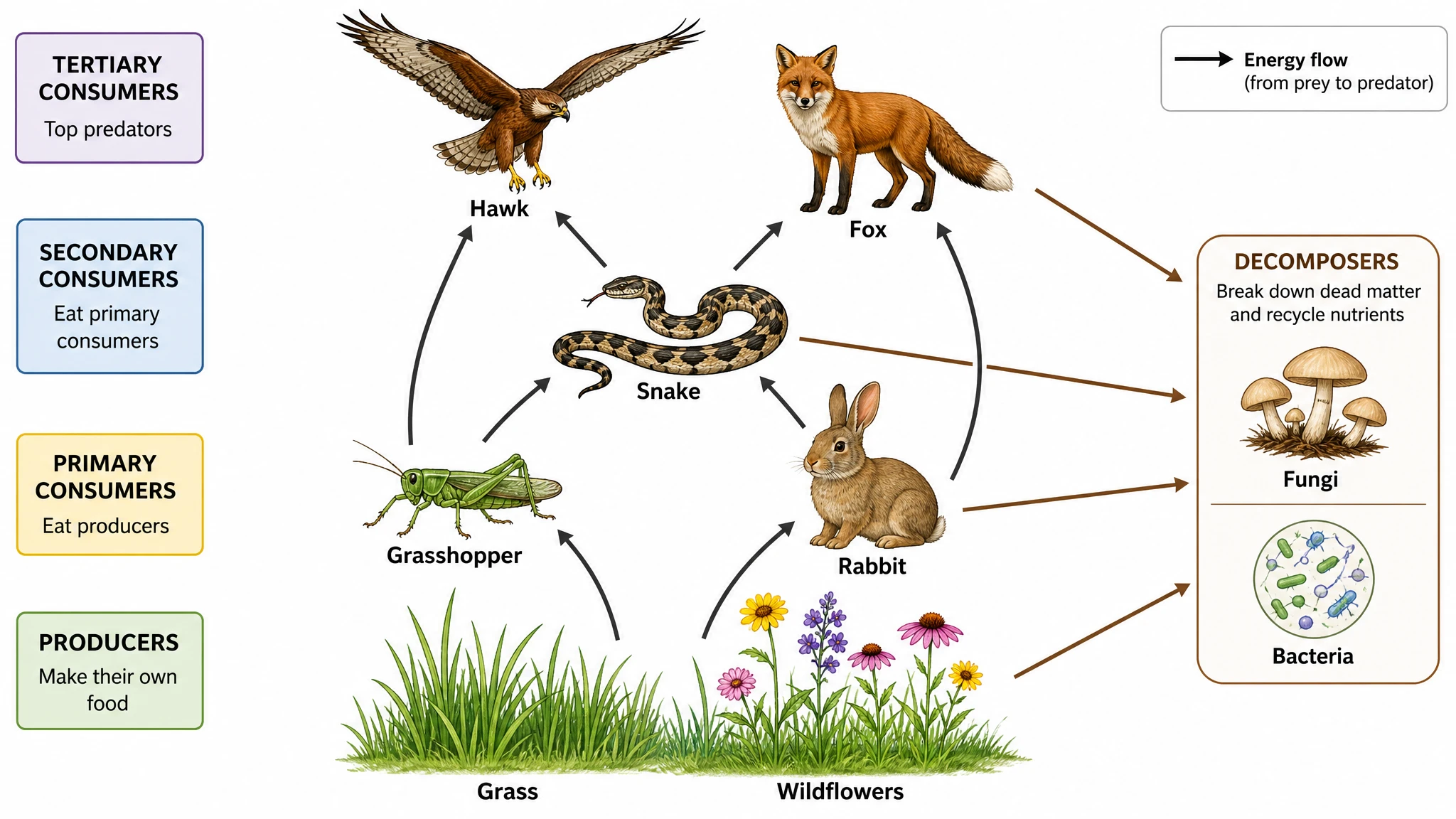 Food Web Maker
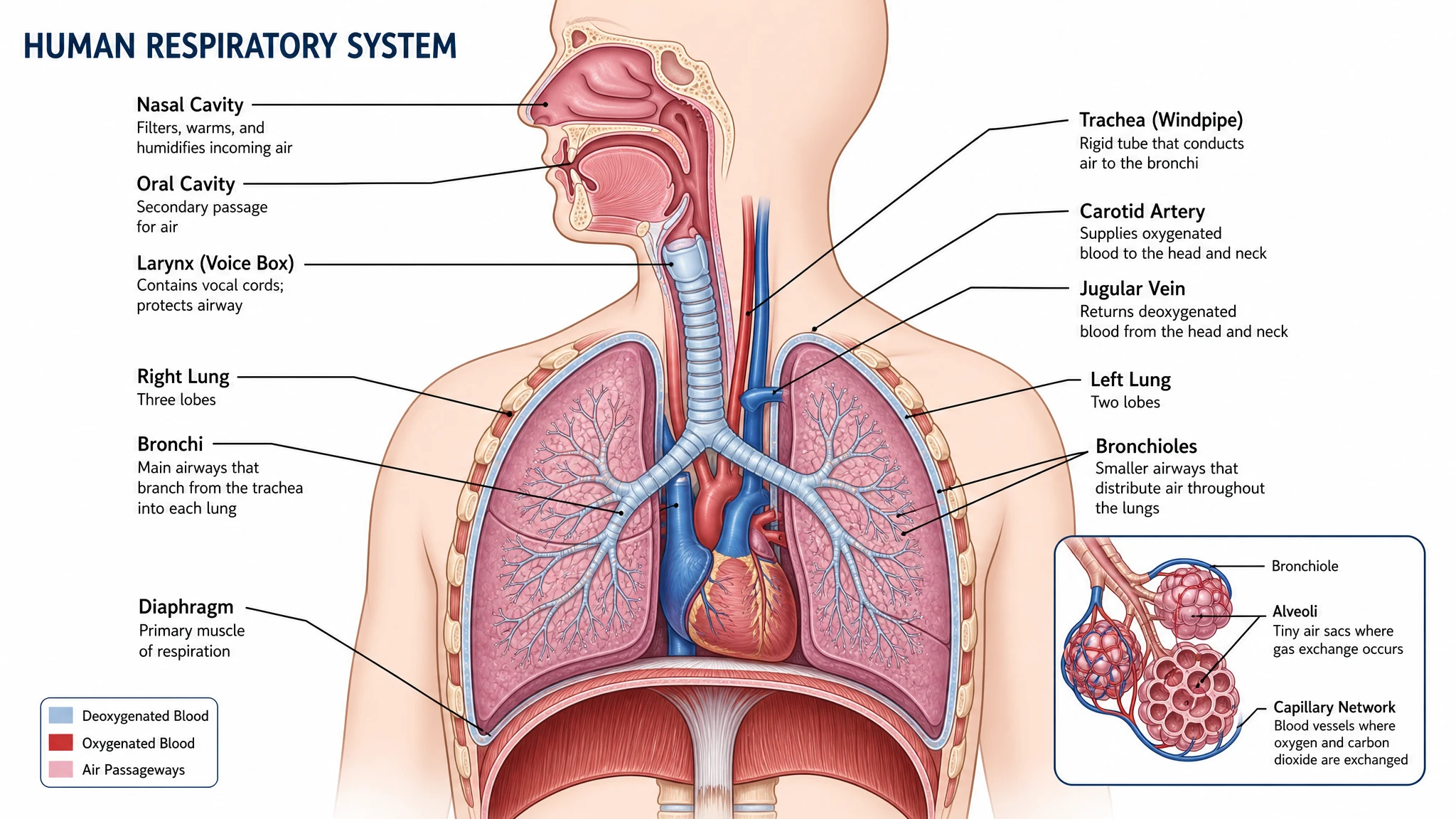 Medical Illustration Generator
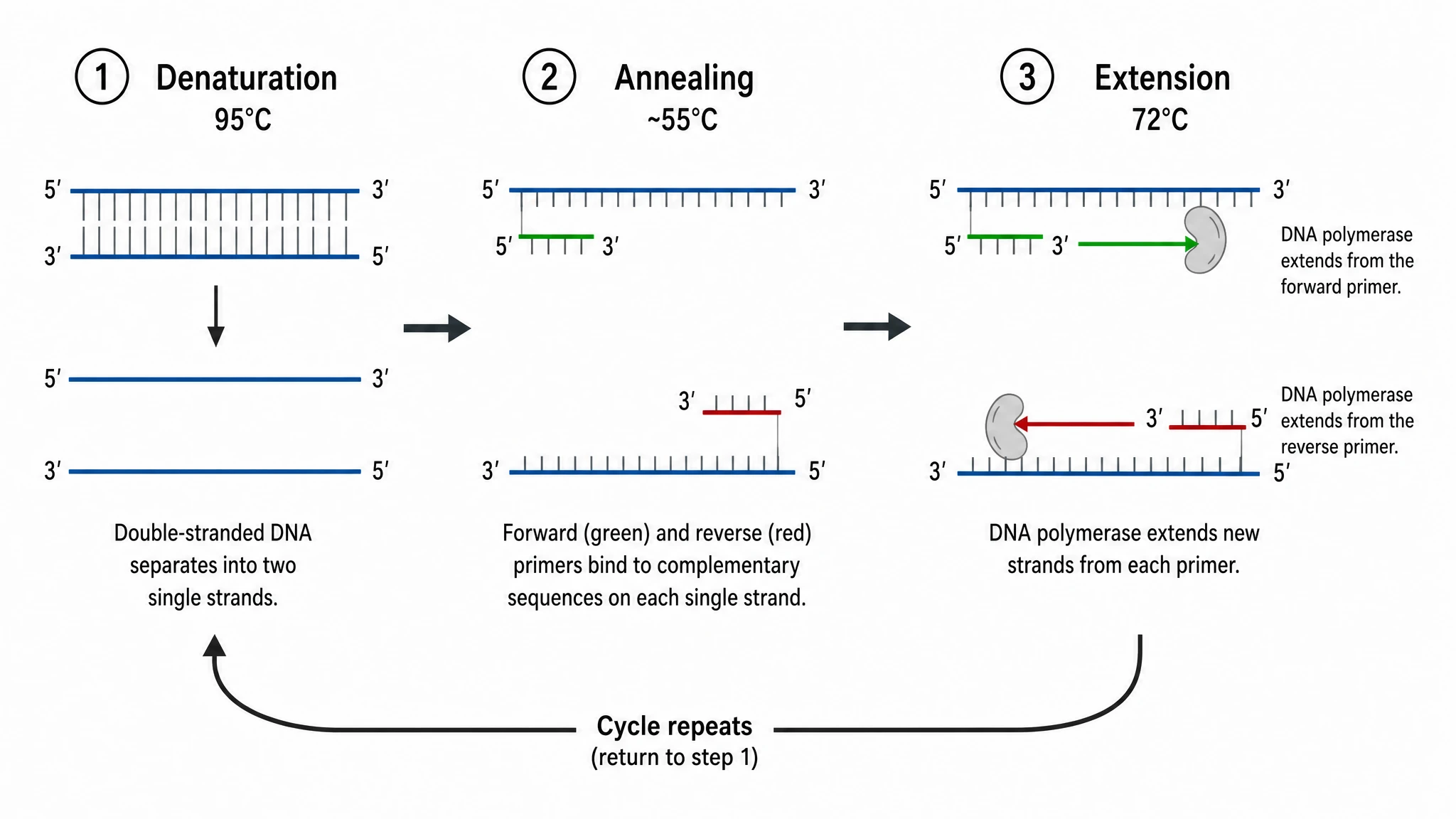 PCR Diagram Generator
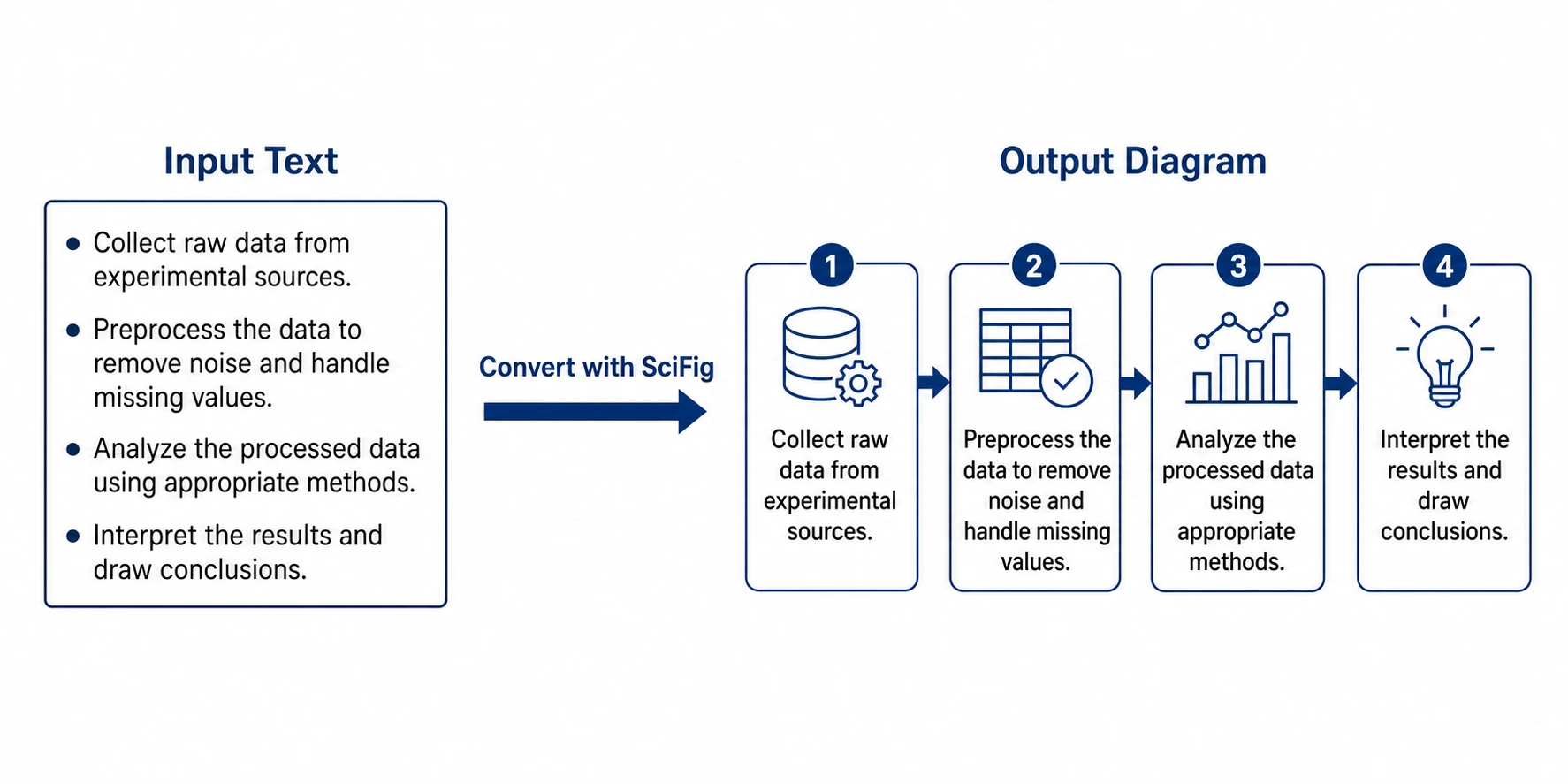 PPT Text to Visual Converter
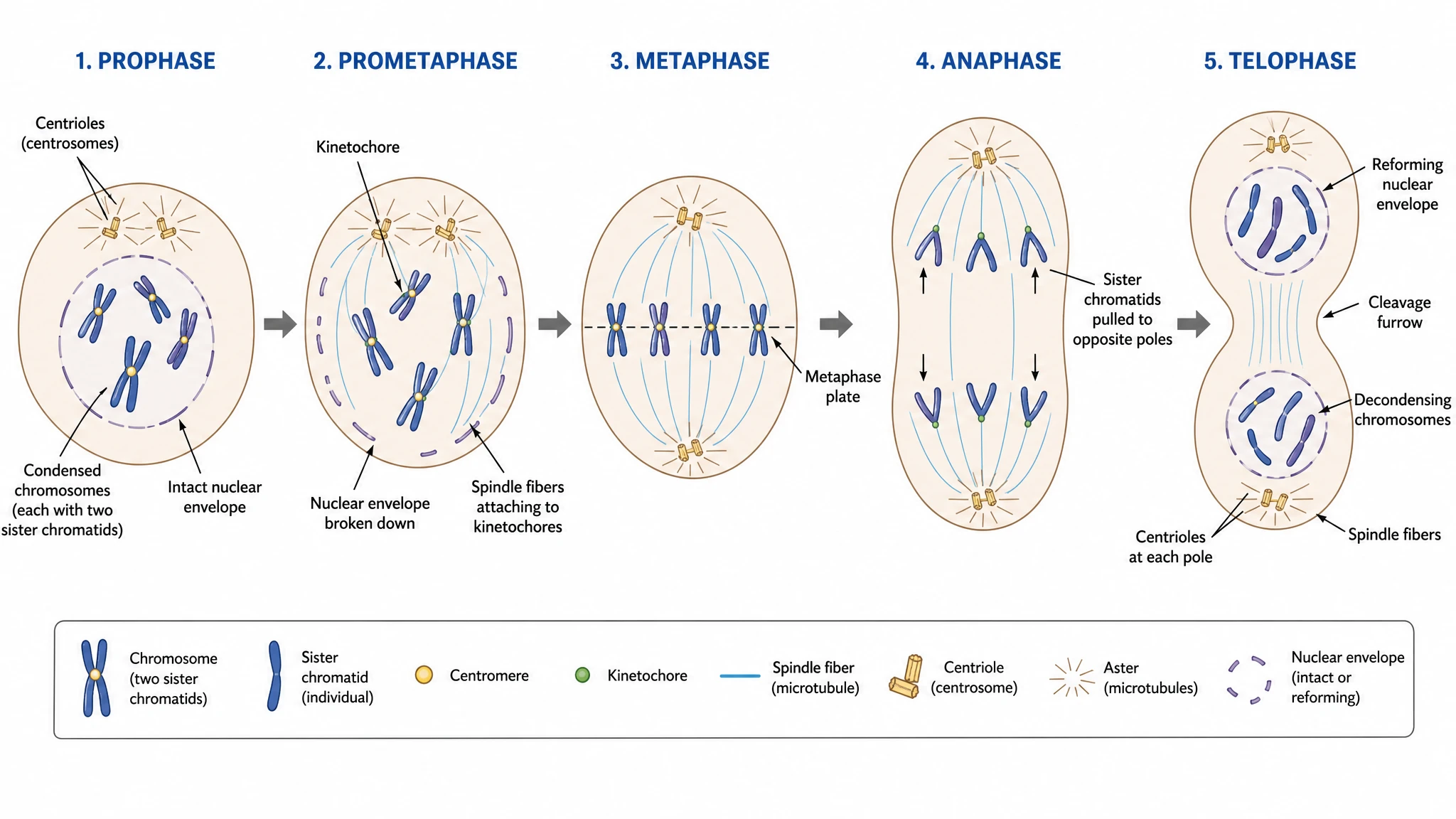 Mitosis Diagram Generator
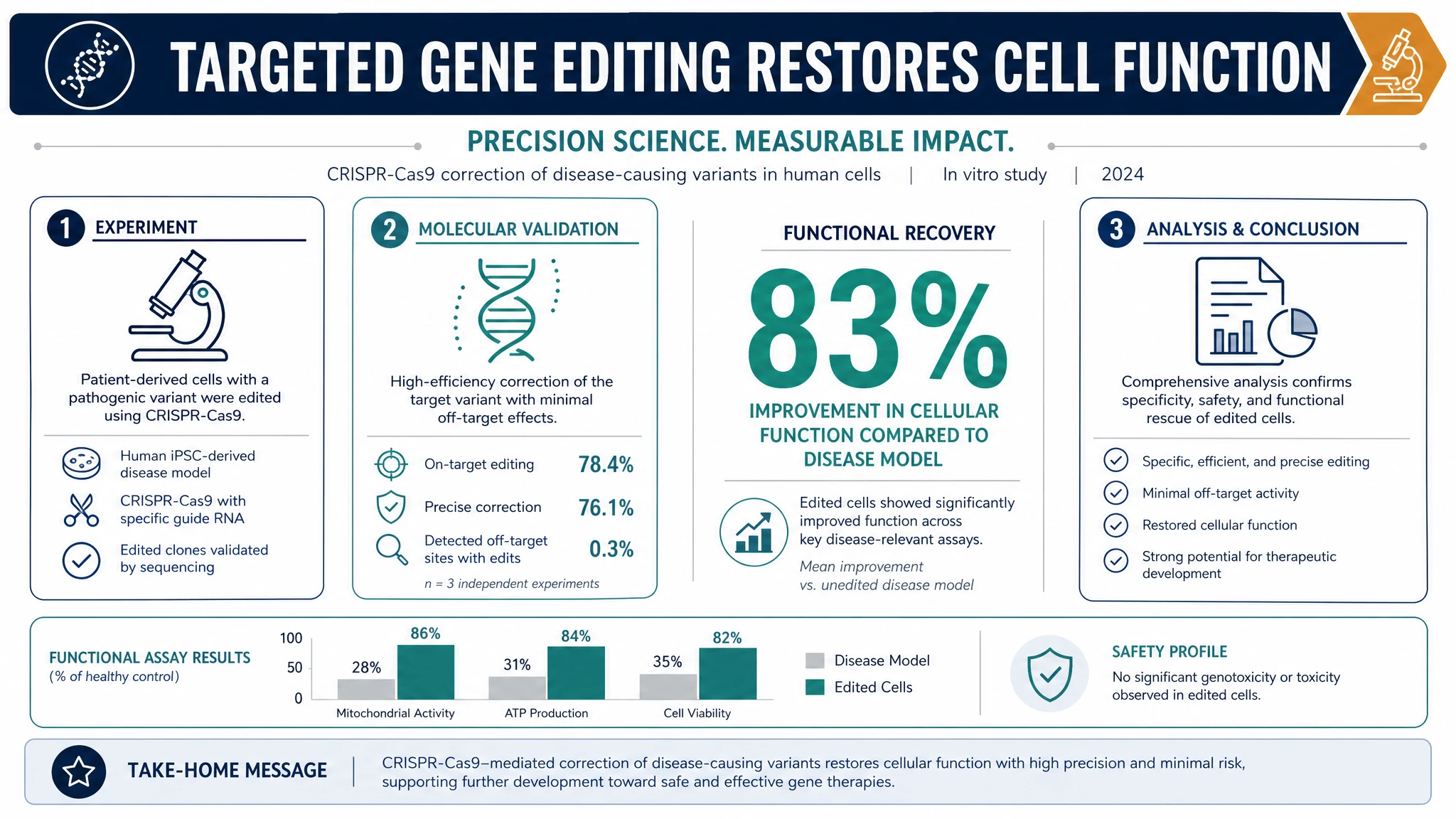 AI Infographic Generator
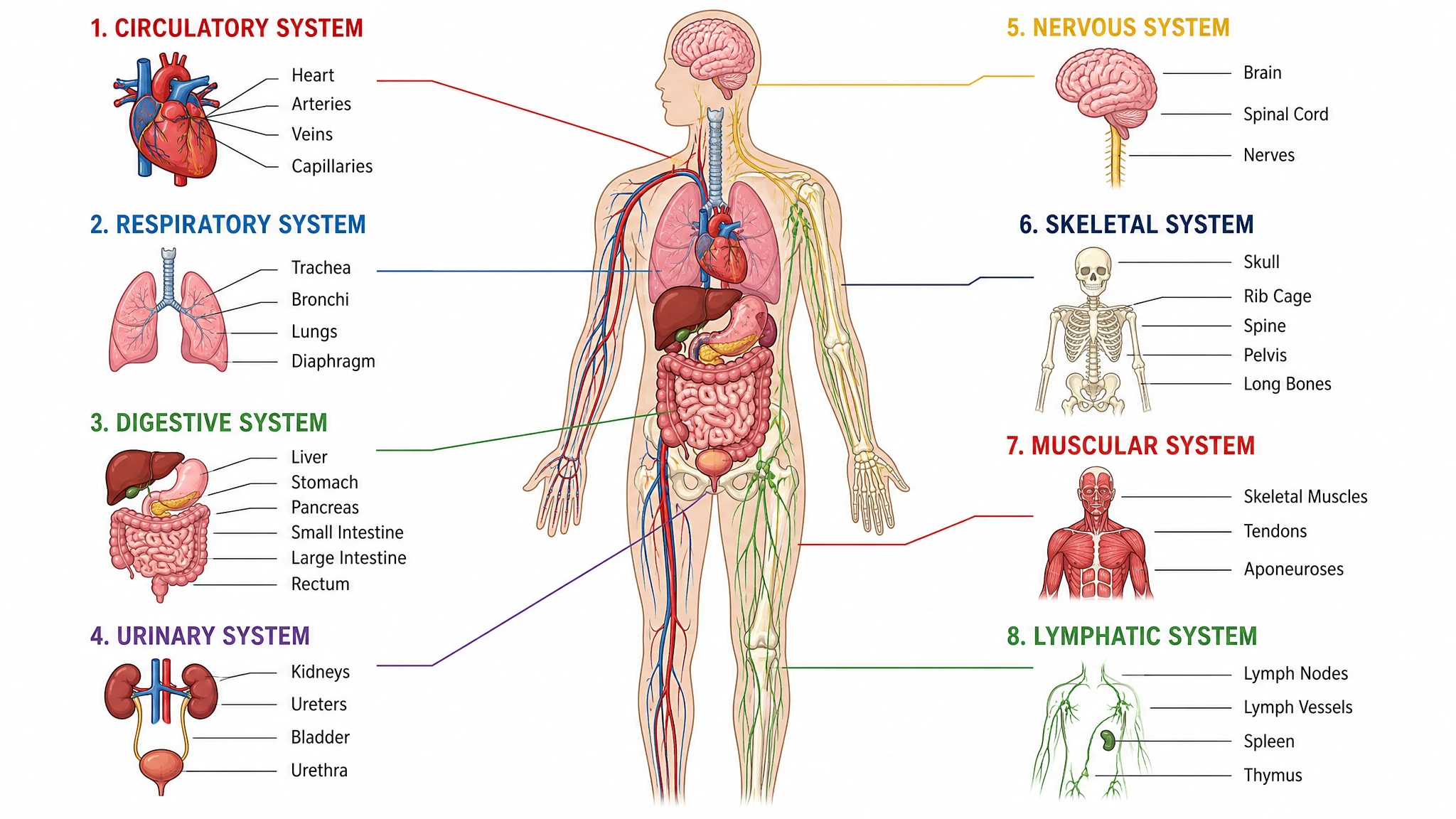 Anatomical Drawing Generator
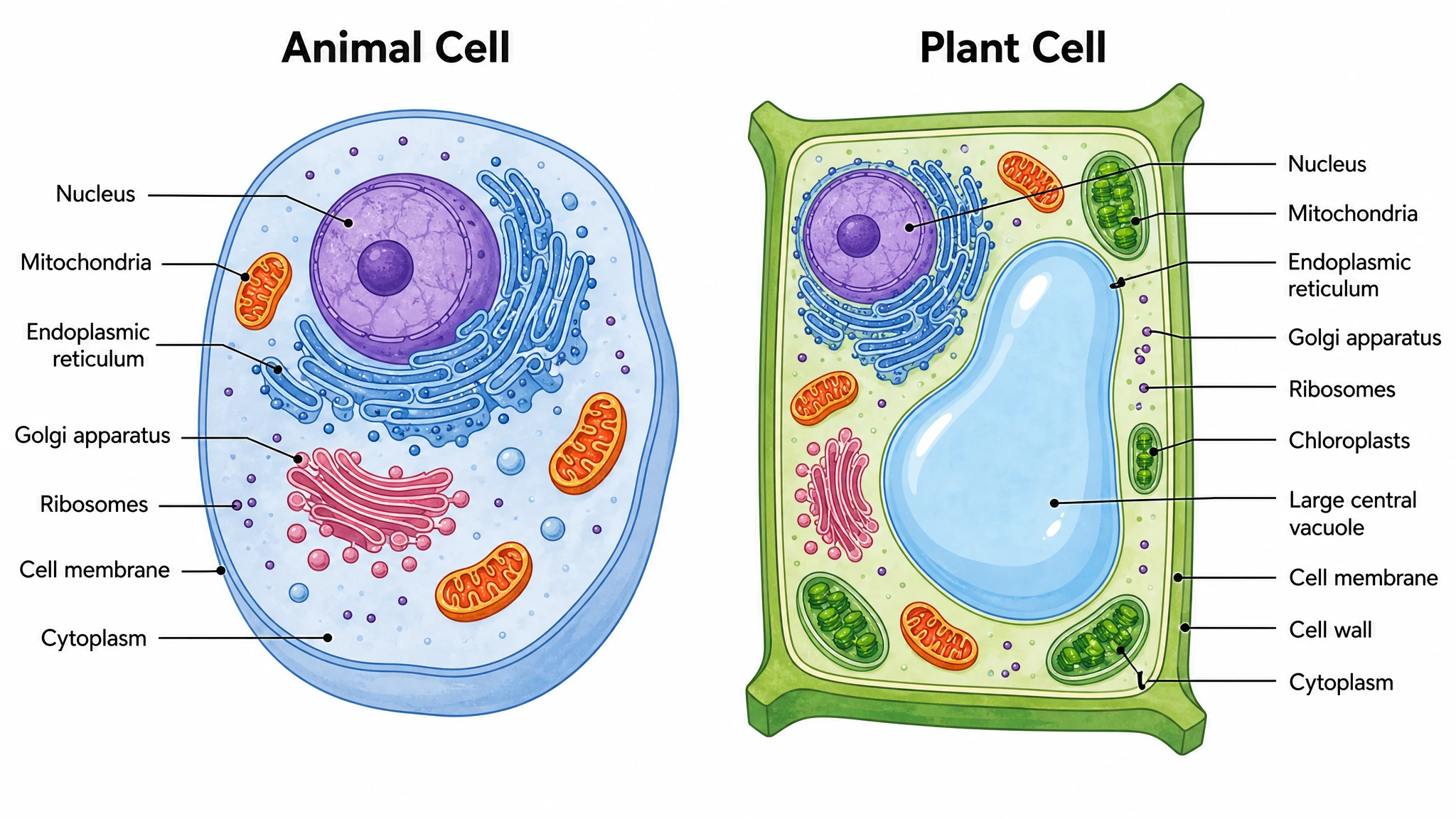 Animal and Plant Cell Comparison
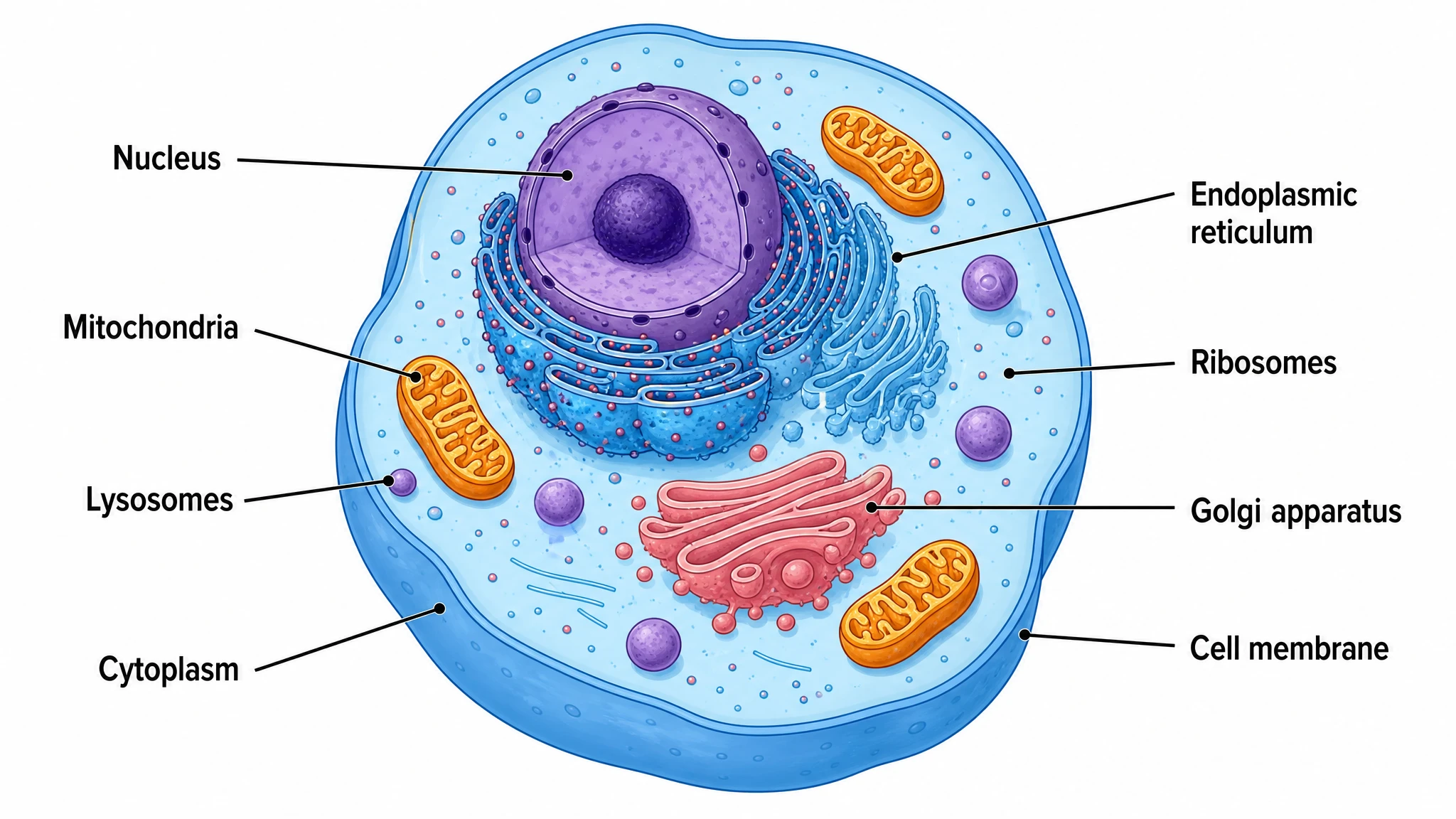 Animal Cell Diagram Generator
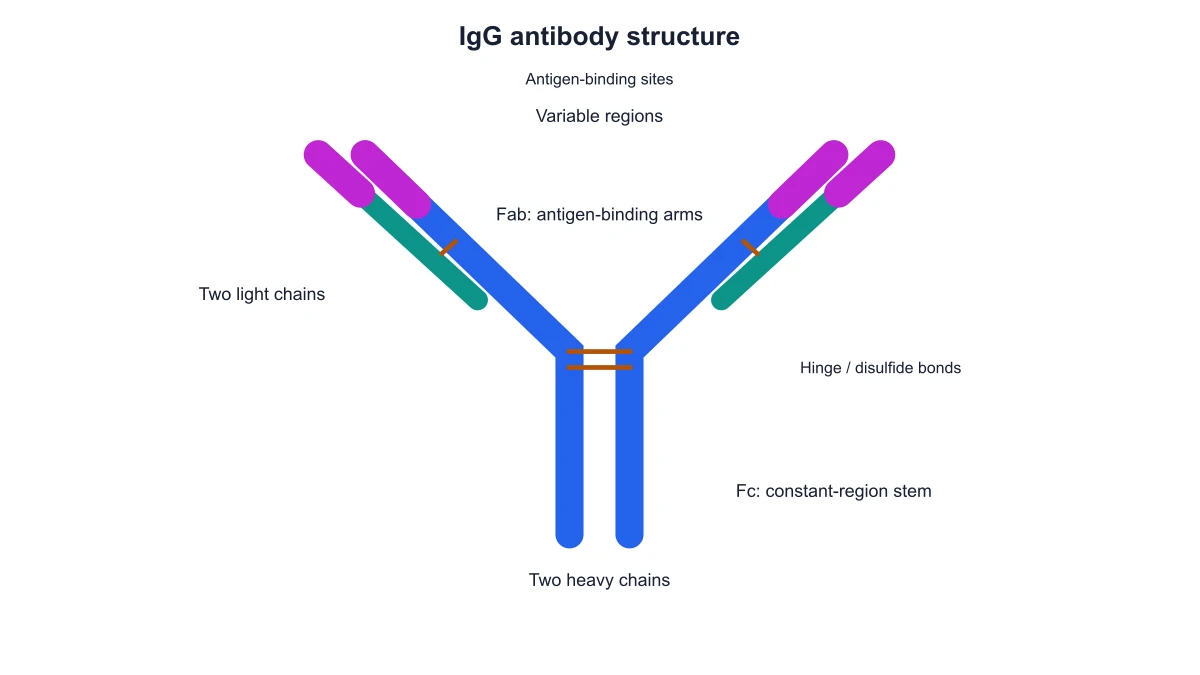 Antibody Structure Diagram Generator
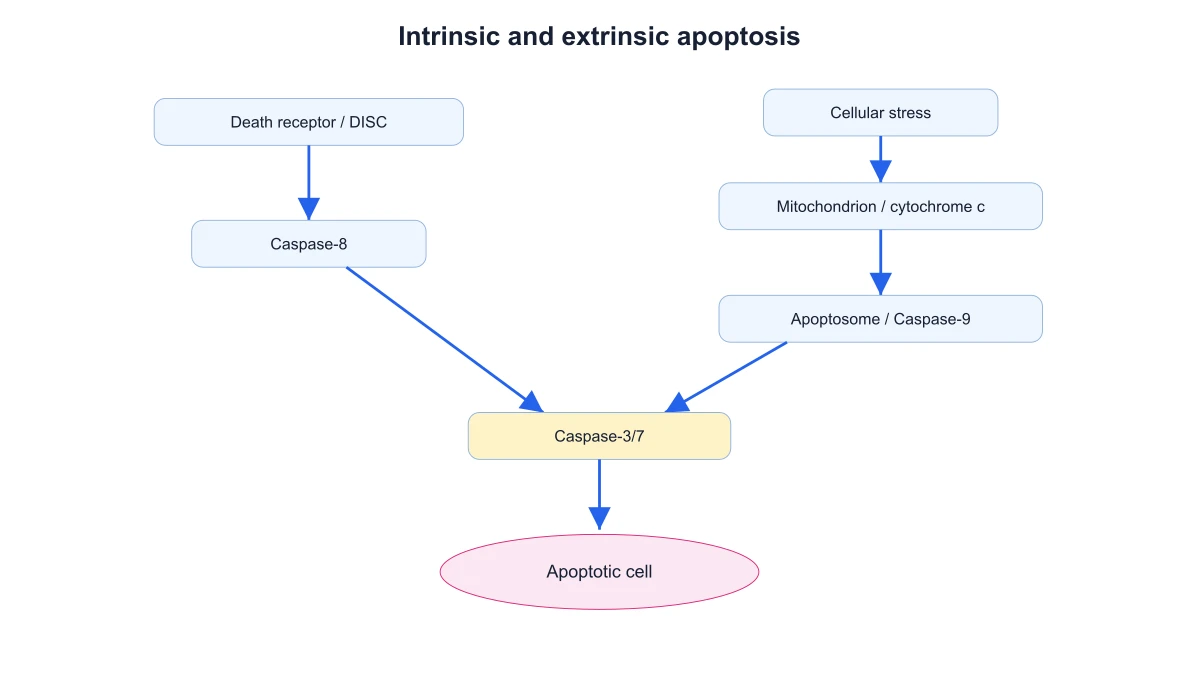 Apoptosis Diagram Generator
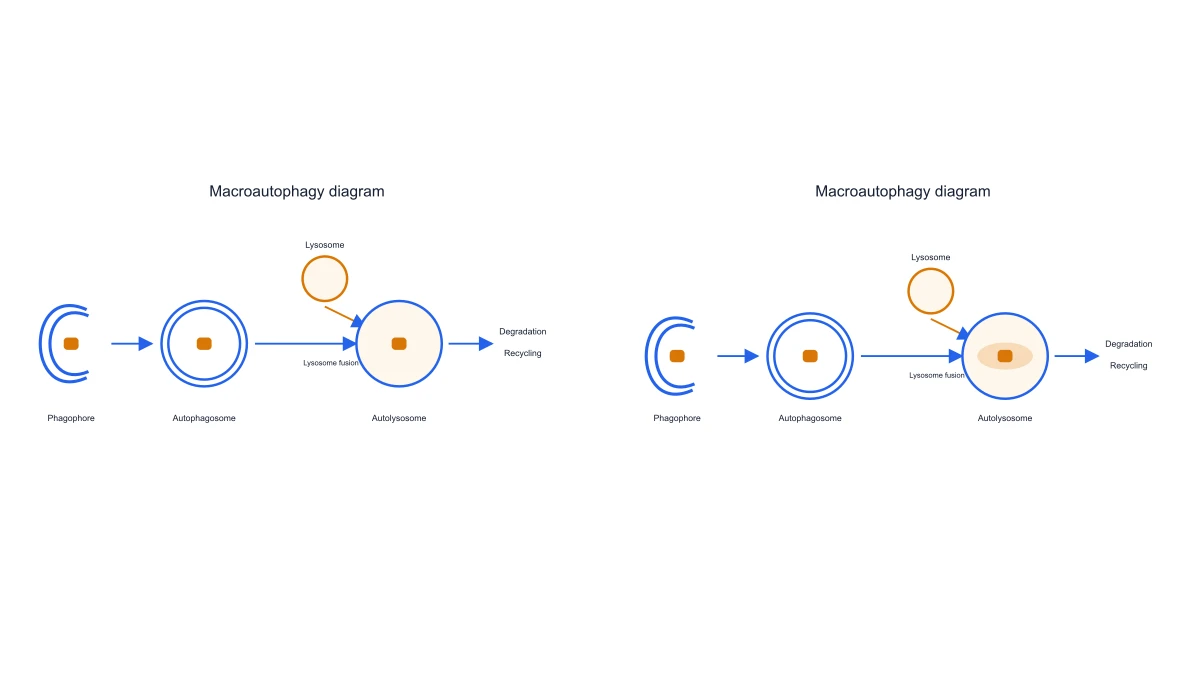 Autophagy Diagram Generator
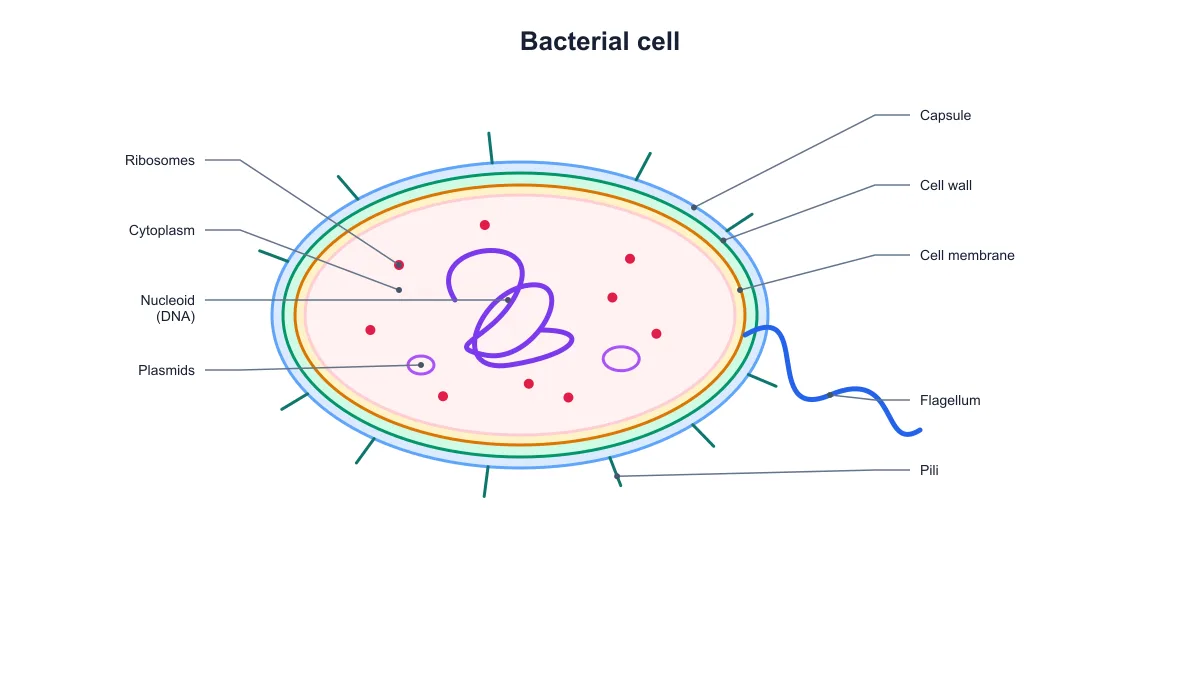 Bacteria Diagram Generator
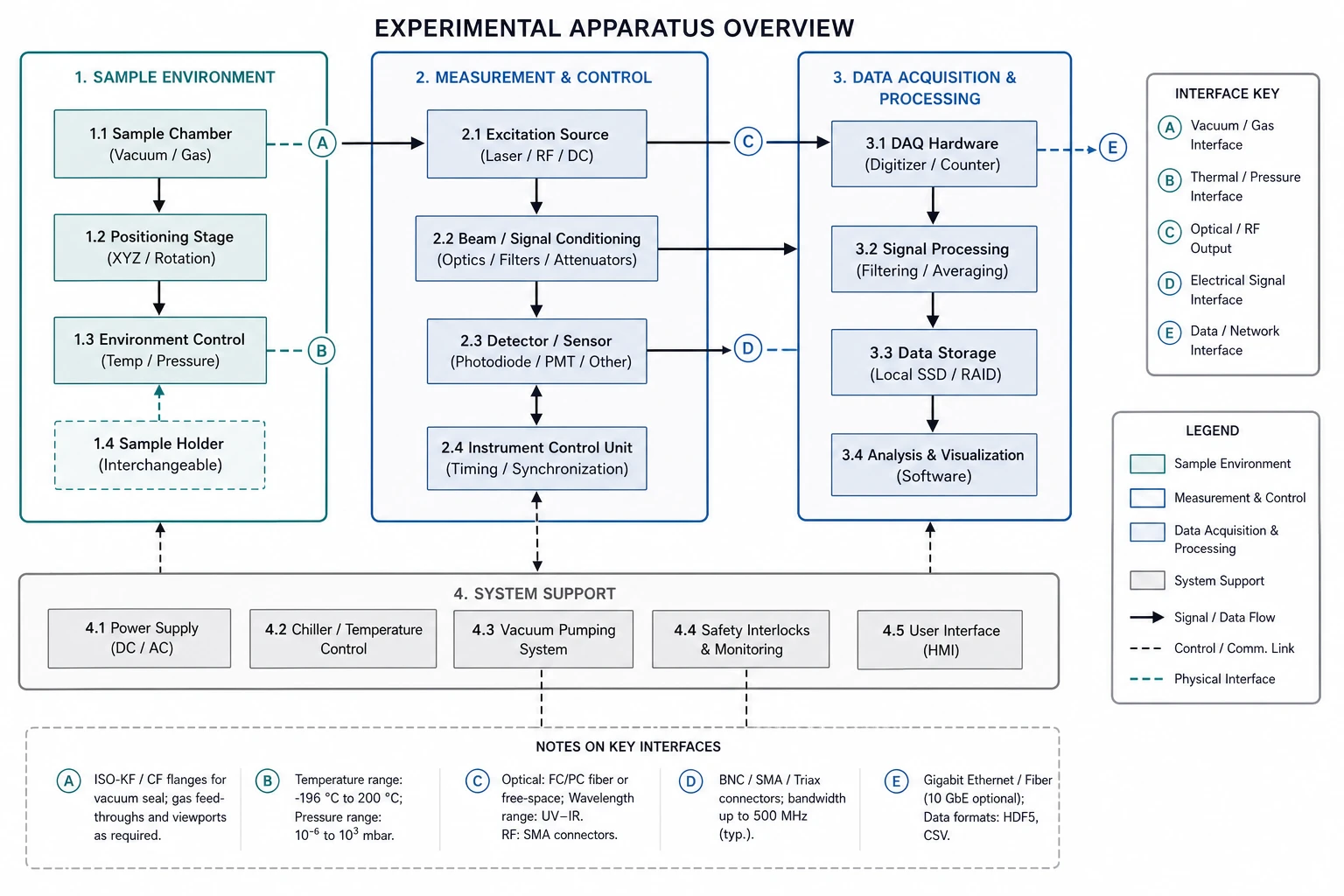 Blueprint Maker
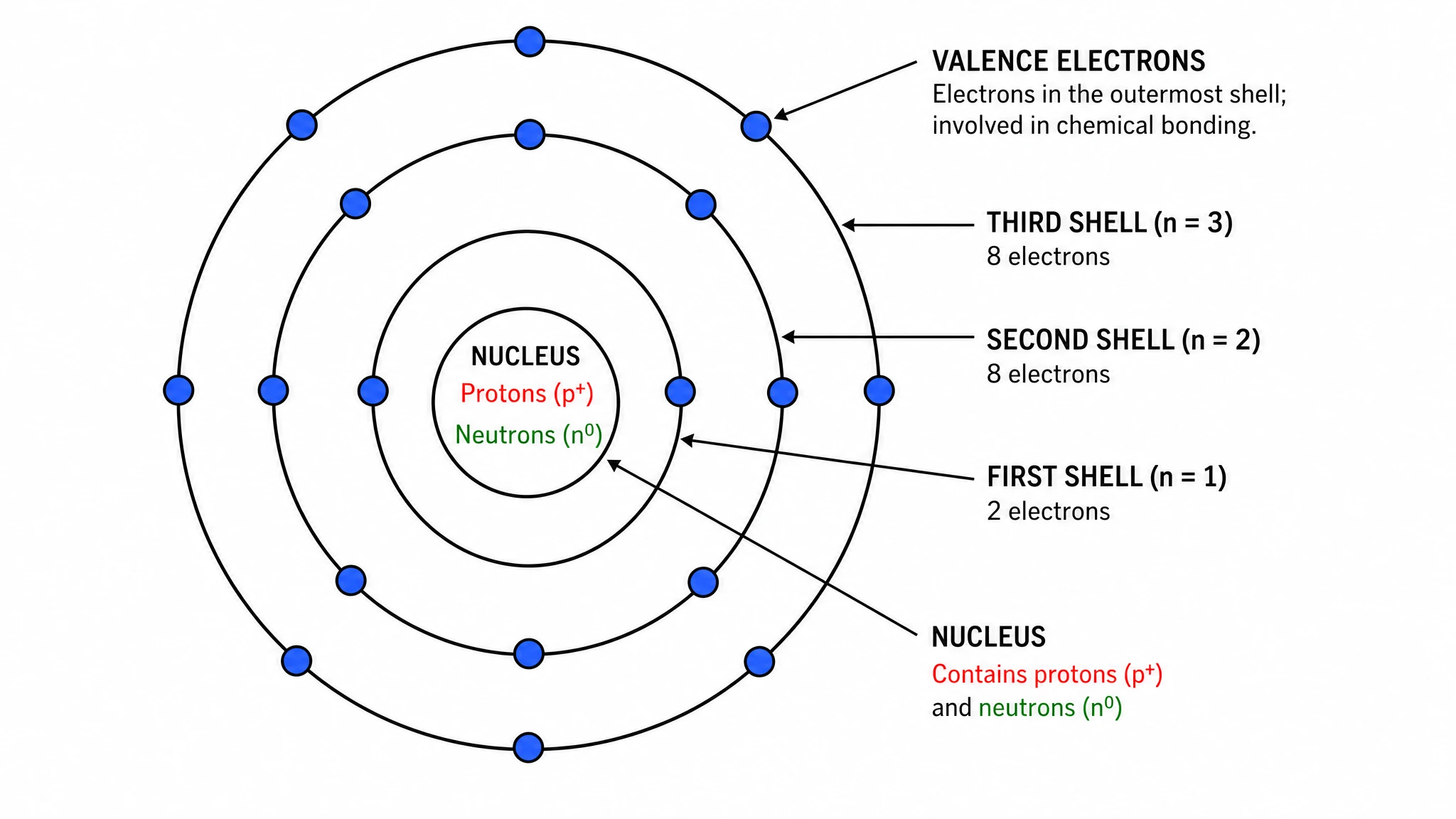 Bohr Model Maker
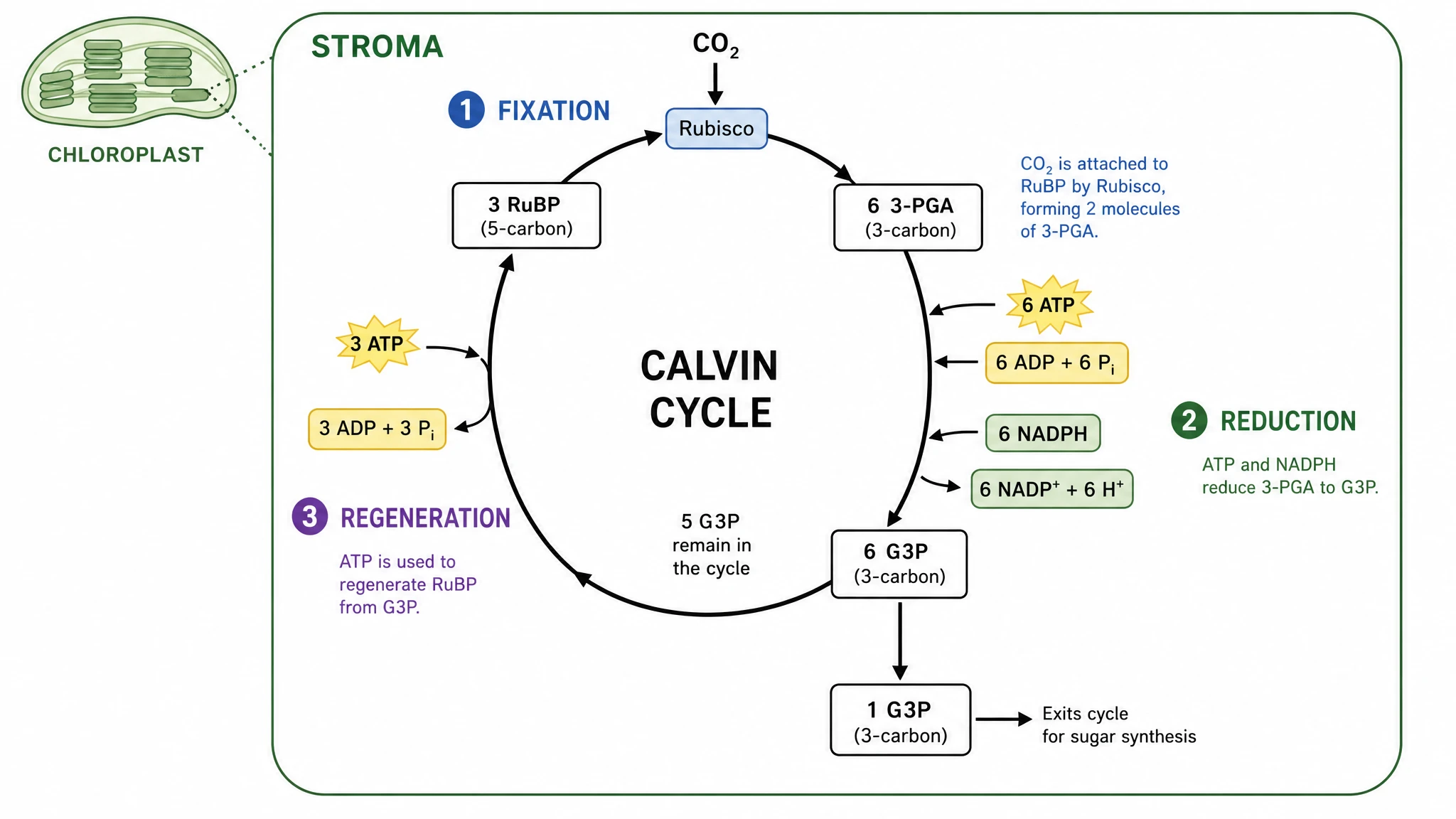 Calvin Cycle Diagram Generator
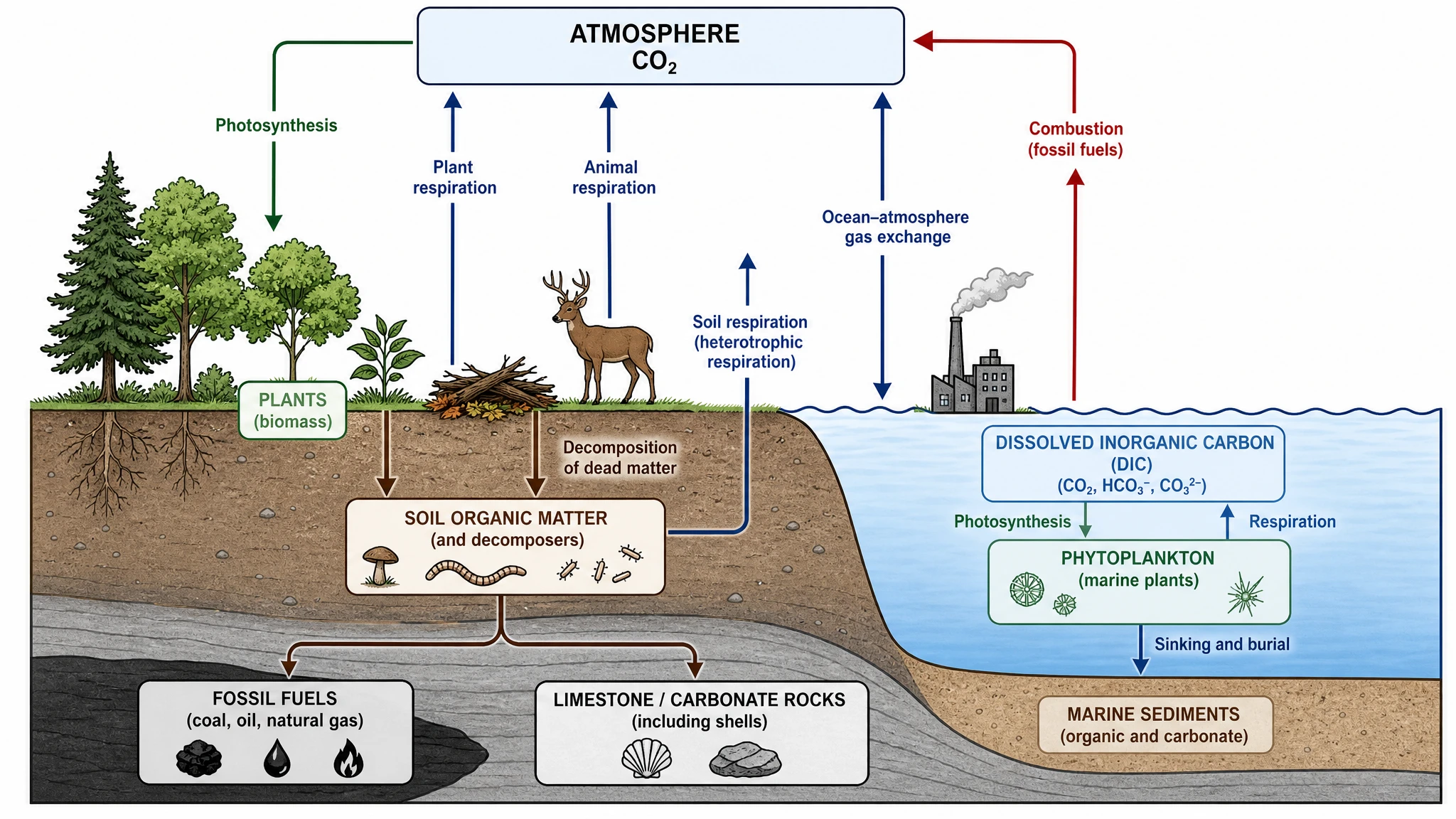 Carbon Cycle Diagram Generator
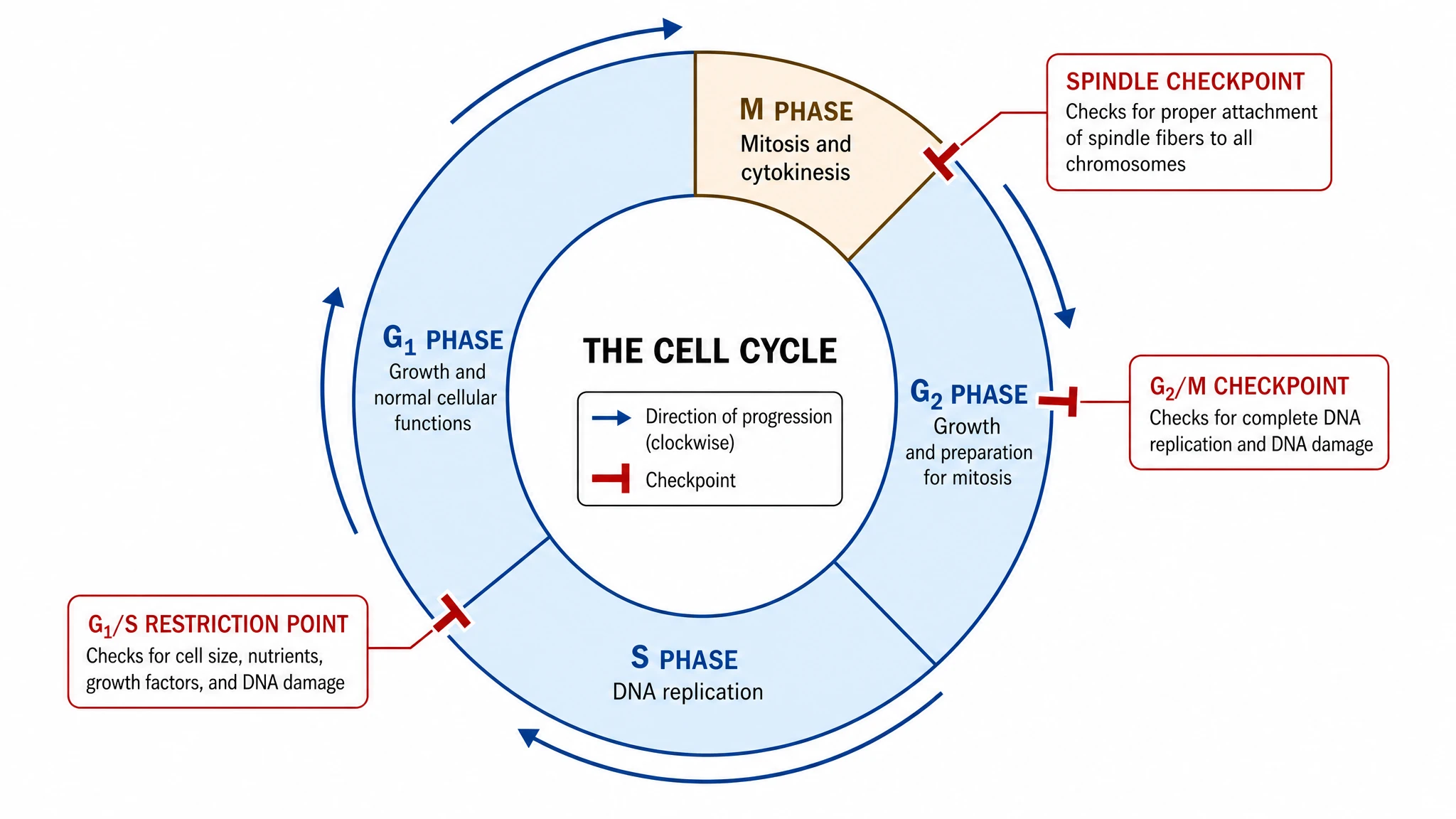 Cell Cycle Diagram Generator
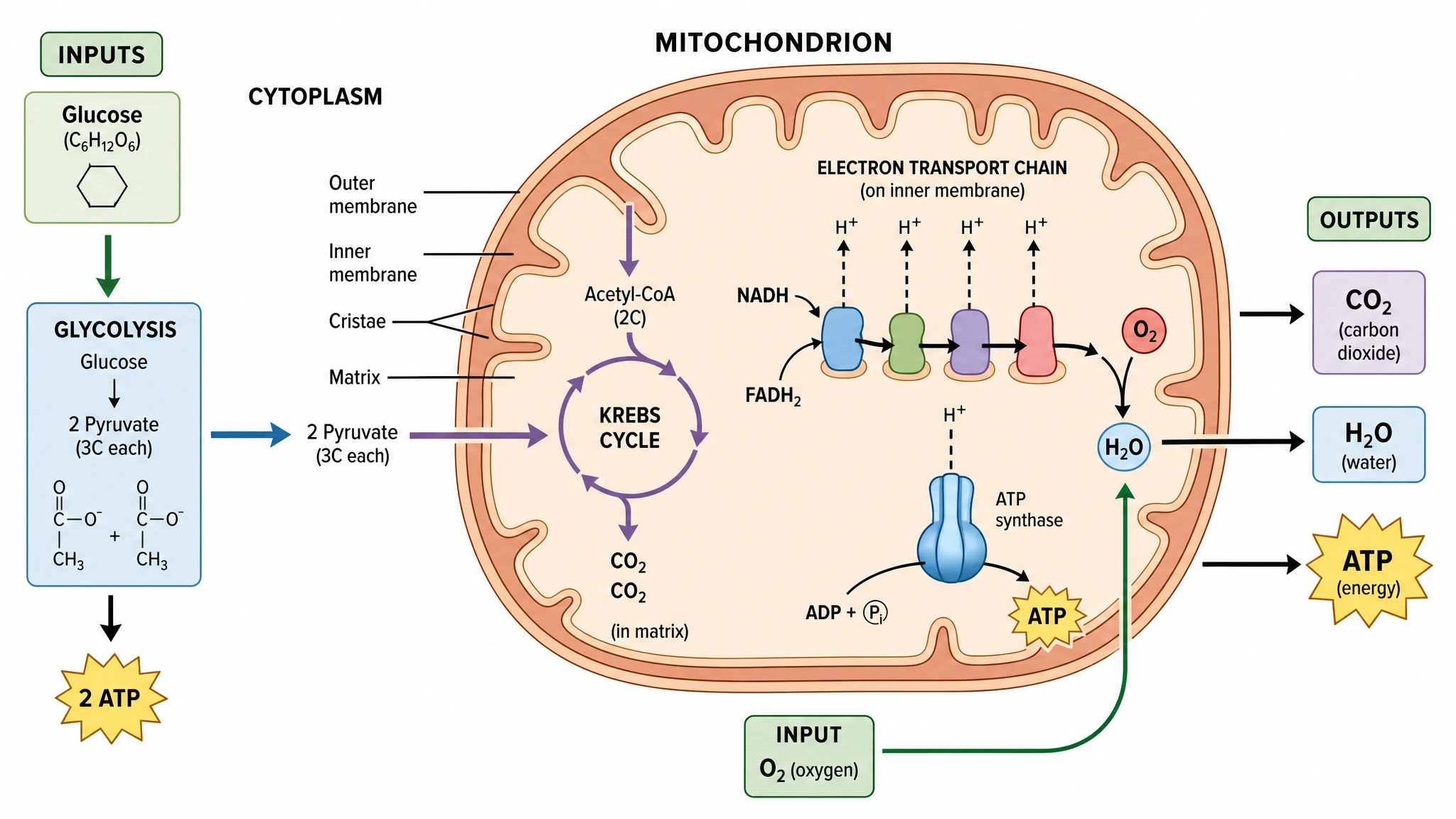 Cellular Respiration Diagram Generator
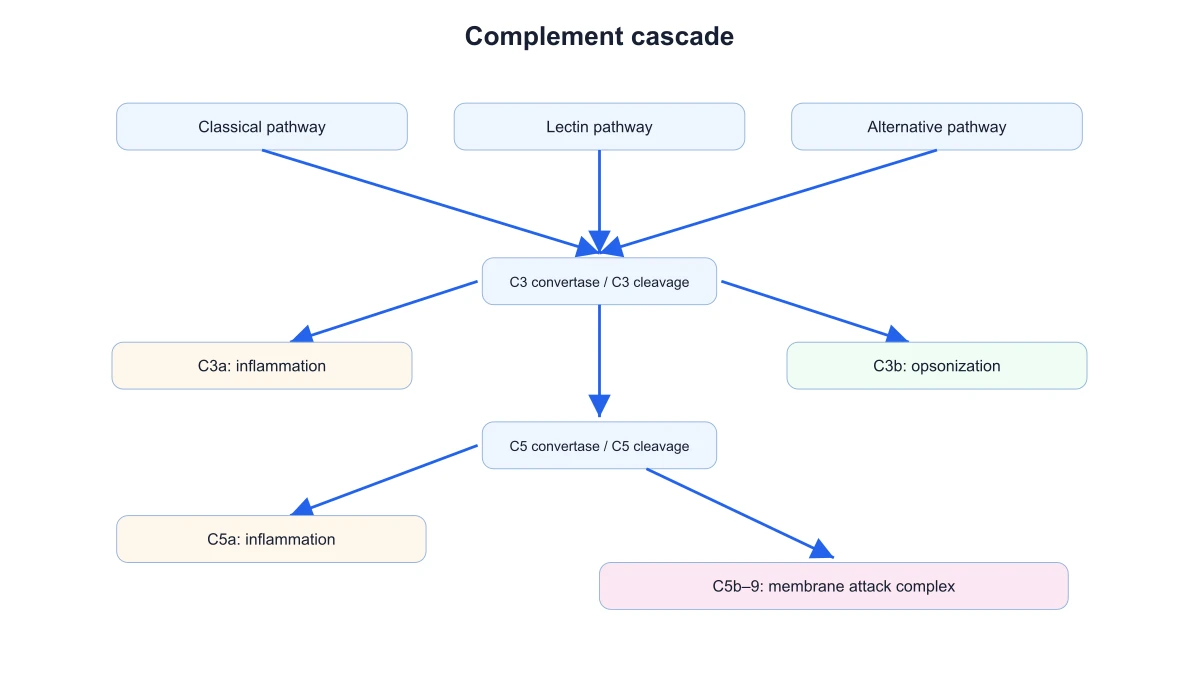 Complement System Diagram Generator
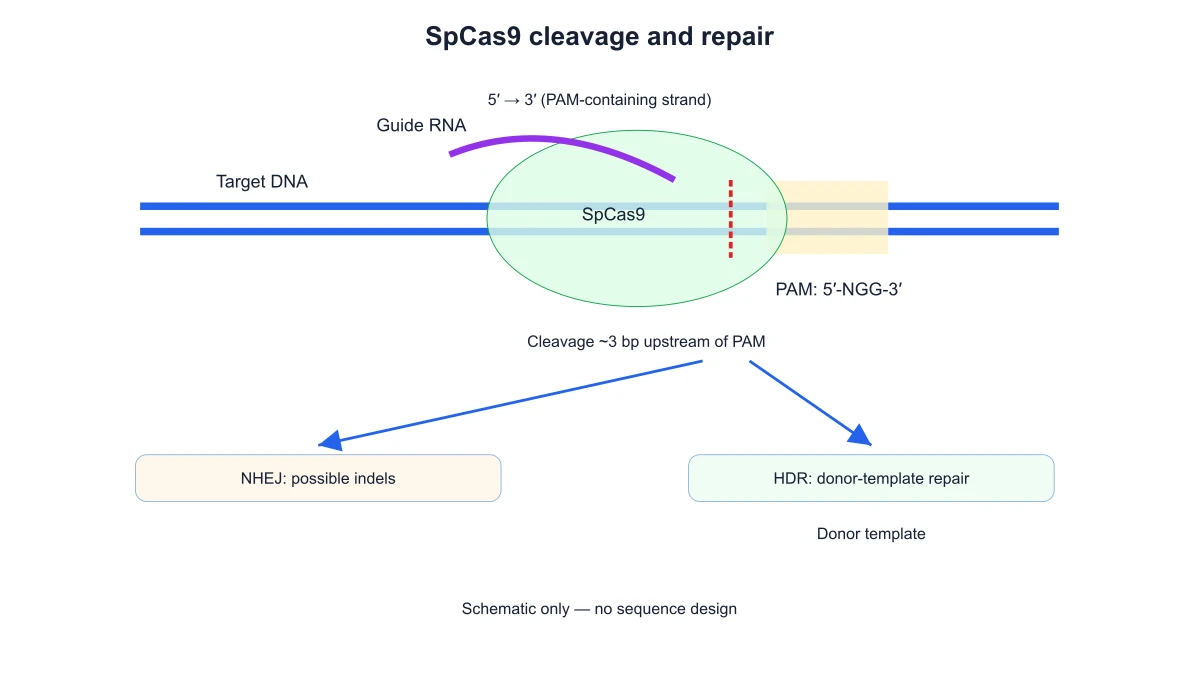 CRISPR-Cas9 Diagram Generator
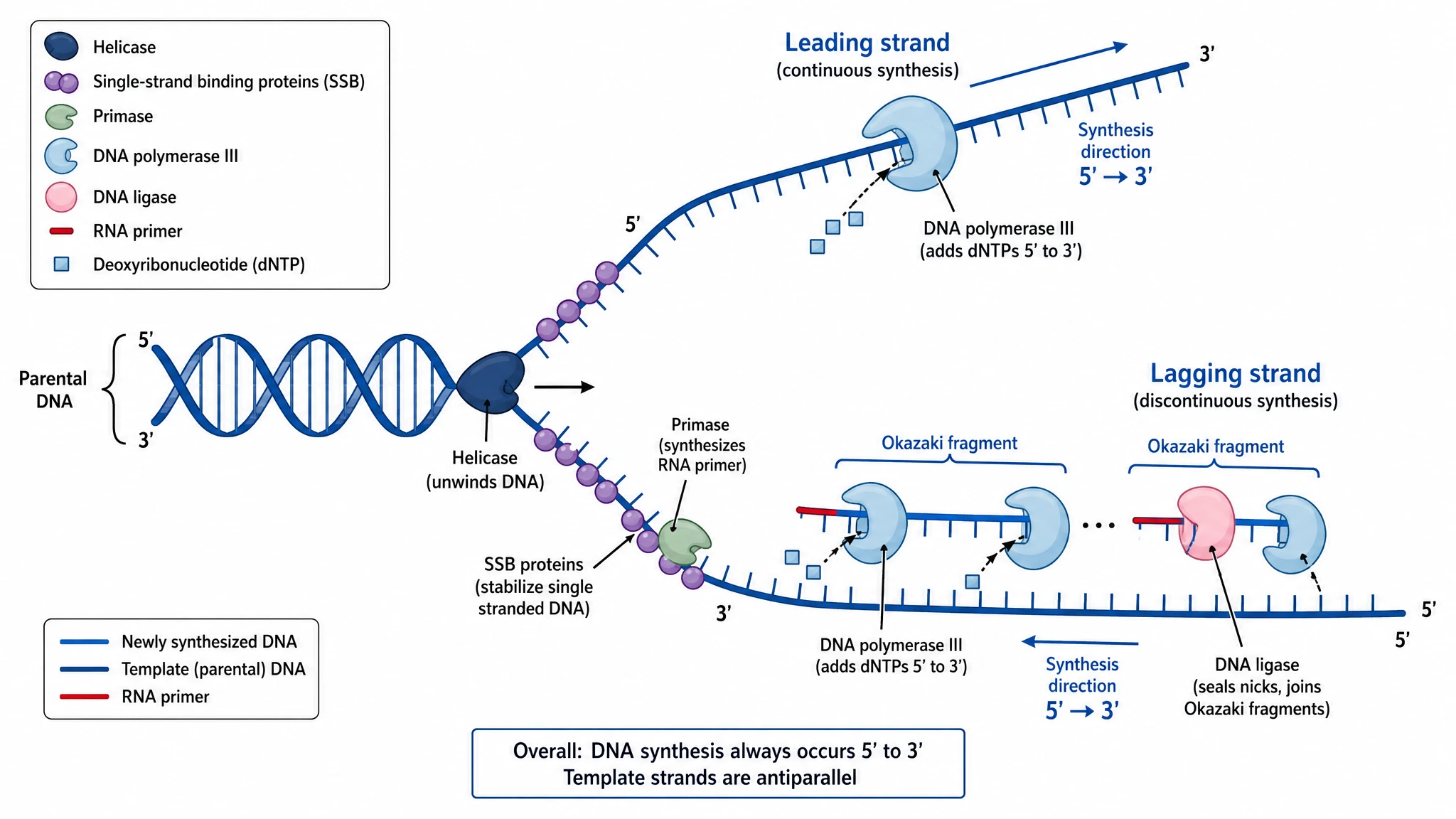 DNA Replication Diagram Generator
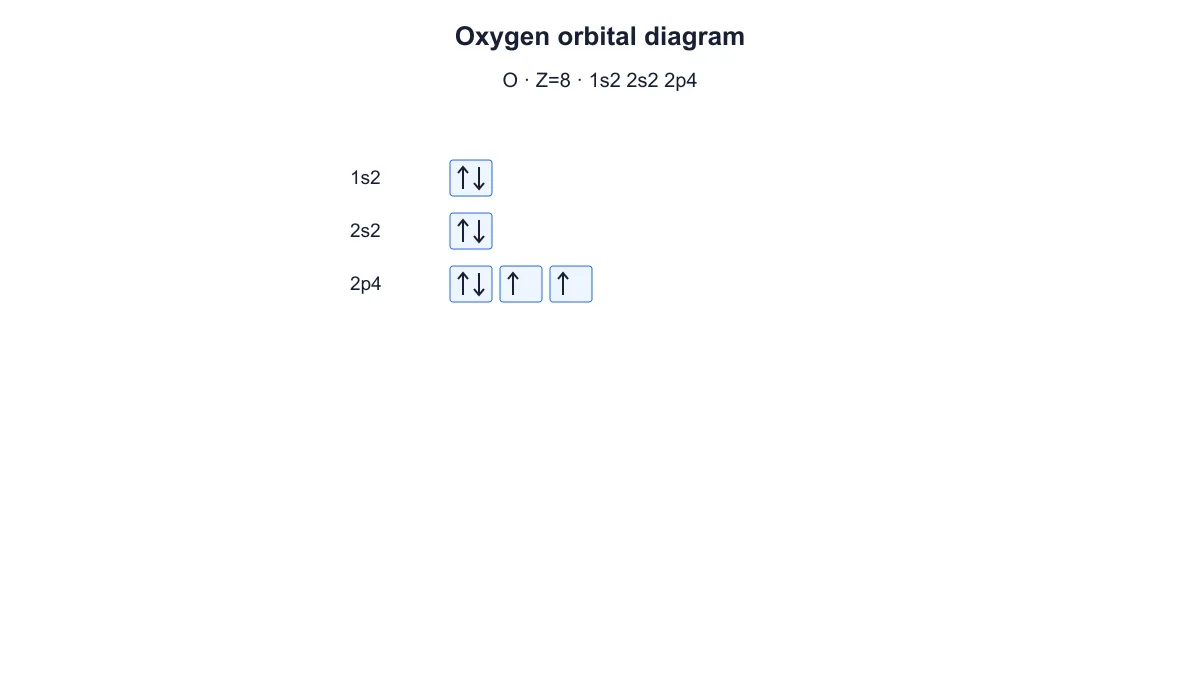 Electron Configuration Diagram Generator
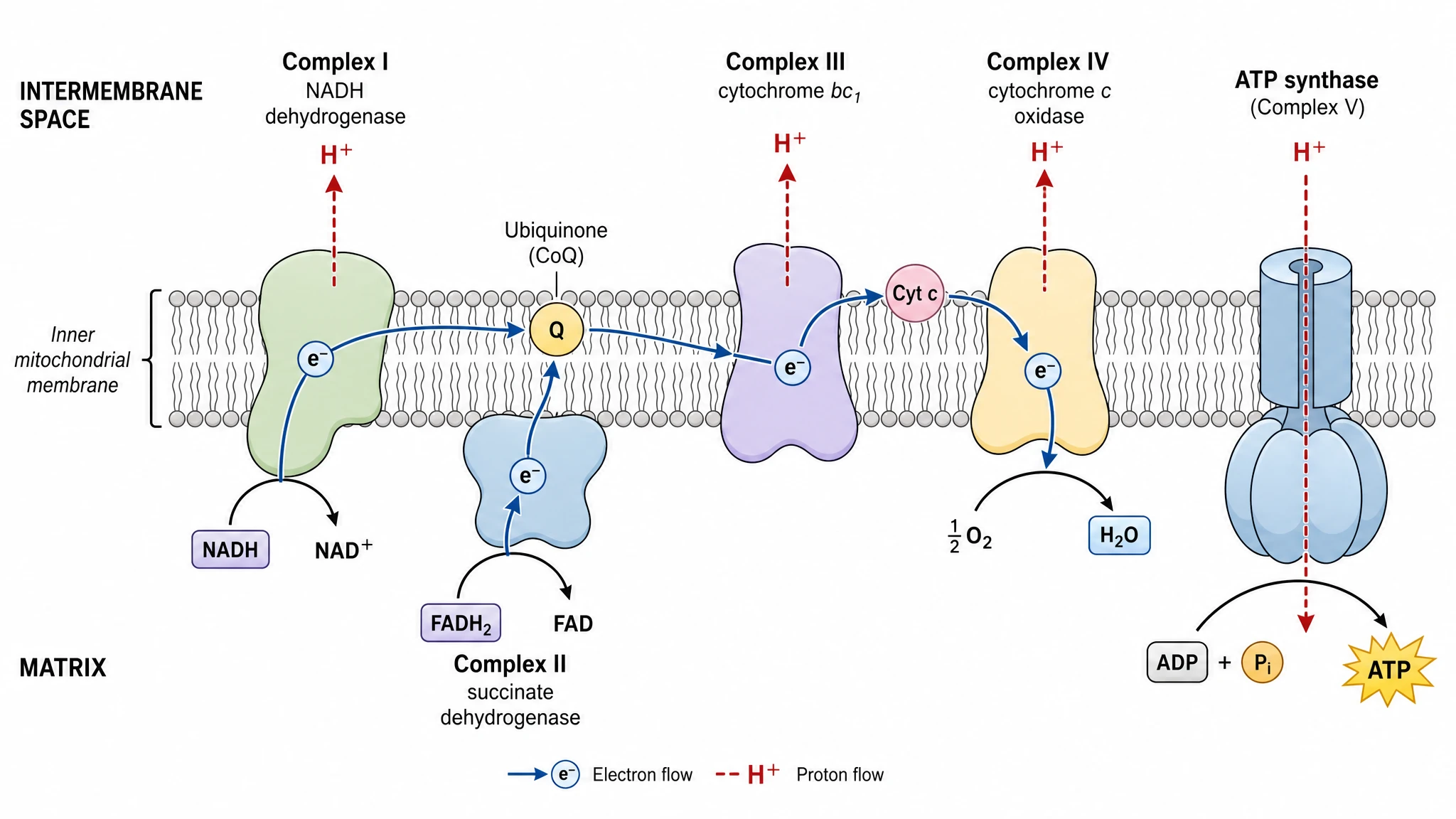 Electron Transport Chain Diagram Generator
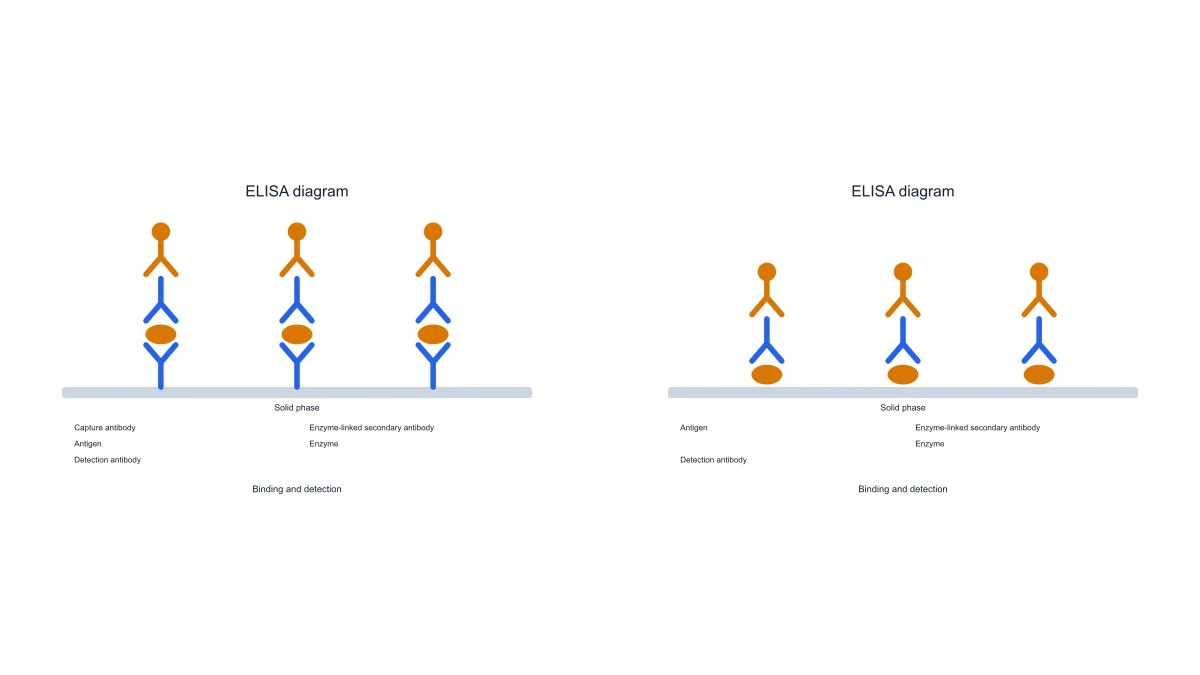 ELISA Diagram Generator
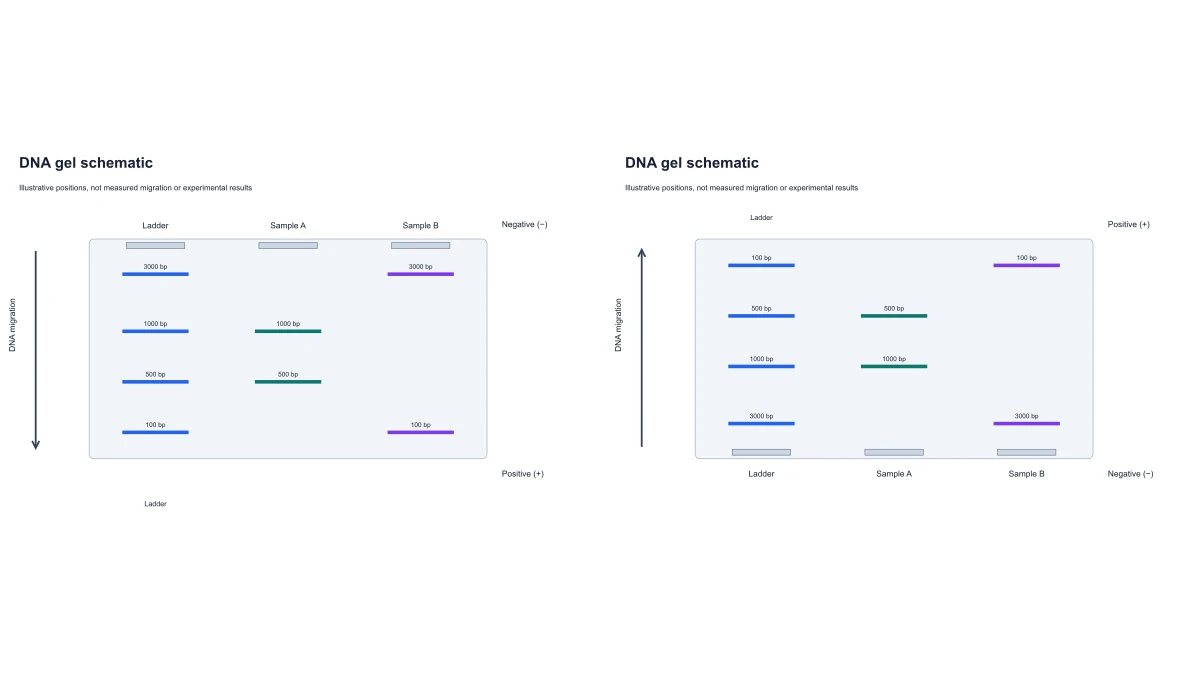 Gel Electrophoresis Diagram Generator
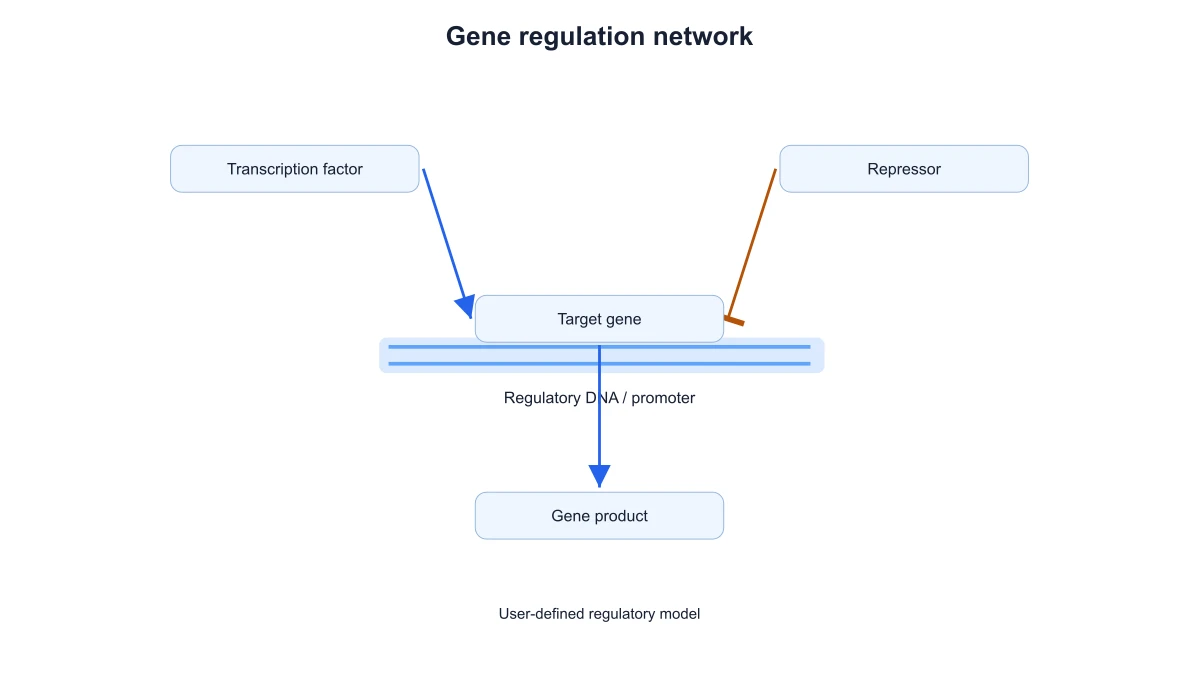 Gene Regulation Diagram Generator
 Glycolysis Diagram Generator
 Image to Editable SVG ConverterImmune Checkpoint Diagram Generator
 Immune Response Diagram Generator
 Inflammasome Diagram Generator
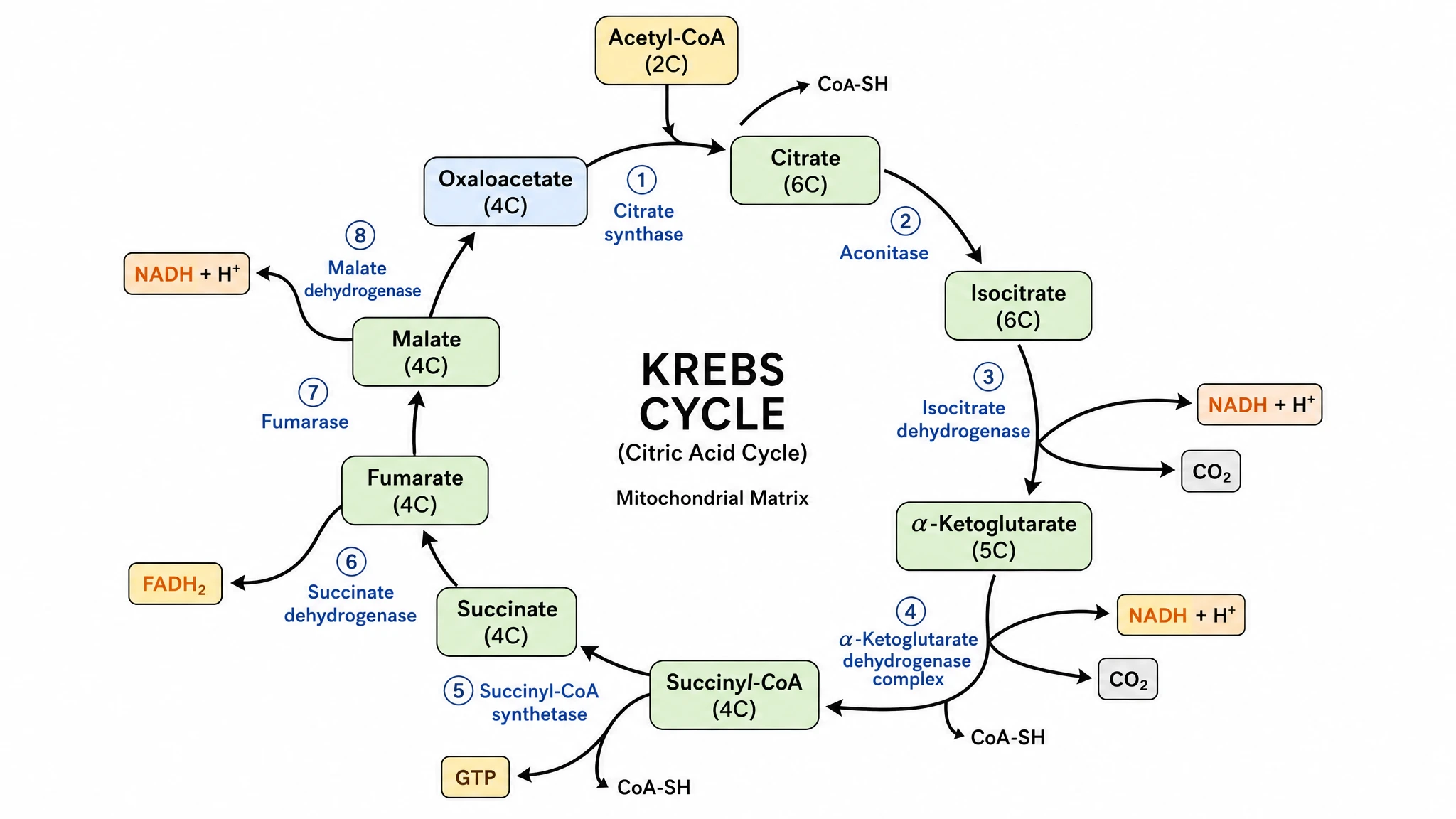 Krebs Cycle Diagram Generator
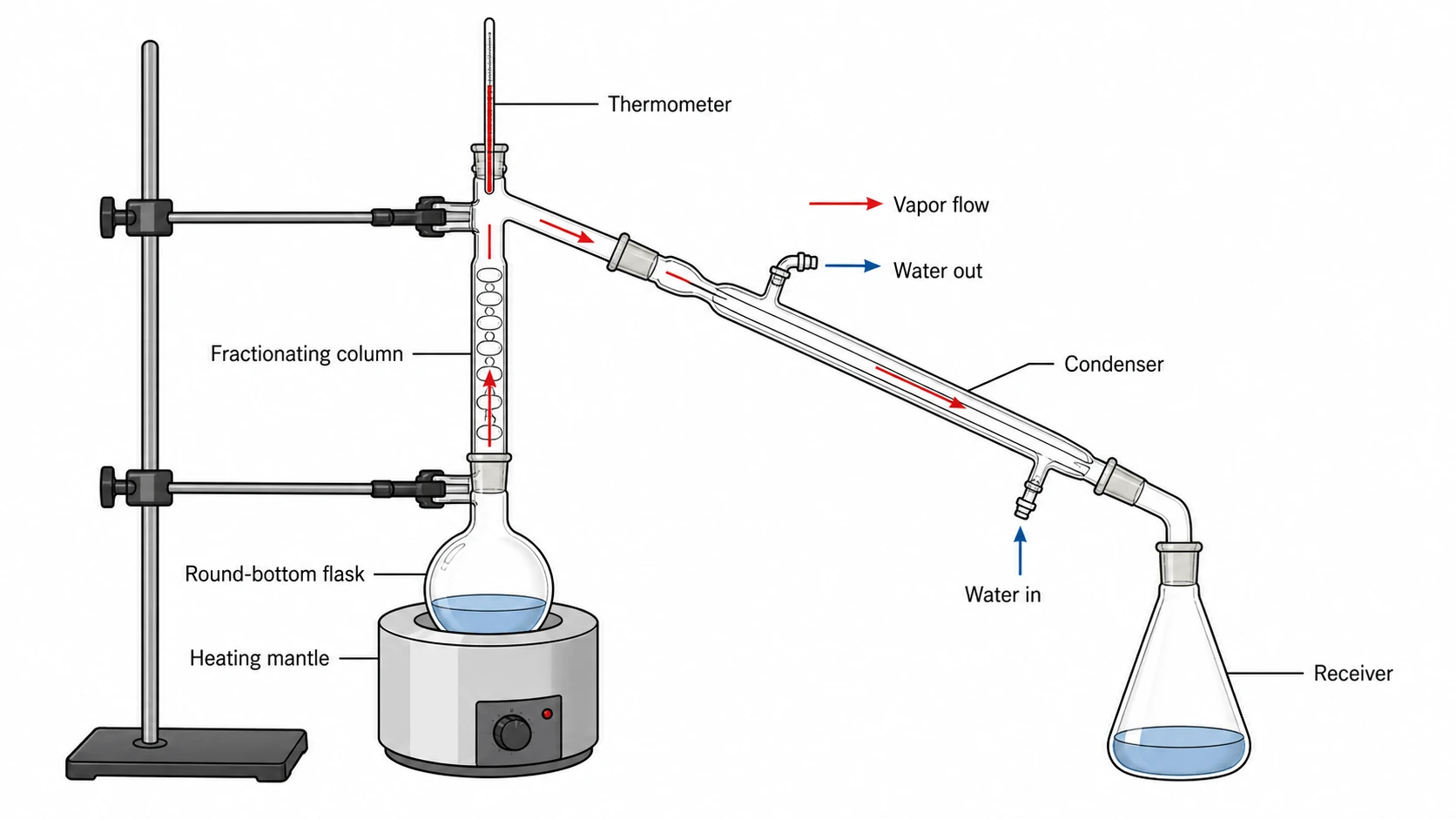 Lab Diagram Maker
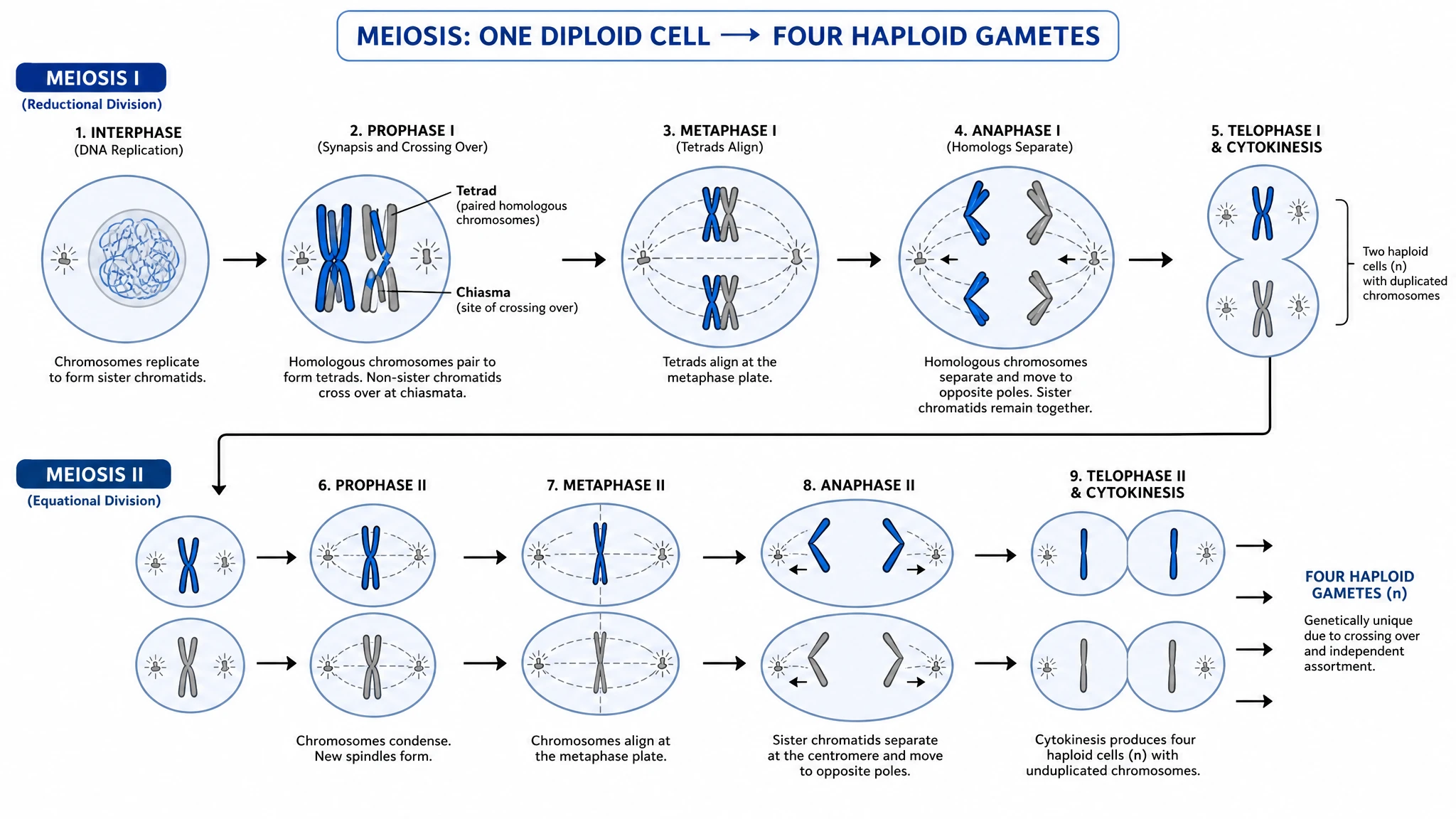 Meiosis Diagram Generator
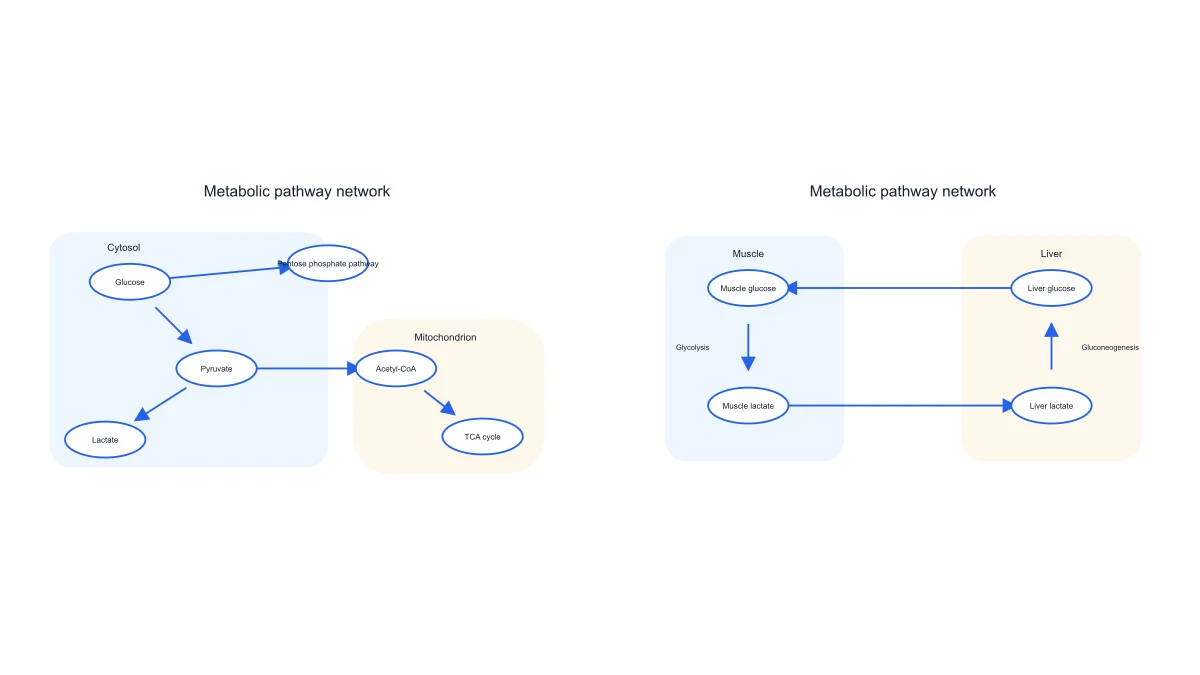 Metabolic Pathway Diagram Generator
 Molecular Orbital Diagram Generator
 Nitrogen Cycle Diagram Generator
 Pedigree Chart Maker
 Phospholipid Diagram Generator
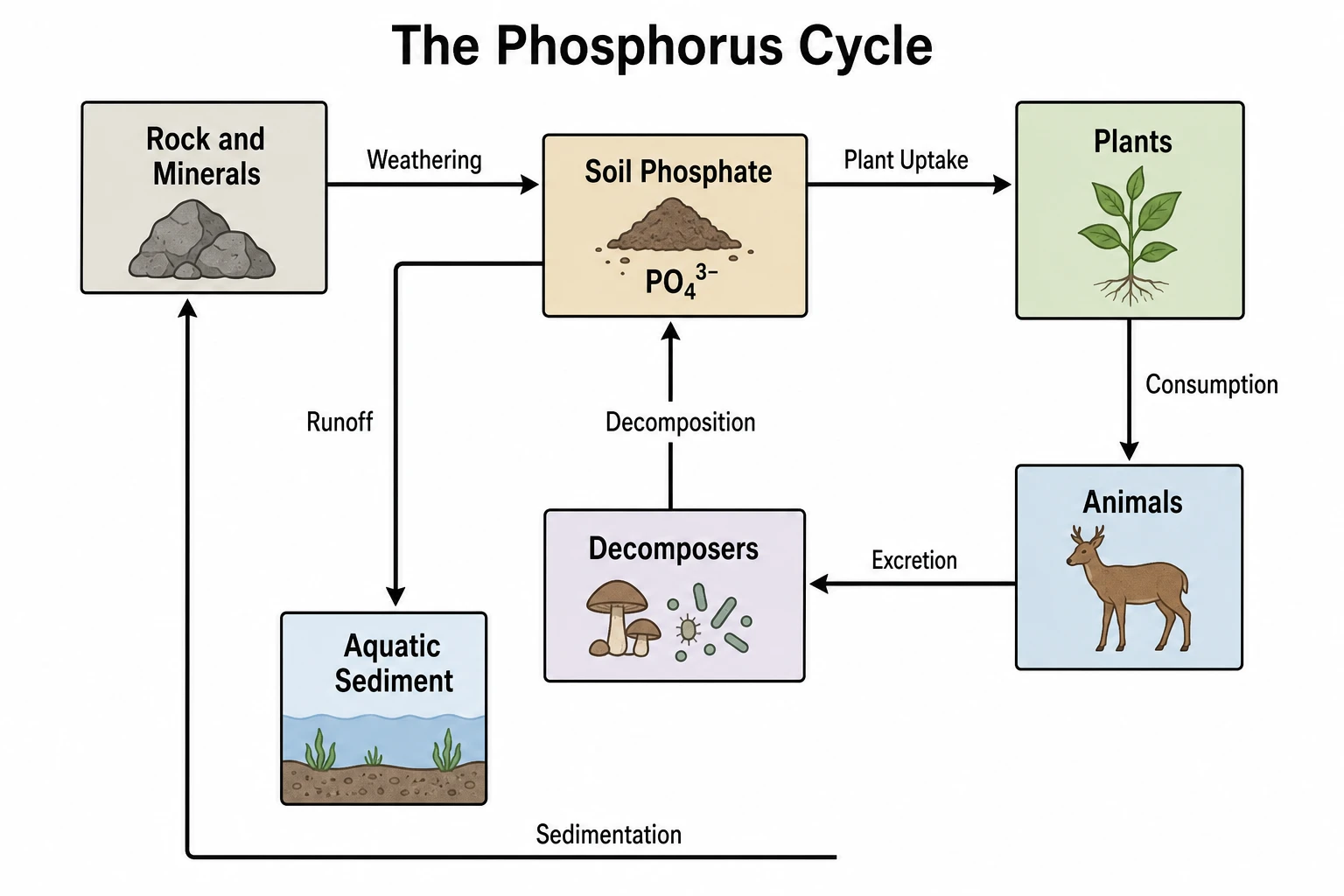 Phosphorus Cycle Diagram Generator
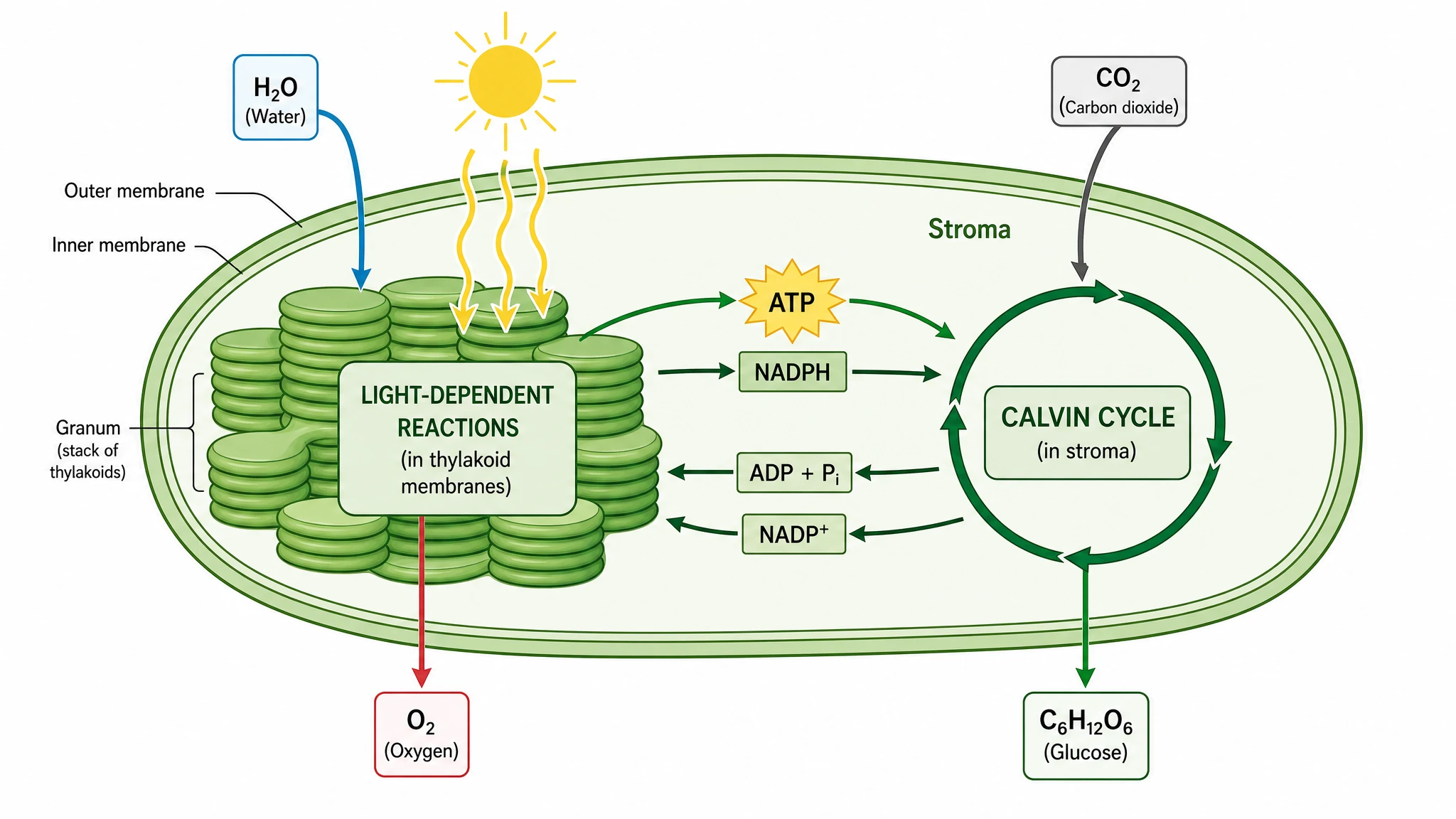 Photosynthesis Diagram Generator
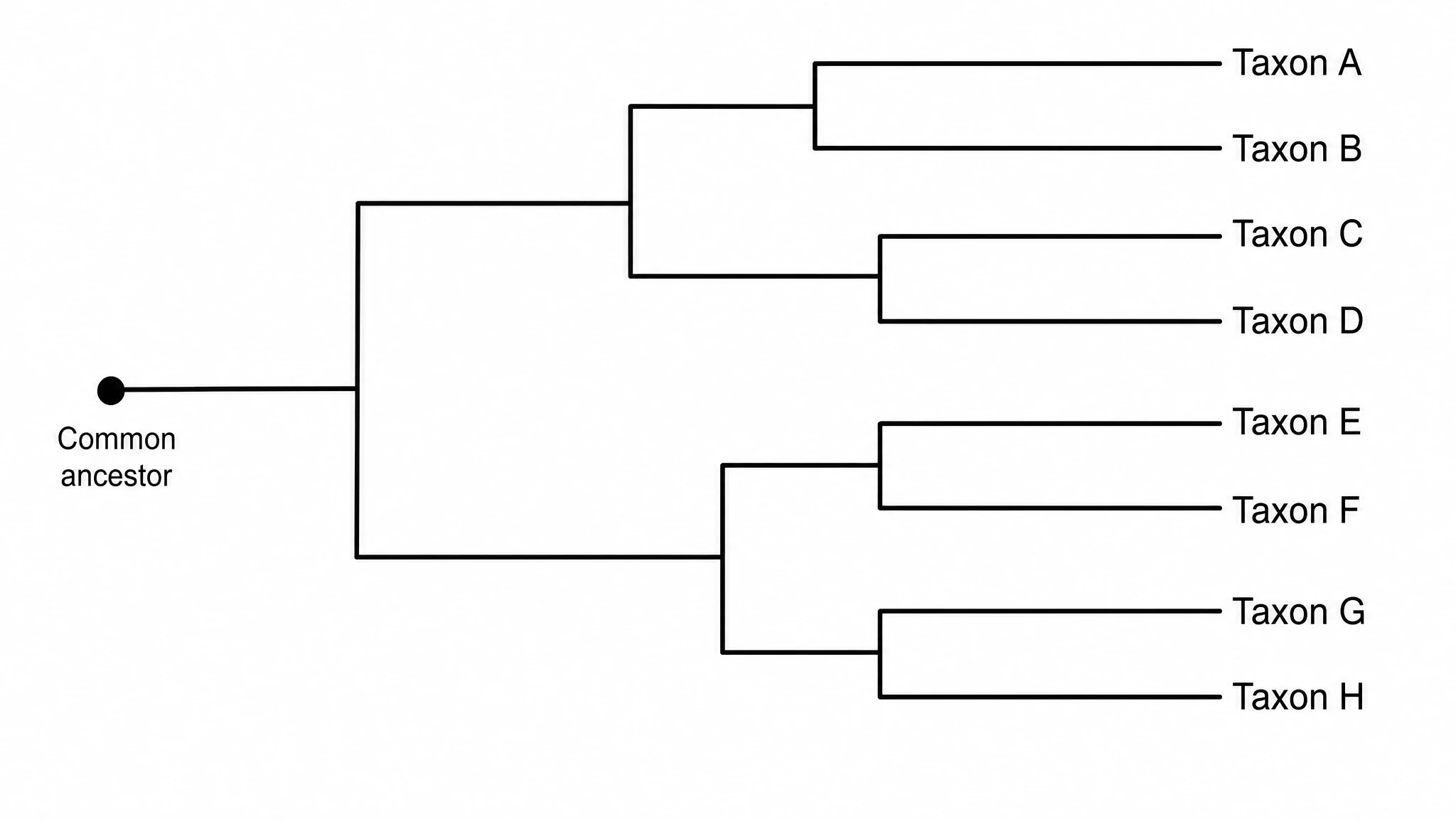 Phylogenetic Tree Maker
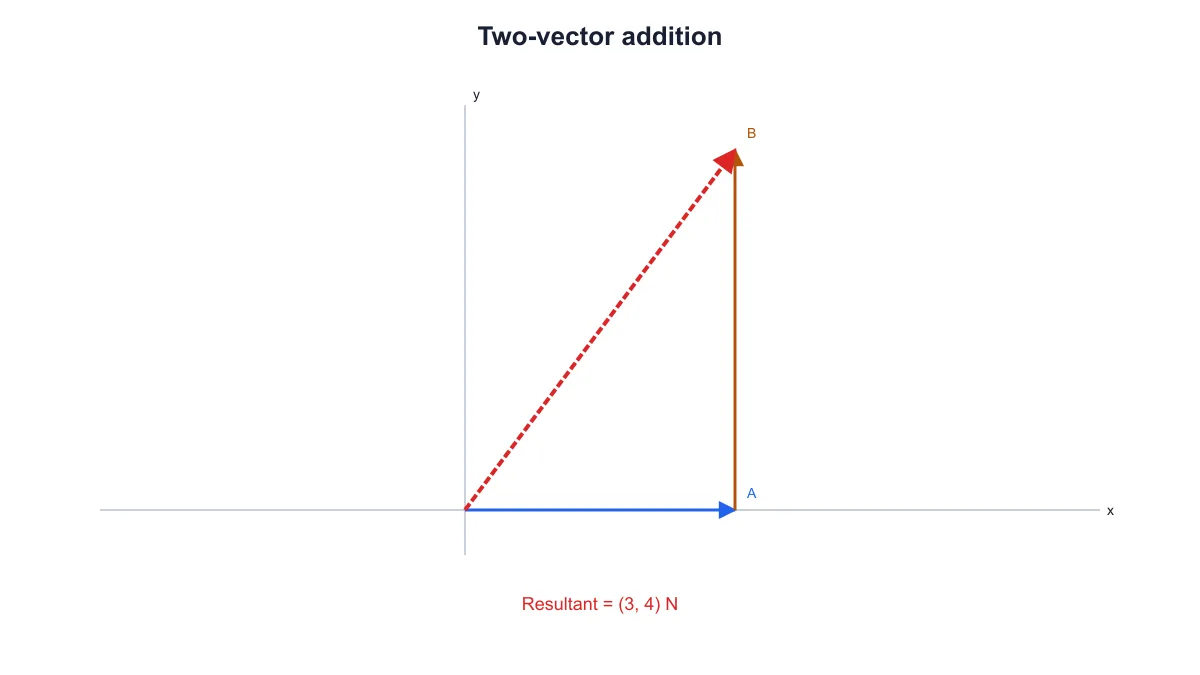 Physics Vector Diagram Maker
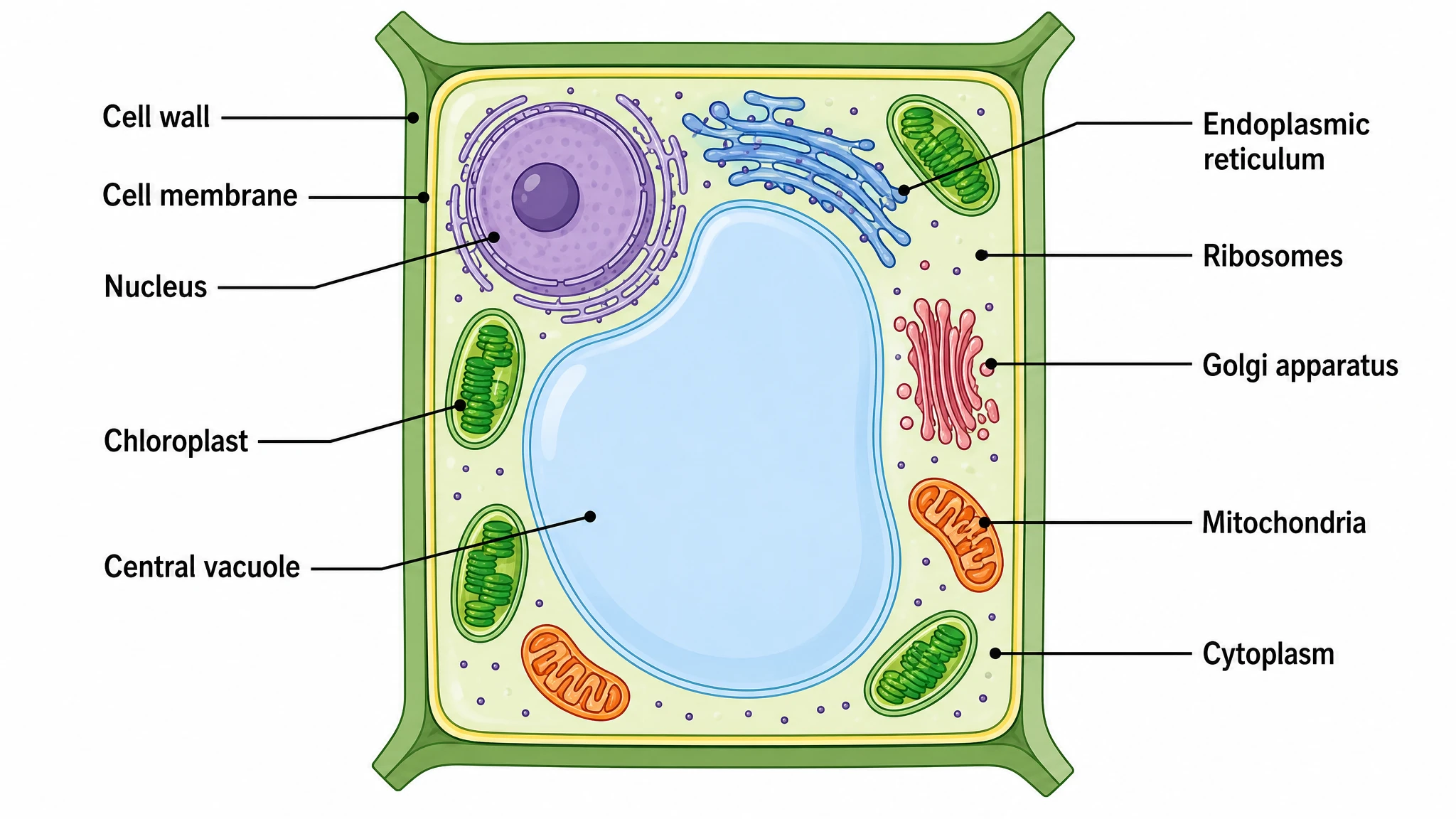 Plant Cell Diagram Generator
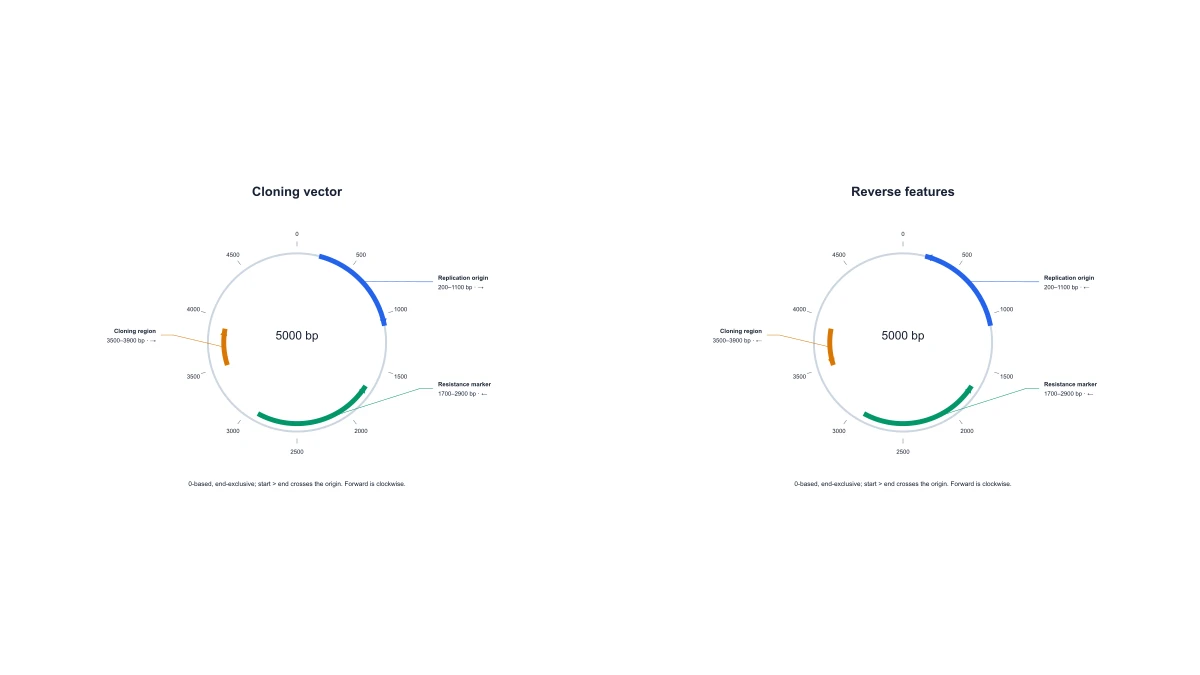 Plasmid Map Maker
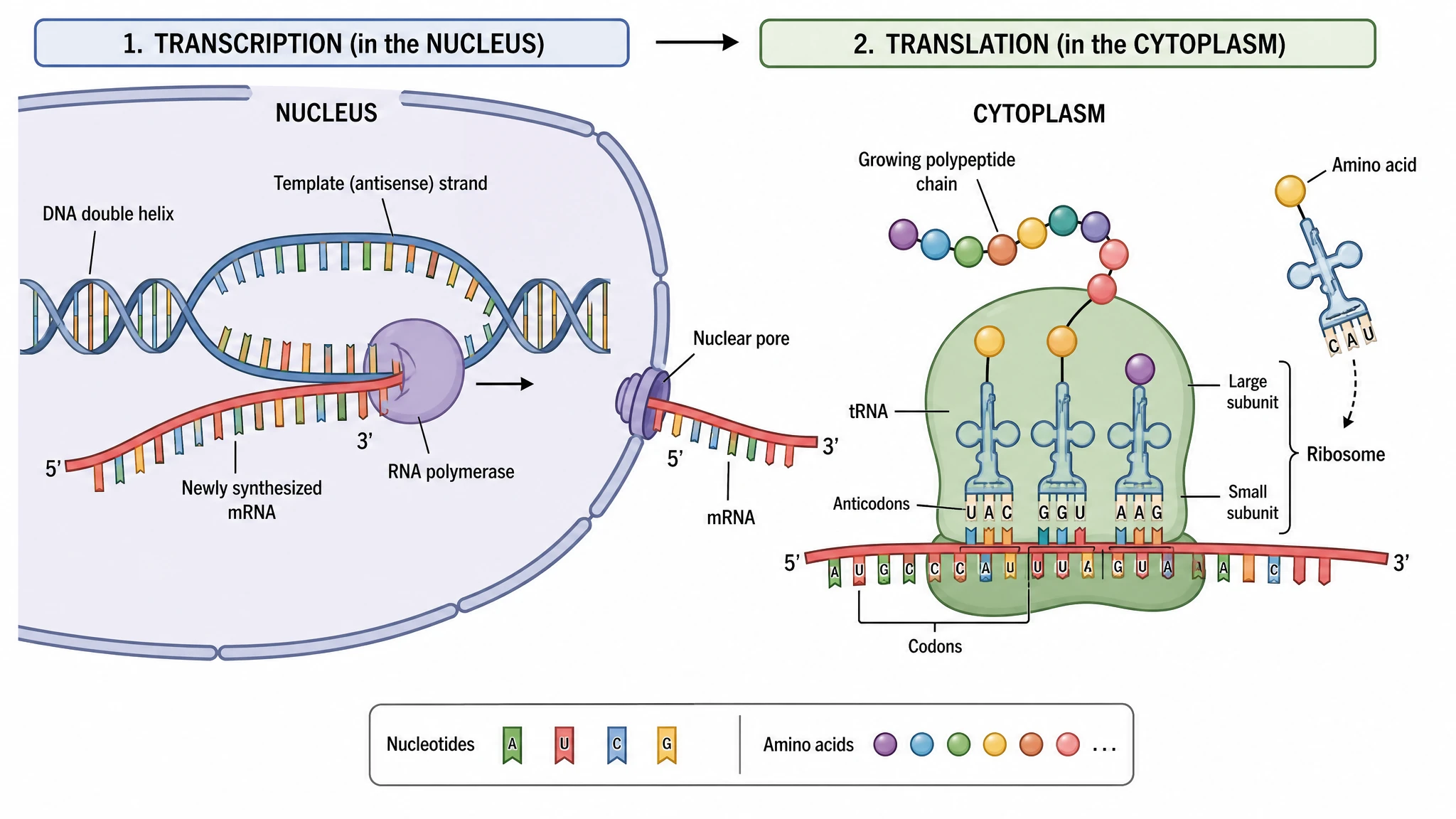 Protein Synthesis Diagram Generator
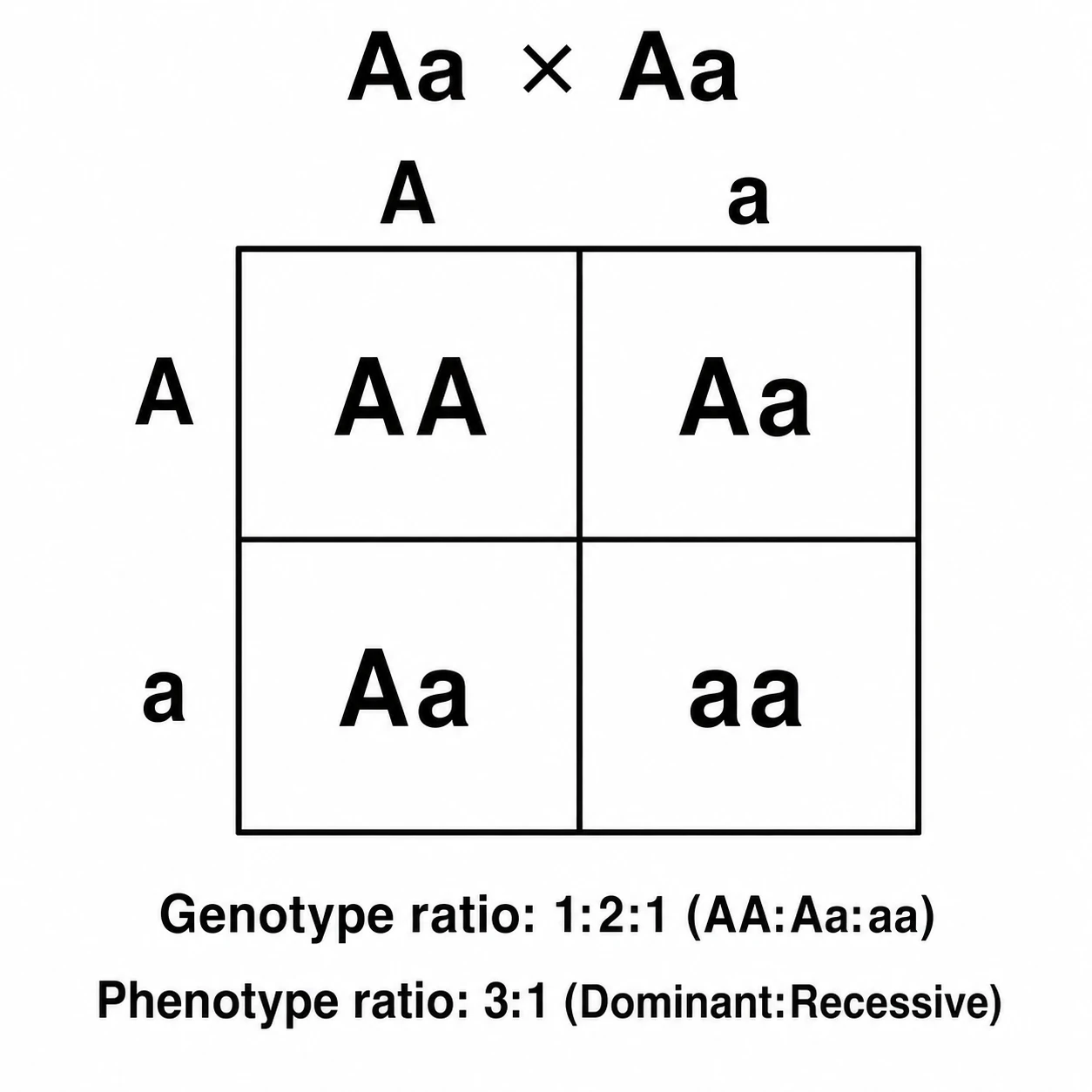 Punnett Square Maker
 Ray Diagram Maker
 RNA Structure Diagram Generator
 Scientific Color Palette Generator
 Signaling Pathway Diagram Generator
 Single Line Diagram Generator
 T-Cell Activation Diagram Generator
 Water Cycle Diagram Generator
 Western Blot Diagram Generator
Statistical charts and graphs
29 tools Bode Plot Generator
 Spider Chart Maker
 Kaplan-Meier Survival Curve
 Multi-Layer Pie Chart Maker
 Bell Curve Generator
 Gantt Chart Generator
 Box Plot Generator
 Forest Plot Generator
 Volcano Plot Generator
 Pareto Chart Maker
 Scatter Plot Maker
 Heatmap Generator
 AI Chart Generator
 Comparison Chart Maker
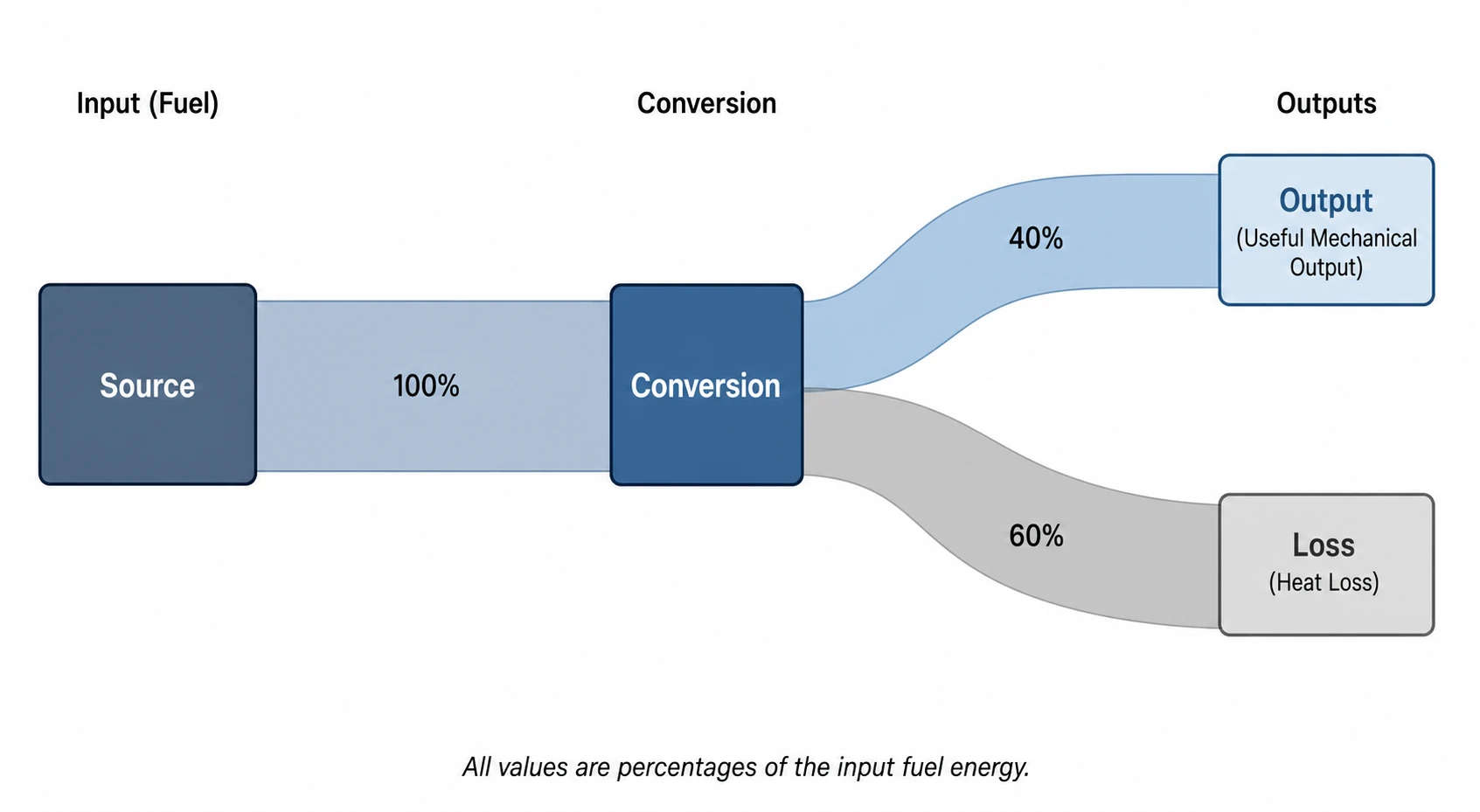 Sankey Diagram Generator
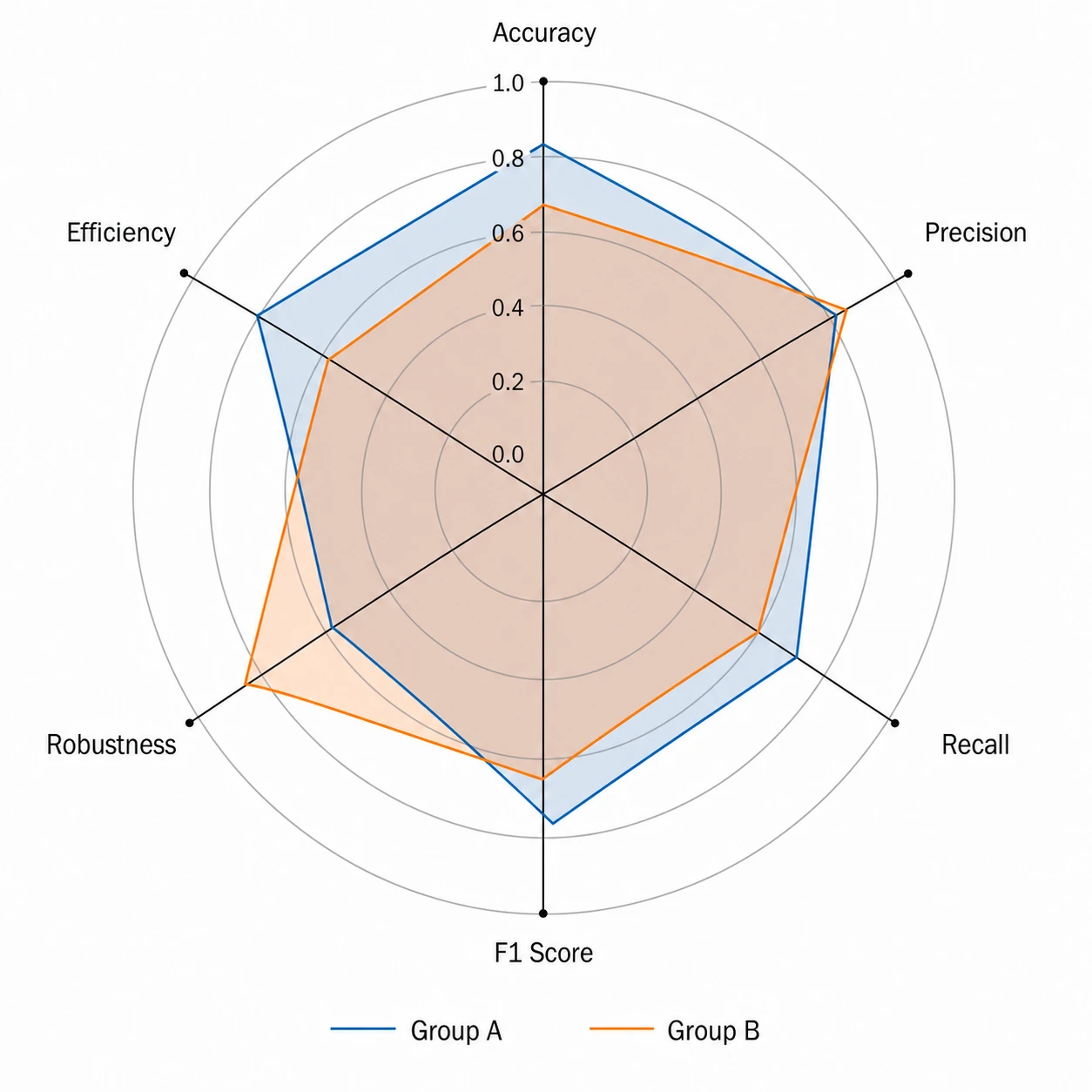 Radar Chart Generator
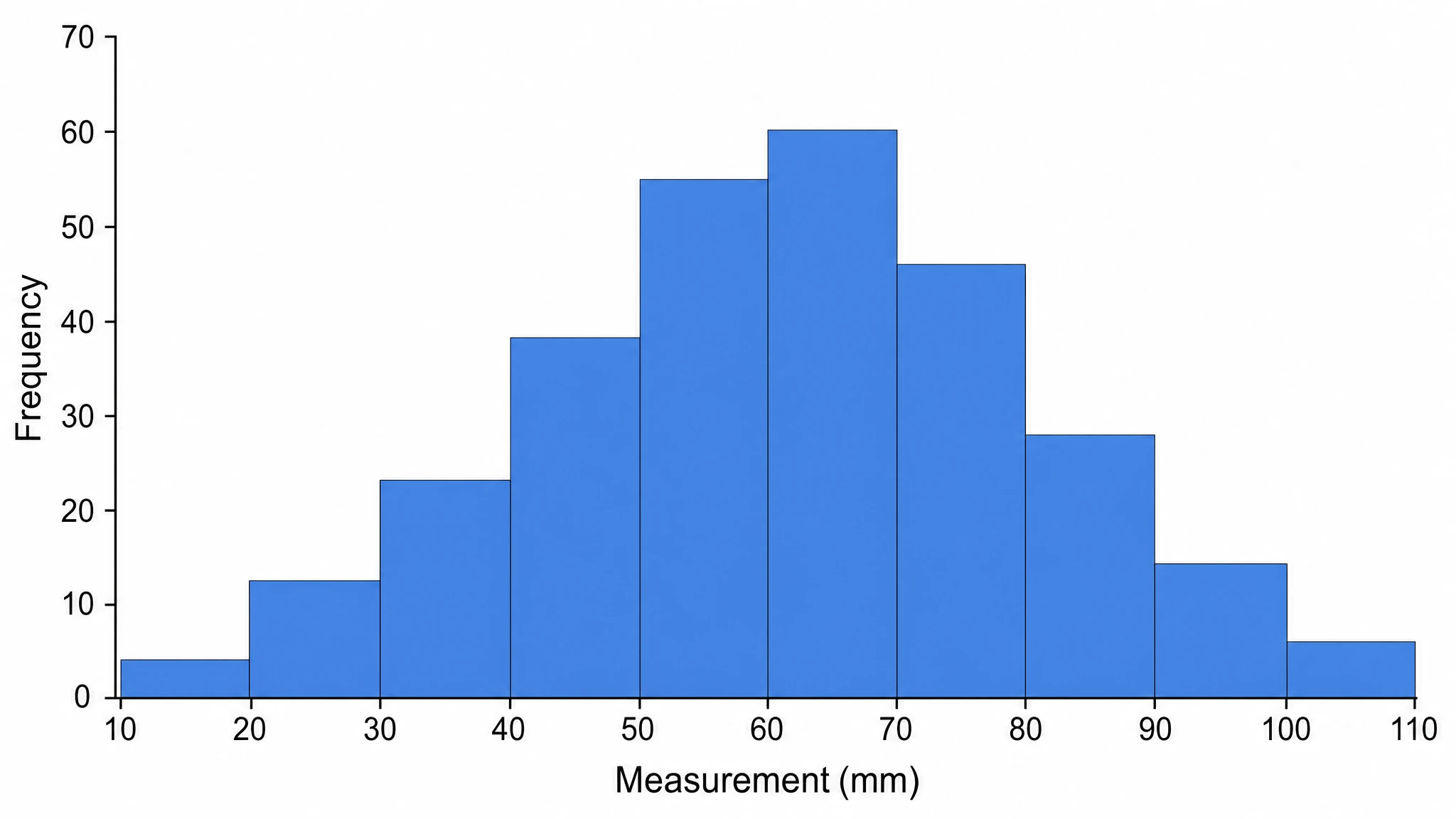 Histogram Maker
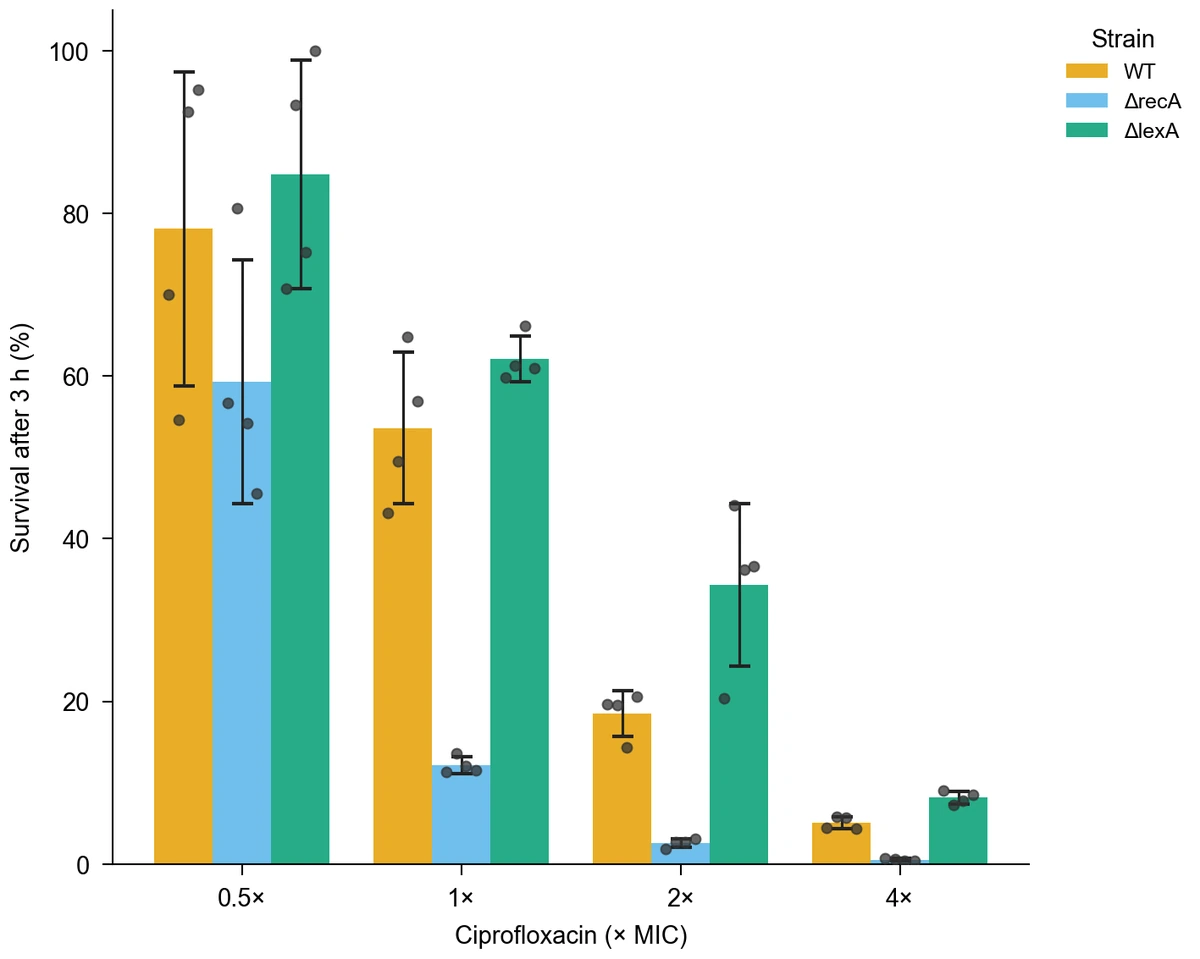 Bar Chart Generator
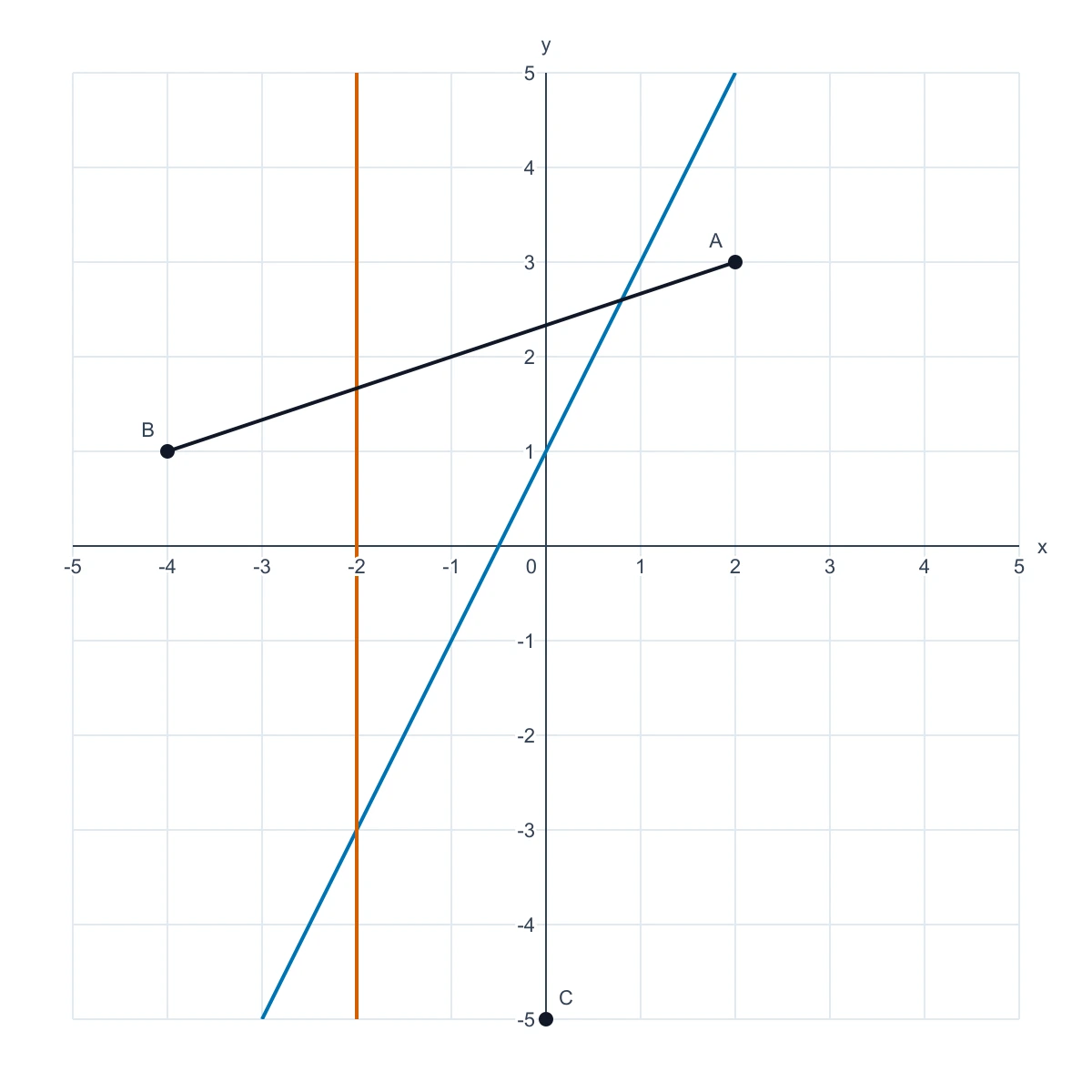 Coordinate Plane Generator
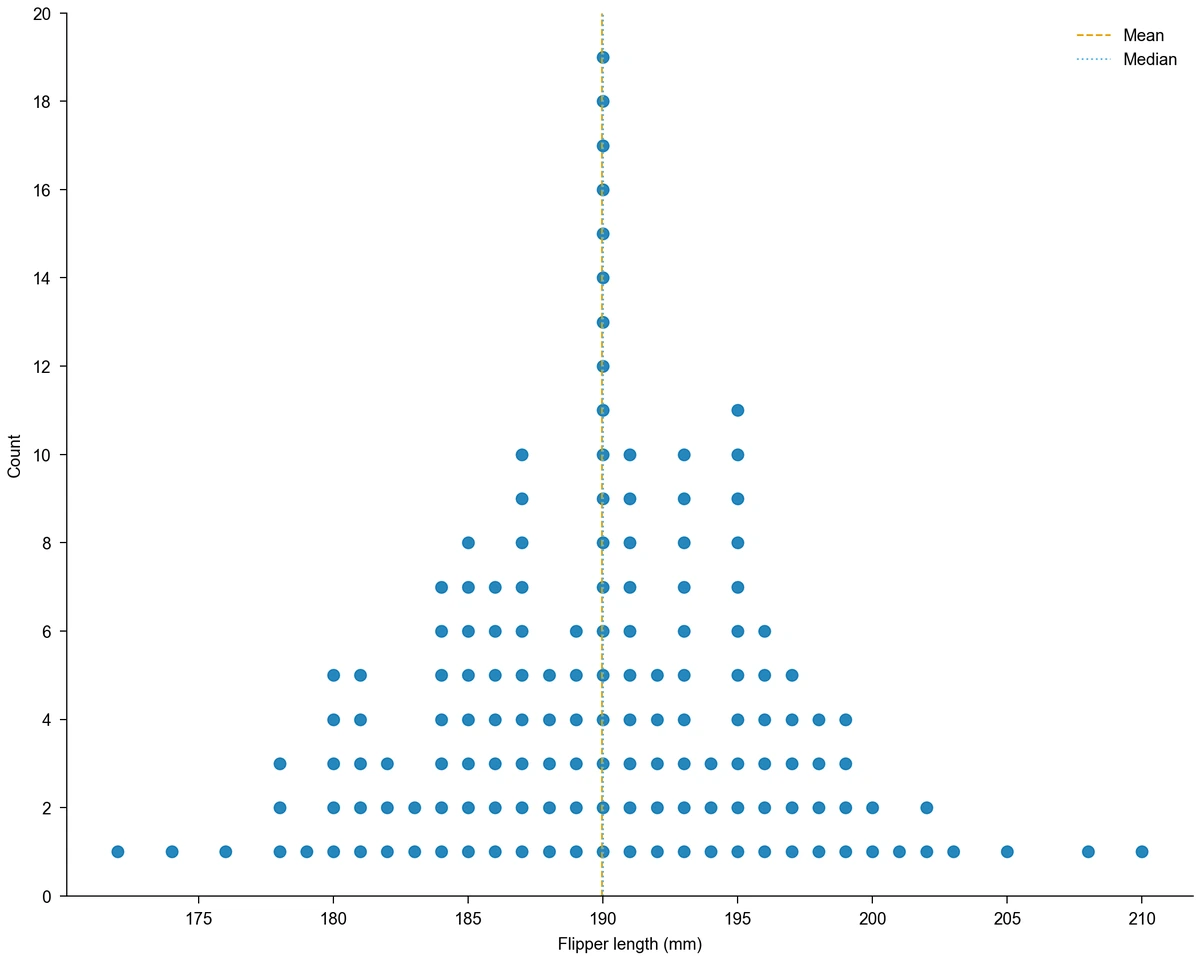 Dot Plot Creator
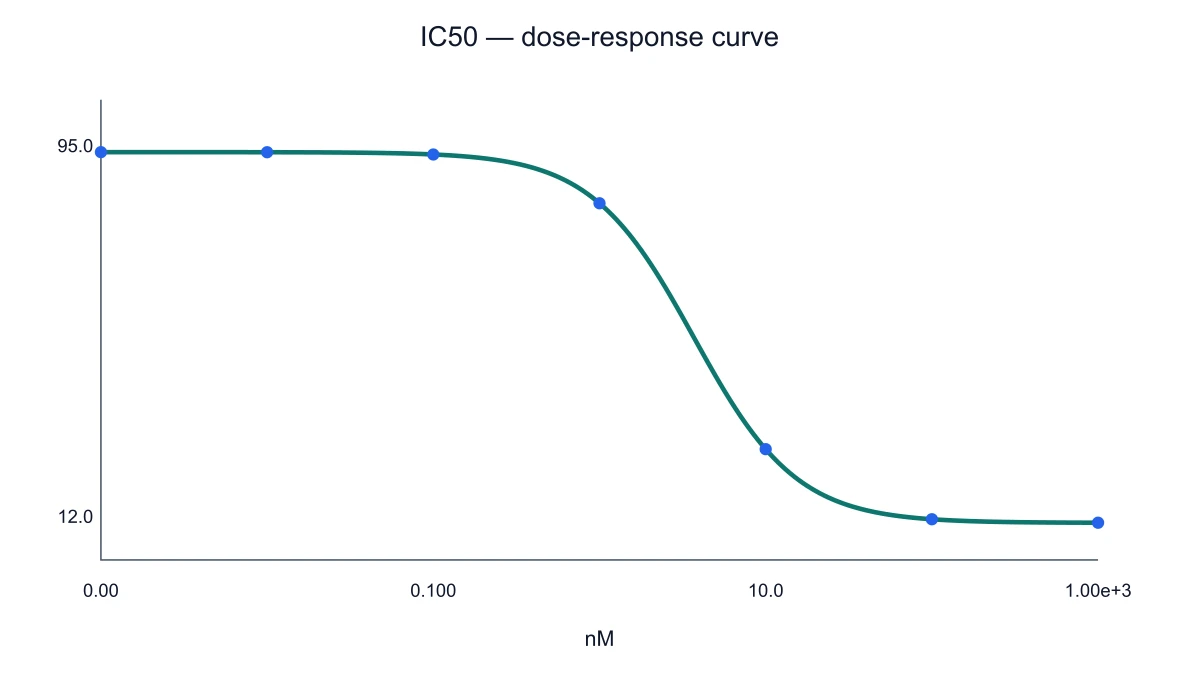 IC50 Calculator & Dose-Response Curves
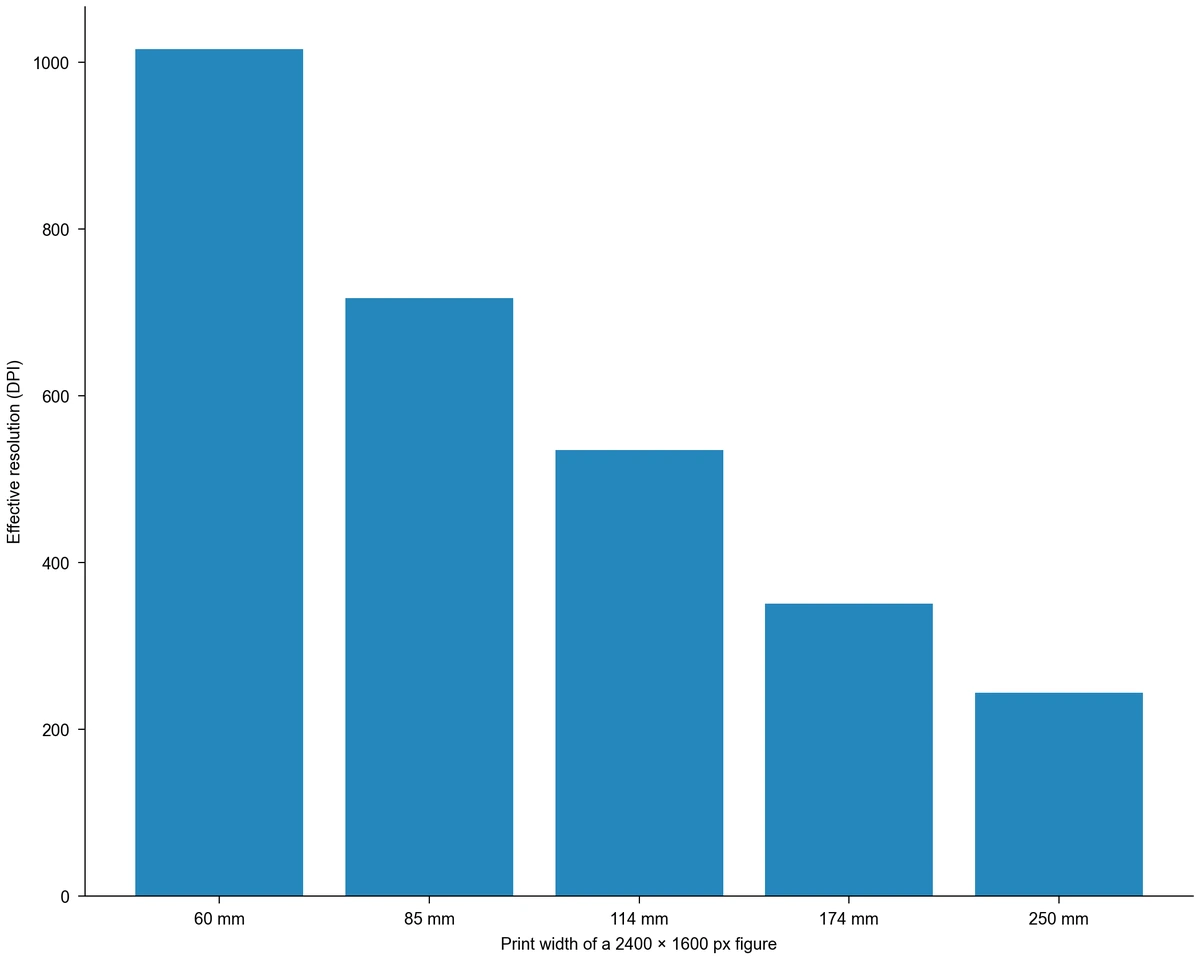 Image DPI Calculator
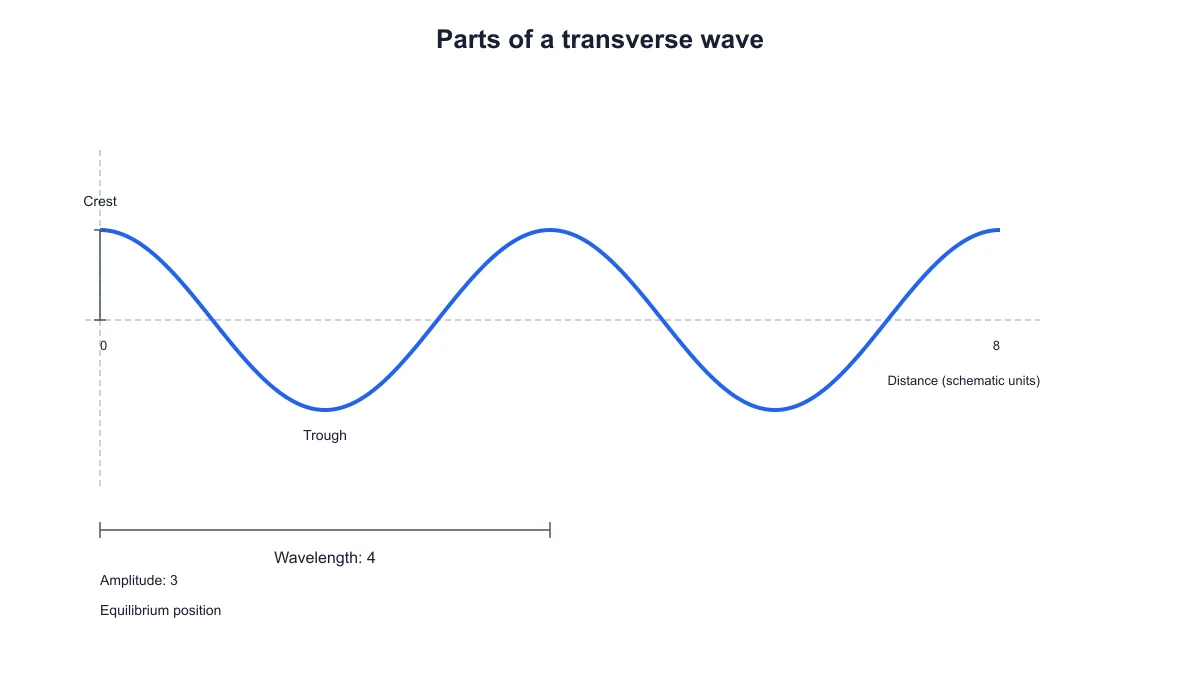 Transverse Wave Diagram Generator
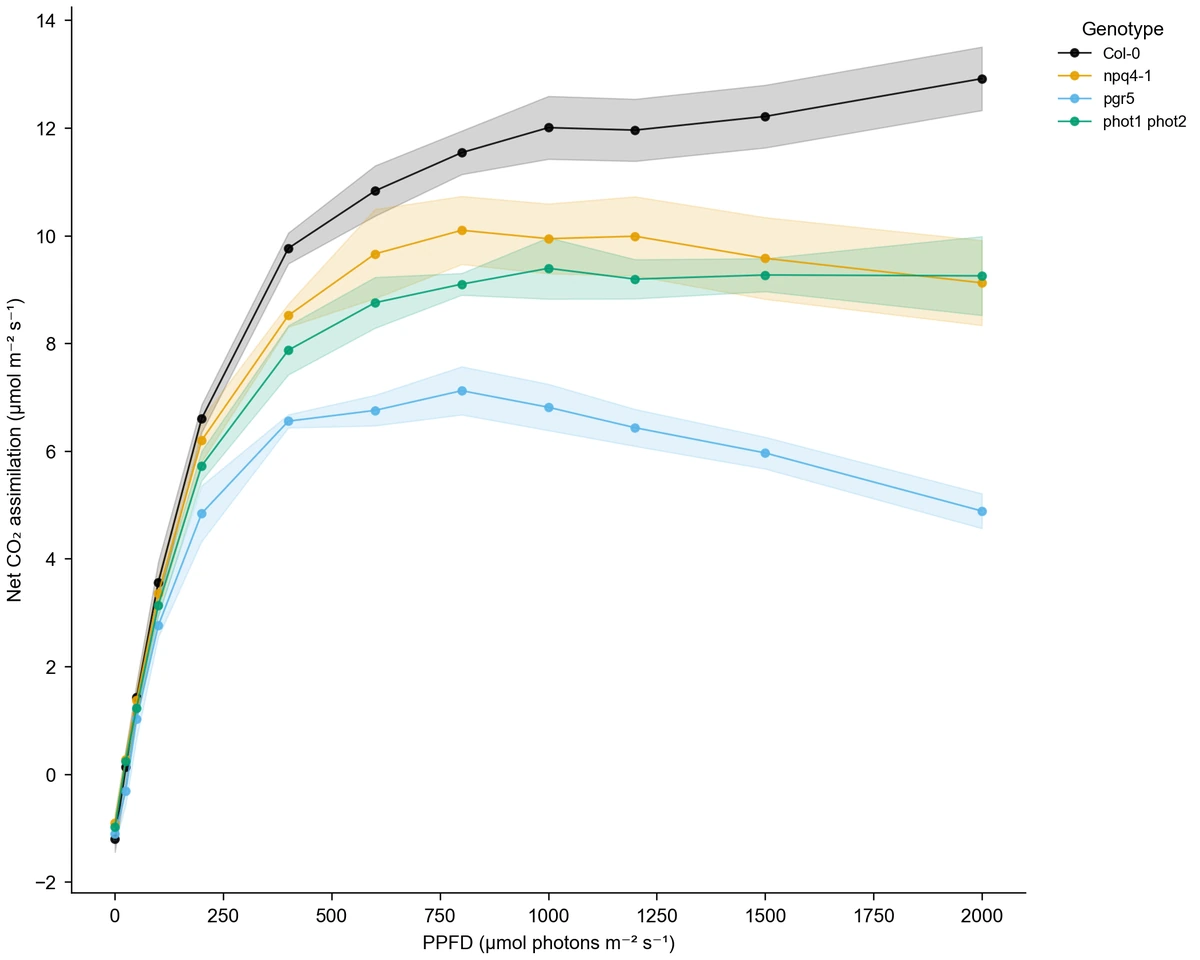 Line Chart Generator
 Number Line Generator
 Figure Checker
 Supply and Demand Graph Maker
 UpSet Plot Generator
 Waterfall Chart Maker
Flowcharts, frameworks and structure diagrams
33 tools Conceptual Framework Generator
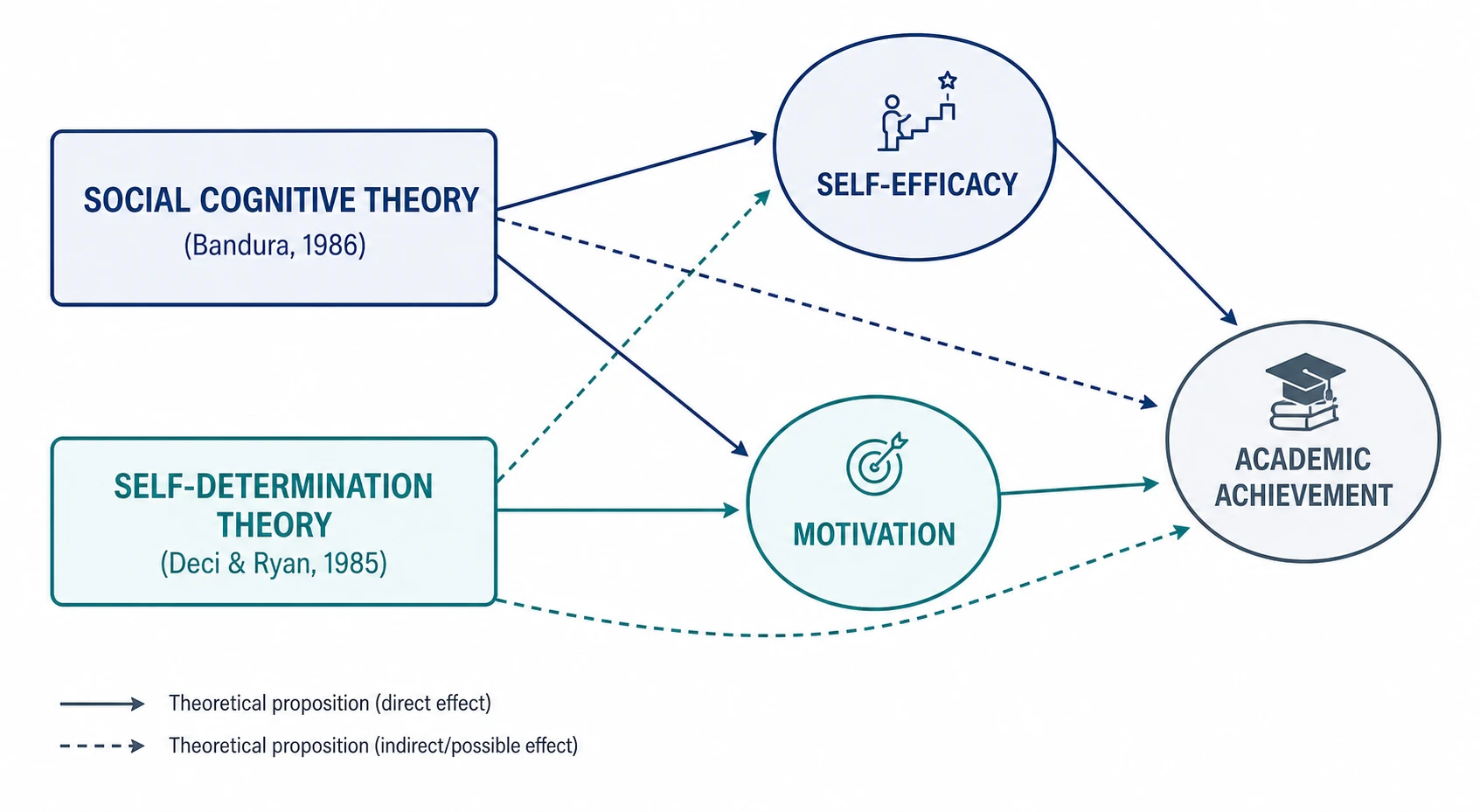 Theoretical Framework Generator
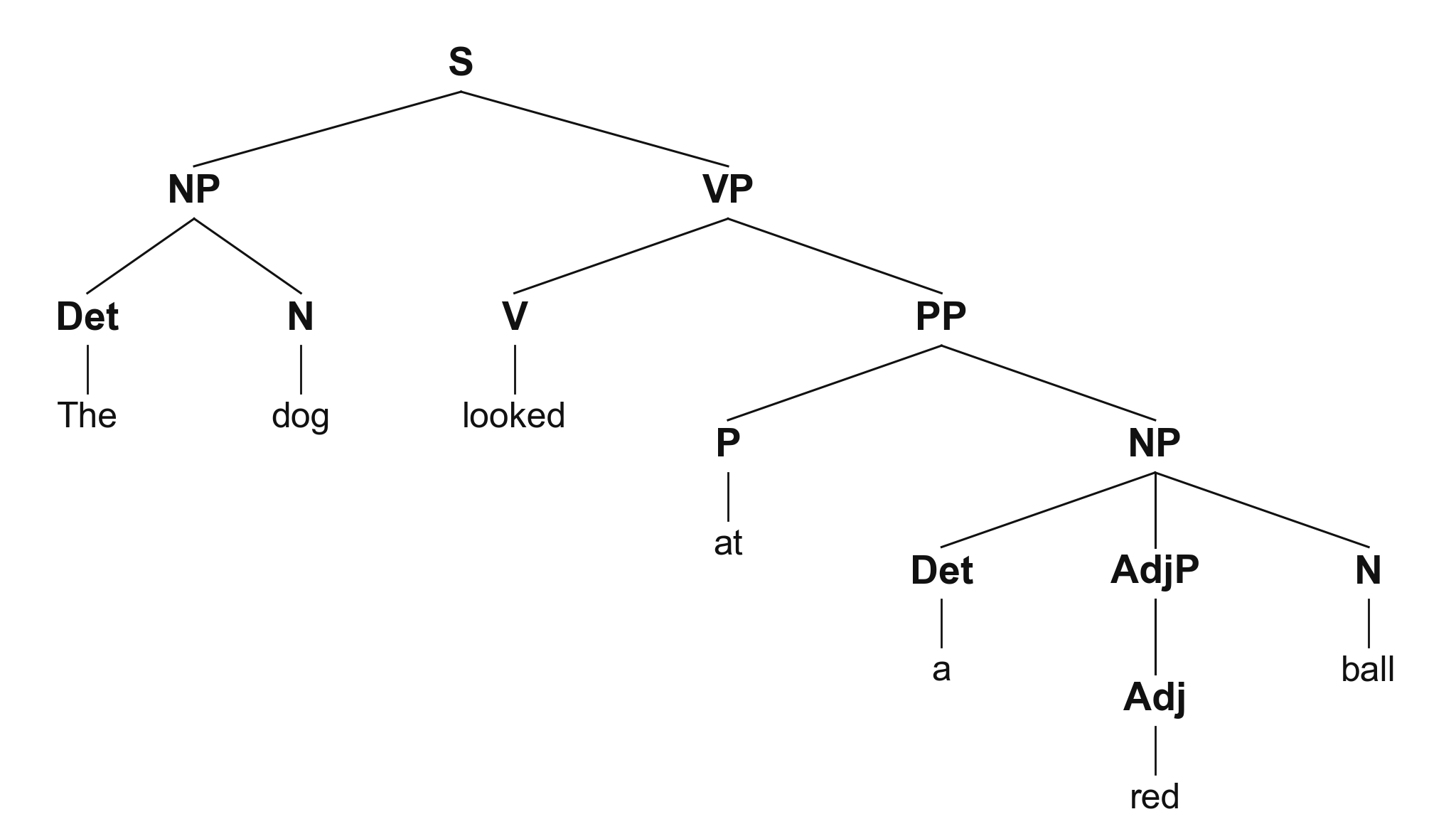 Syntactic Tree Generator
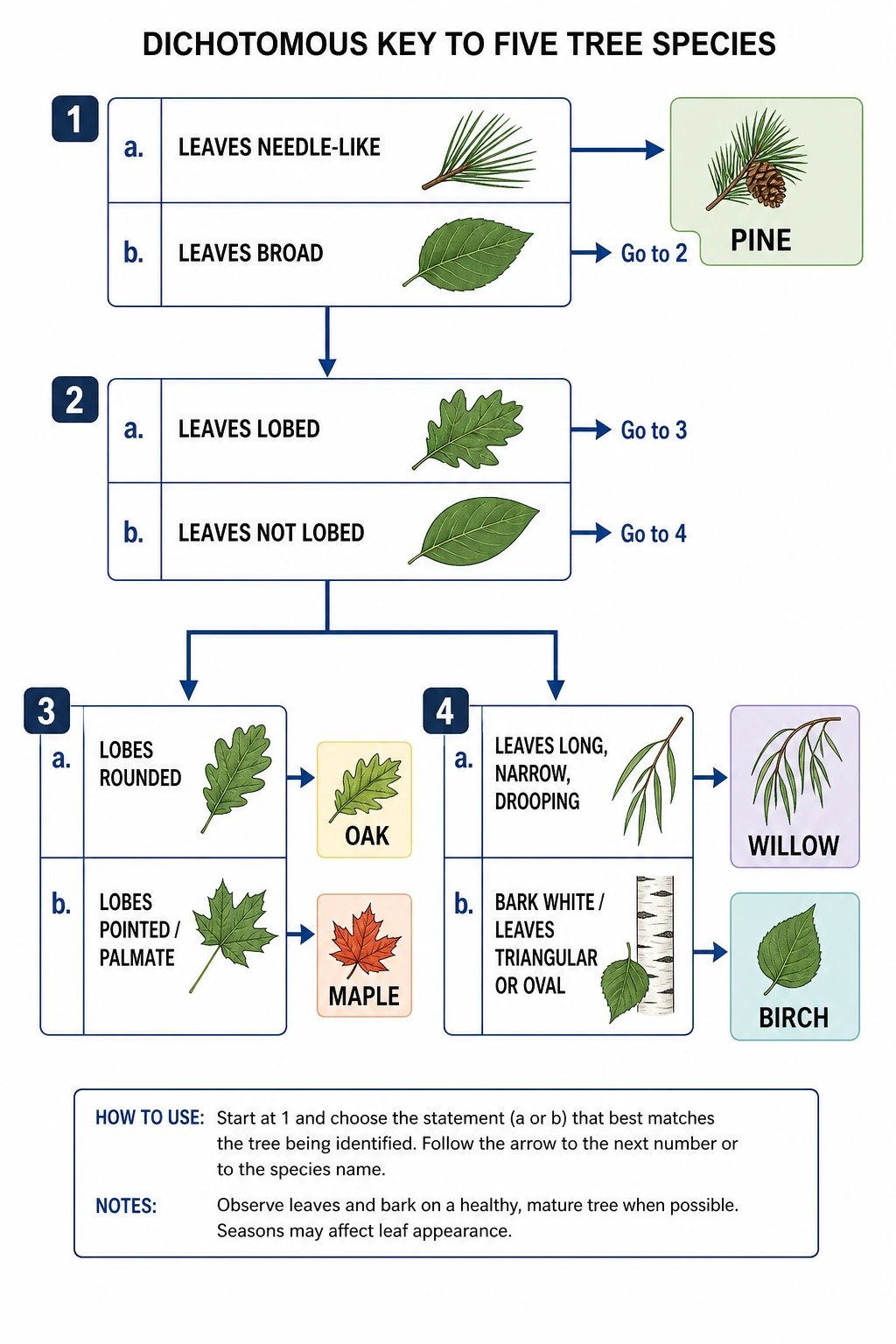 Dichotomous Key Maker
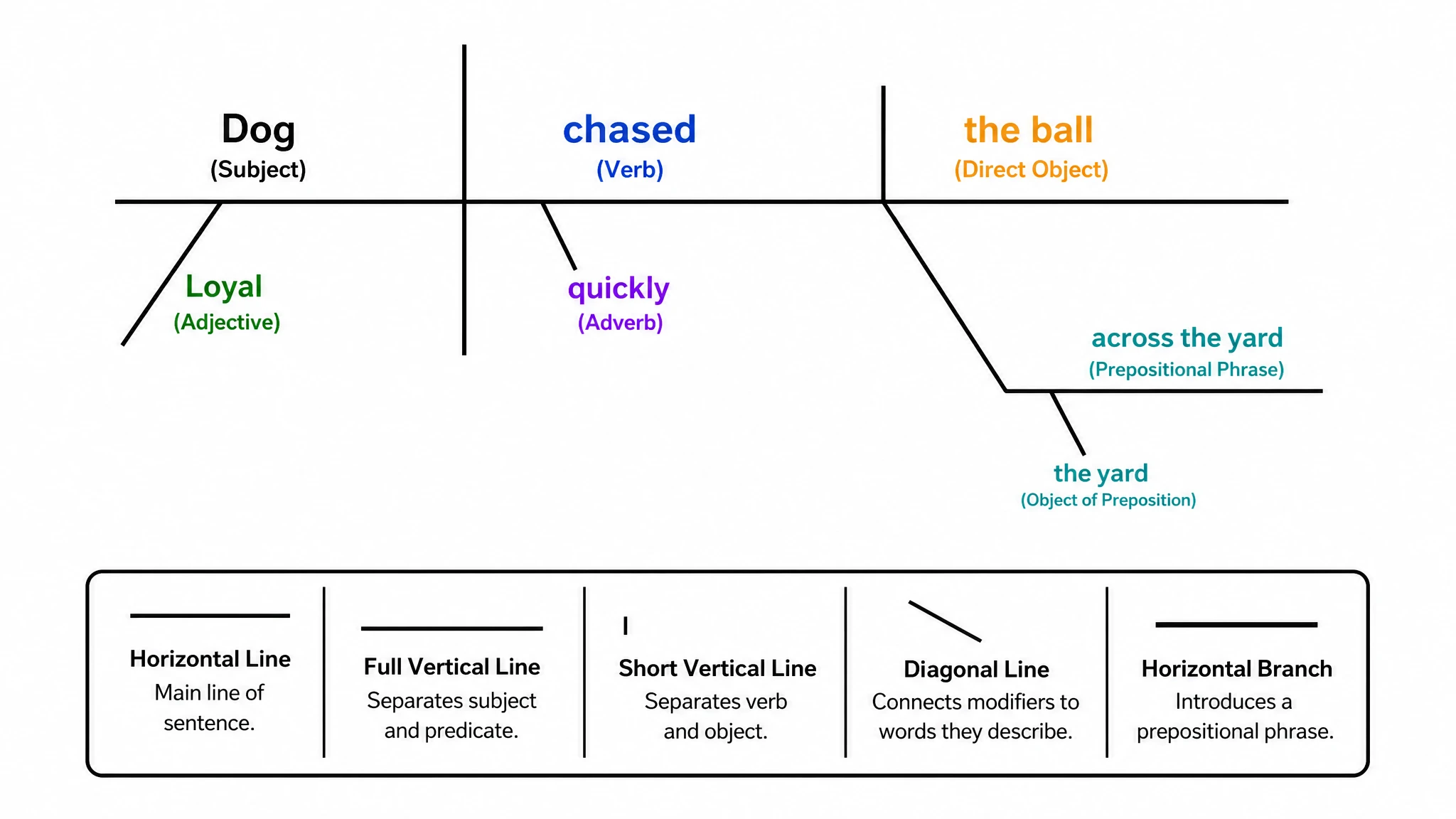 Sentence Diagram Generator
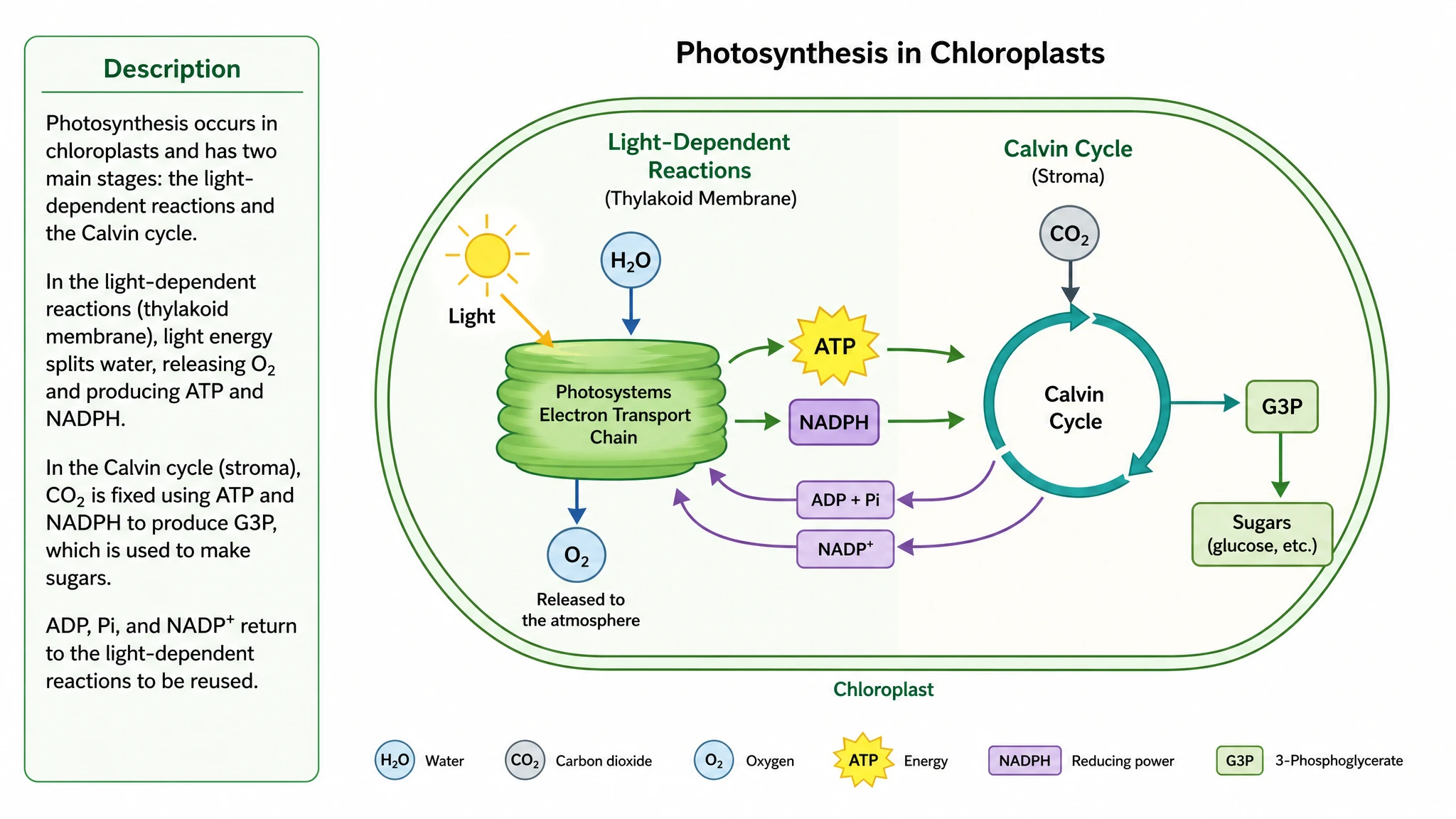 Text to Diagram Generator
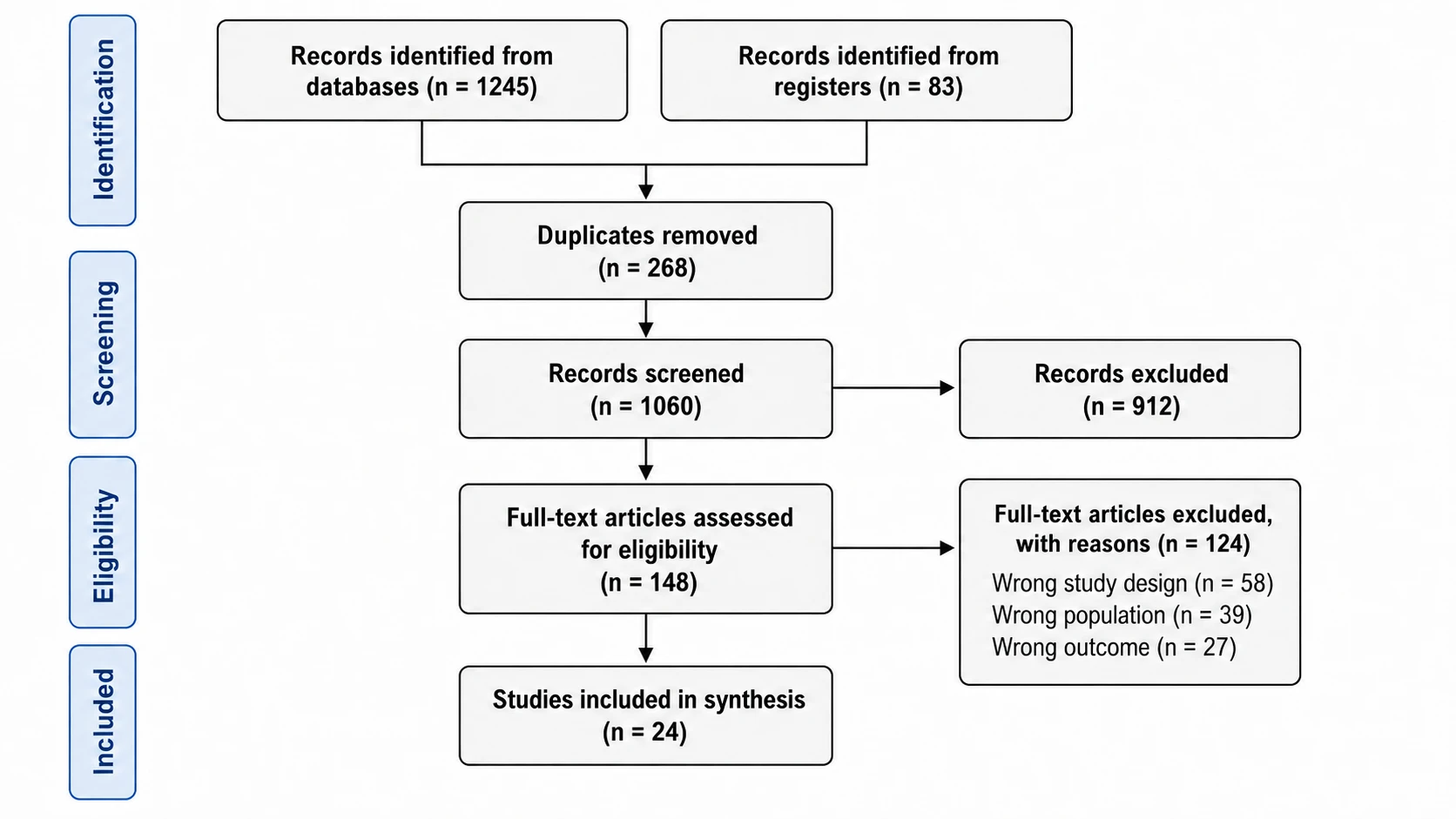 PRISMA Flow Diagram Generator
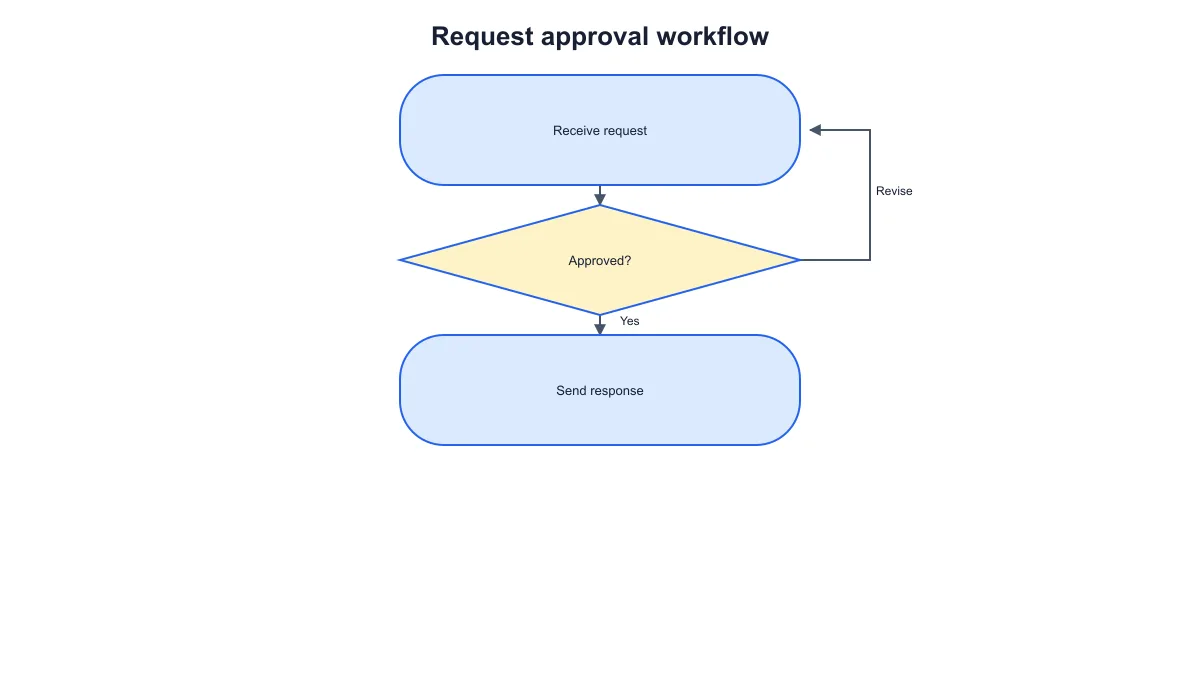 Workflow Diagram Generator
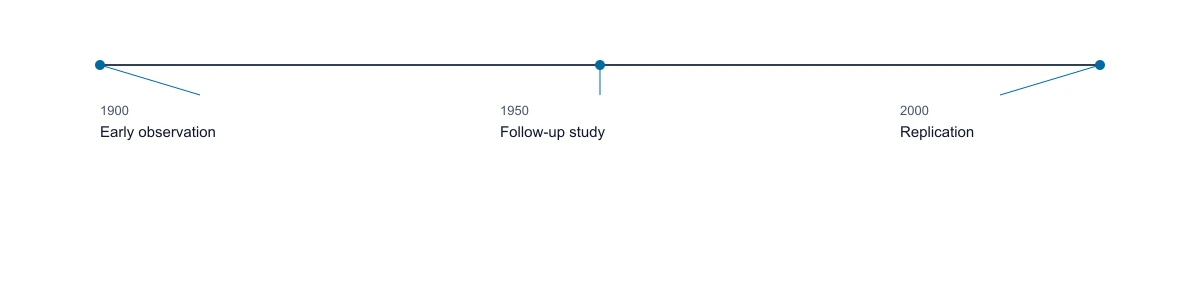 Timeline Generator
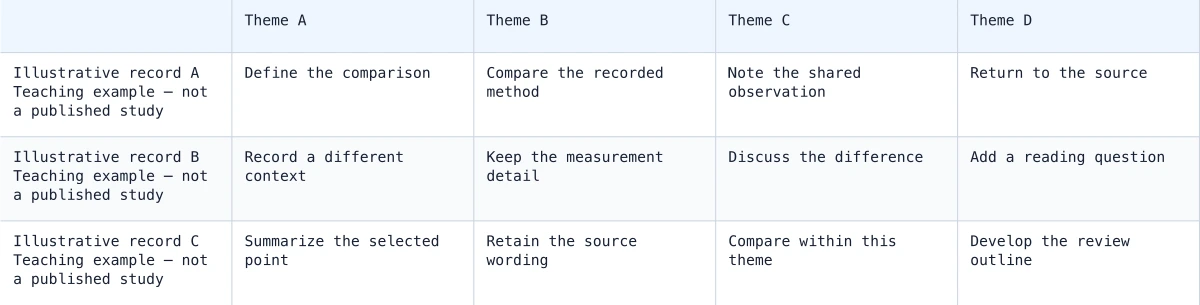 Synthesis Matrix Generator
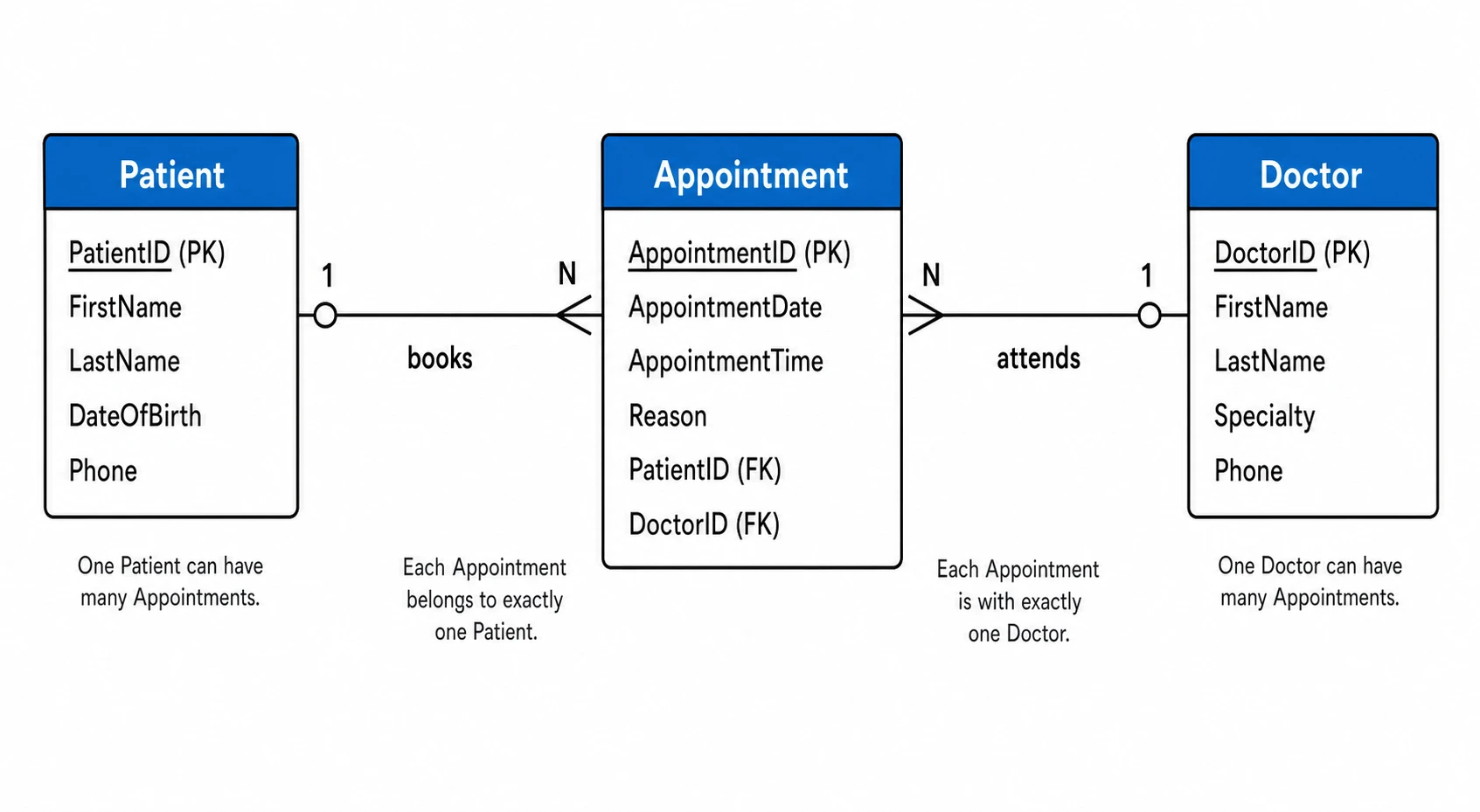 ER Diagram Generator
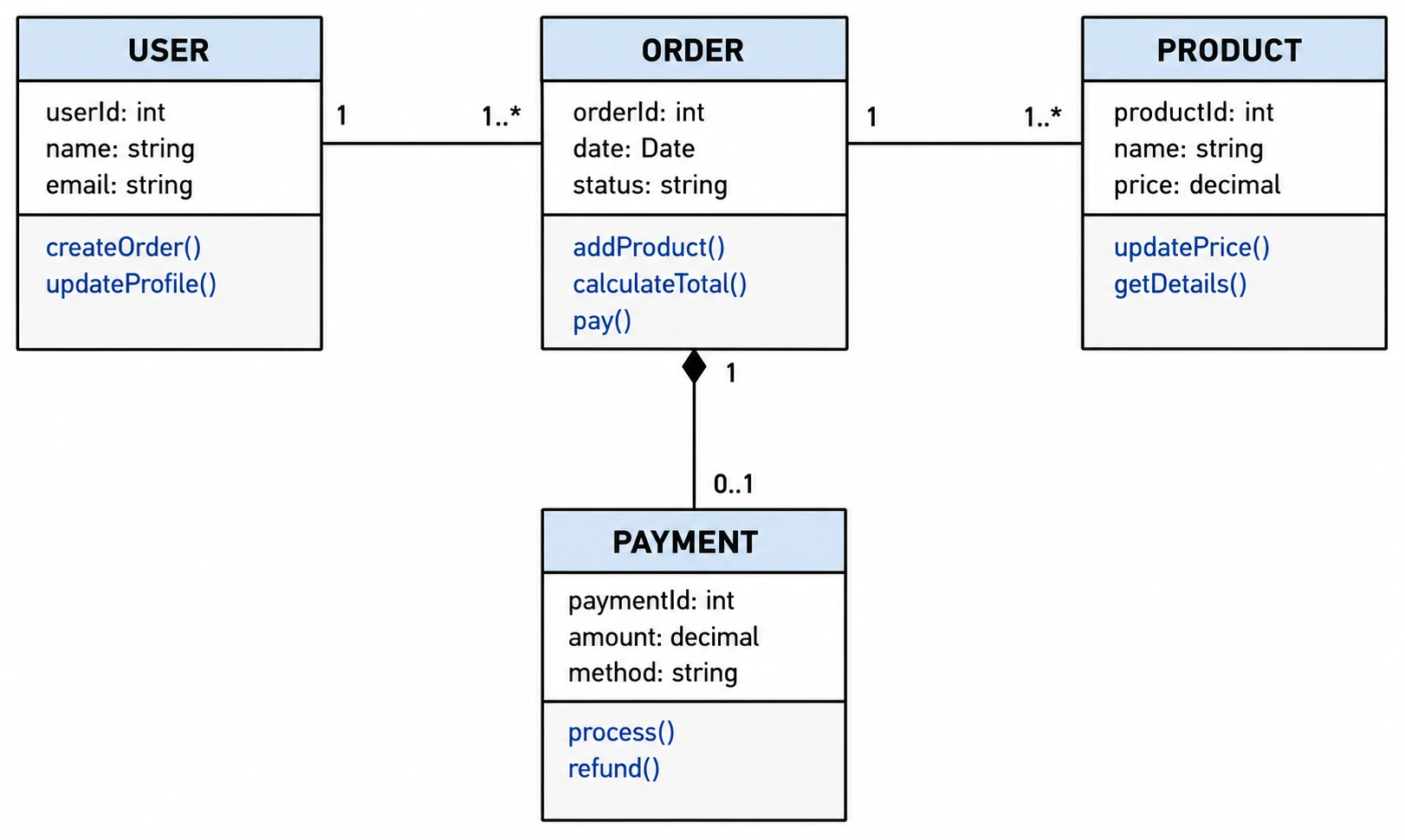 UML Diagram Generator
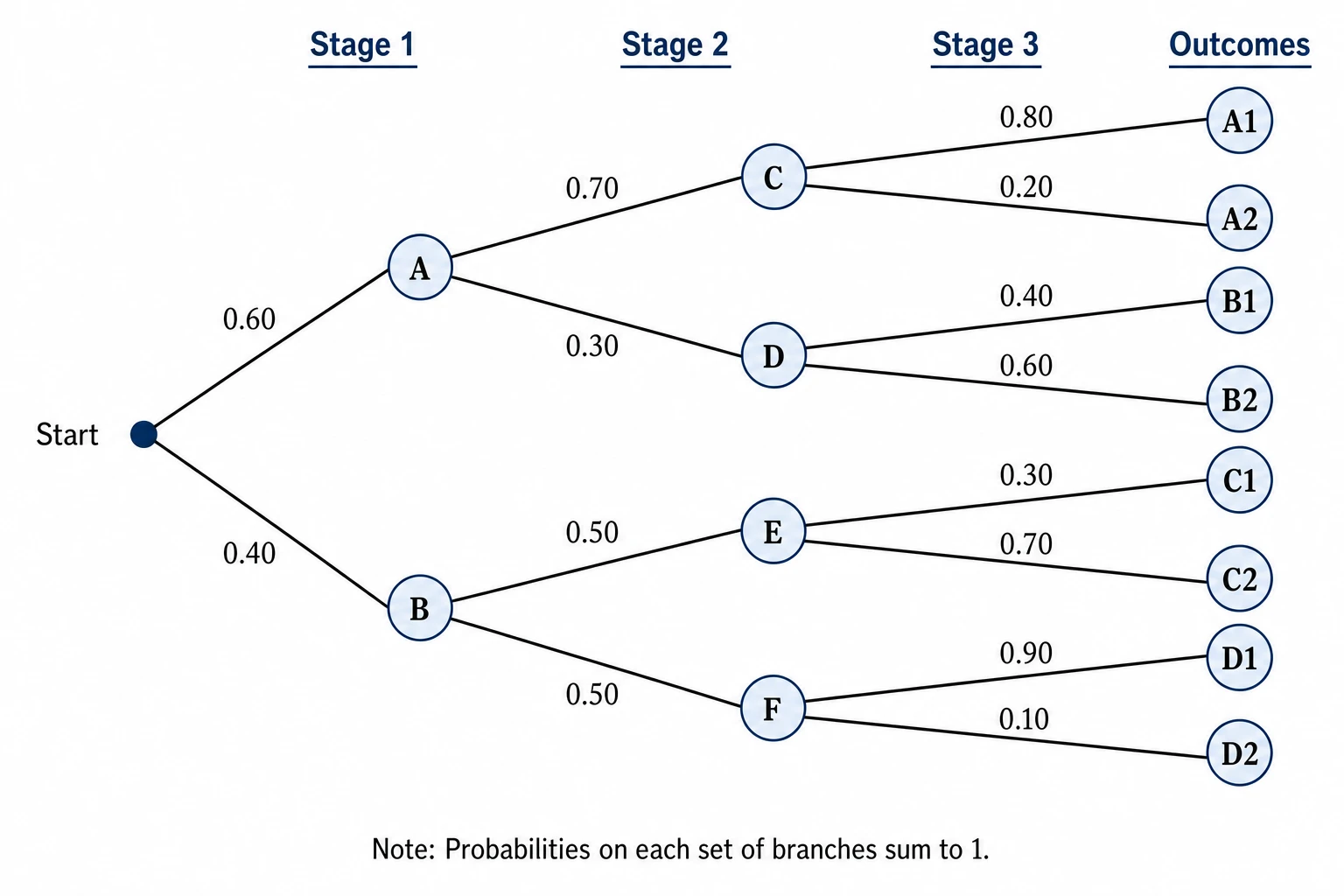 Tree Diagram Generator
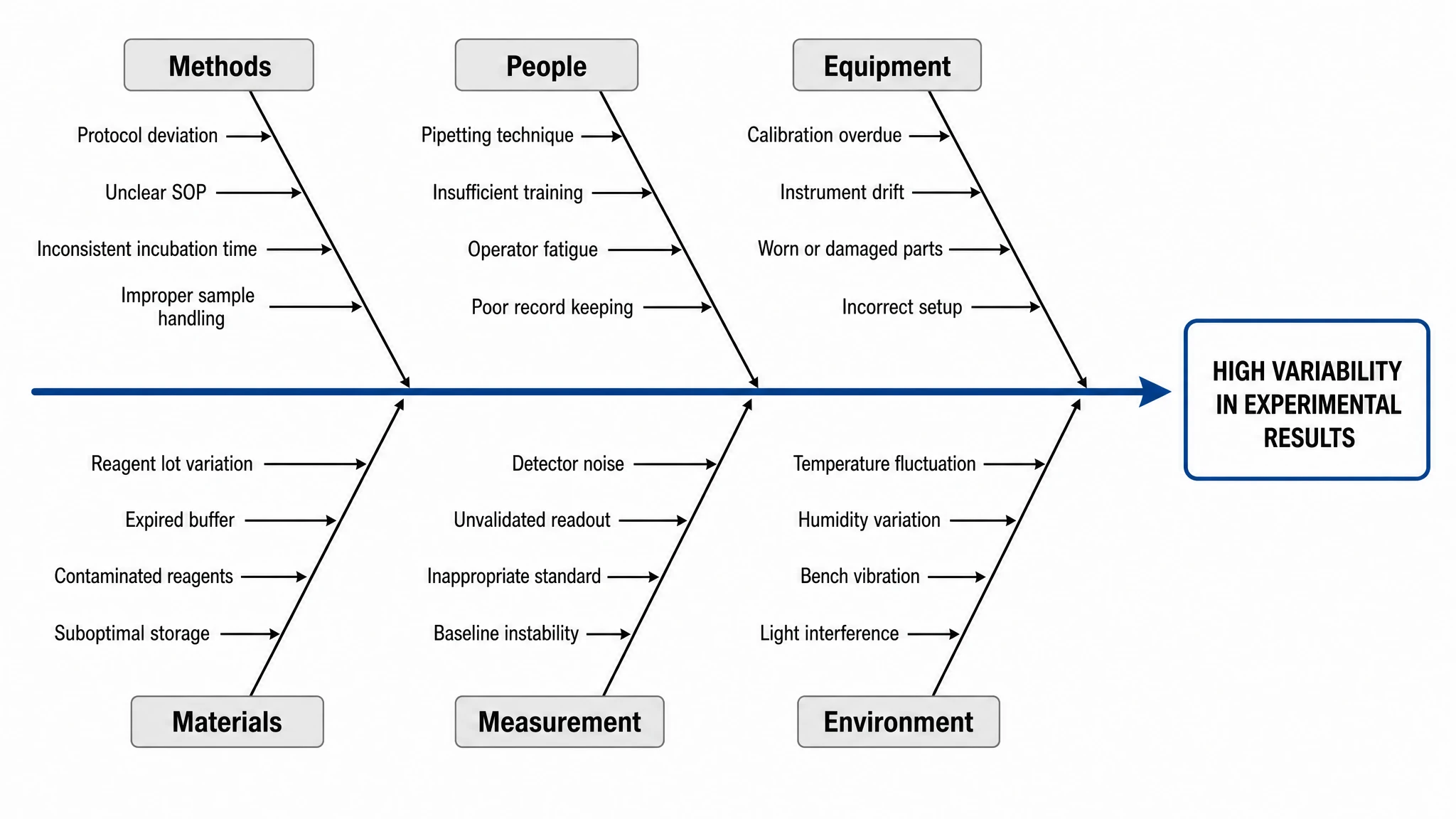 Fishbone Diagram Generator
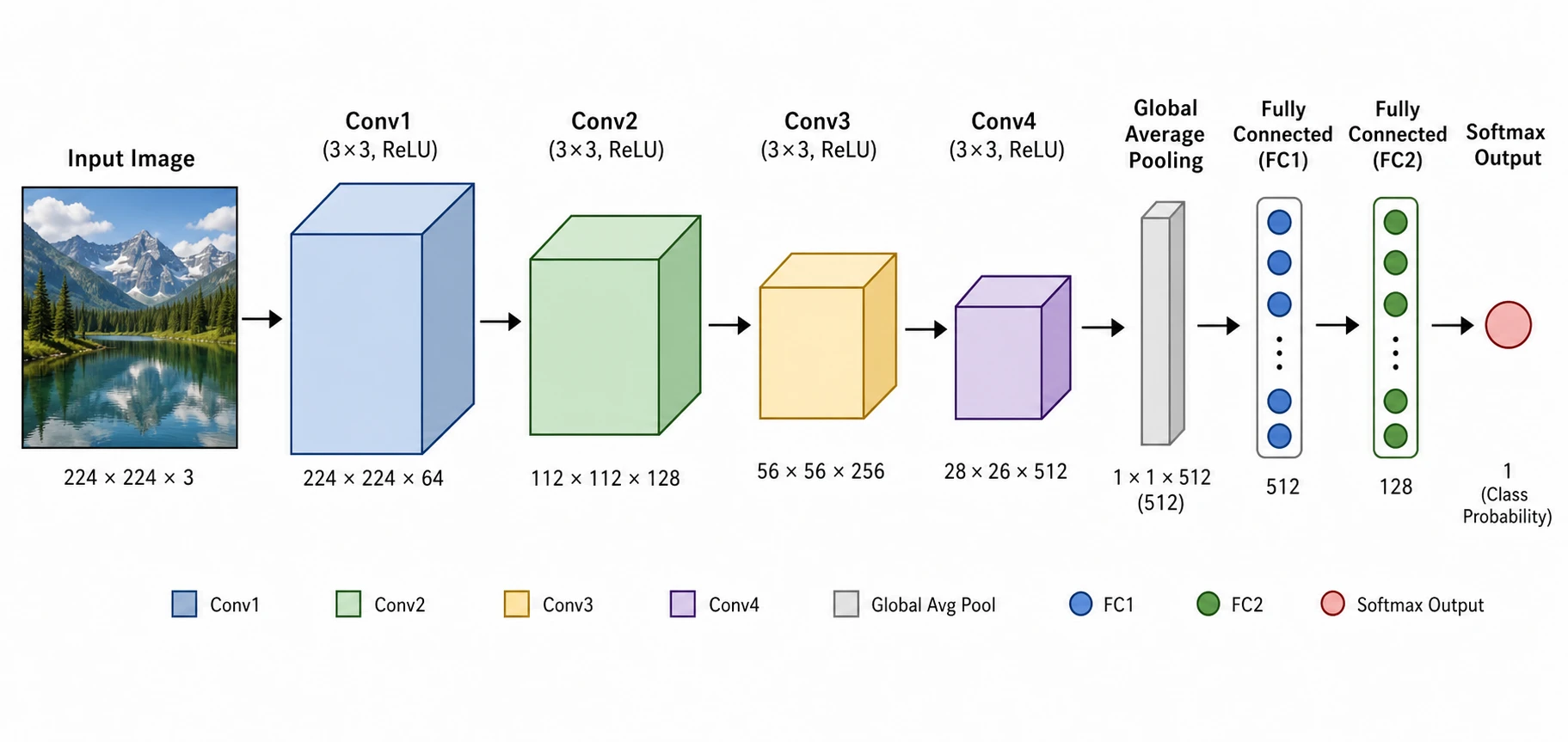 Neural Network Diagram Generator
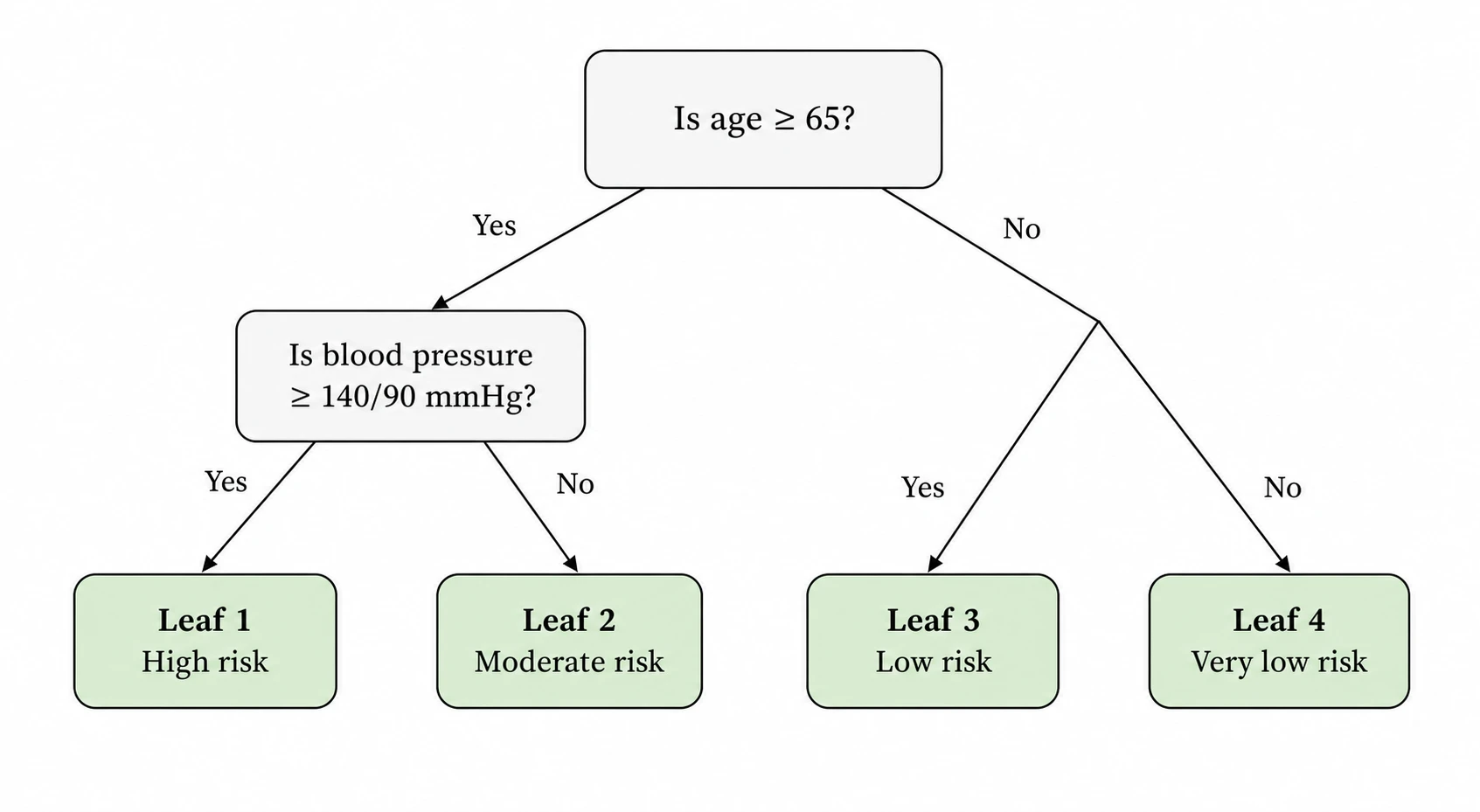 Decision Tree Generator
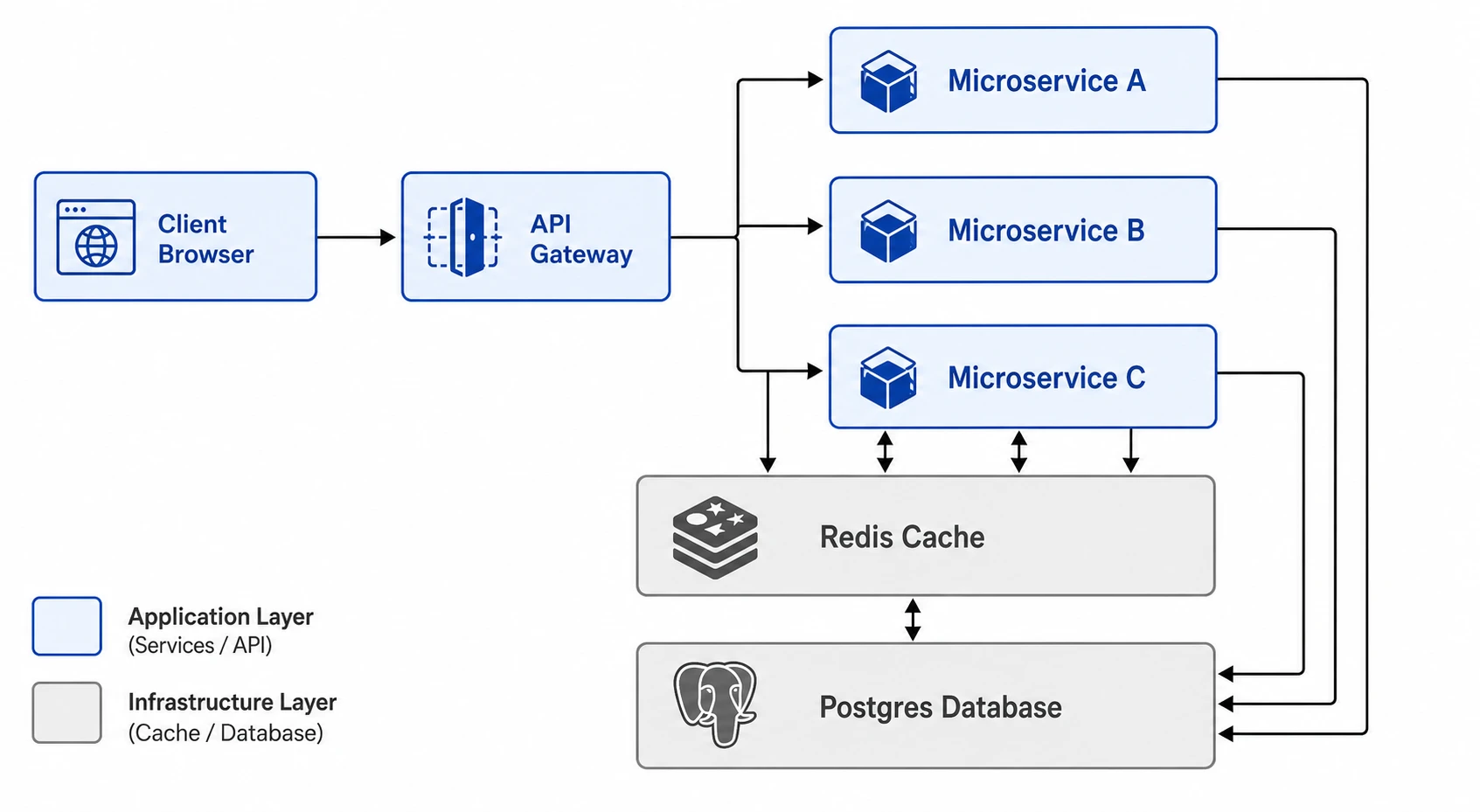 Software Architecture Diagram Generator
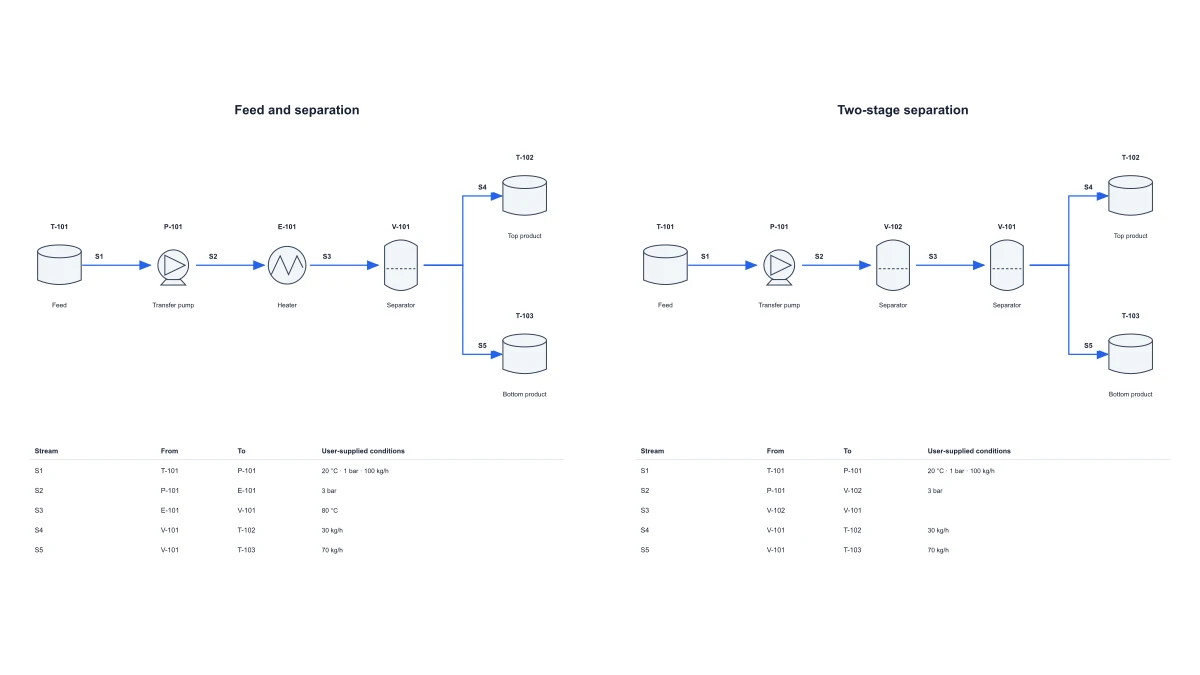 Chemical Process Flow Diagram Maker
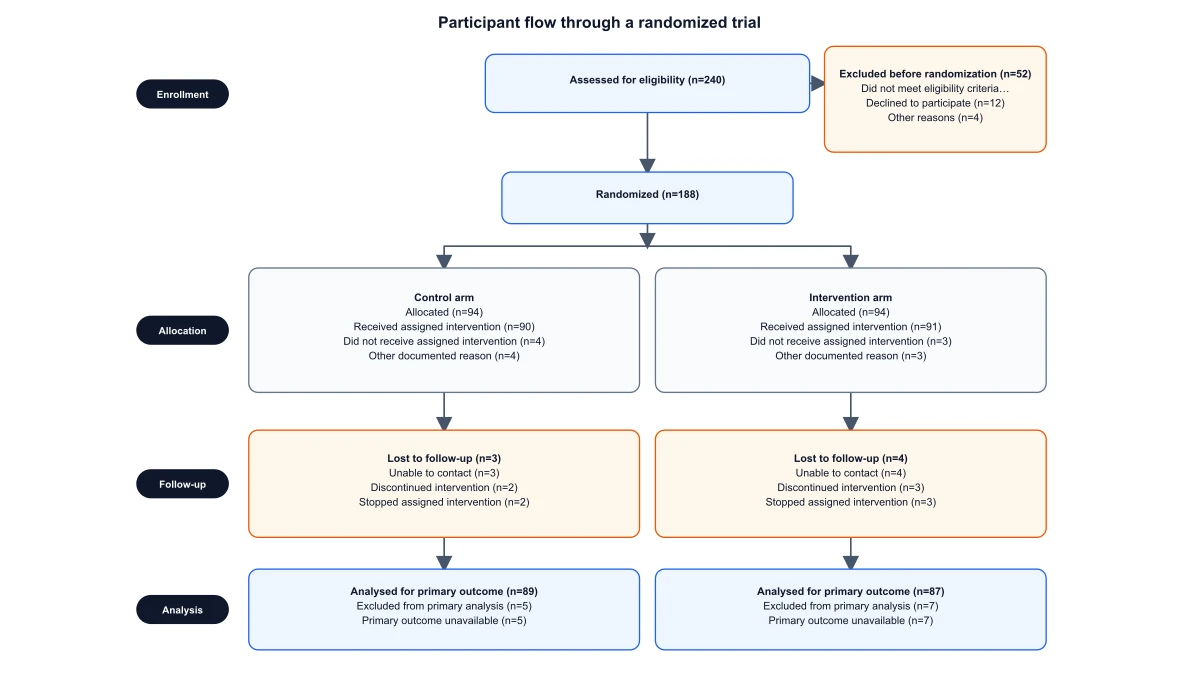 CONSORT Flow Diagram Generator
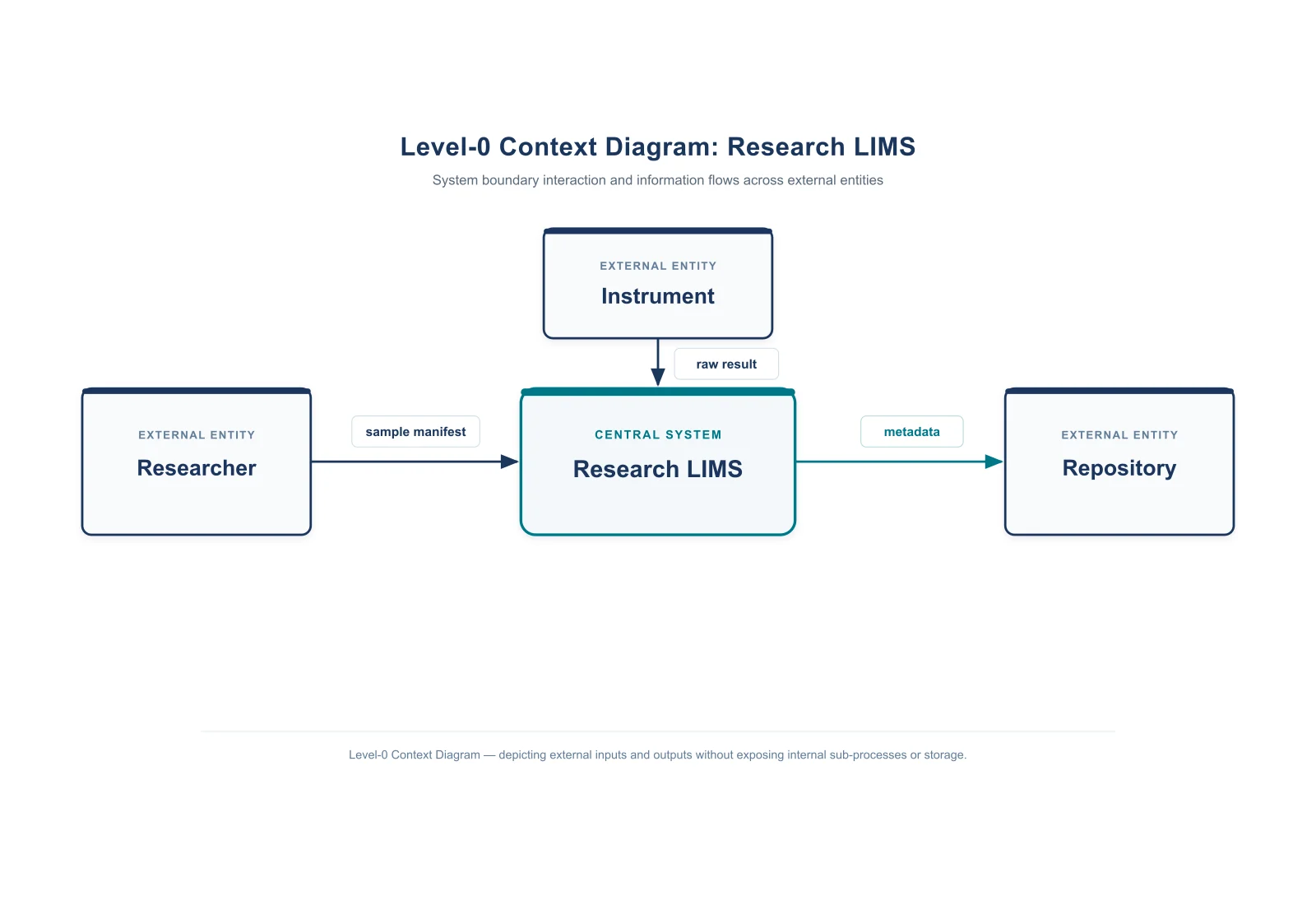 Context Diagram Creator
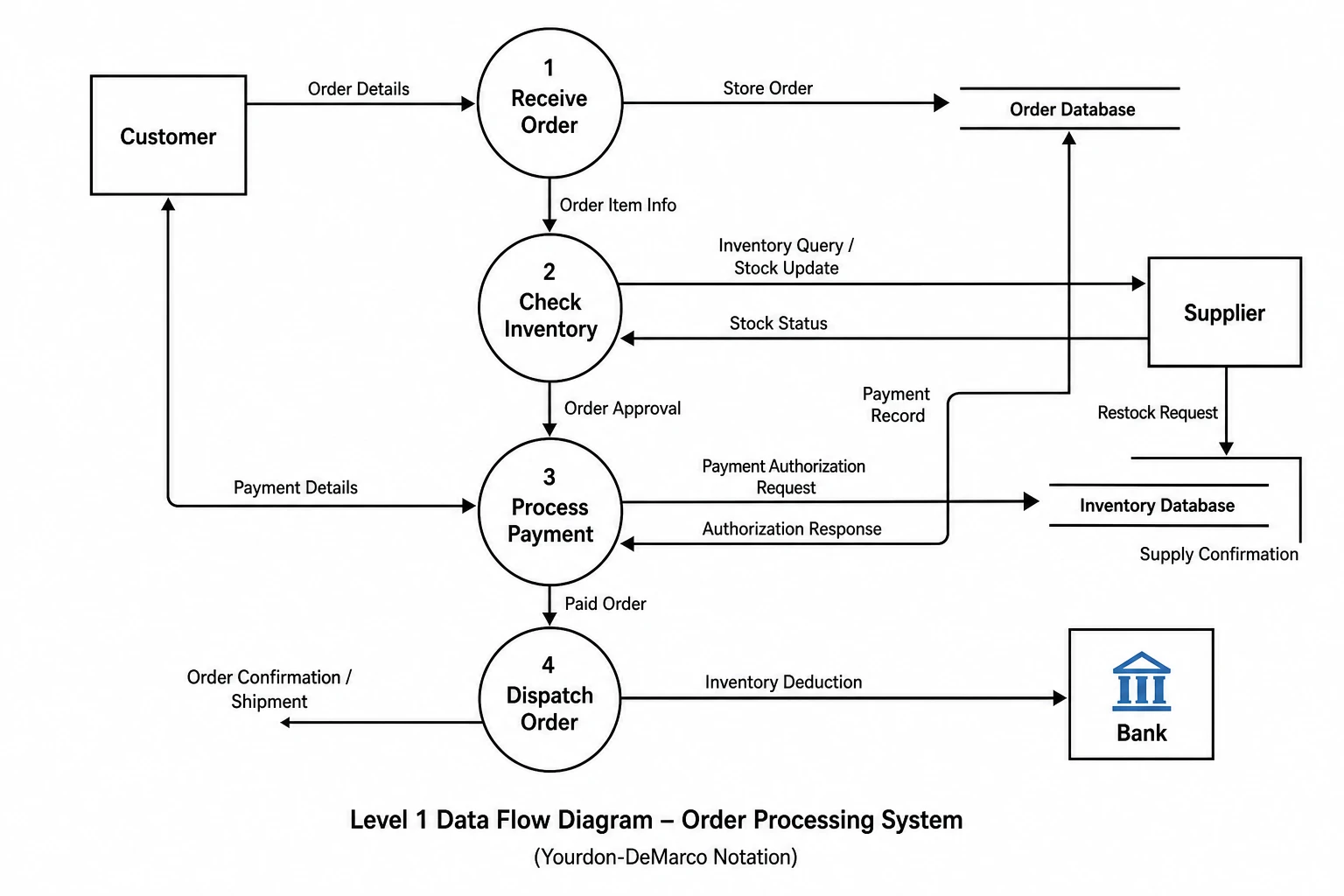 Data Flow Diagram Generator
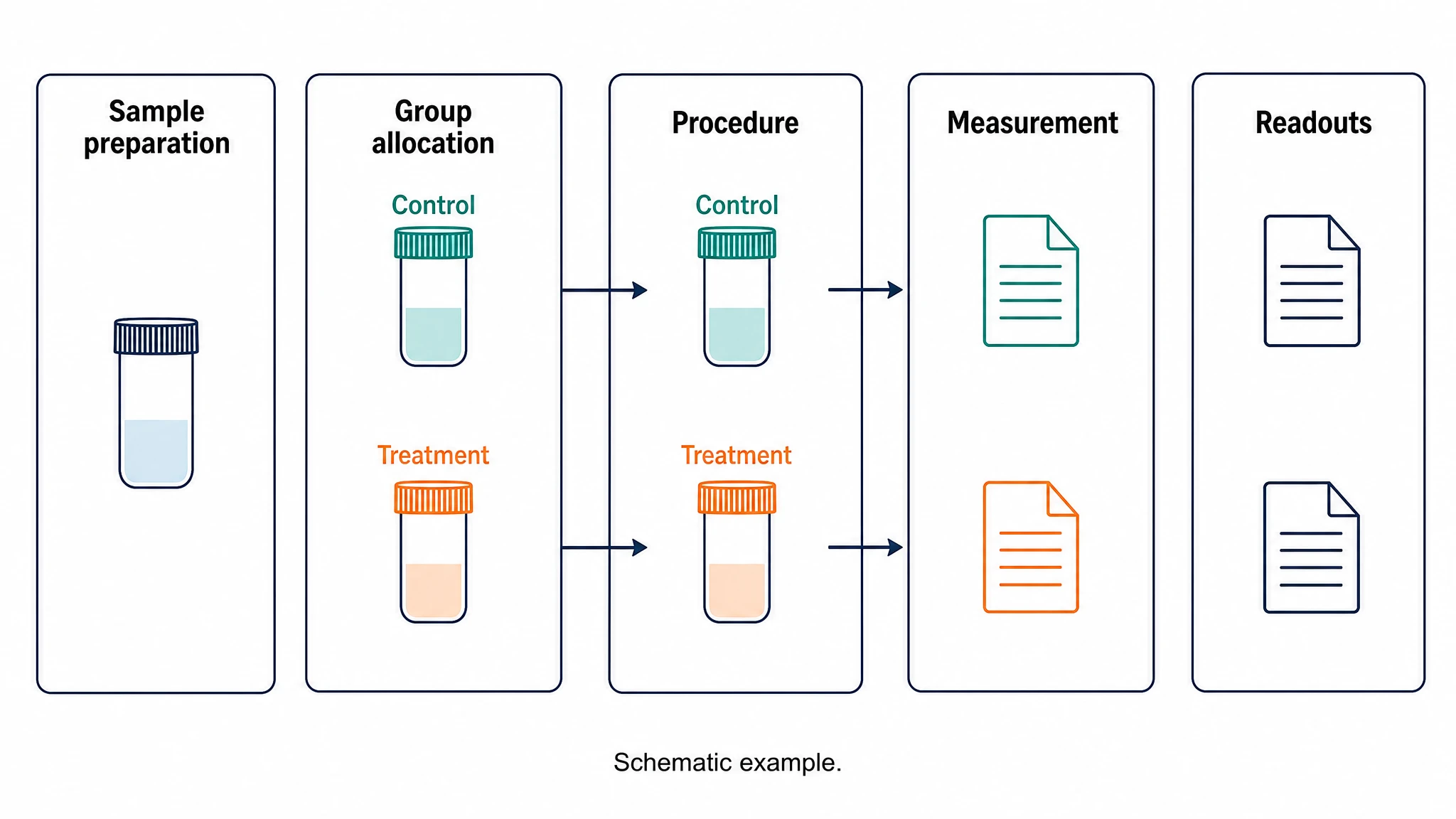 Experimental Workflow Diagram
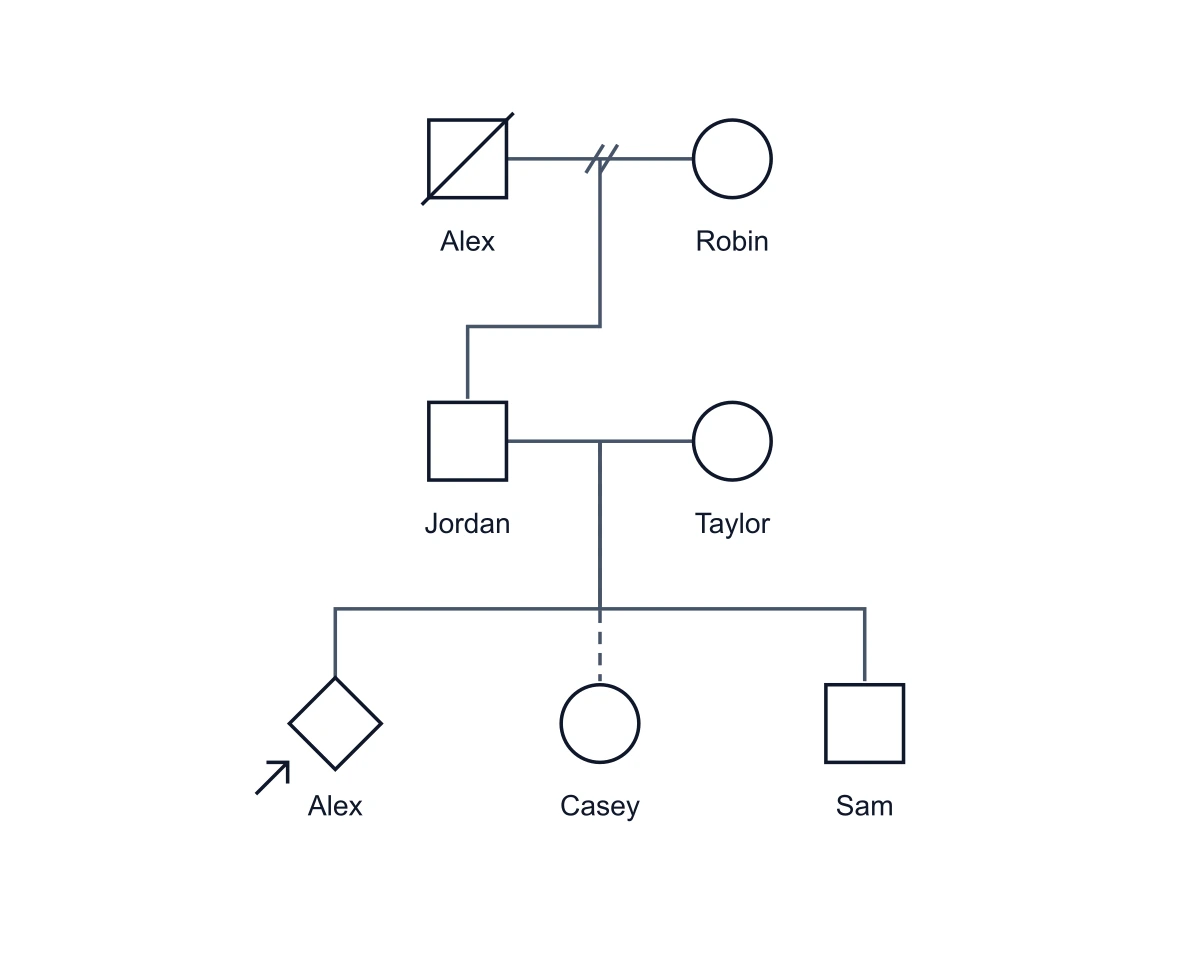 Genogram Maker
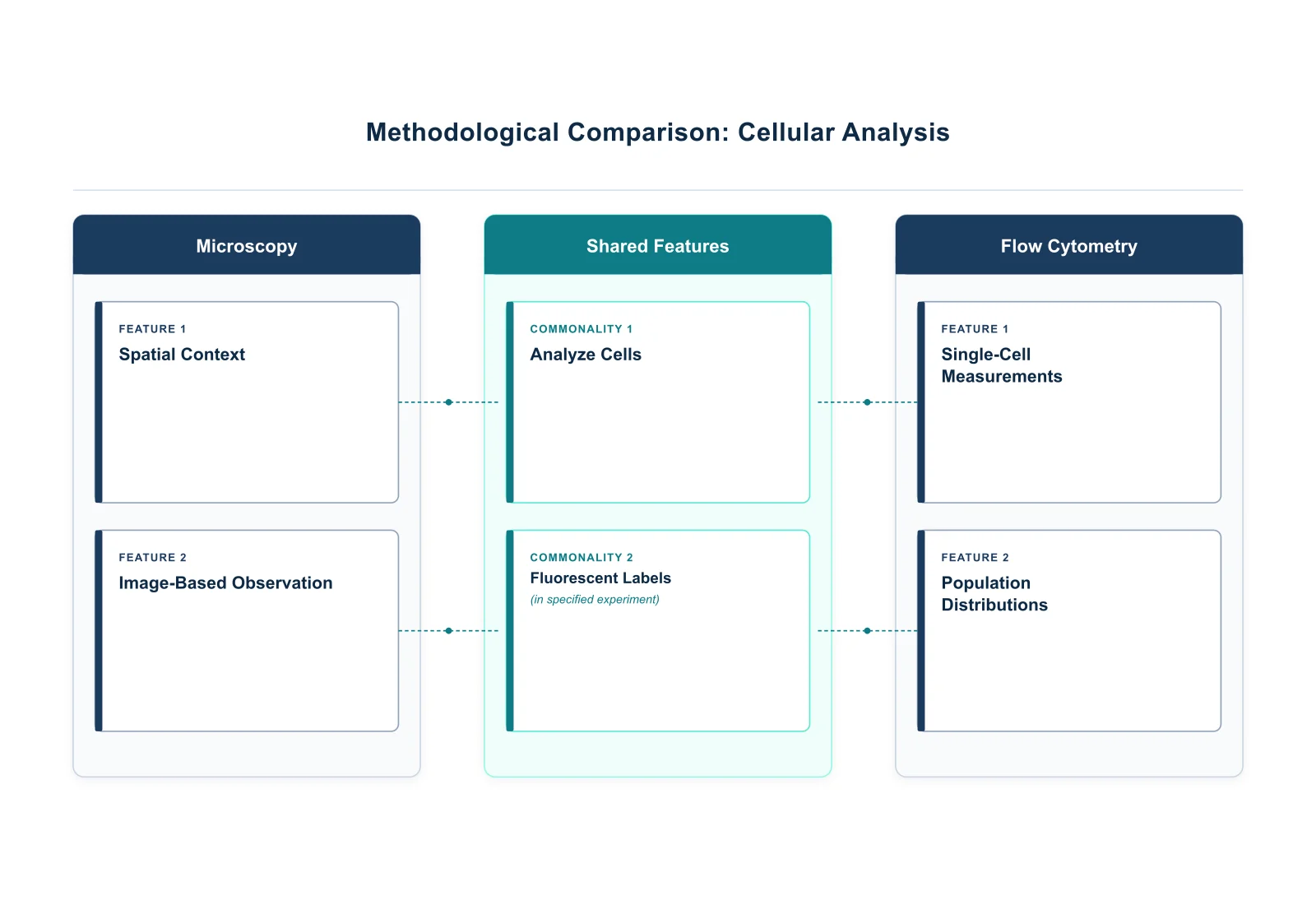 Graphic Organizer Generator
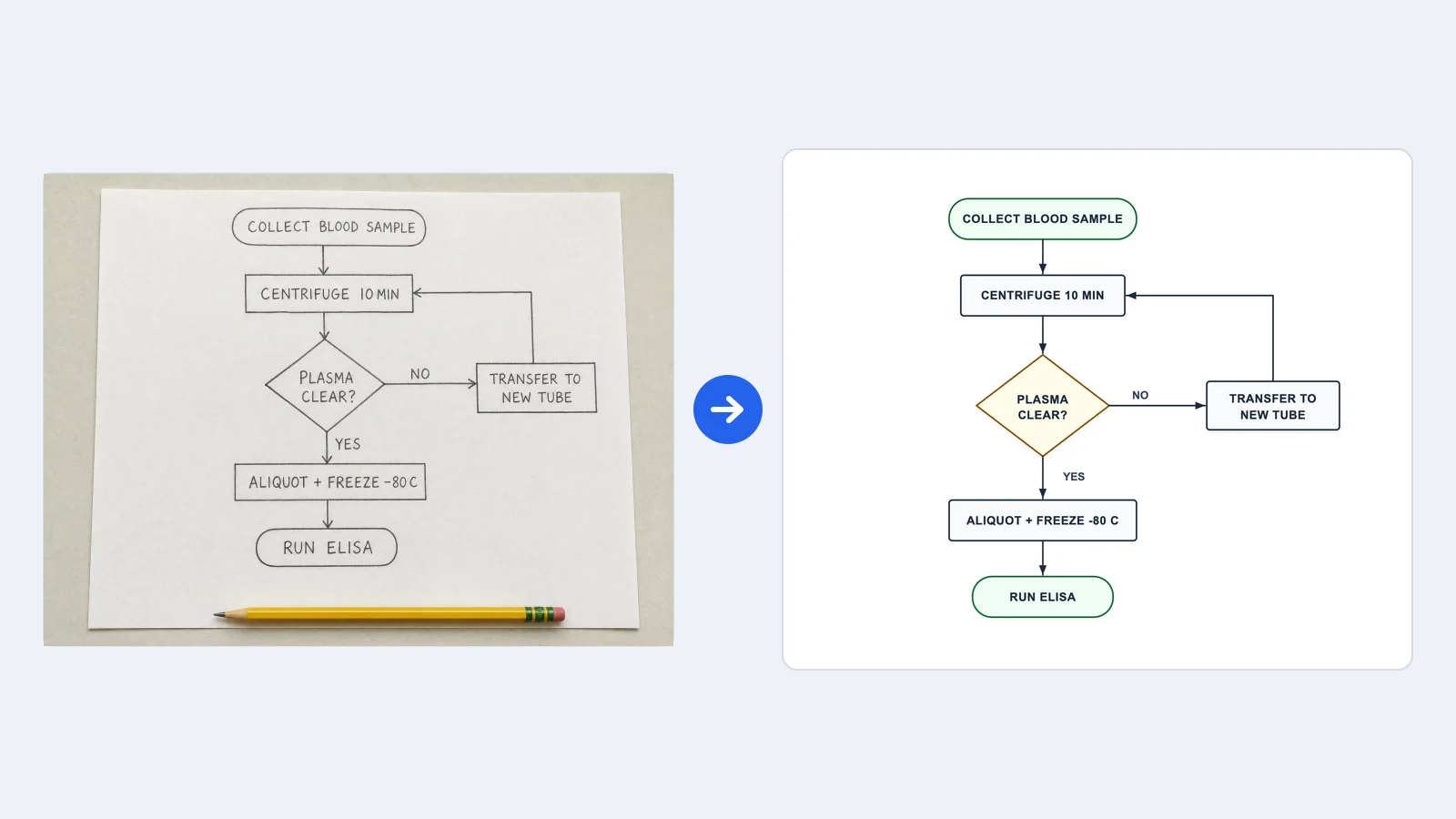 Image to Flowchart Converter
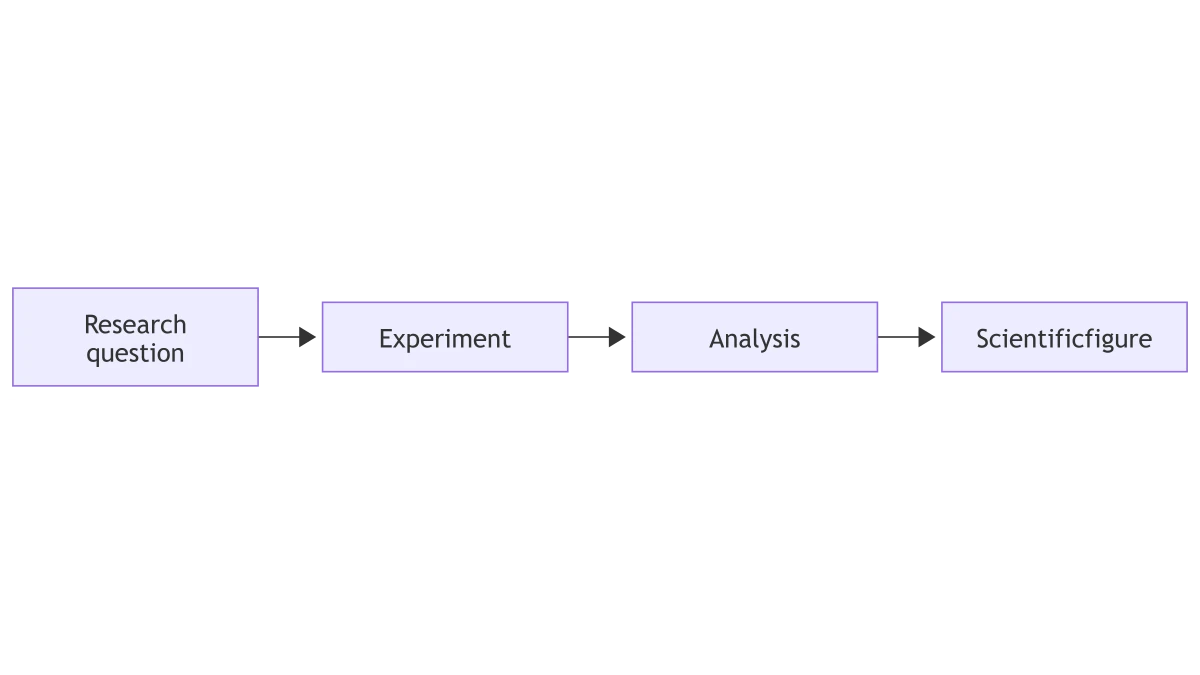 Mermaid to PNG Converter
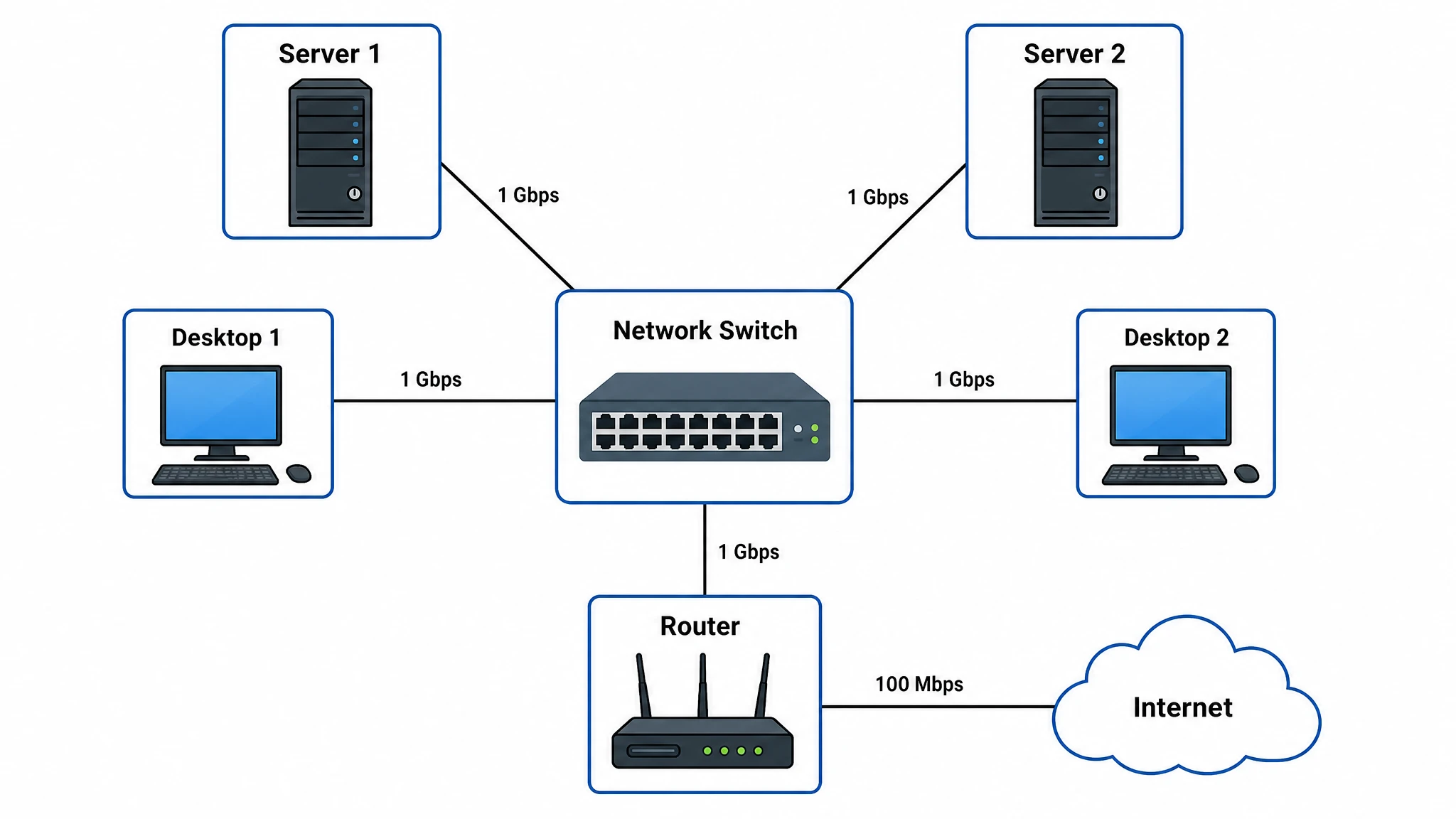 Network Diagram Generator
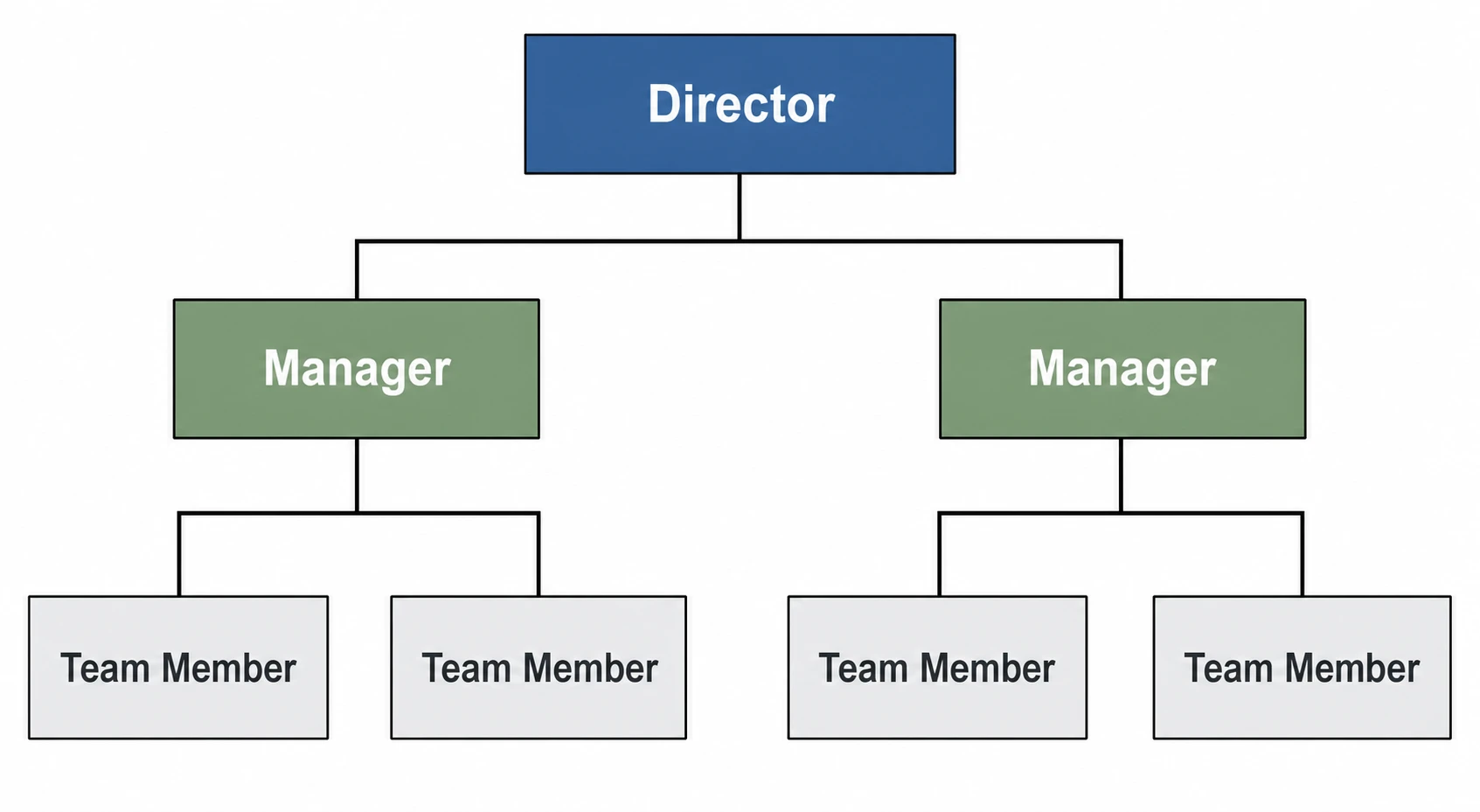 Org Chart Maker
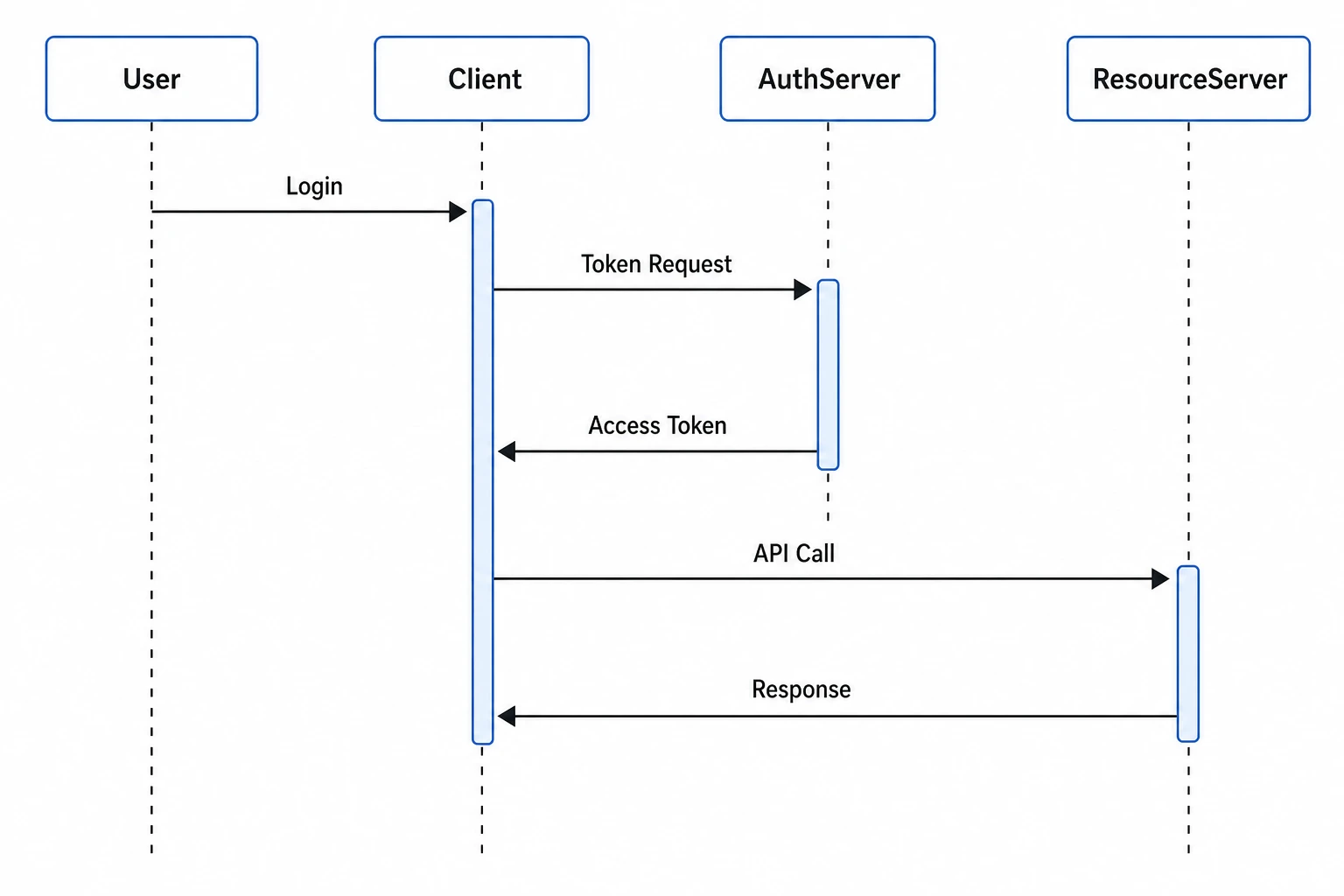 Sequence Diagram Generator
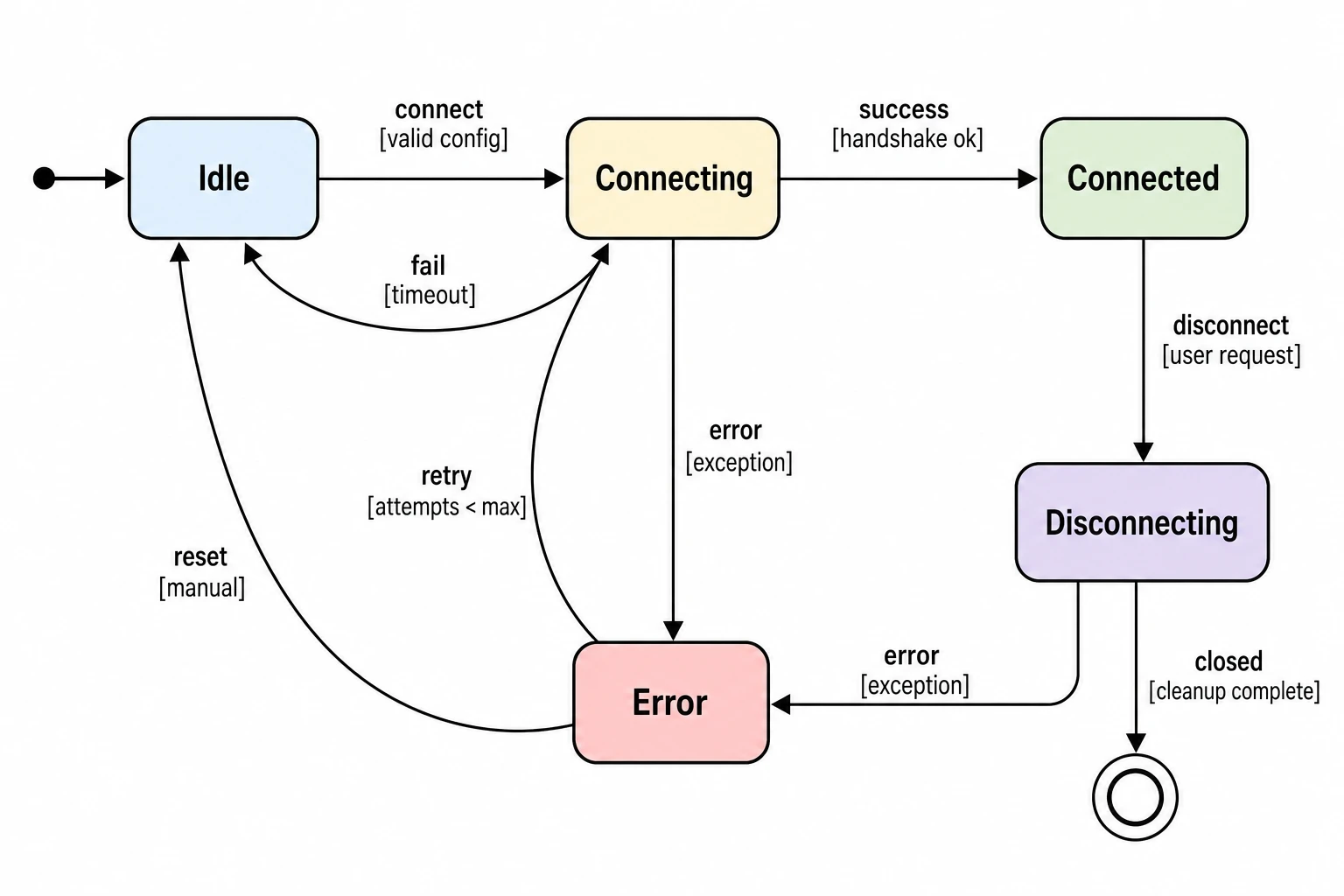 State Diagram Generator
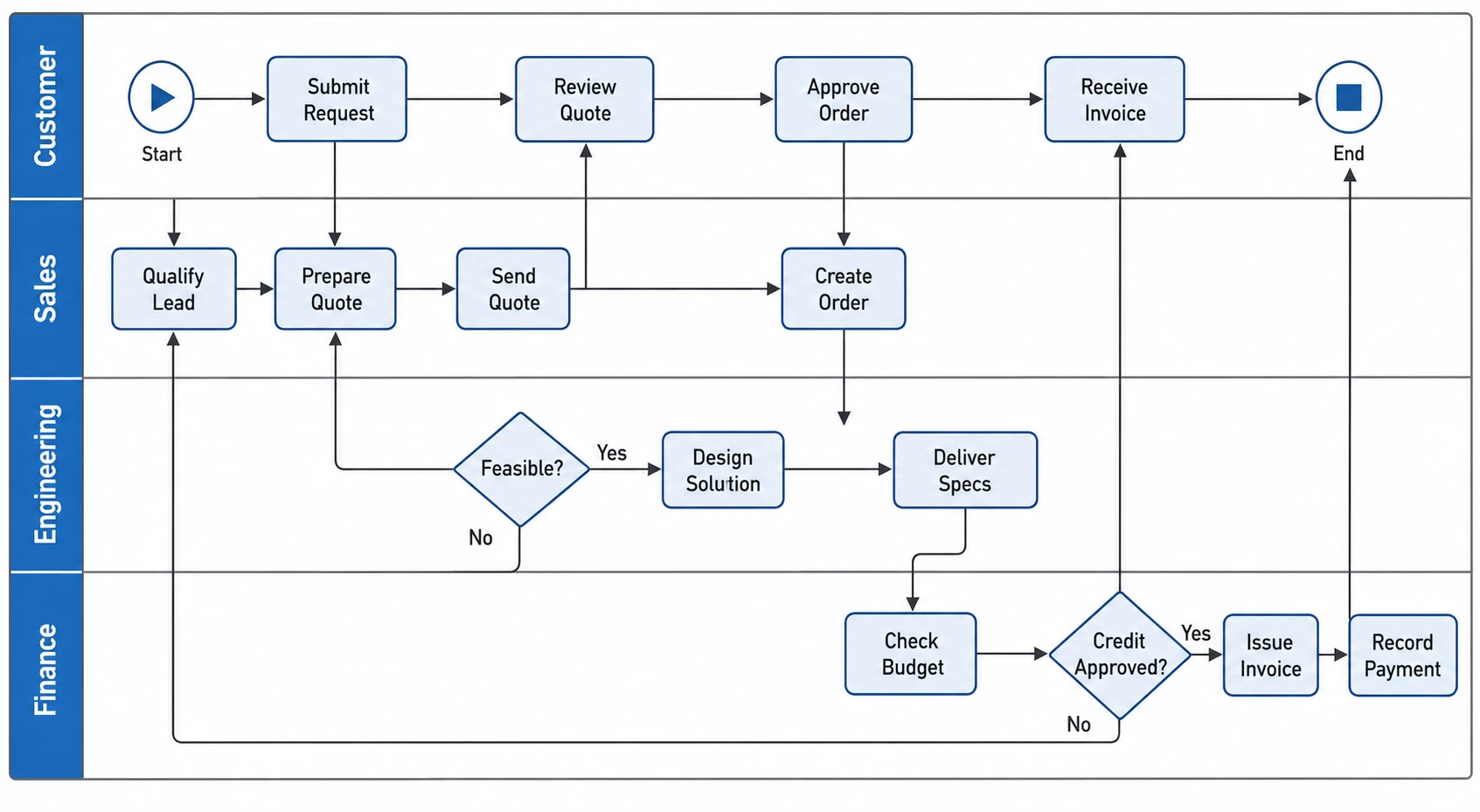 Swimlane Diagram Generator
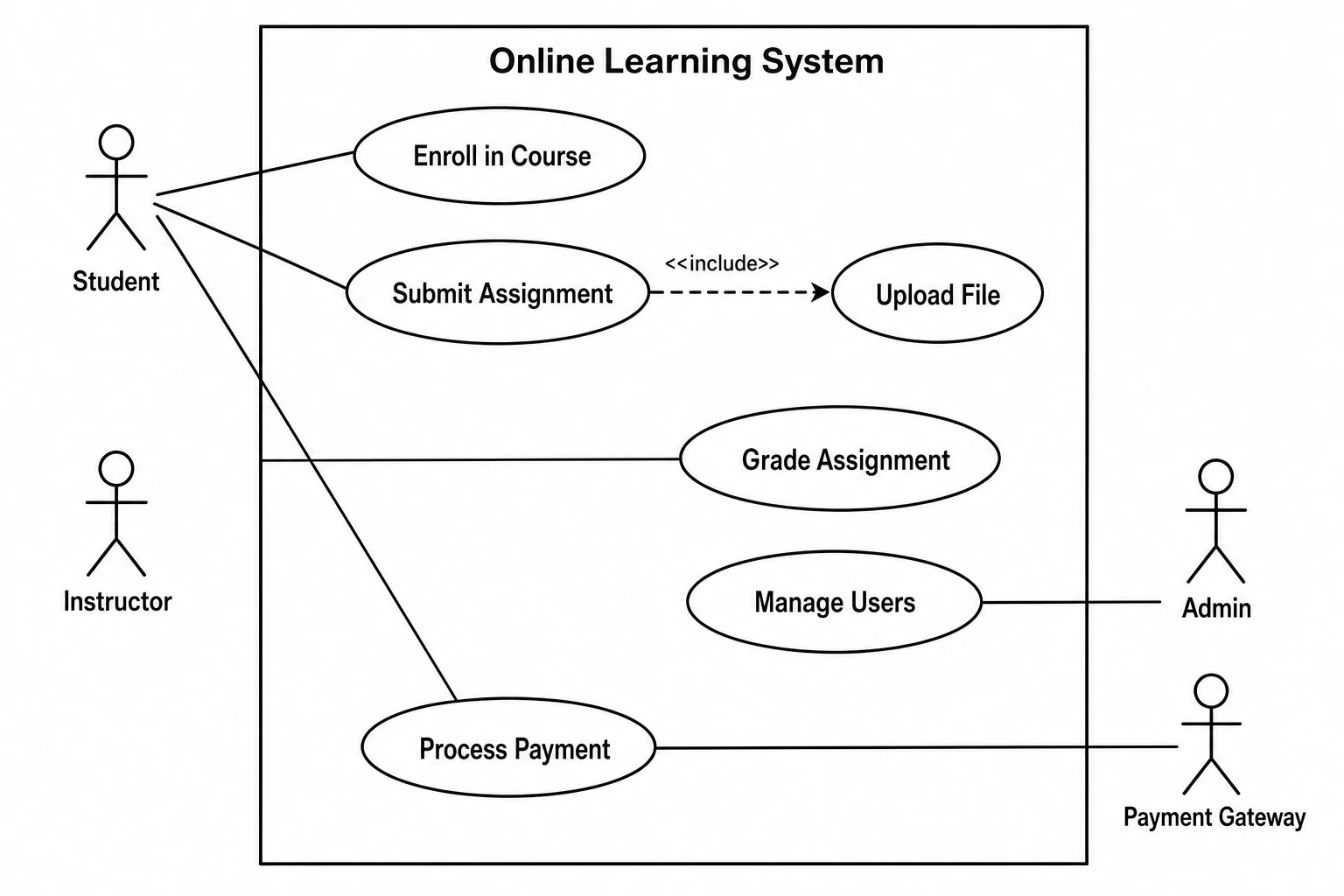 Use Case Diagram Generator
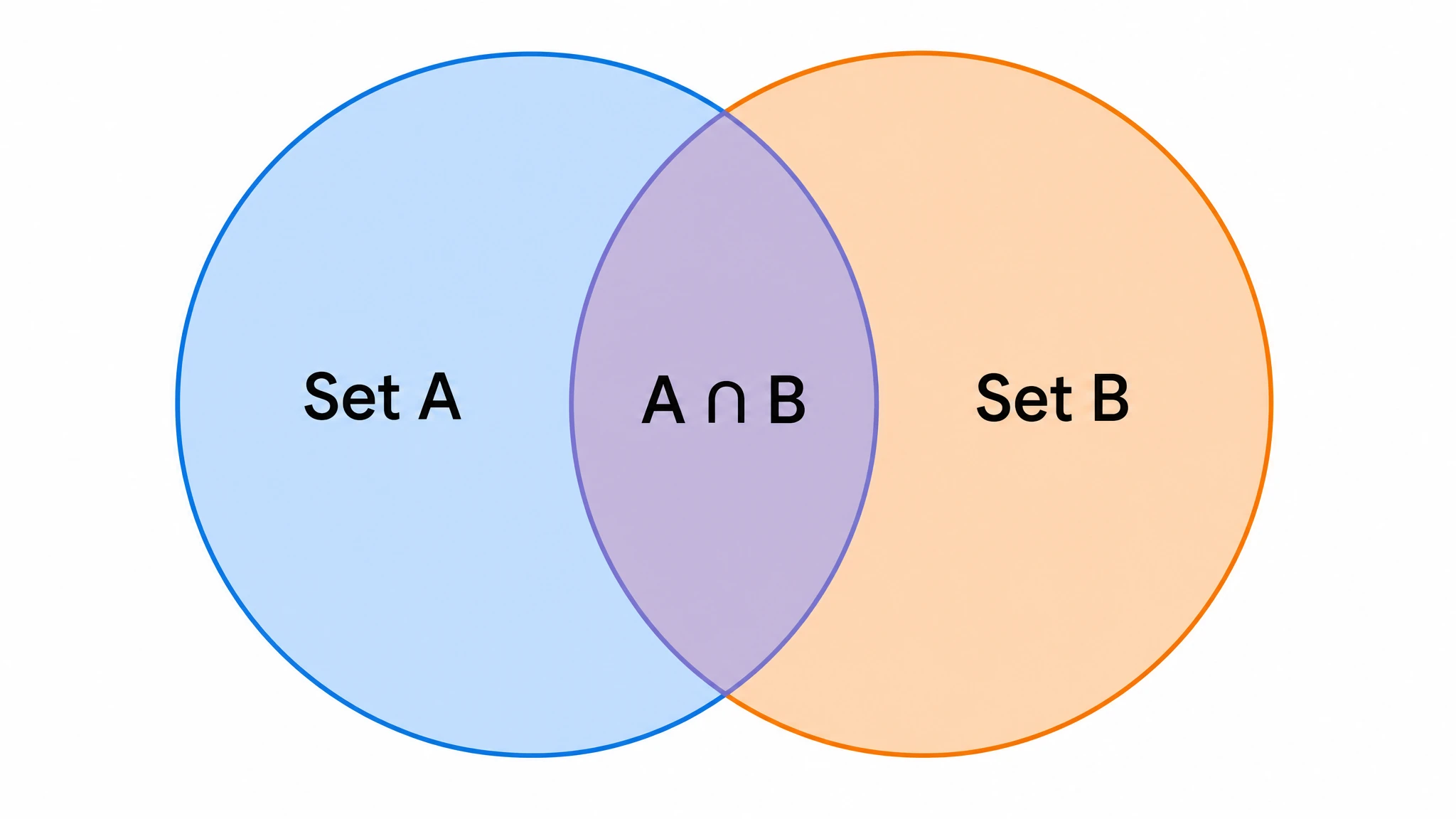 Venn Diagram Generator
Create with SciFig
Free to start · No credit card required · Built for researchers
Immune checkpoint diagram editor
Compare PD-1/PD-L1 and CTLA-4/B7 binding with explicit inhibition or antibody blockade. These drawings do not predict treatment response.