
Tutorials
SciFig Tutorials: Learn the AI Scientific Figure Generator
Follow seven short walkthroughs and learn how to turn any input into a publication-ready scientific figure — editable at every step.
SciFig ships updates frequently, so a few videos were recorded on an earlier interface. The workflow in each tutorial still applies, but a control may have moved or been retired. Your figure toolbar always shows what is available today — if something in a video is missing there, it is no longer part of the product.
Text to Figure
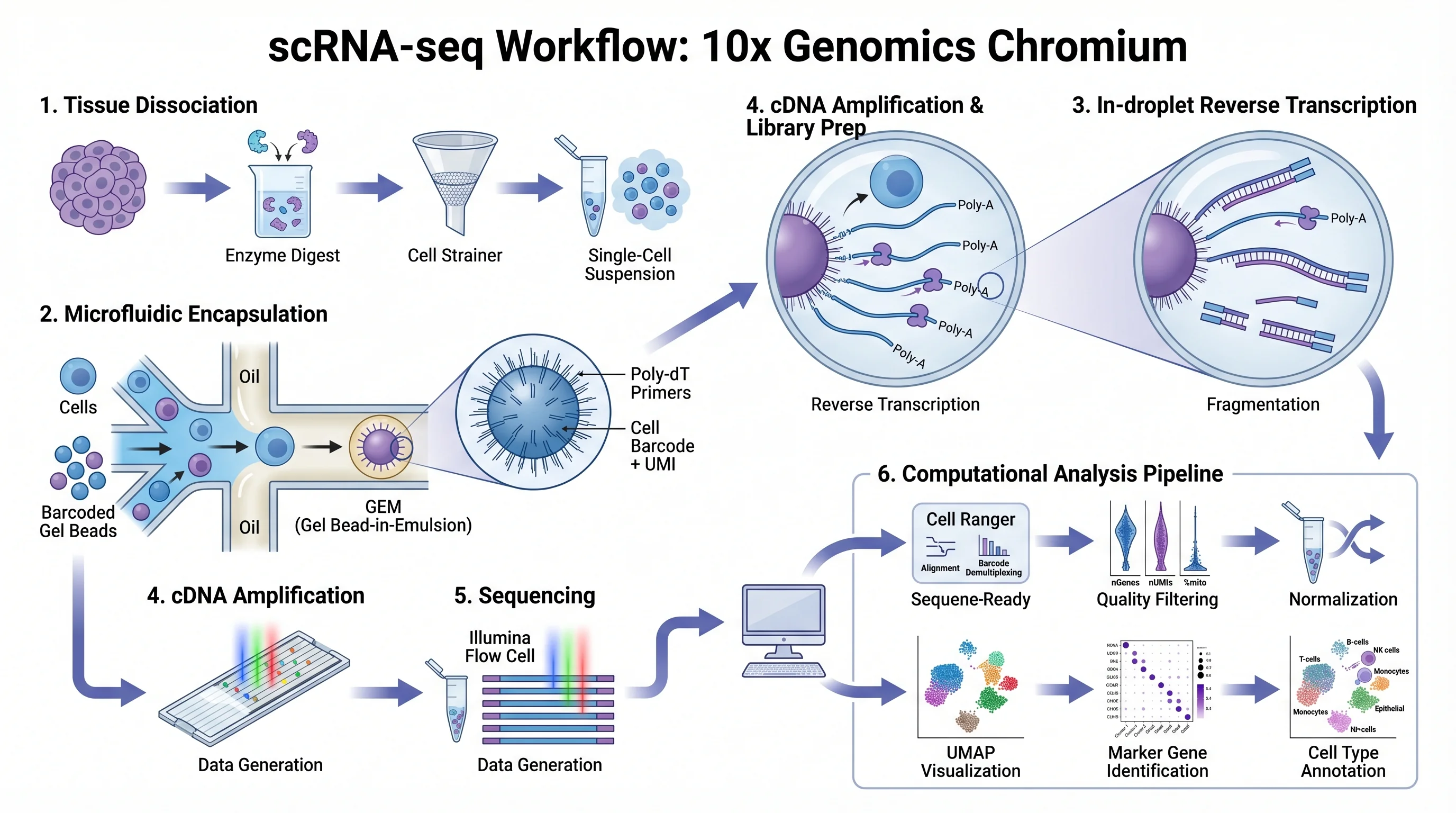
Type a plain-language prompt. SciFig drafts your first publication-ready scientific figure in under a minute.
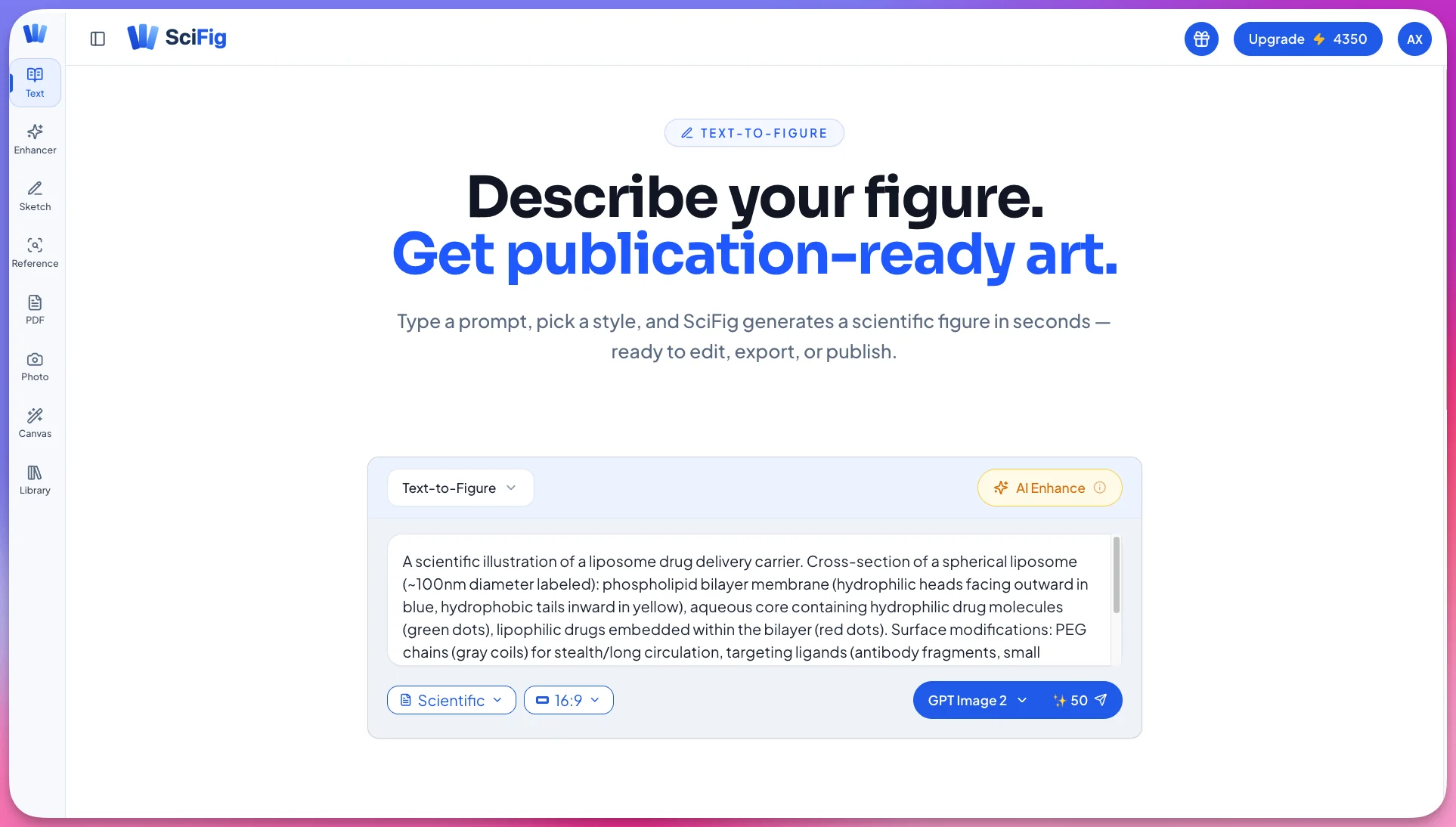
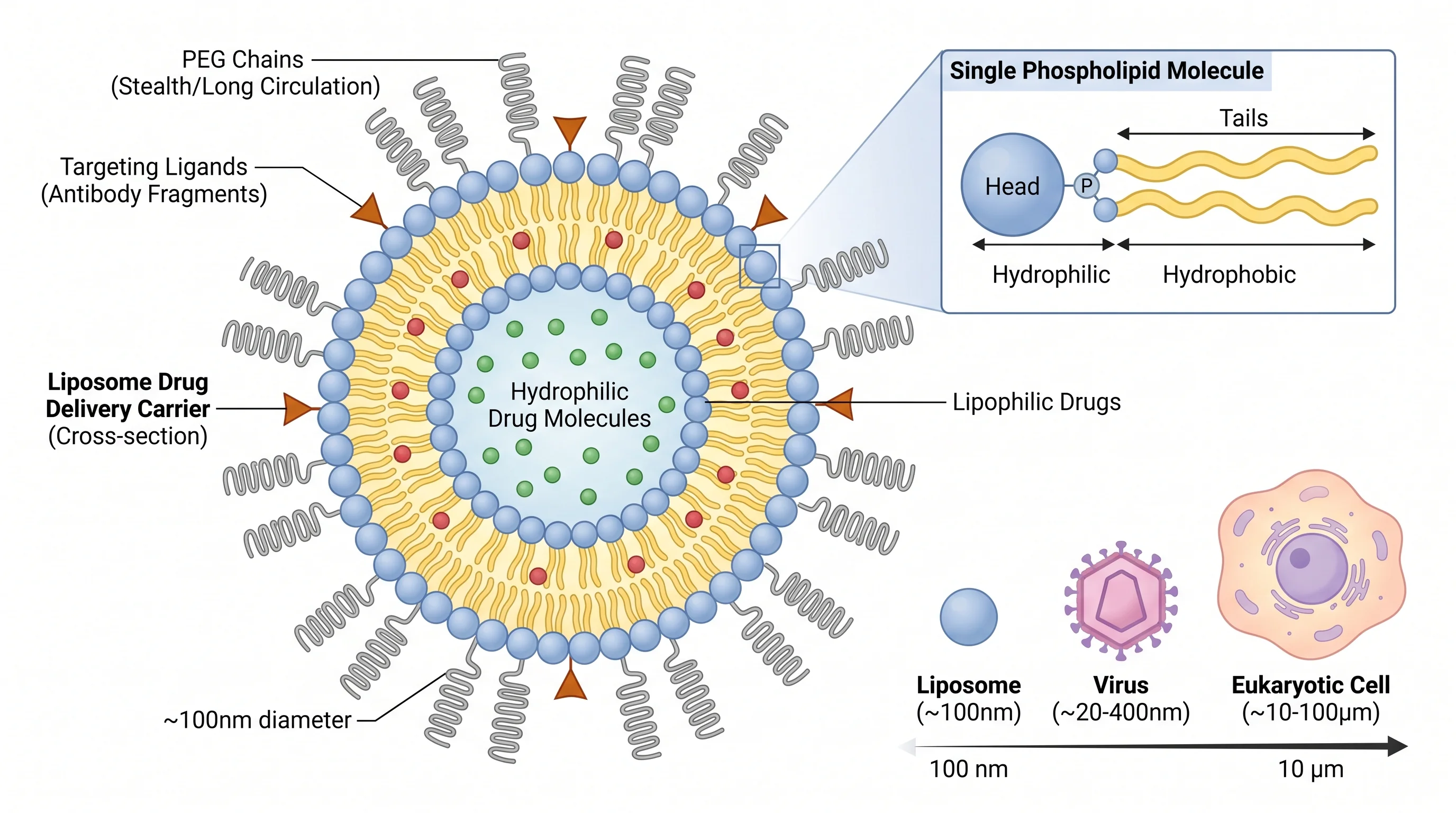
Figure Enhancer
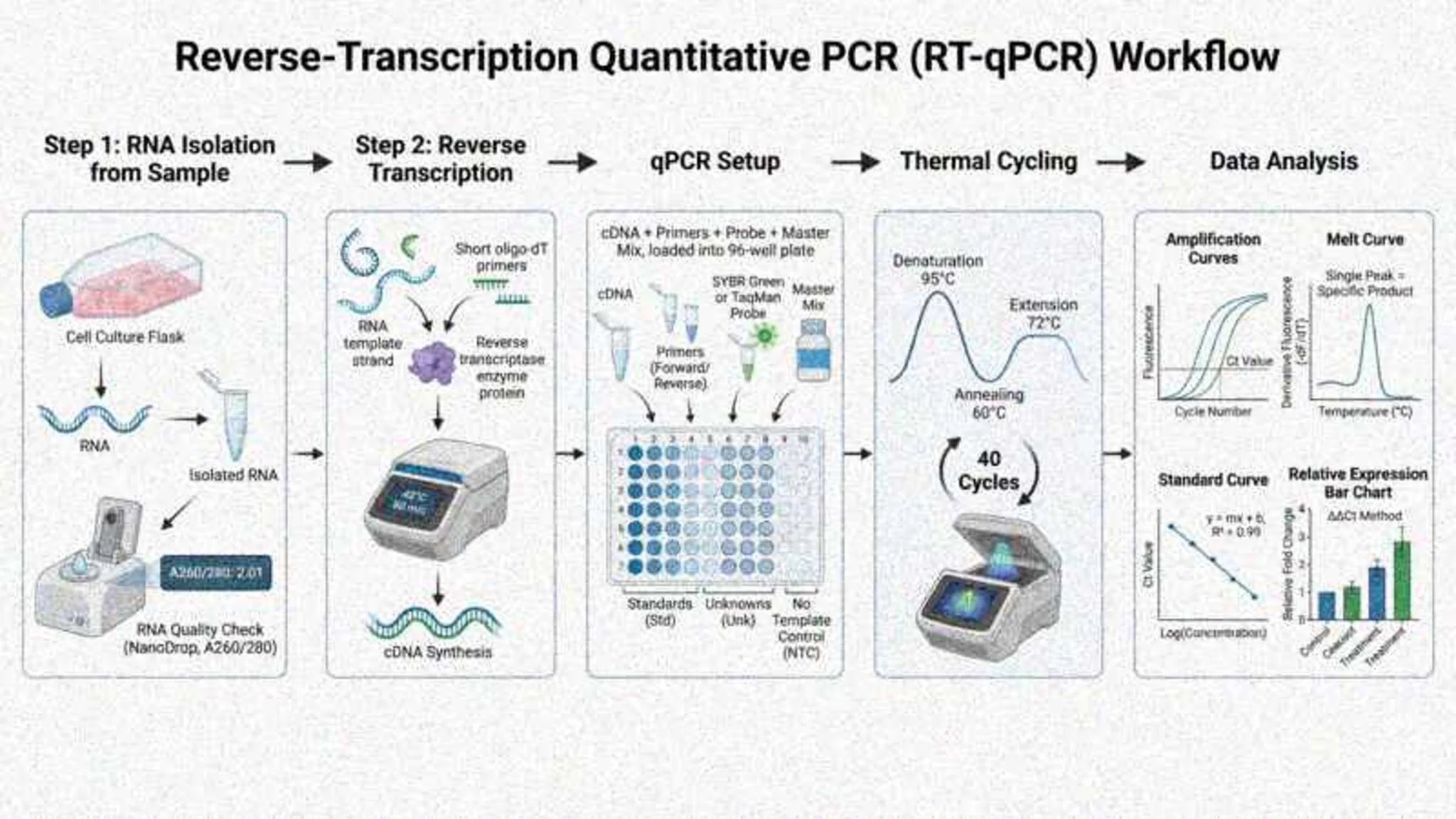
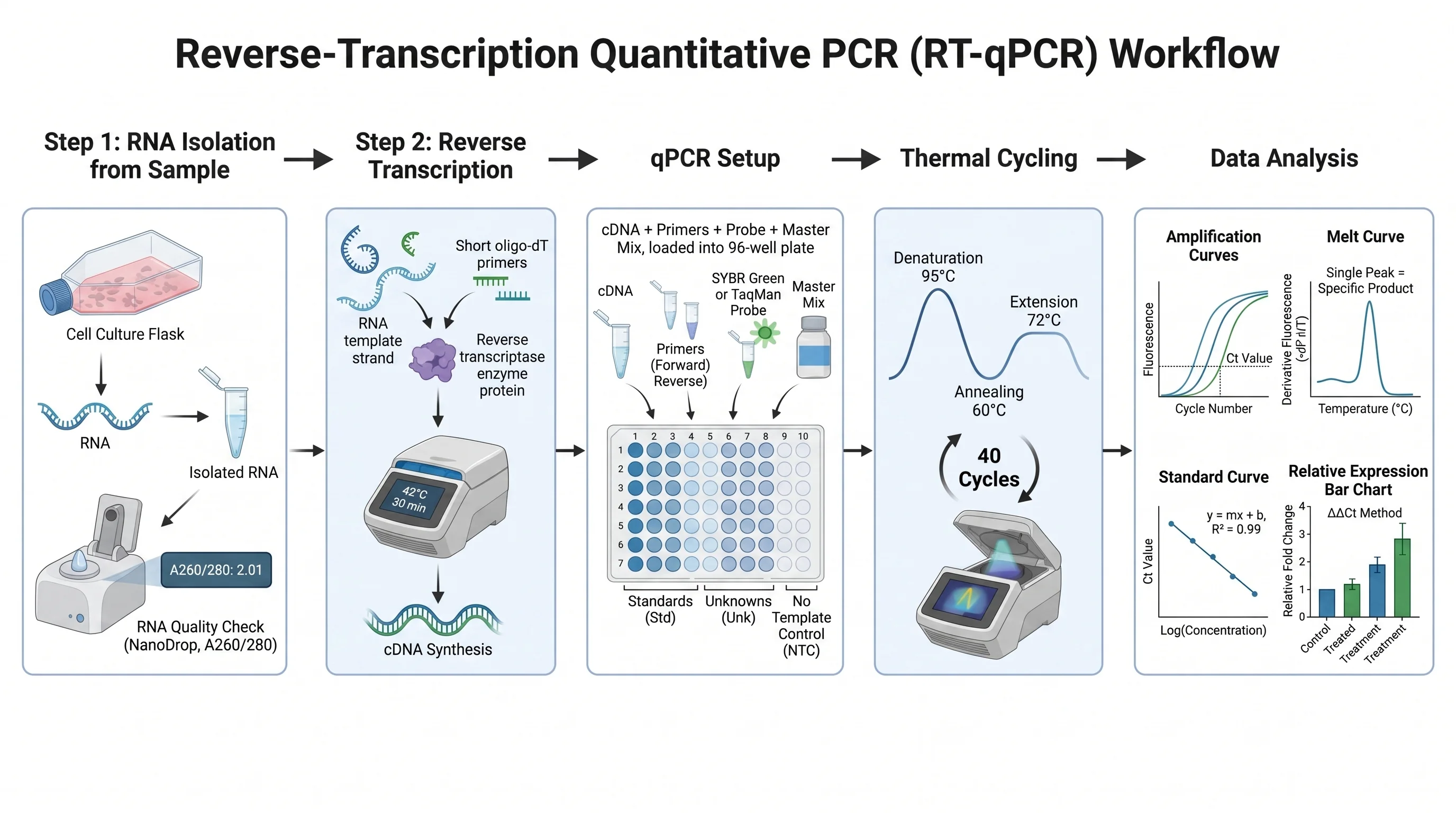
Drop in any existing figure. Refine wording, normalize the background to white, and upscale to 8K — without starting over.
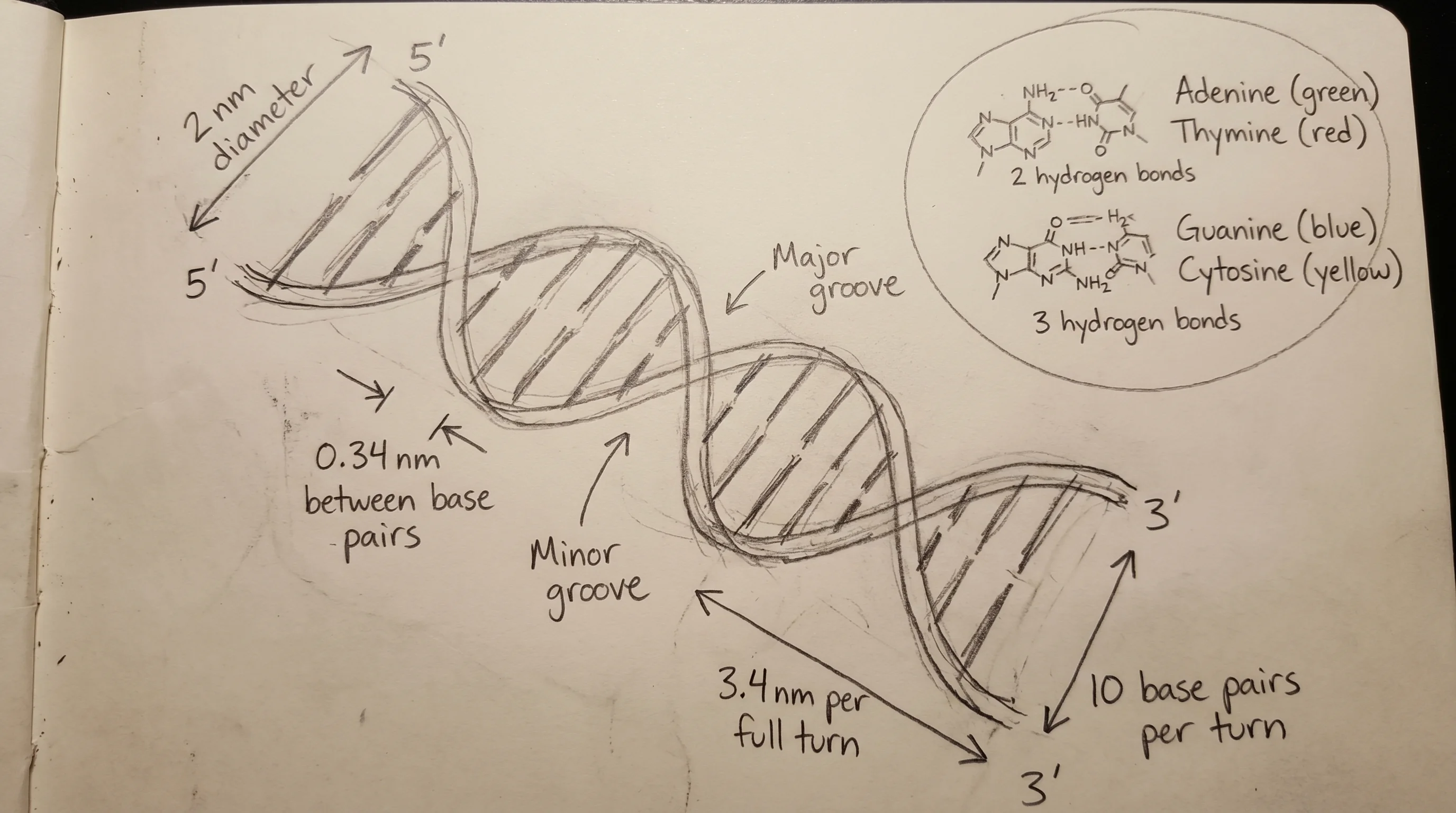
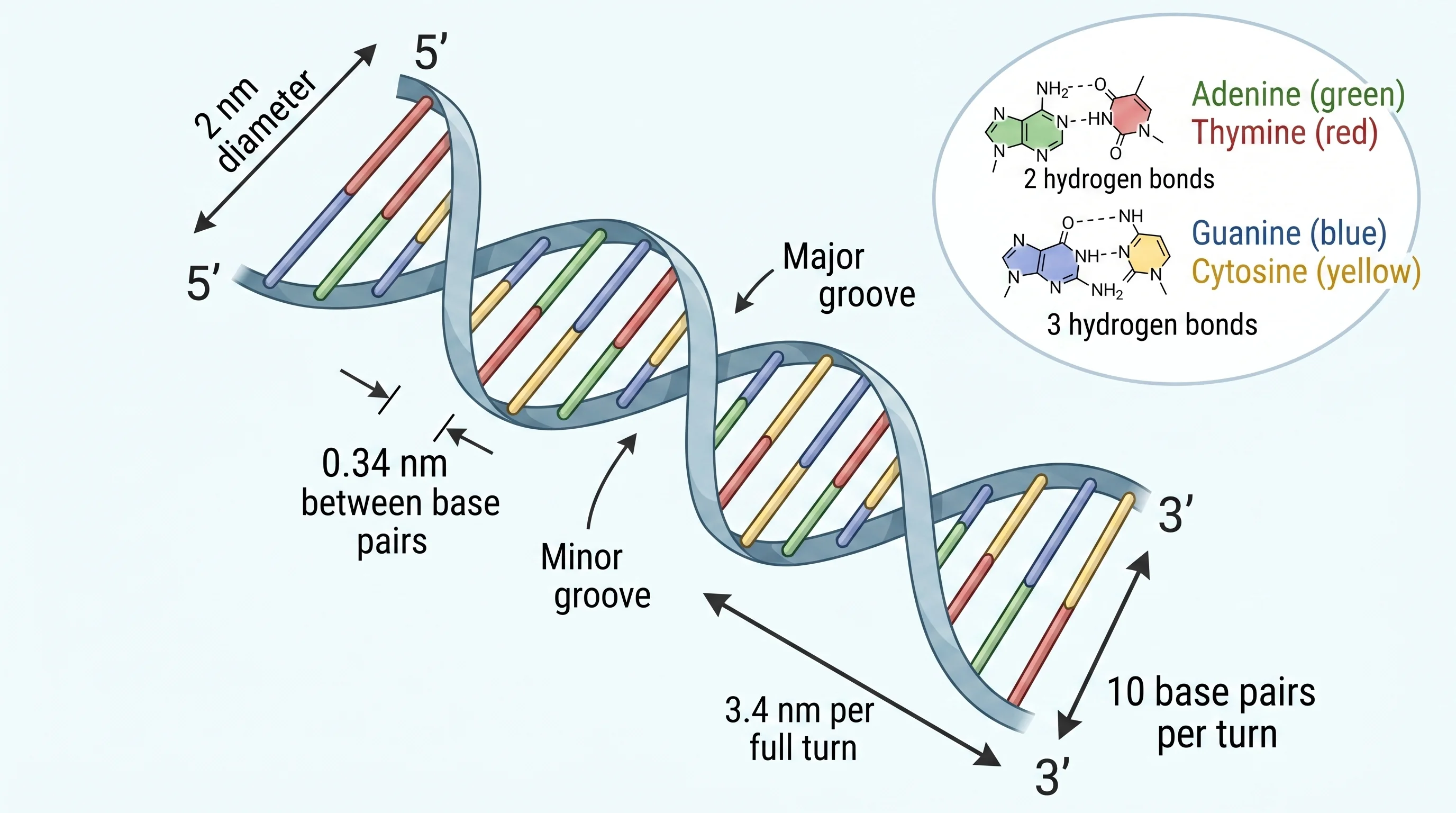
Sketch to Figure
Upload a hand drawing or iPad sketch. SciFig turns it into a clean, journal-ready figure in seconds.
Reference to Figure
Drag in a reference image. Generate a new figure that matches the look — pose, palette, and style.
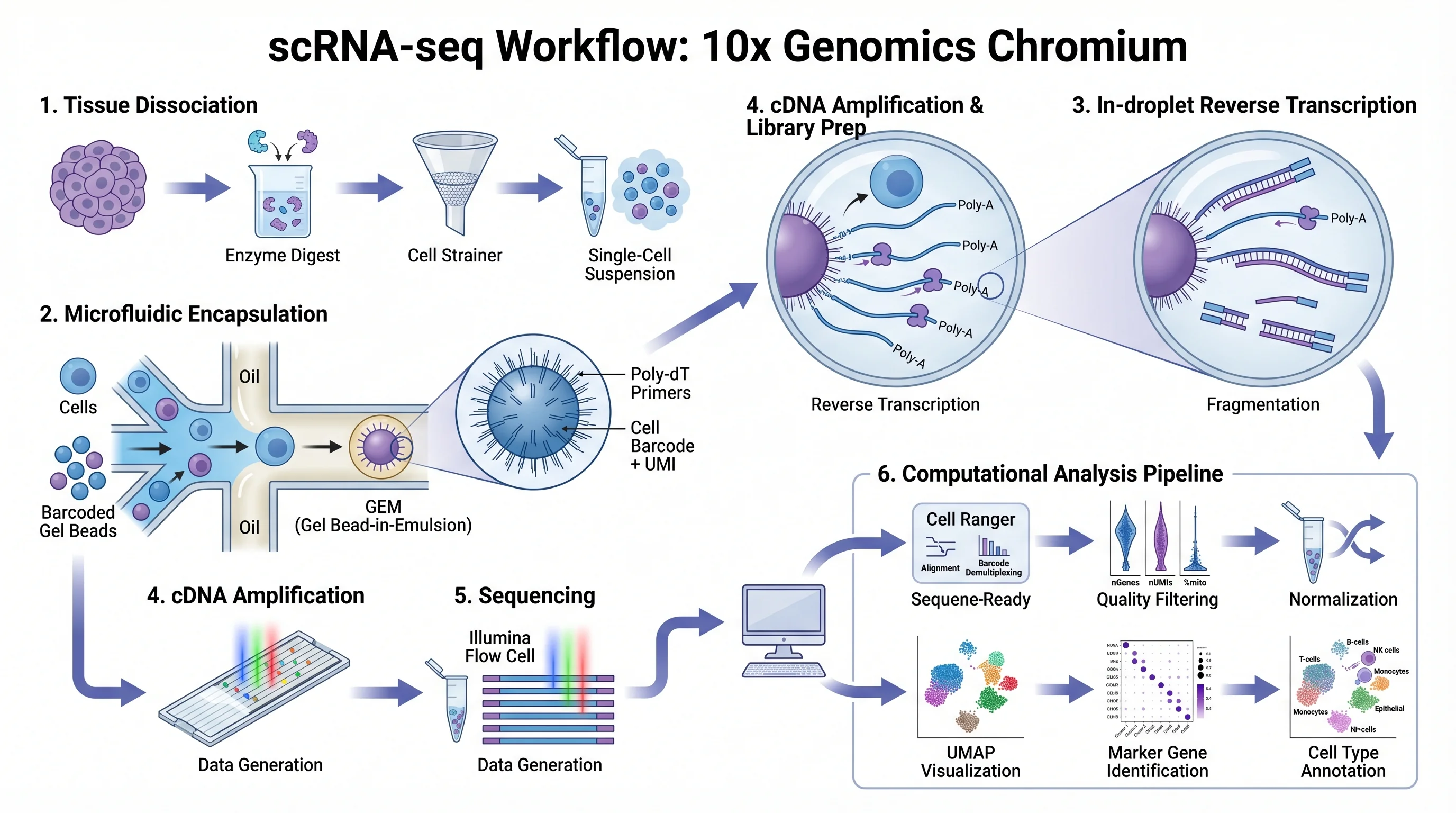
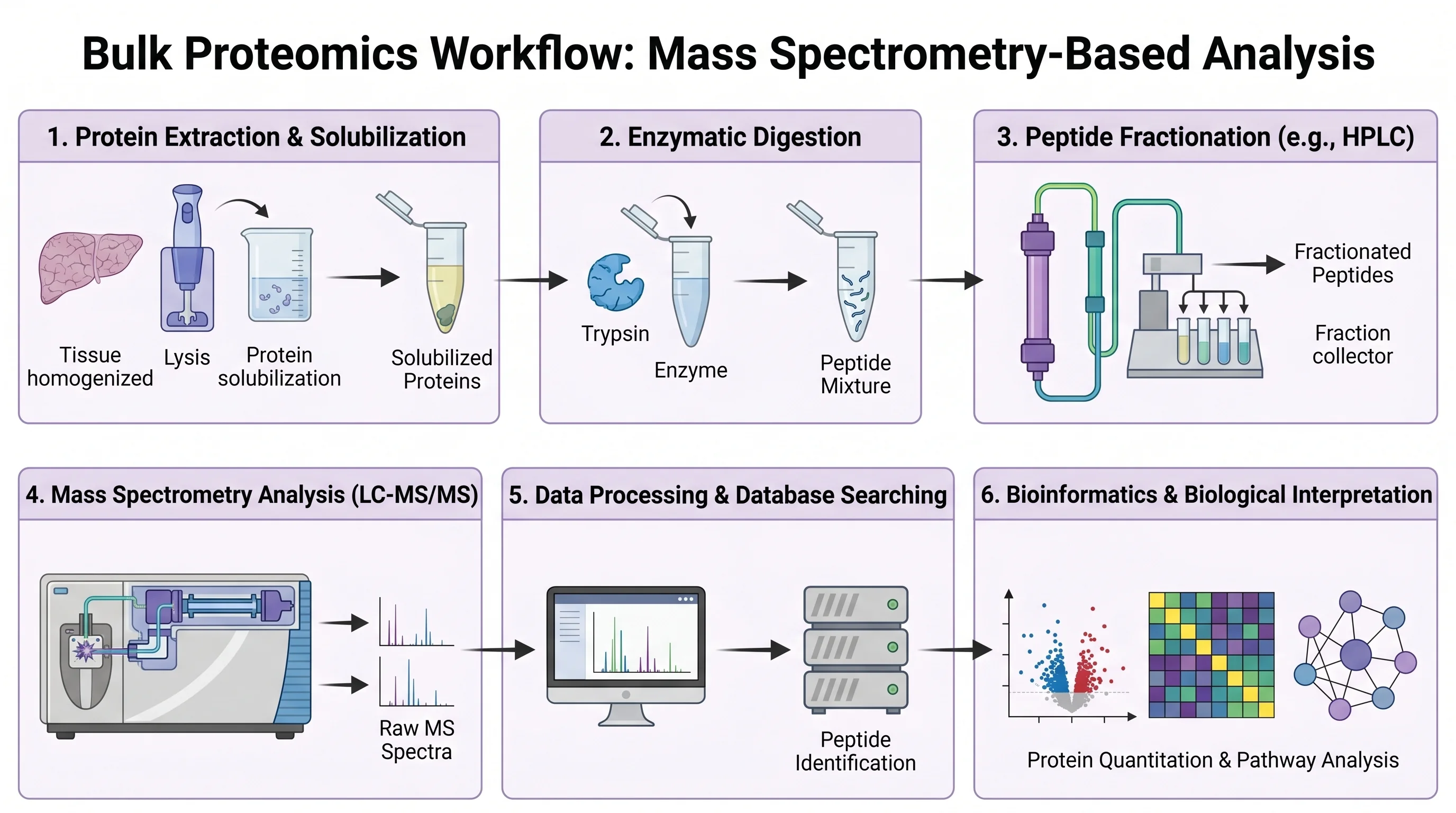
PDF to Figure
Upload a paper or grant proposal. SciFig reads the content and drafts the figures it's missing.
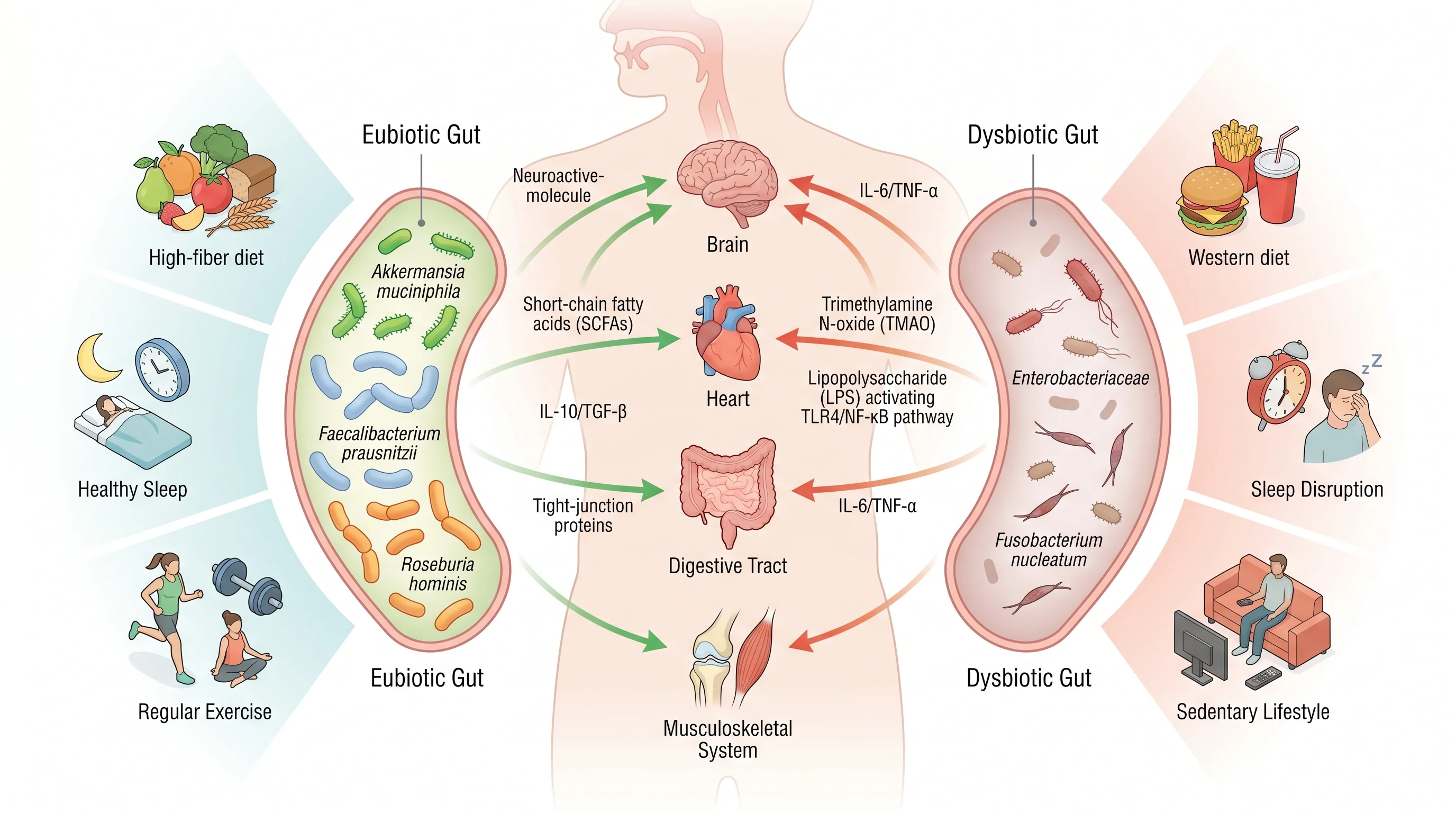
Photo to Figure
Lab photo, sample shot, or microscopy image — SciFig converts it into a clean schematic figure.
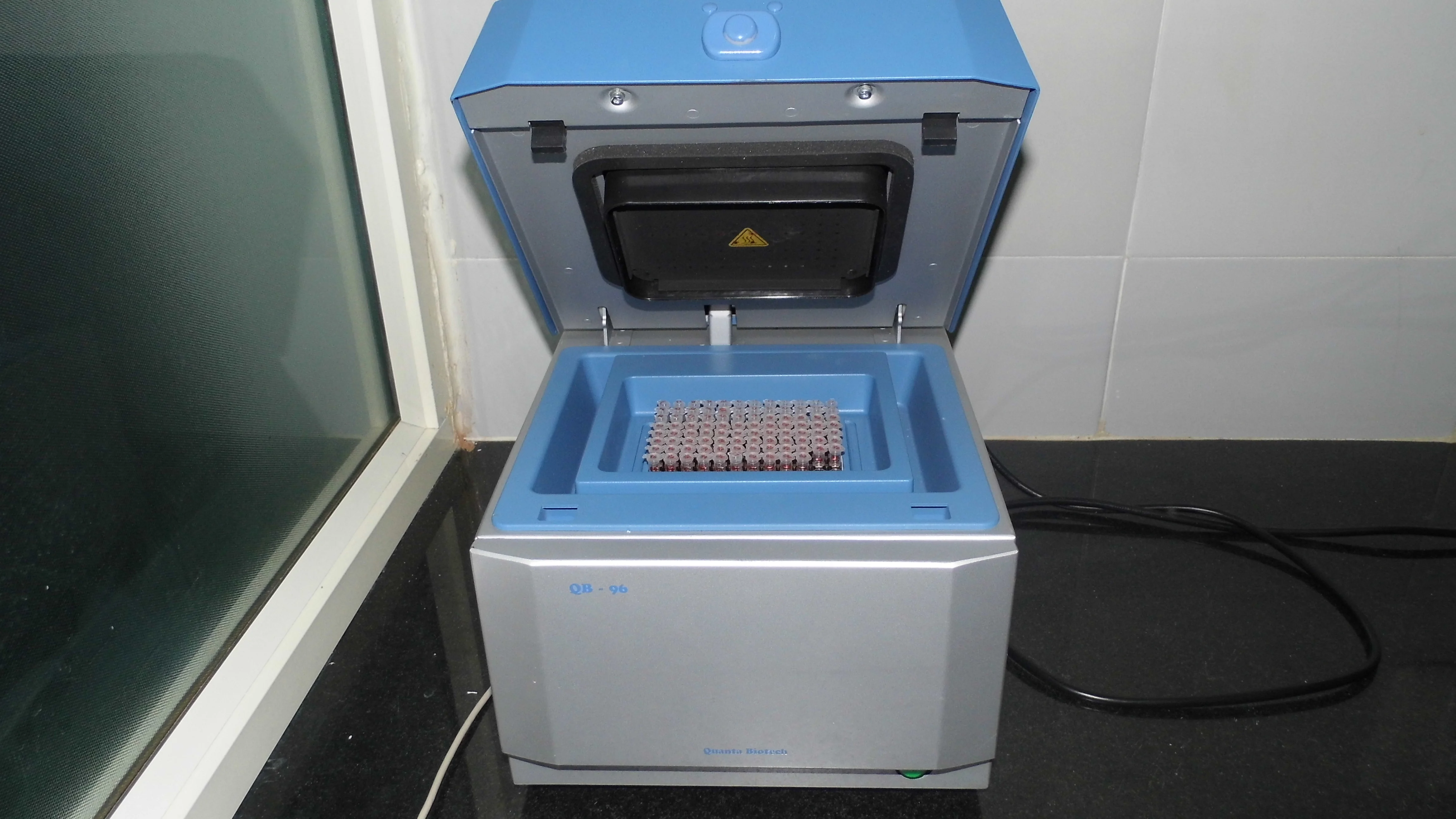
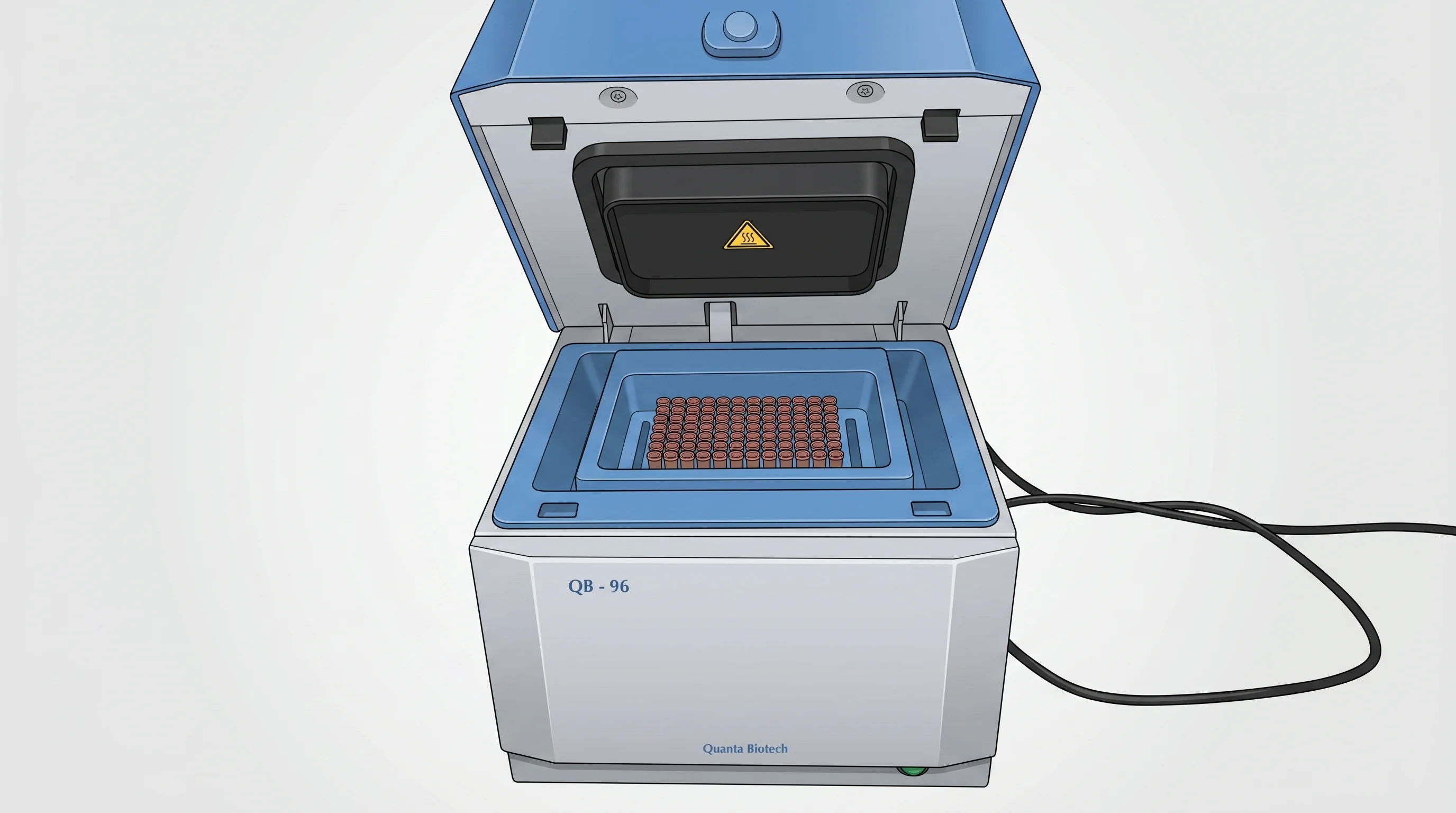
Vector Canvas
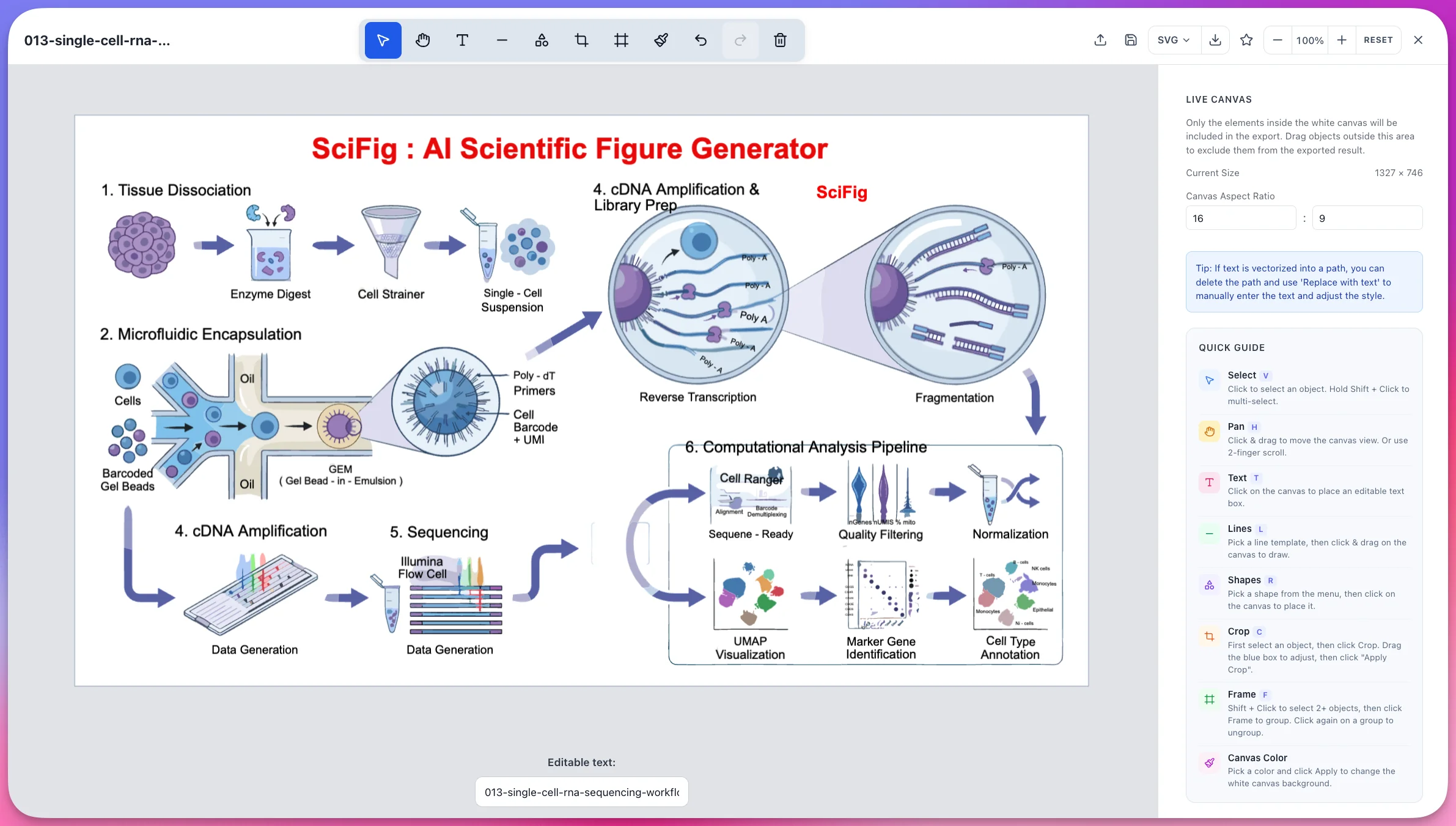
Open any generated figure in the built-in vector canvas. Edit every shape, label, and color — then export PPTX, SVG, or 8K PNG.
More on scientific figures
Home
Free AI Scientific Figure Generator and Figure Maker — Create Research Figures, Images, Illustrations and Diagrams
Text-to-Figure
Generate a figure from a plain-language description
Tools
All SciFig figure generators and the vector editor in one place.
Models
Default to GPT Image 2 for journal papers; switch to Nano Banana Pro for slides and posters; pick Nano Banana 2 for routine figure work
Blog
Tutorials, tool comparisons, and publication tips for researchers.
Inspiration
Explore publication-ready scientific figure examples, copy the prompts, and use them as starting points for your own work.
Circuit Diagram Maker
Draw electronic circuit schematics
Free Body Diagram Generator
Show forces acting on an object
Visualize Research with AI Text-to-Figure
How AI text-to-figure converts natural language descriptions into publication-ready scientific illustrations across biology, chemistry, physics.

Get started
Pick any input. SciFig handles the figure.
Start for FreeFree to start · No credit card required · Built for researchers