
Free PDF to Diagram AI for Papers and Grant Proposals
PDF to diagram AI for researchers: upload a paper, grant proposal, or lecture PDF, name the section you need, and get a new diagram built from its content.
Start with up to 150 free credits|No credit card required
Get up to 350 free credits on day one when you join through an invite.
Updated
Free PDF to Diagram AI for Papers and Grant Proposals— templates & examples
Everything you need to turn a PDF into a research diagram
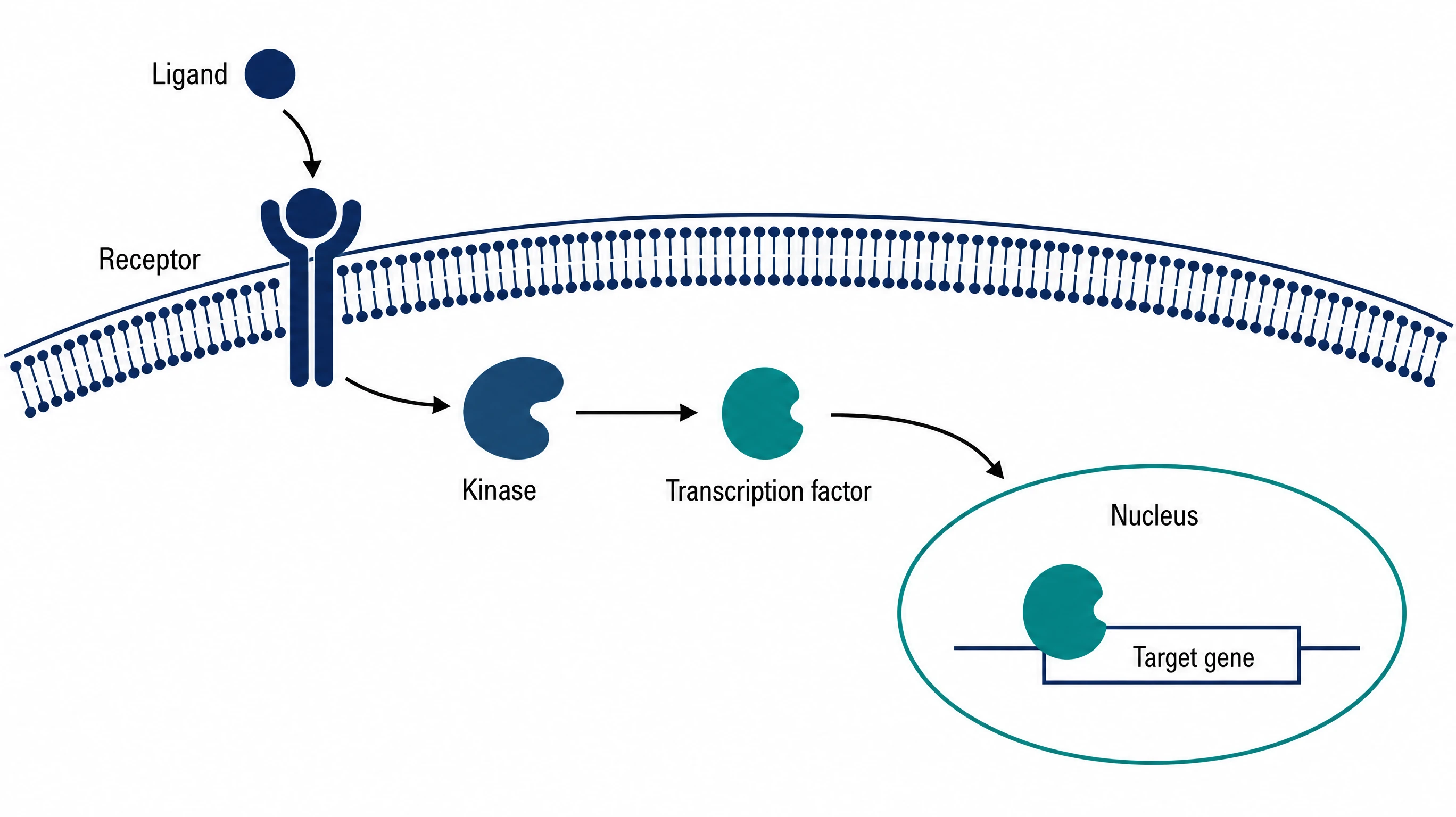
Create a mechanism diagram from a paper
Upload the paper, point to the pathway or process it describes, and SciFig creates a clean mechanism diagram with labeled components and arrows. This PDF to diagram AI starts from your document rather than a blank canvas, so the diagram follows the paper's own terms, and every label stays editable for a manuscript or slide.
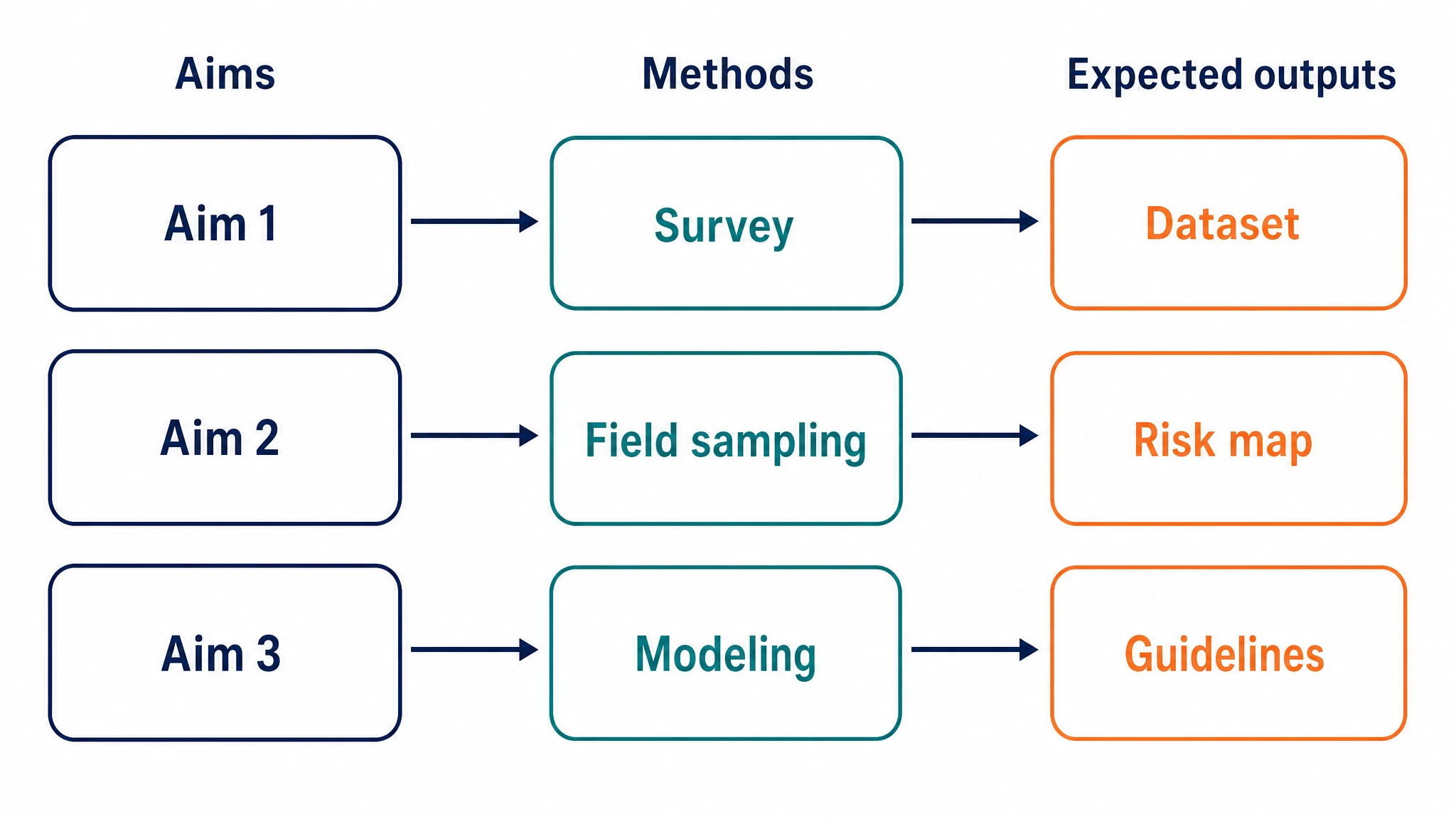
Turn a grant proposal into a study-design overview
Grant narratives are long, but reviewers look for the structure: aims, methods, and expected outputs. Convert PDF to diagram AI figures that lay those parts out side by side, then adjust wording through conversational edits in SciFig AI Illustration (AI scientific illustration). The paper to figure step also works for lecture notes that need a single teaching visual.
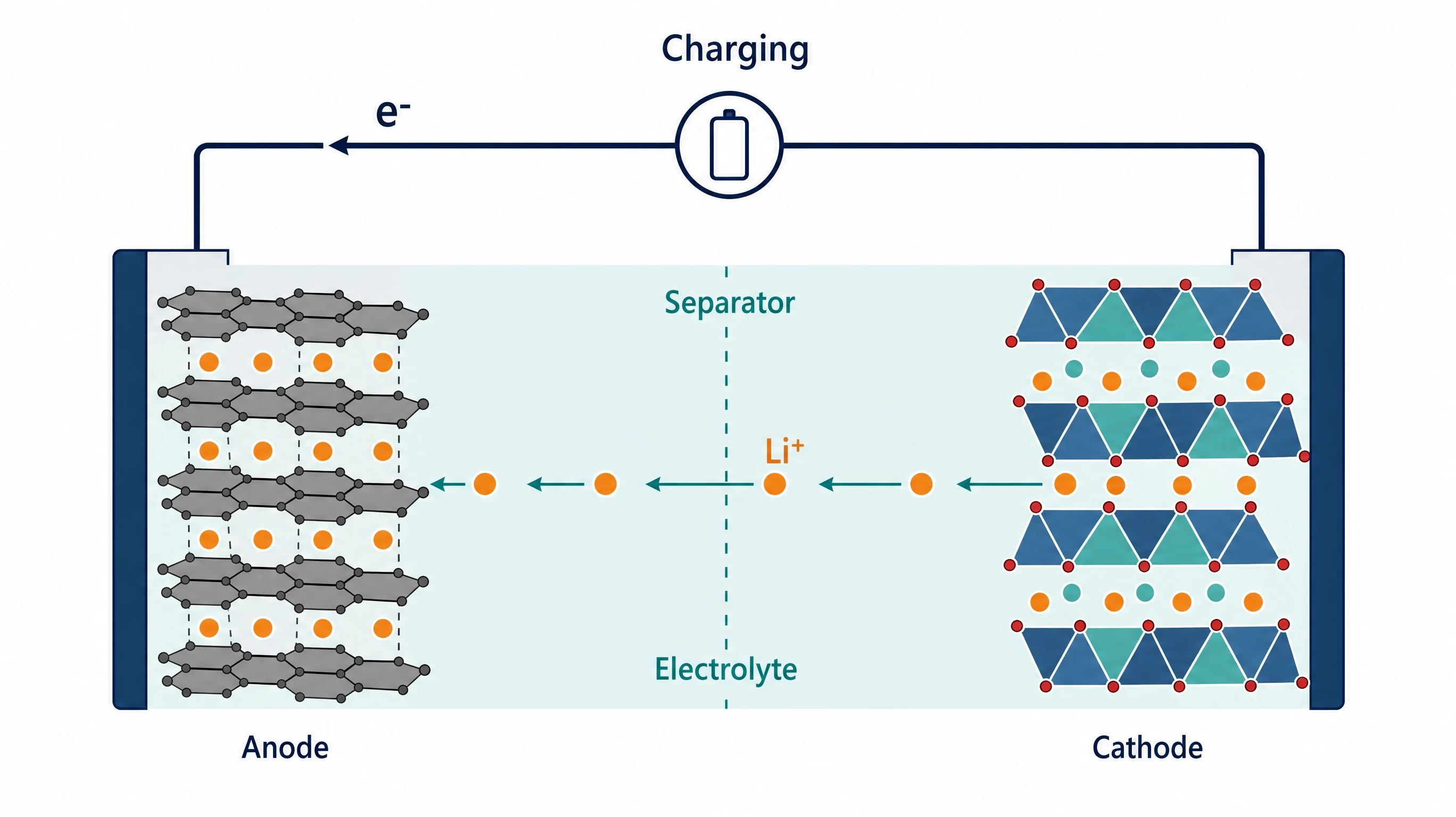
Refine, edit, and export the result
After generation, keep editing in SciFig AI Illustration: redraw a selected area with Region Redraw, fix text, or upscale to 2K or 4K. Convert the figure to editable SVG and export SVG, PNG, JPG or PPTX.
What is a diagram?
PDF to diagram AI turns the content of a document into a new visual. In SciFig you upload a paper, grant proposal, or lecture PDF of up to 20 MB, say which section or idea to show, and SciFig AI Illustration (AI scientific illustration) creates a fresh mechanism, study-design, or concept diagram that you can edit label by label.
Why create a diagram from a PDF
- Start from the terminology already written in your paper or proposal instead of a blank canvas
- Turn a dense Methods or Background section into one visual a reader can scan
- Give grant reviewers a structural overview of aims and methods
- Reuse the same source document for a slide, a poster panel, or a lecture handout
- Keep every label tied to the terms in your original PDF
Key components of a diagram created from a PDF
- Source PDF — a paper, grant proposal, or lecture document up to 20 MB
- Instruction — the section, process, or claim to depict and the intended audience
- Model choice — any of six models, including GPT Image 2, Nano Banana Pro, and GPT Image 2.5, plus aspect ratio and style
- Labels — short terms taken from the document, with spelling and abbreviations you can edit
- Arrows and grouping — relationships that must match what the text actually states
- Editing pass — wording and labels adjusted in SciFig AI Illustration or as editable SVG
Where diagrams created from PDFs are used
- Mechanism or pathway overviews for manuscripts in review
- Study-design figures for grant proposals and progress reports
- Concept visuals built from lecture notes and course readers
- Journal club slides that explain a paper's central idea
- Conference posters that need one clear summary panel
- A source panel for a journal-style summary made with the graphical abstract maker
How to make a diagram
Describe your diagram
Tell SciFig what to draw in plain language — no design tools required.
Generate with SciFig
Get a clean, publication-ready figure that matches your description in seconds.
Edit & export
Vectorize it into editable SVG, relabel everything, and export for your paper, poster, or slides.
Free PDF to Diagram AI for Papers and Grant Proposals — Frequently Asked Questions
Common questions about Free PDF to Diagram AI for Papers and Grant Proposals.
More tools
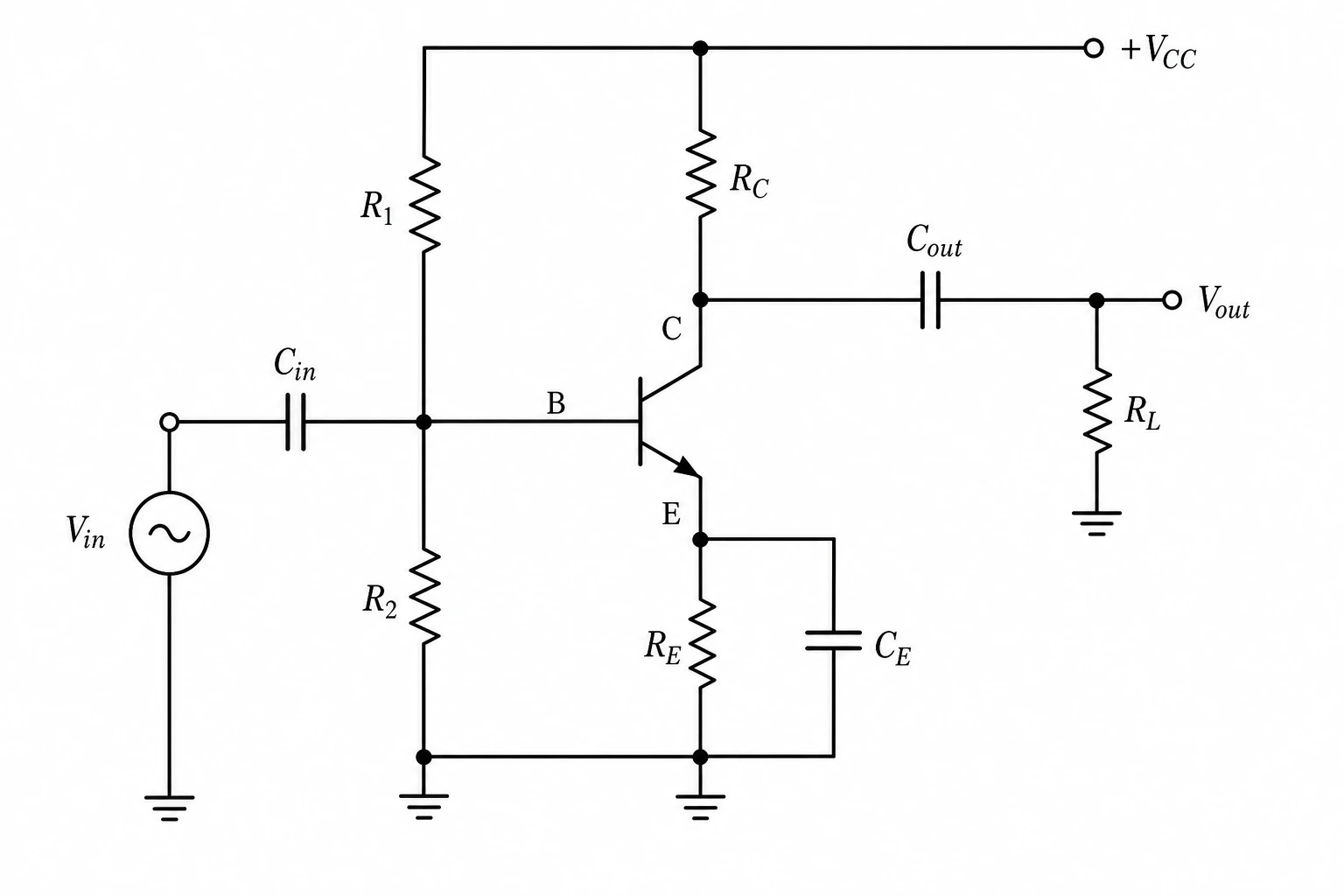
Circuit Diagram Maker
Draw electronic circuit schematics
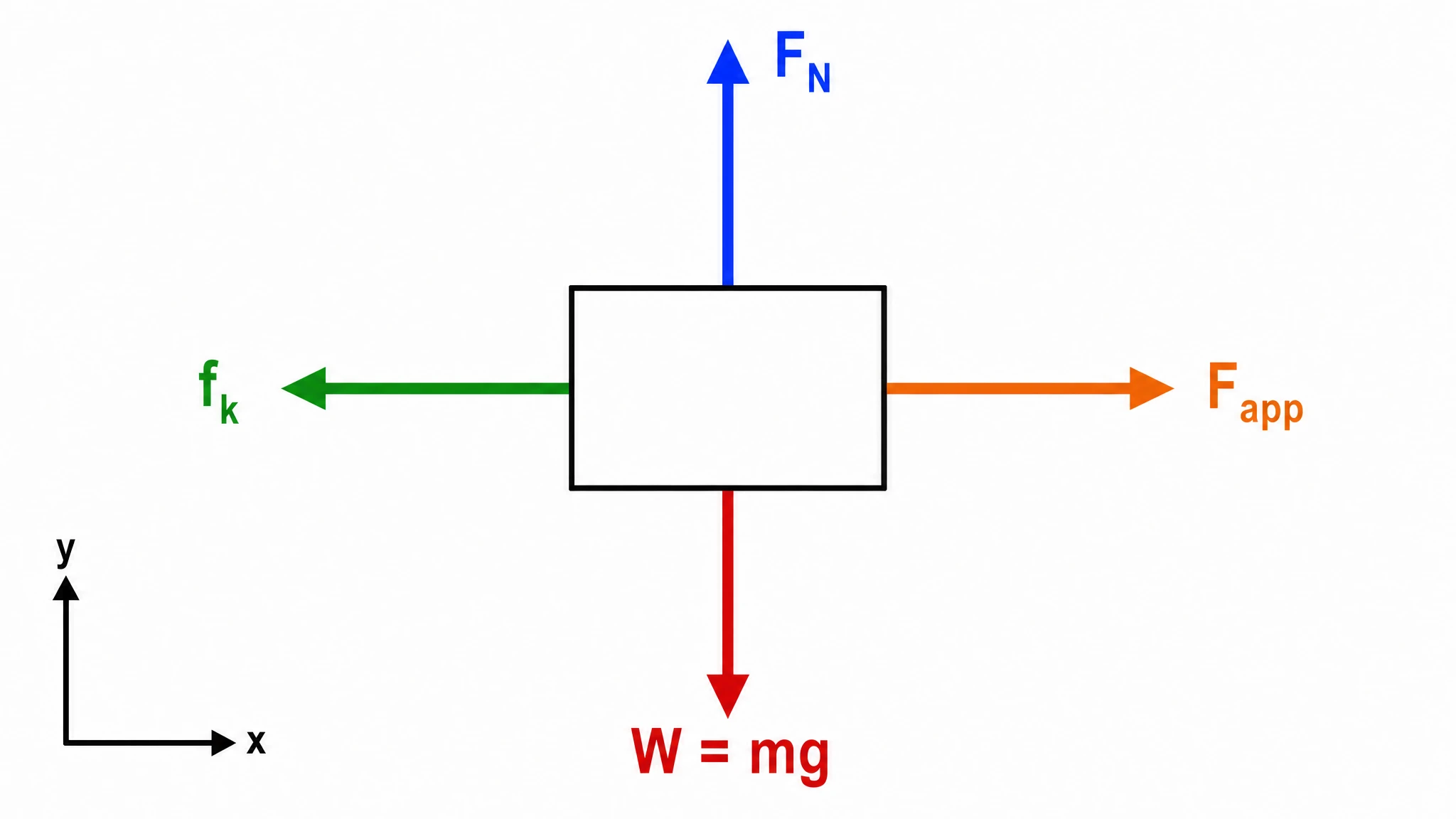
Free Body Diagram Generator
Show forces acting on an object
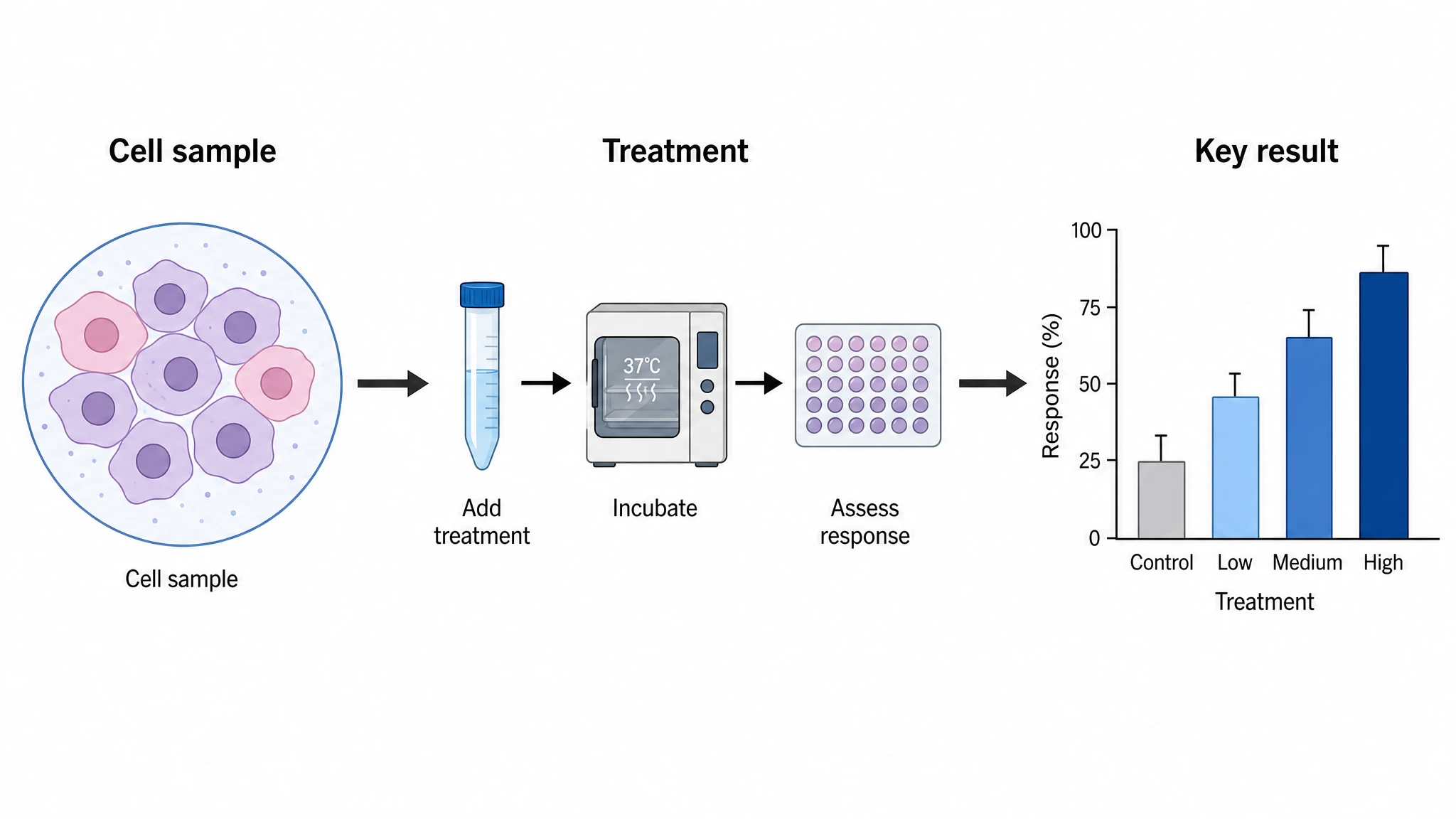
Graphical Abstract Maker
Summarize your study in one panel
SciFig
Free AI Scientific Figure Generator for Illustrations, Images, Charts and Flowcharts
Models
Default to GPT Image 2 for journal papers; switch to Nano Banana Pro for slides and posters; pick Nano Banana 2.1 for routine figure work
Tutorials
Seven short walkthroughs of the AI scientific figure generator
Blog
Tutorials, tool comparisons, and publication tips for researchers.
Inspiration
Explore publication-ready illustrations, charts and flowcharts. Copy a prompt or open any template as the starting point for your own figure.
Pricing
View pricing

Ready to publish?
Make your own diagram in minutes.
Start for freeFree to start · No credit card required · Built for researchers