SciFig

Free Single Line Diagram Generator

Show the supply path and load branches in one clear drawing. Edit equipment labels, download the diagram and keep its settings for your next revision.

Describe what you need in the box above.

Start with up to 150 free credits|No credit card required

Get up to 350 free credits on day one when you join through an invite.

3 figure engines · 500+ templatesEvery label editable · 60+ color schemesEditable PPTX · Layered SVG · 8K PNG / JPG

Draw a single-line electrical diagram

Name the supply, transformer, breaker and bus, then add labeled load branches. Download the diagram or save its settings for later edits.

Use one to four load branches. Rating labels show the values you enter; they are not calculated.

Load 1
Load 2
Load 3

Free Single Line Diagram Generator— templates & examples

Updated

Electrical supply paths and load branches

Free Single Line Diagram Generator

Keep the supply path, load labels and downloadable figure together in a diagram you can revise.

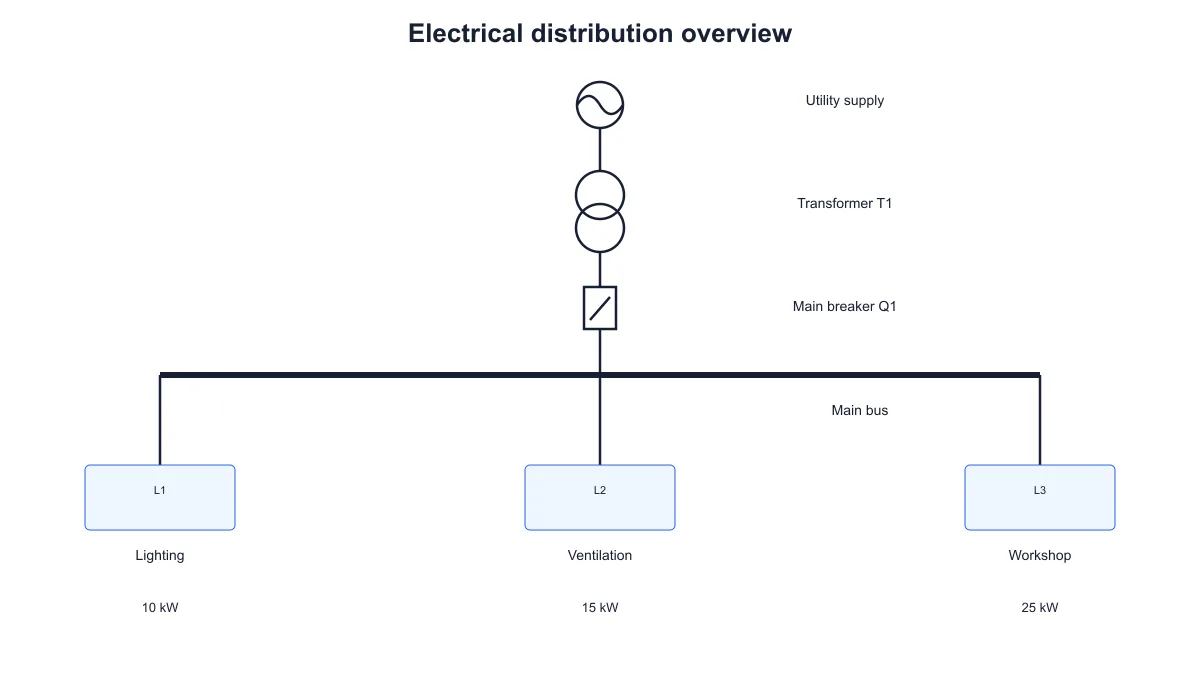
SciFig’s single line diagram generator draws a supply, transformer, breaker and bus with labeled load branches. Edit the equipment names, give each load a unique ID and add the rating text you want readers to see. The fixed arrangement keeps the supply path easy to follow. Download SVG or PNG for a document, and save the settings to reopen the same diagram when its labels or loads change.

Single-line diagram connecting a utility supply, transformer and breaker to a bus with three labeled loads
  • Name the upstream equipment
  • Add labeled load branches
  • Enter your own rating text
  • Download SVG, PNG and saved settings

Single Line Diagram Generator Features

Prepare a readable distribution overview from equipment and load labels.

Follow the supply path through equipment

Start with the supply at the top and follow the line through a transformer and breaker to the bus. Edit each label to match the example you are explaining. SciFig’s single line diagram generator keeps this equipment chain in a fixed arrangement, so the relationship remains clear as you revise the wording or change the loads.

  • Name the supply and transformer
  • Label the breaker and bus
  • Keep a consistent top-to-bottom path
Try this in SciFig

Give each load its own branch

Add a branch for each load and give it a unique ID and a descriptive name. The diagram distributes the branches across the bus so readers can see which loads share the supply path. Use a single load for a focused example or several loads to compare the outgoing branches in a distribution overview.

  • Use distinct load IDs
  • Name each outgoing load
  • Compare individual and grouped loads
Try this in SciFig

Show the rating text you already know

Enter the rating you want displayed beneath each load, including its unit. These fields retain your text rather than calculating a value, so you can label a classroom example or document known equipment information. Leave the rating field empty when your explanation only needs the supply relationship and load names.

  • Enter values with their units
  • Retain manually supplied rating text
  • Leave optional rating labels blank
Try this in SciFig

Export the figure and retain the inputs

Download SVG when you want a vector file for further editing, or PNG when you need an image for a slide or document. Save the JSON settings beside that material to retain the title, equipment labels and loads. Reopen the file in the single line diagram generator when you need to revise the same example.

  • Download SVG or PNG
  • Save the complete diagram settings
  • Reopen the labels and branches later
Try this in SciFig

How to Create a Single-Line Diagram

Name the equipment, add the loads and check the drawing before downloading.

  1. Name the upstream equipment

    Enter a title and edit the supply, transformer, breaker and bus labels. Use names that help readers connect the simplified symbols with the equipment in your example.

  2. Enter the loads and optional ratings

    Give each load a distinct ID and a short descriptive name. Add or remove load entries to match your example, and enter a rating with its unit when that information belongs in the figure.

  3. Inspect the supply path and branches

    Check the top-to-bottom equipment chain and the branches leaving the bus. Read the load IDs, names and ratings in the preview to make sure they correspond to the example you intend to show.

  4. Download the drawing and save its settings

    Export SVG or PNG for your document or presentation. Save the JSON settings alongside the figure so you can reopen the same labels and loads when the material needs an update.

Single-Line Diagrams for Explanations and Documents

Use a simplified supply path to connect equipment labels with the loads they serve.

Single-line diagram connecting a utility supply, transformer and breaker to a bus with three labeled loads

Explain an electrical supply path

Show how the supply passes through the transformer and breaker before reaching the bus. Keep the equipment labels short enough to read beside the symbols. Export the single-line electrical diagram for a lesson slide that introduces the order of the equipment.

Explore this example
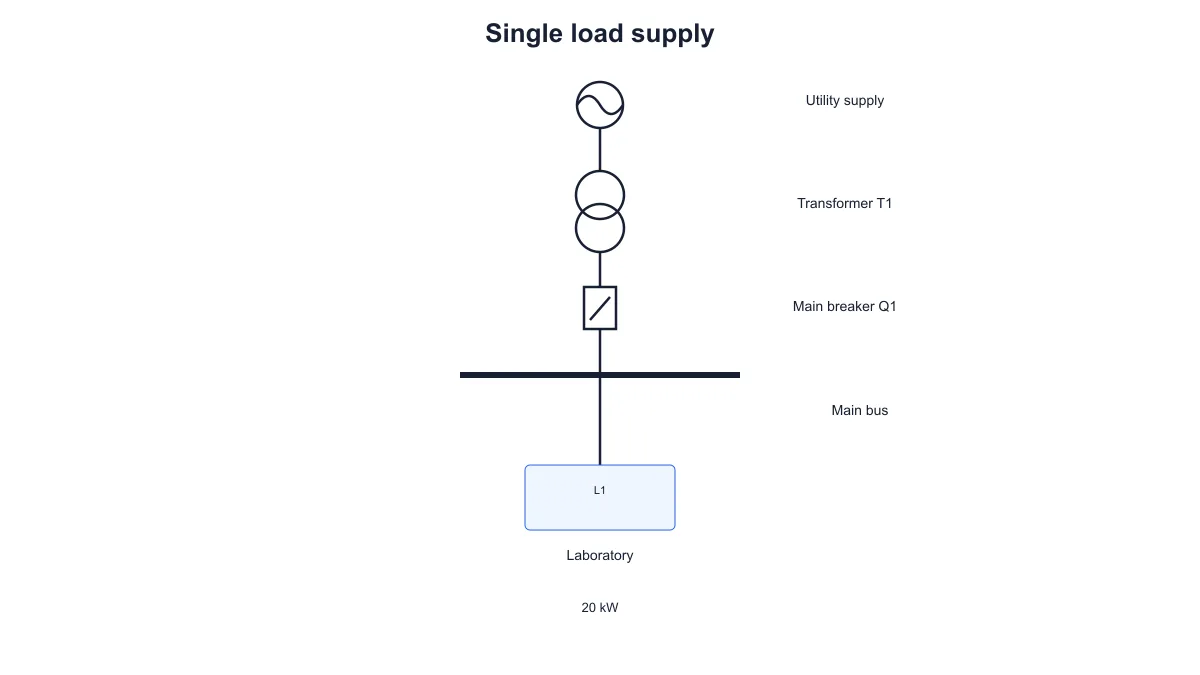
One centered laboratory load connected below the main bus in a single-line electrical diagram

Introduce one load at a time

Start with one outgoing branch when the explanation focuses on a single load. Give it a clear ID, a meaningful name and an optional rating. The centered branch makes the relationship between the shared supply and the load straightforward to follow.

Explore this example
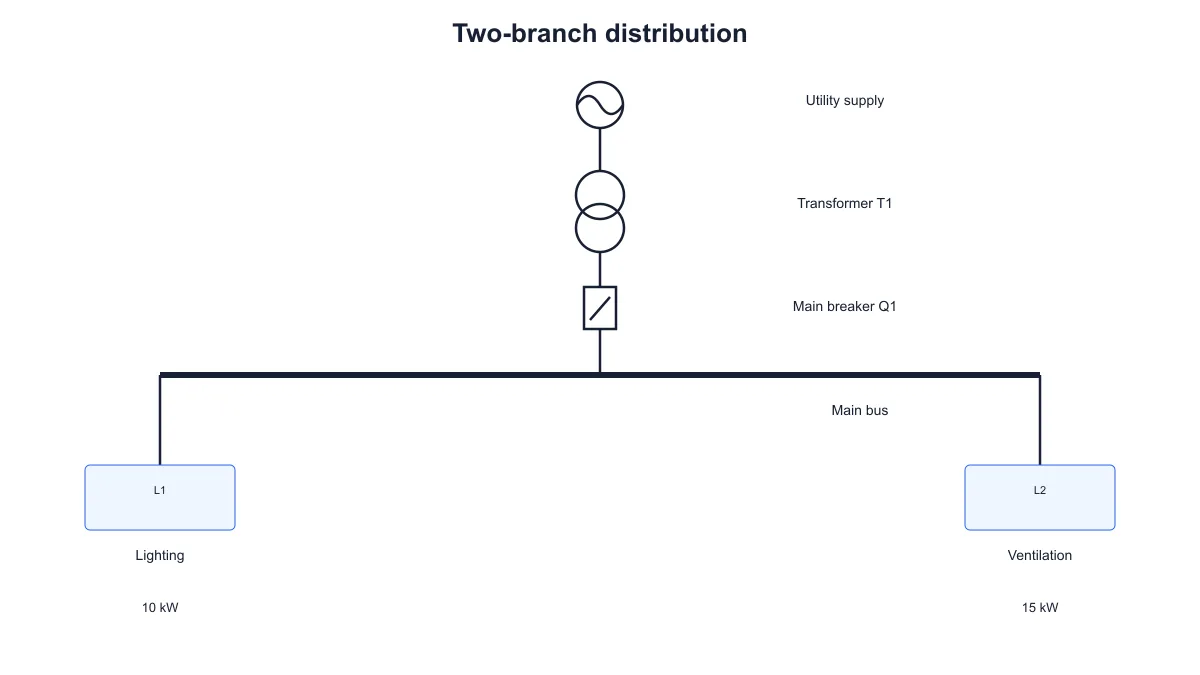
Lighting and ventilation load branches connected to the same main bus

Compare two outgoing branches

Place two loads beneath the same bus to explain their shared upstream path. Use their names and IDs to connect the drawing with the surrounding notes. Save the settings when you want to compare this version with a related example later.

Explore this example
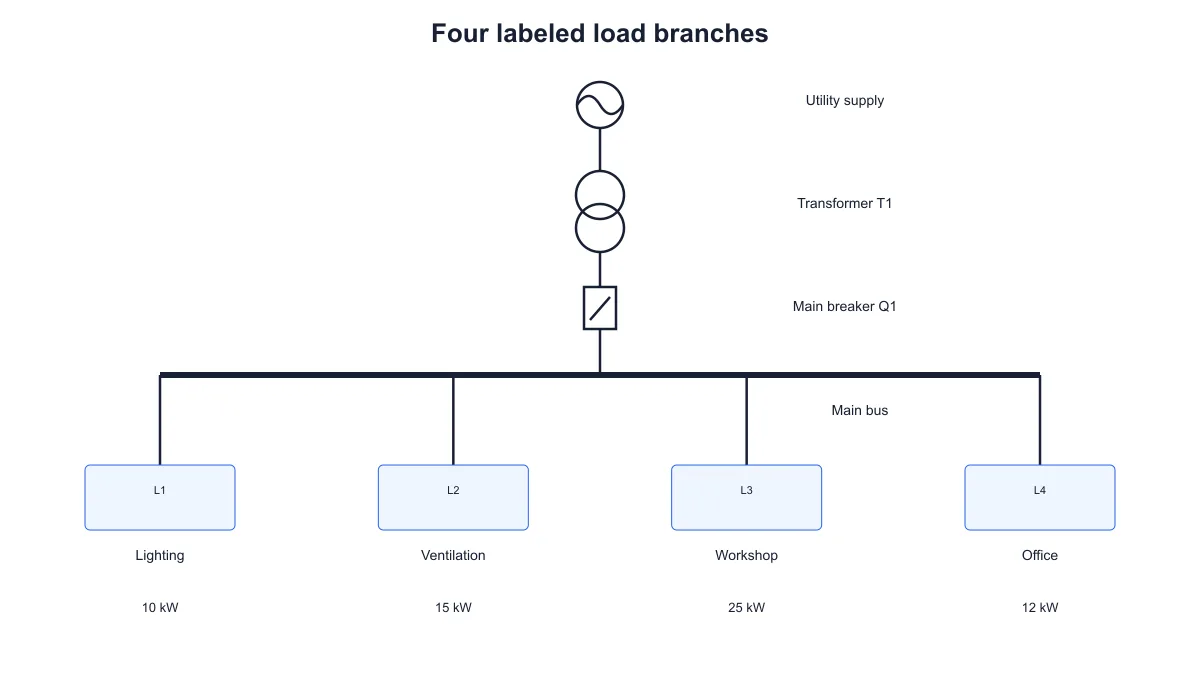
Four labeled load branches with manually entered rating text beneath a shared bus

Label a distribution overview

Use several branches to show lighting, ventilation or other named loads in one figure. Enter ratings from your source material when needed. The single line diagram generator keeps the branches aligned so the labels can be read alongside a report or teaching example.

Explore this example
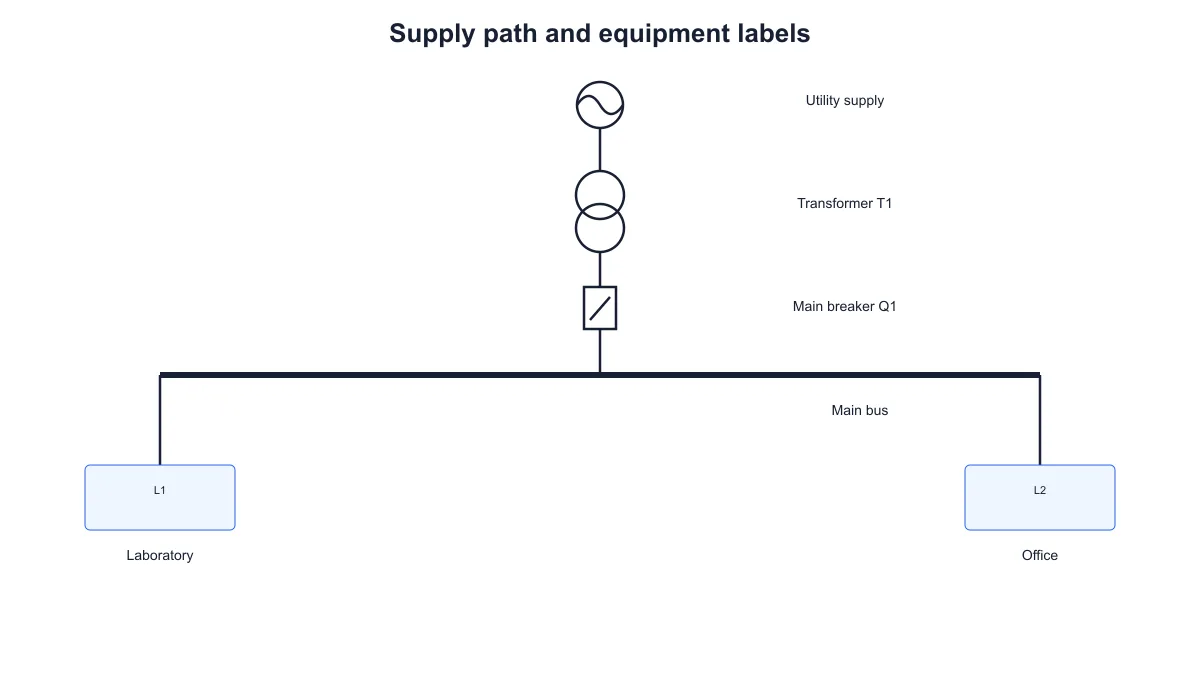
Single-line supply path with laboratory and office branches and no rating labels

Focus on equipment relationships

Leave the rating labels empty when readers only need to understand which equipment feeds each load. This version keeps attention on the supply path, IDs and names. For a drawing that follows individual terminal connections, use SciFig’s wiring diagram maker.

Explore this example
Single-line diagram connecting a utility supply, transformer and breaker to a bus with three labeled loads

Revise figures for updated material

Keep the JSON settings with a worksheet or presentation so you can reopen the diagram after a name or load changes. Update the relevant fields and export another figure. The saved inputs help keep the revised single-line electrical diagram consistent with the written explanation.

Explore this example
How Researchers Use SciFig

I needed a supply-path drawing for a worksheet rather than a large network model. The single line diagram generator let me name the equipment and add the load branches beside the questions. I downloaded the figure and saved the settings with the lesson so I could revise the labels for another class.
Adam W.

Electrical engineering tutor, University of Sheffield

Free tools

A tool for every scientific figure

110 focused generators for the scientific figure you need — each opens in the right workspace with a matching example.

Single-Line Diagram Questions

1.

2.

3.

4.

5.

6.

Call to action background

Electrical supply paths and load branches

Make the supply path easy to follow

Create a single-line diagram

Free to start · No credit card required · Built for researchers