Ends Dec 1, PT
SciFig
Get Started Free

Turn your data into a publication-ready chart

Drop in a CSV, TSV, or Excel file — optional significance tests, export to PNG, PDF, EPS, or TIFF.

Import a data file to continue.

Start with up to 150 free credits|No credit card required

Get up to 250 free credits on day one when you join through an invite.

3 figure engines · 500+ templatesEvery label editable · 60+ color schemesEditable PPTX · Layered SVG · 8K PNG / JPG

Chart Templates

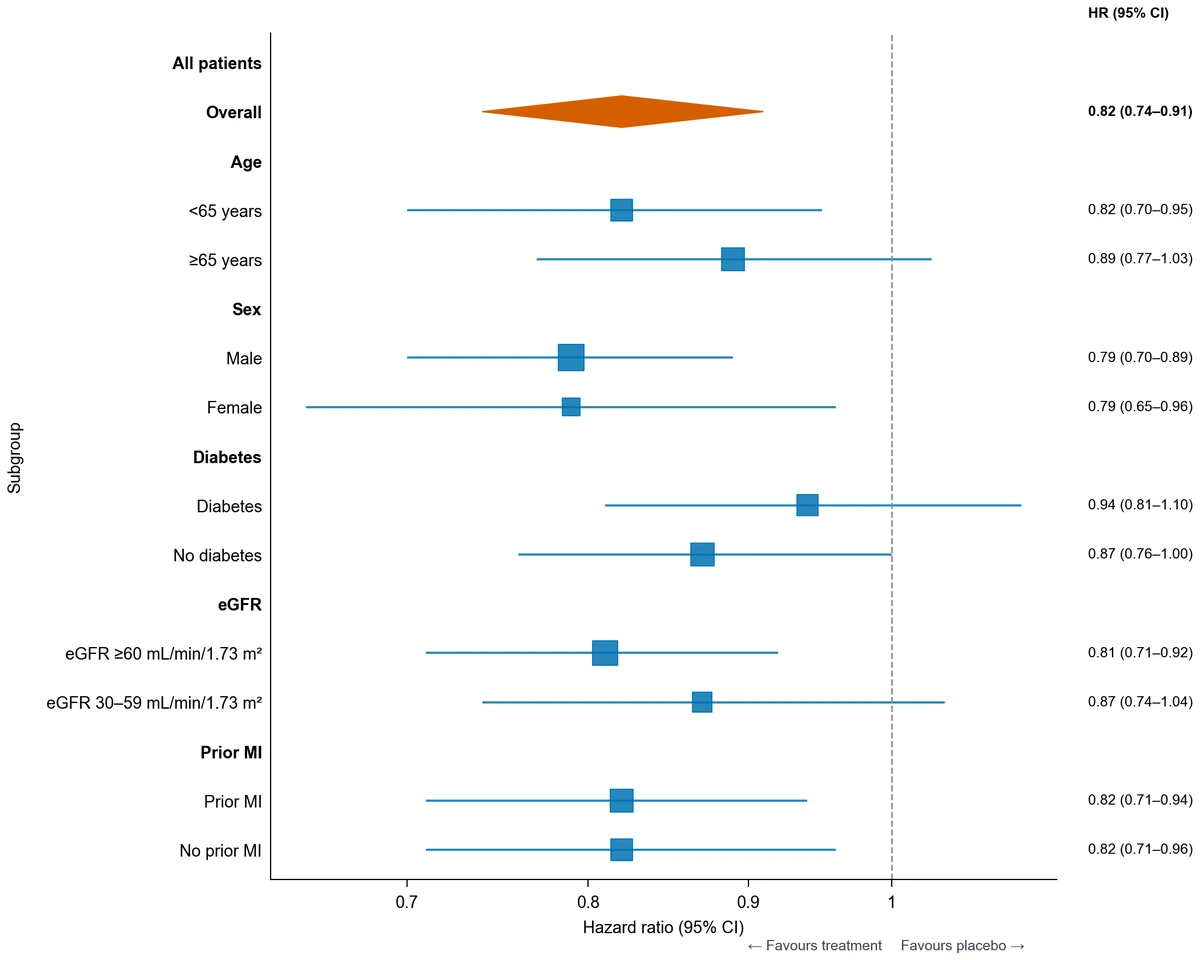
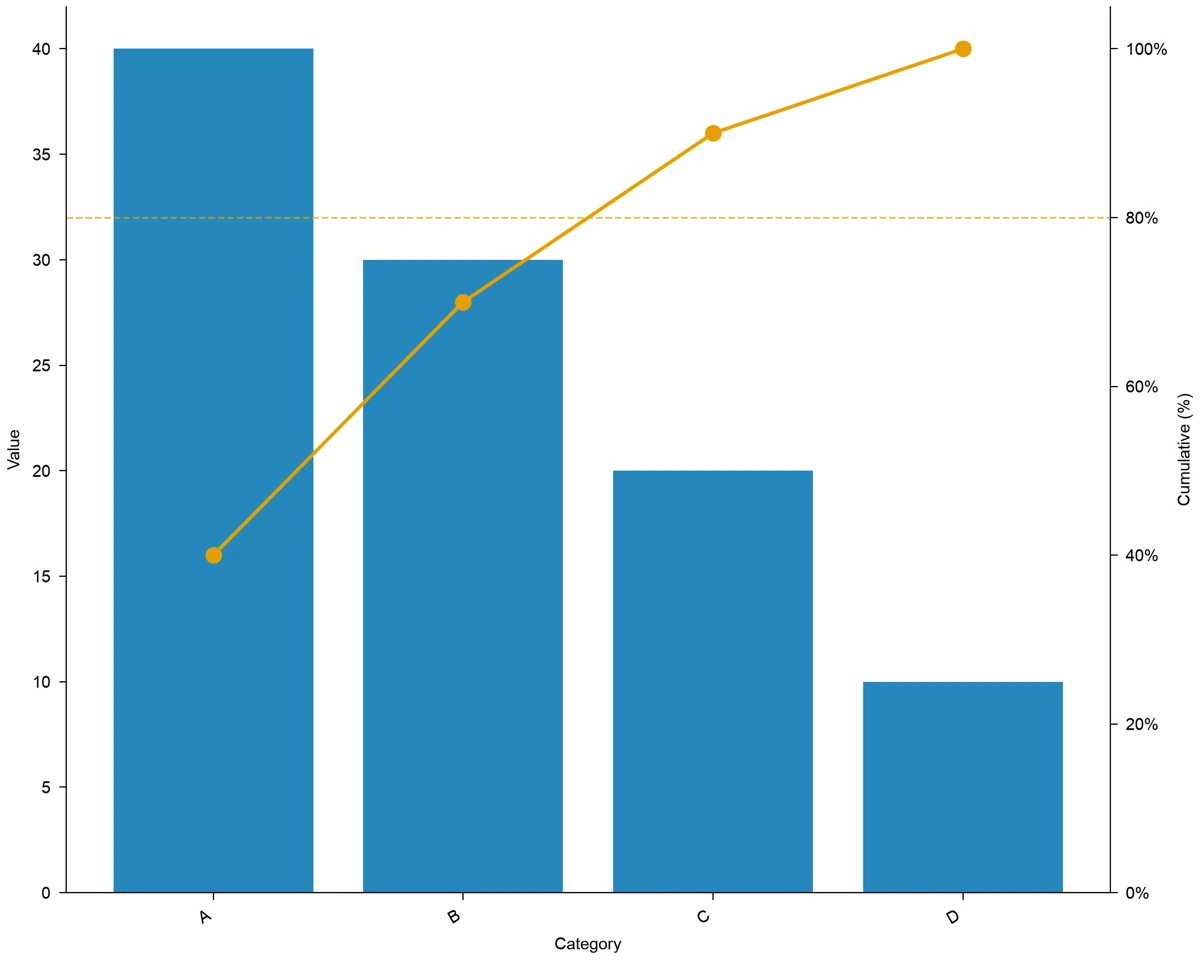
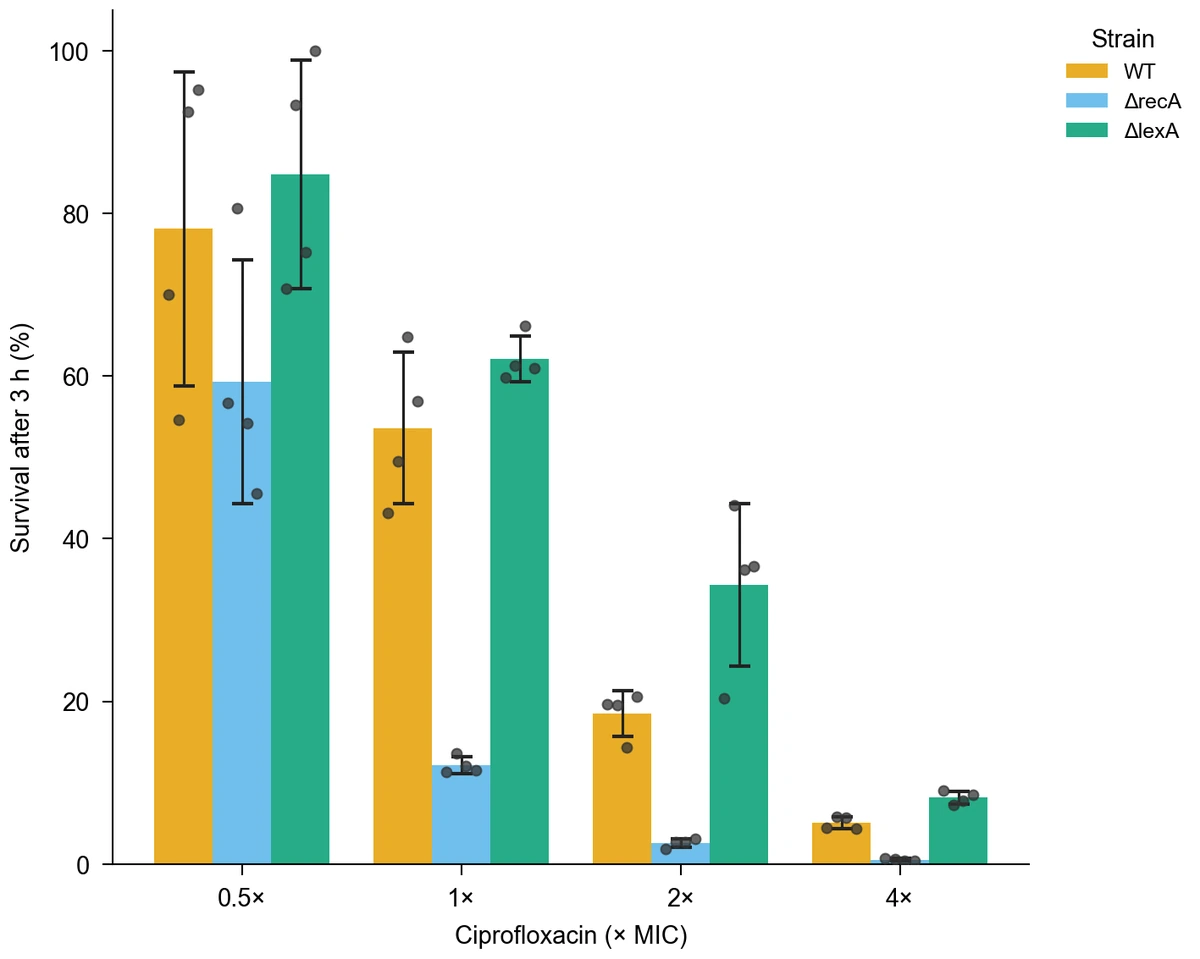
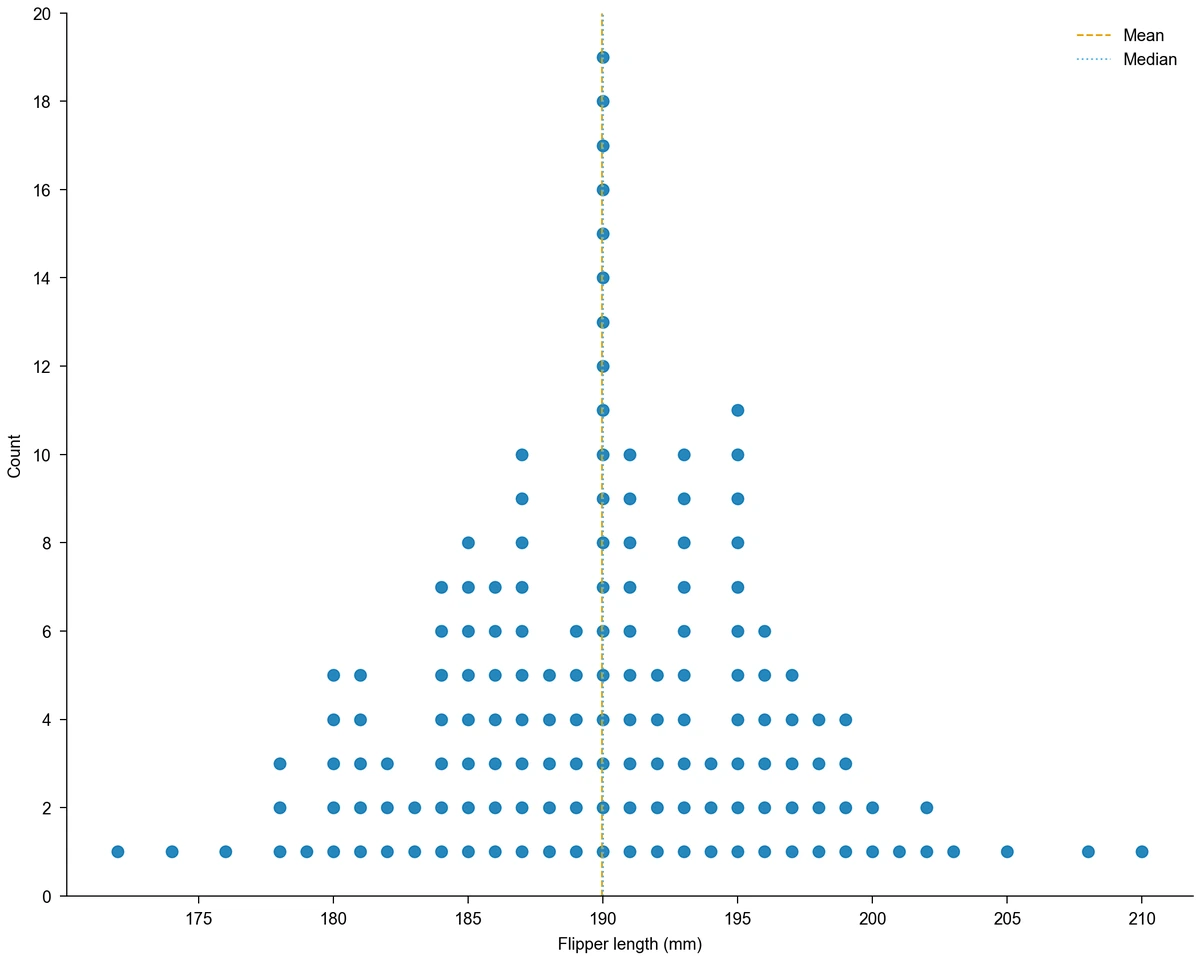
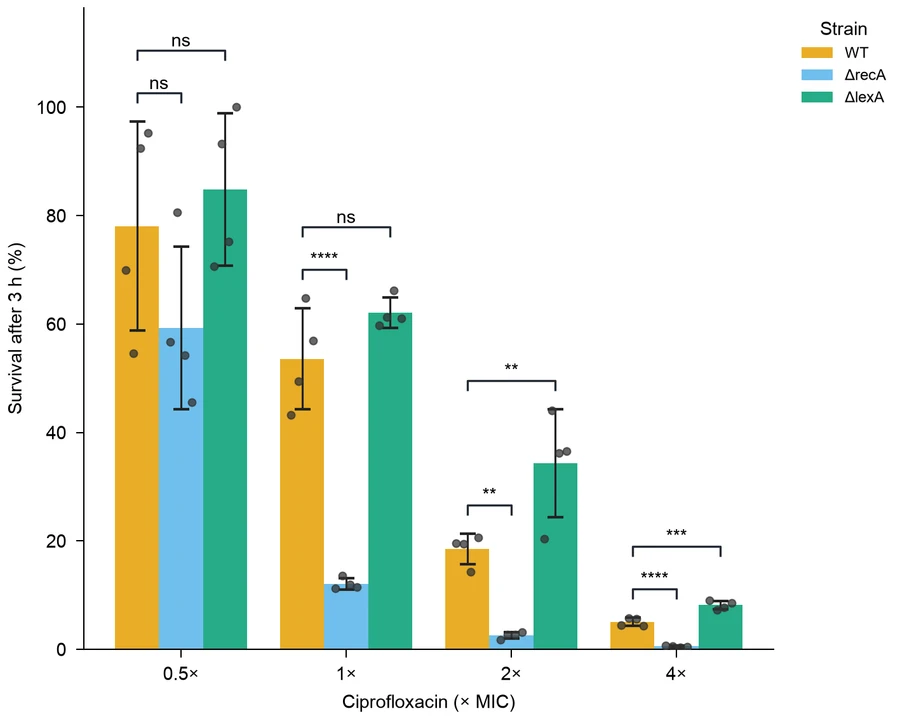
Bar chartCiprofloxacin survival
Box plotInsulin and obesity
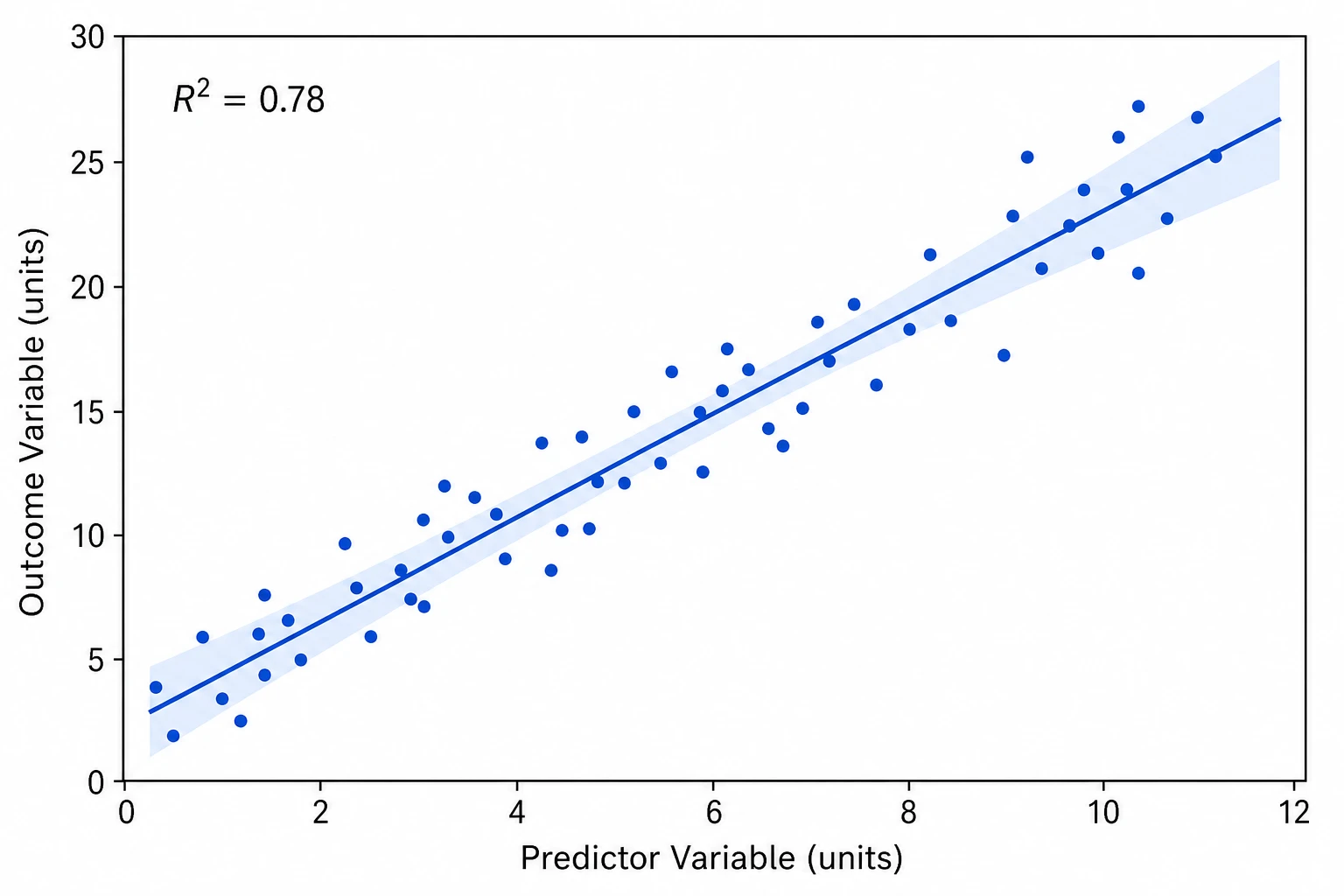
Regression plotMammal metabolic scaling
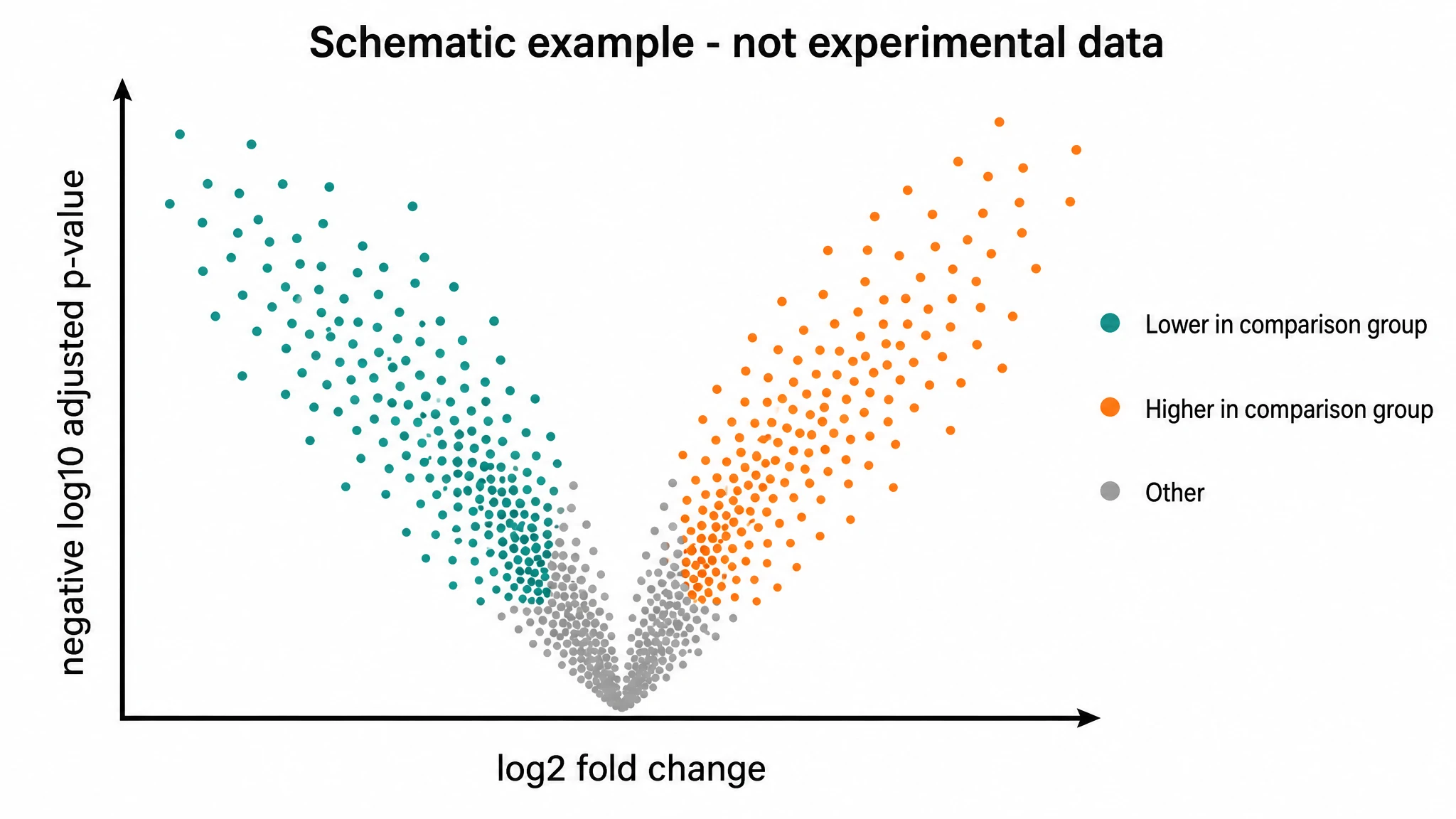
Volcano plotLiver cancer transcriptome

Research data into charts

Free AI Chart Maker for CSV, Excel and Pasted Data

Give your research question a clear visual comparison, from source table to report figure.

A chart maker turns a table of observations into a visual comparison. DataChart brings CSV, Excel and pasted data into one workspace, where you describe the research question, it generates an accurate chart from your data, and you refine the settings by request. Use the graph maker to explore categories, time trends, distributions or relationships with a suitable chart type, then export the editable figure for a paper, report or presentation.

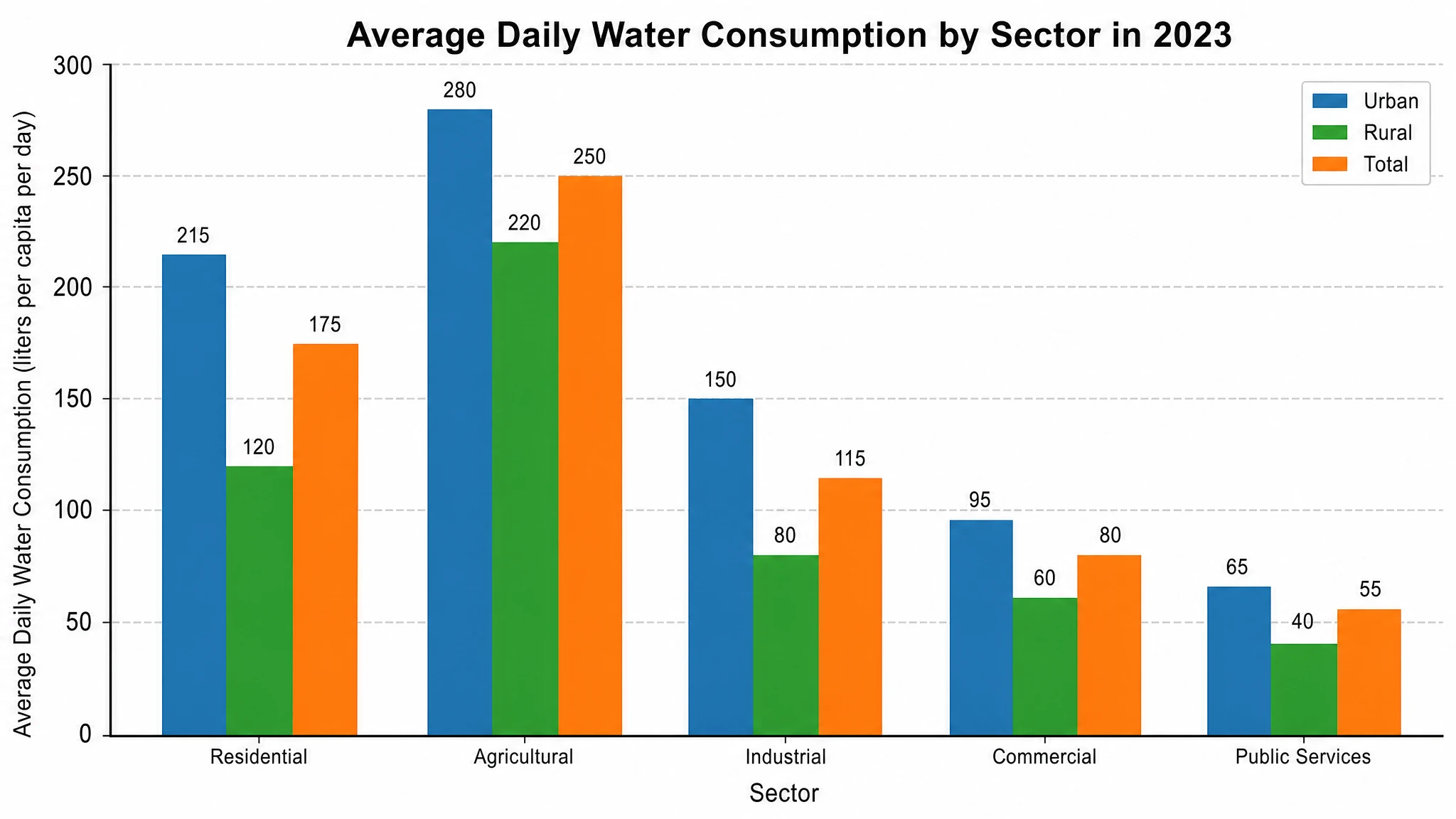
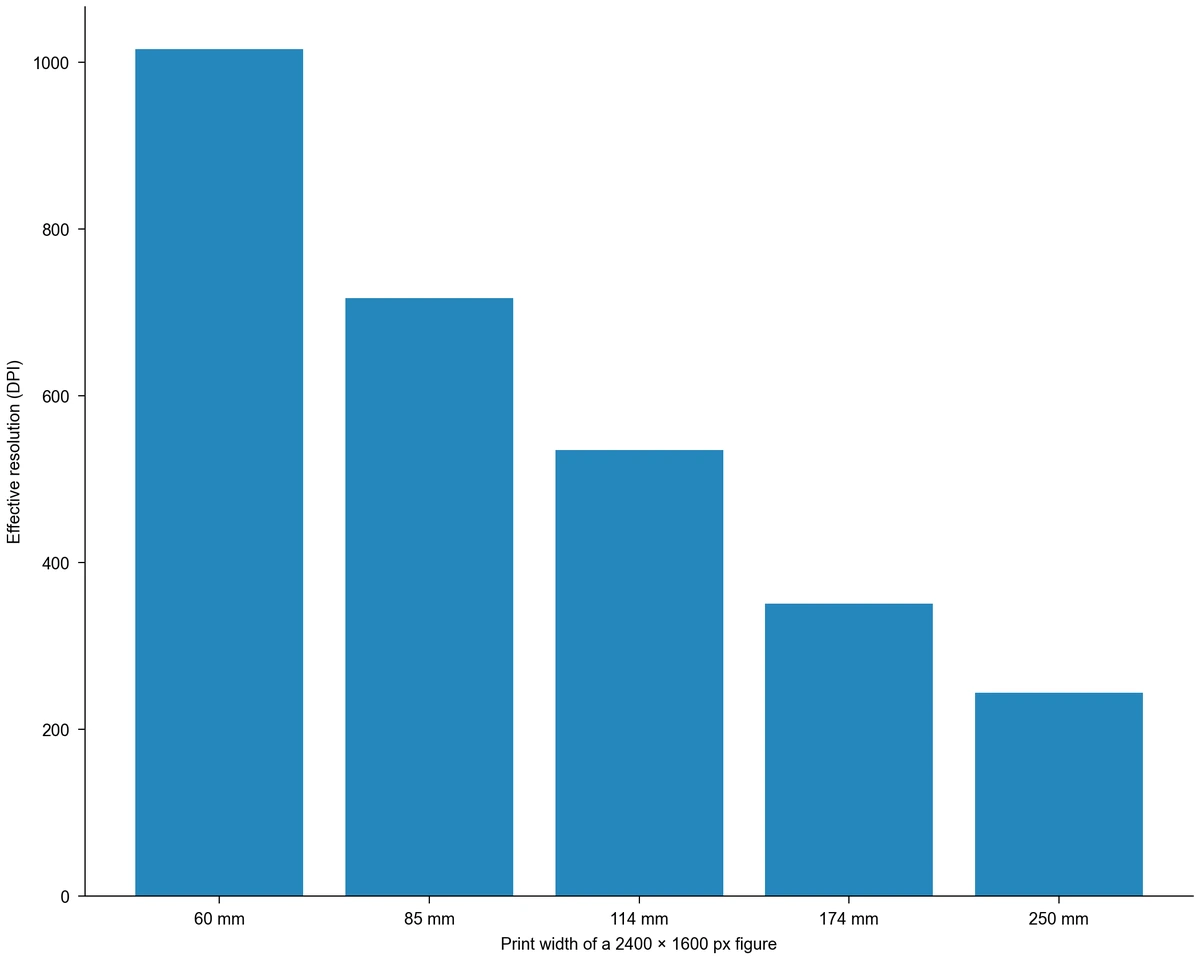
Bar chart comparing the template dataset categories
  • CSV, Excel and pasted data
  • Charts for comparisons, trends and distributions
  • Labels, palettes and journal styles
  • PNG, PDF, EPS and TIFF for papers and slides

AI Chart Maker Features

Match your data to a chart, then refine the labels and styling for the comparison you want to show.

Bring Your Data into One Workspace

Start from CSV, Excel or a pasted table and turn observations into a chart brief. Use the data preview to choose the relevant worksheet and identify measurements, groups and units. DataChart then moves you from a table to a visual comparison, with every value taken from your input.

  • Use supported CSV, Excel or pasted-table input.
  • Preview the worksheet and column values before generating.
  • Identify the measurements and comparison to visualize.
Prepare Your Data

Find the Chart That Answers Your Question

Choose a visual around what readers need to understand: differences between groups, change over time, distributions or relationships between variables. DataChart generates accurate charts guided by your data and requested comparison. Use relevant templates to communicate the structure, then fine-tune the result by request.

  • Compare categories with a suitable bar chart.
  • Explore relationships, distributions or matrix patterns.
  • Use a relevant template to guide the chart structure.
Explore Chart Templates

Make Axes and Legends Easier to Read

Make the measured quantity, comparison groups and series easy to distinguish. This graph maker lets you adjust axis labels, units, colors, legends and chart settings around the question your data answers. Keep a consistent presentation across related figures so readers can compare results without relearning the visual conventions on each slide.

  • Name the quantities and units shown on the axes.
  • Use colors and legends to distinguish groups or series.
  • Adjust chart settings to emphasize the intended comparison.
Start a Chart with Clear Labels

Export Charts for Papers and Slides

Prepare a chart for the size and format of your manuscript, report or presentation. DataChart exports PNG, PDF, EPS or TIFF, plus the Python code behind the chart. Keeping the project lets you return to chart revisions while the exported figure is used in the intended document.

  • Choose a supported PNG, PDF, EPS or TIFF export.
  • Match the output size to the final layout.
  • Keep the project for later chart revisions.
Create a Chart for Your Report

How to Use an AI Chart Maker

Import your data, choose a suitable chart, and DataChart plots it accurately, ready to edit and export.

  1. Import and Preview Your Table

    Choose a supported file or paste the table. For Excel, select the worksheet you need. The preview shows column names, measurements, groups and units, so DataChart starts with the data you intend to present.

  2. Describe the Comparison

    Explain what the reader should compare or understand, then choose a suitable chart type or template. For example, compare treatment groups with a bar chart or explore two numerical variables with a scatter plot. Include the relevant labels and measurement units.

  3. Generate and Fine-Tune the Chart

    Generate the chart from your table and comparison brief. DataChart calculates and plots every value from your data, so the observations appear exactly as recorded in the chosen chart, ready for presentation changes.

  4. Refine and Export the Figure

    Adjust column mappings, labels, colors and chart settings for the intended report or slide. Export PNG, PDF, EPS or TIFF when you are ready to use the figure. Keep the project so later updates to the data or presentation can continue from this chart.

Chart and Graph Use Cases

Use charts to communicate comparisons, distributions, relationships and flows in real data.

Bar chart comparing the template dataset categories

Compare Treatment Results in a Lab Meeting

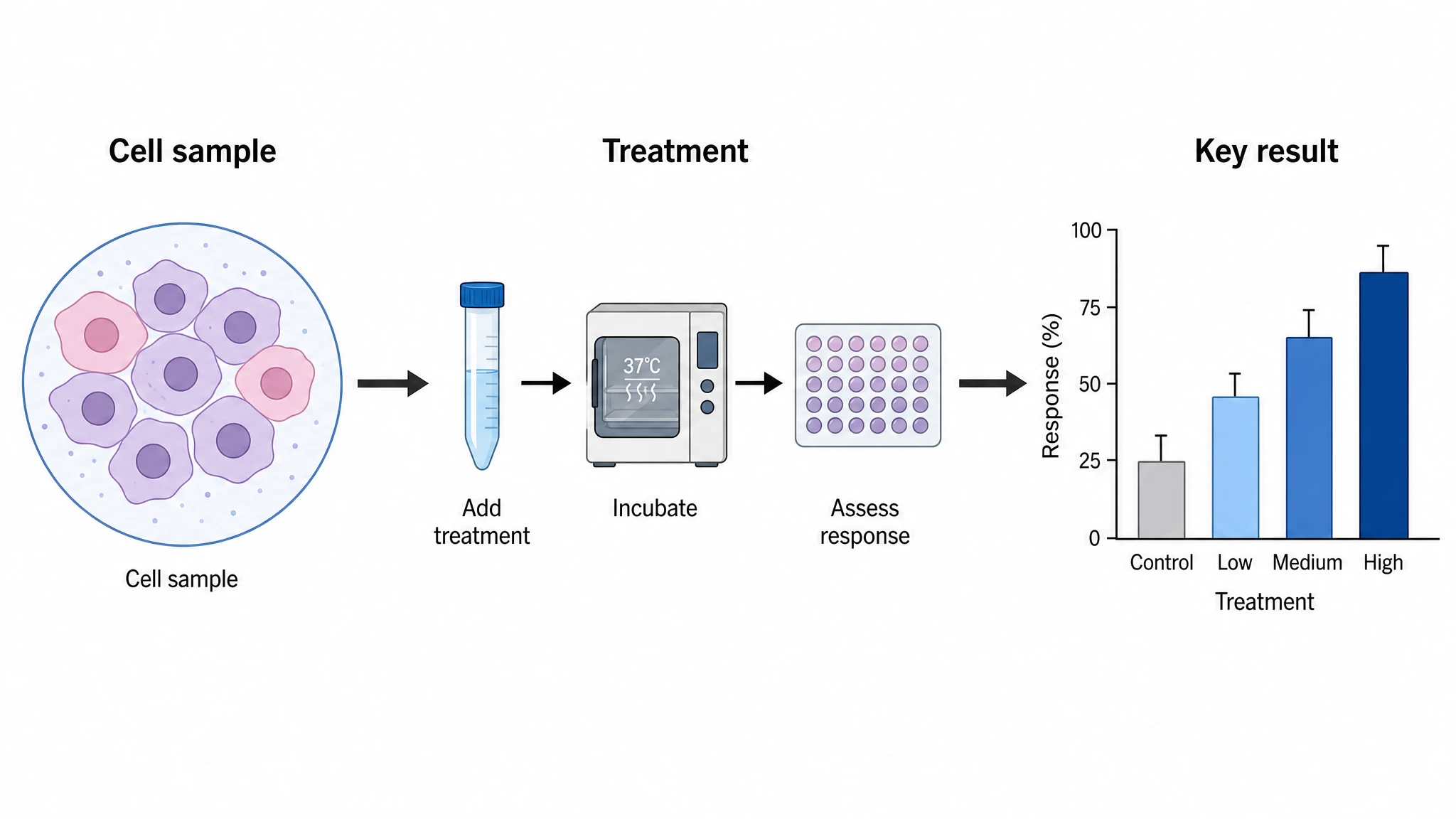
Bring treatment measurements and group labels from your experiment into a bar chart. DataChart turns the table into a comparison with the measured quantity and units visible. Use the figure to explain differences between conditions in a lab meeting, then carry the same chart into the experiment report.

Explore this example
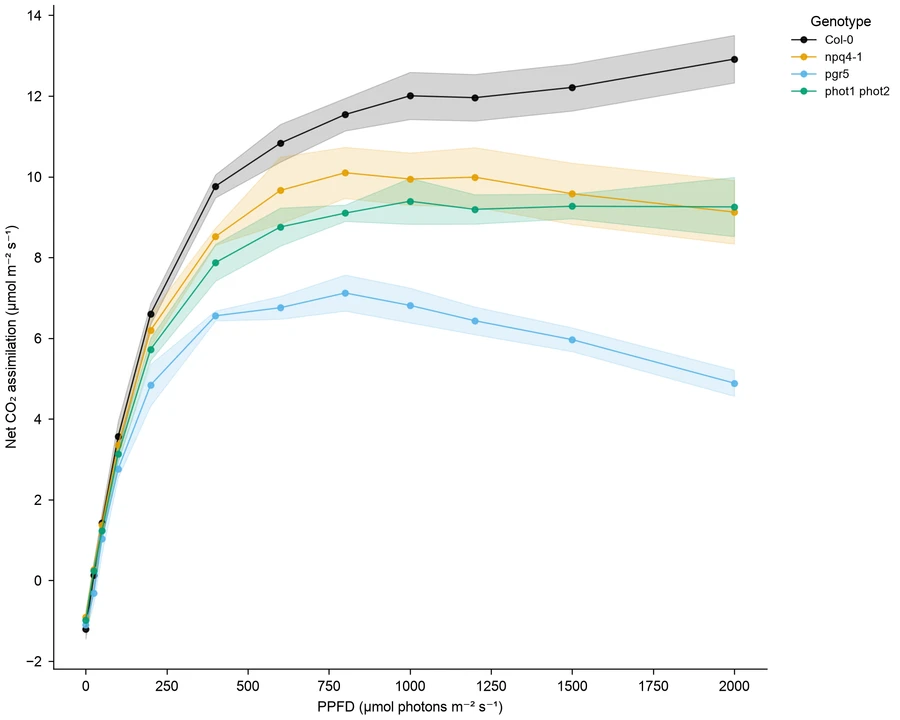
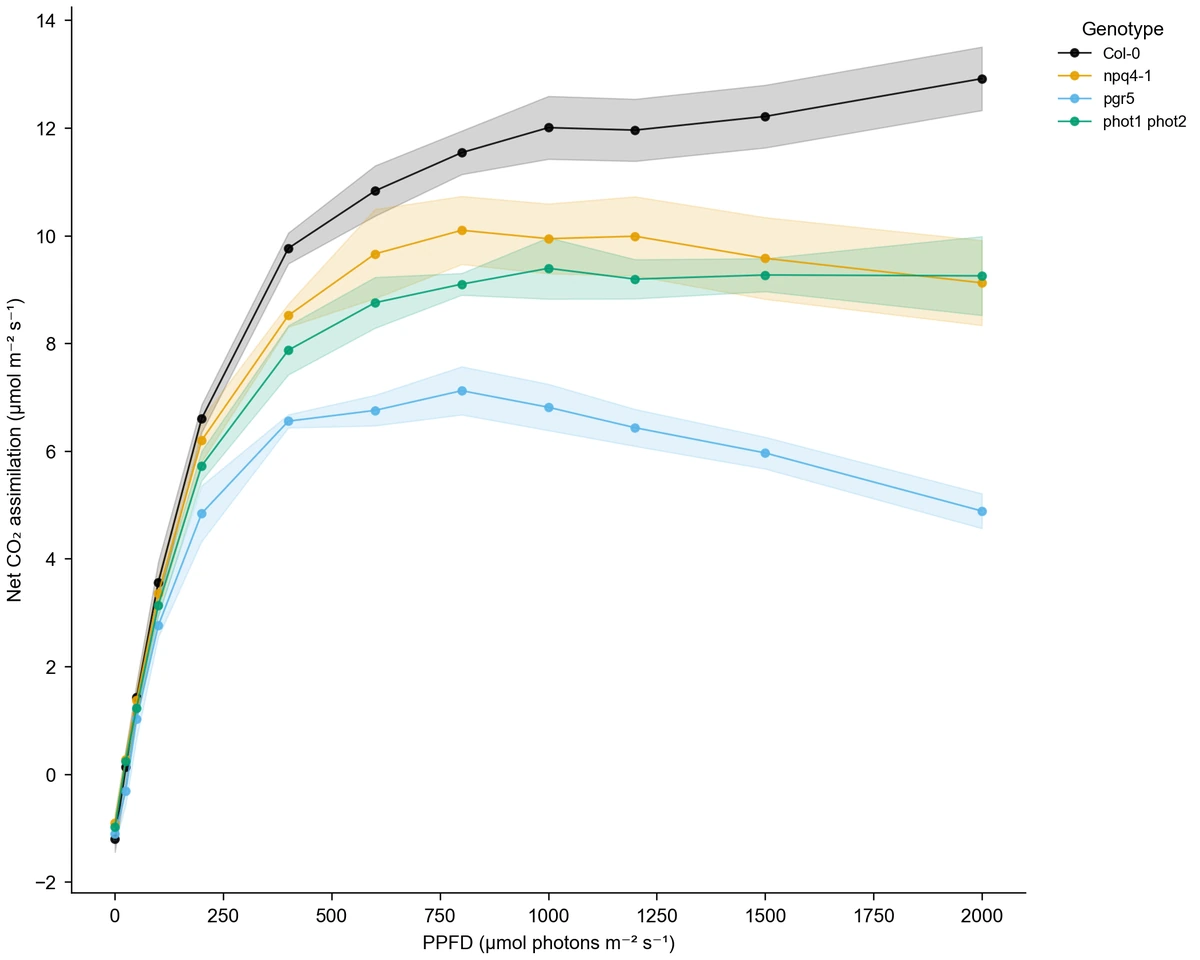
Line chart of Arabidopsis light-response observations

Explain a Time Course in a Results Summary

Use repeated measurements and their time values to show how a response develops. A line chart brings the series into one view, with labels and units tied to your table. Place the graph in a results summary or presentation so the audience can follow the trend across the observation period.

Explore this example
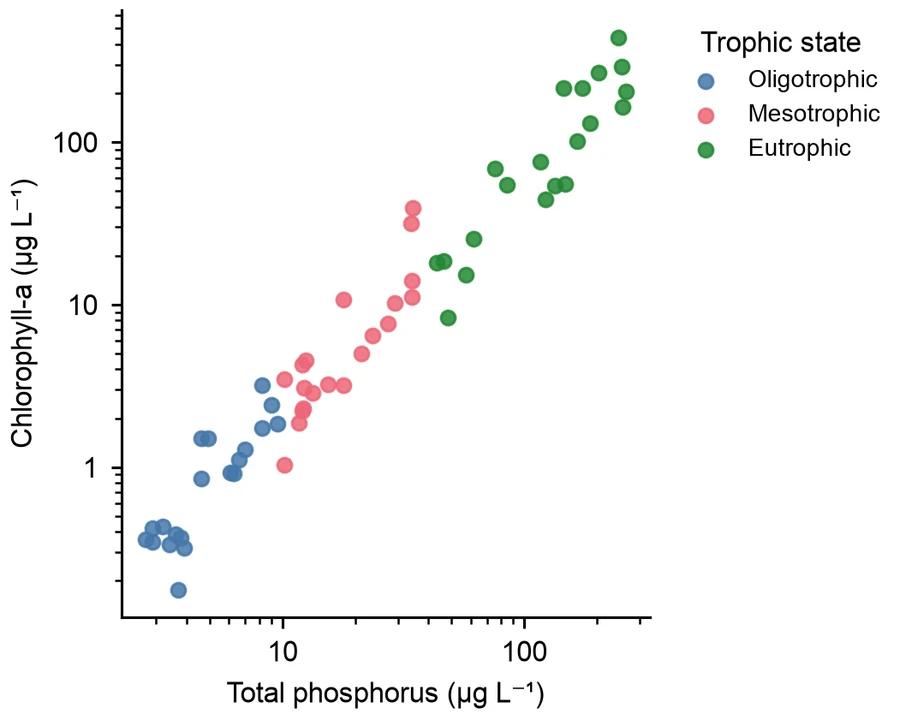
Scatter plot of lake phosphorus and chlorophyll-a observations

Discuss Associations in a Research Report

Explore paired measurements such as lake phosphorus and chlorophyll-a with a scatter plot. Supply the relevant columns and units, then label the observations for your research question. The resulting graph helps you discuss the pattern between variables in a report or methods meeting.

Explore this example
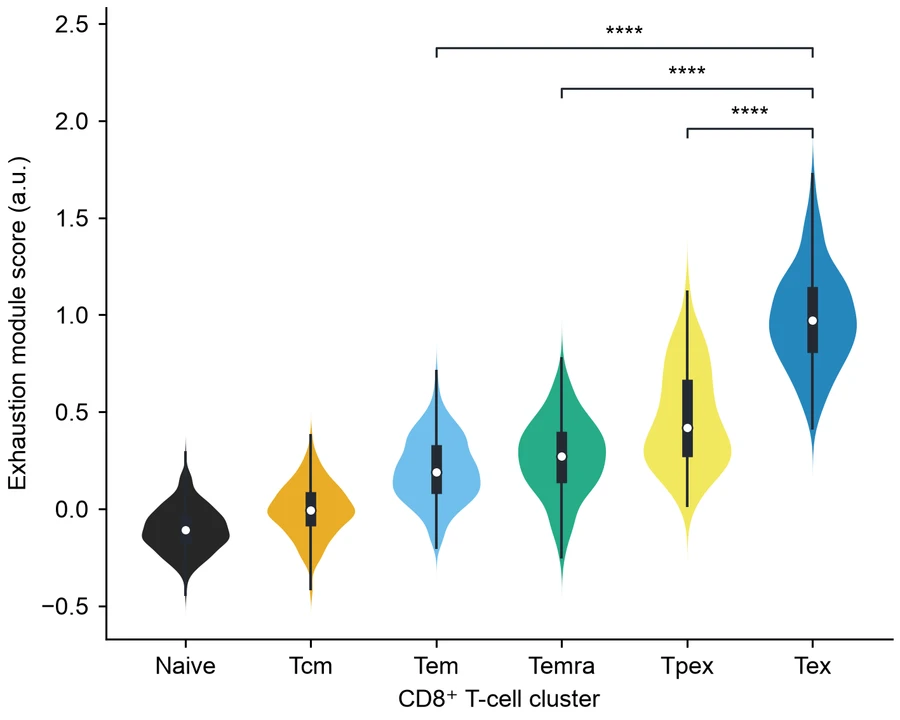
Violin plots of CD8 T-cell exhaustion scores across clusters

Show Group Variation in a Team Review

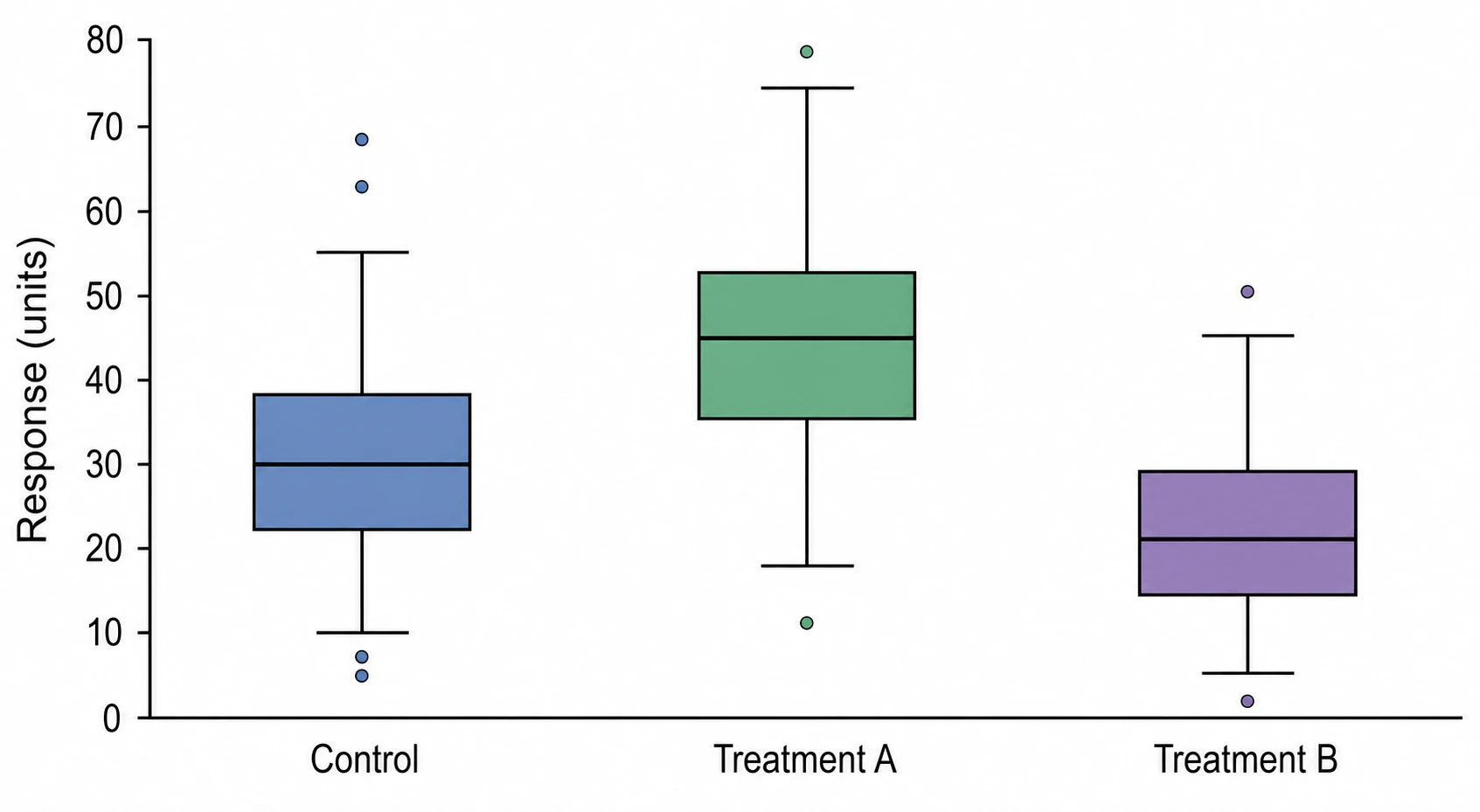
Bring individual measurements and group labels to a discussion of variation. Box or violin plots show how observations are distributed alongside the comparison between groups. Prepare a figure with clear grouping and measurement labels for the report, helping colleagues discuss spread as well as central values.

Explore this example
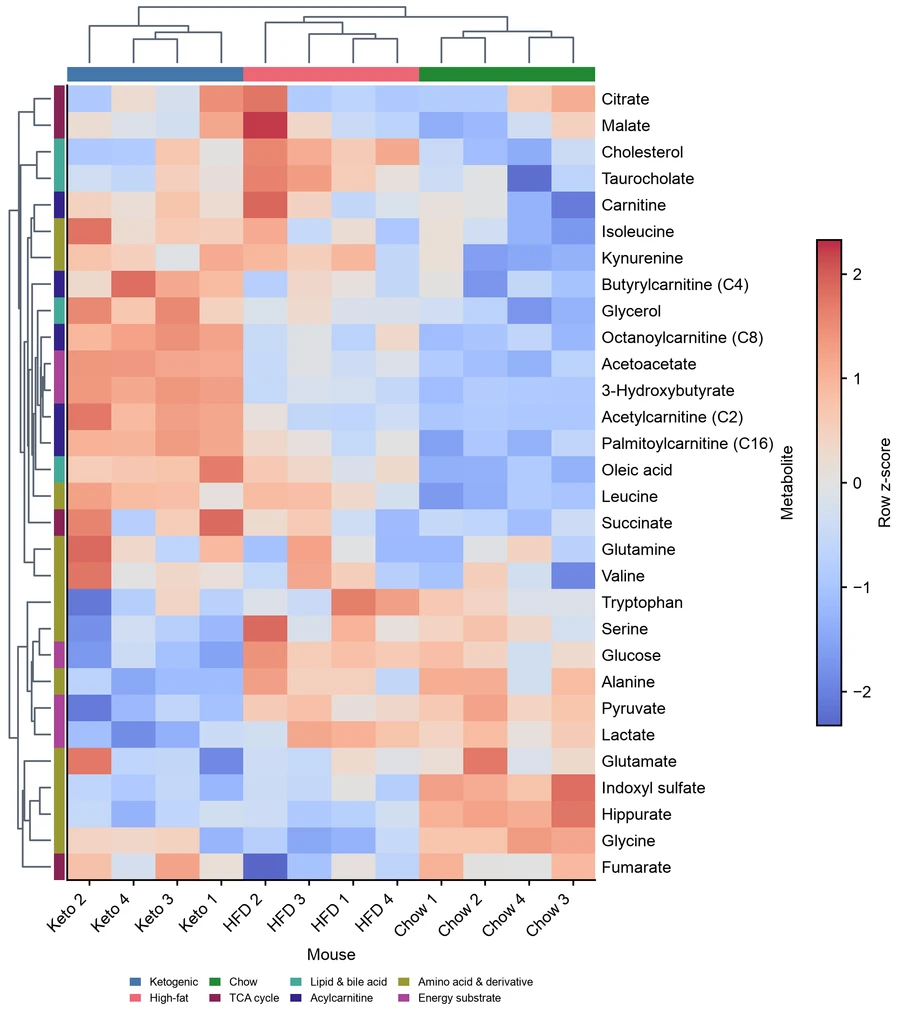
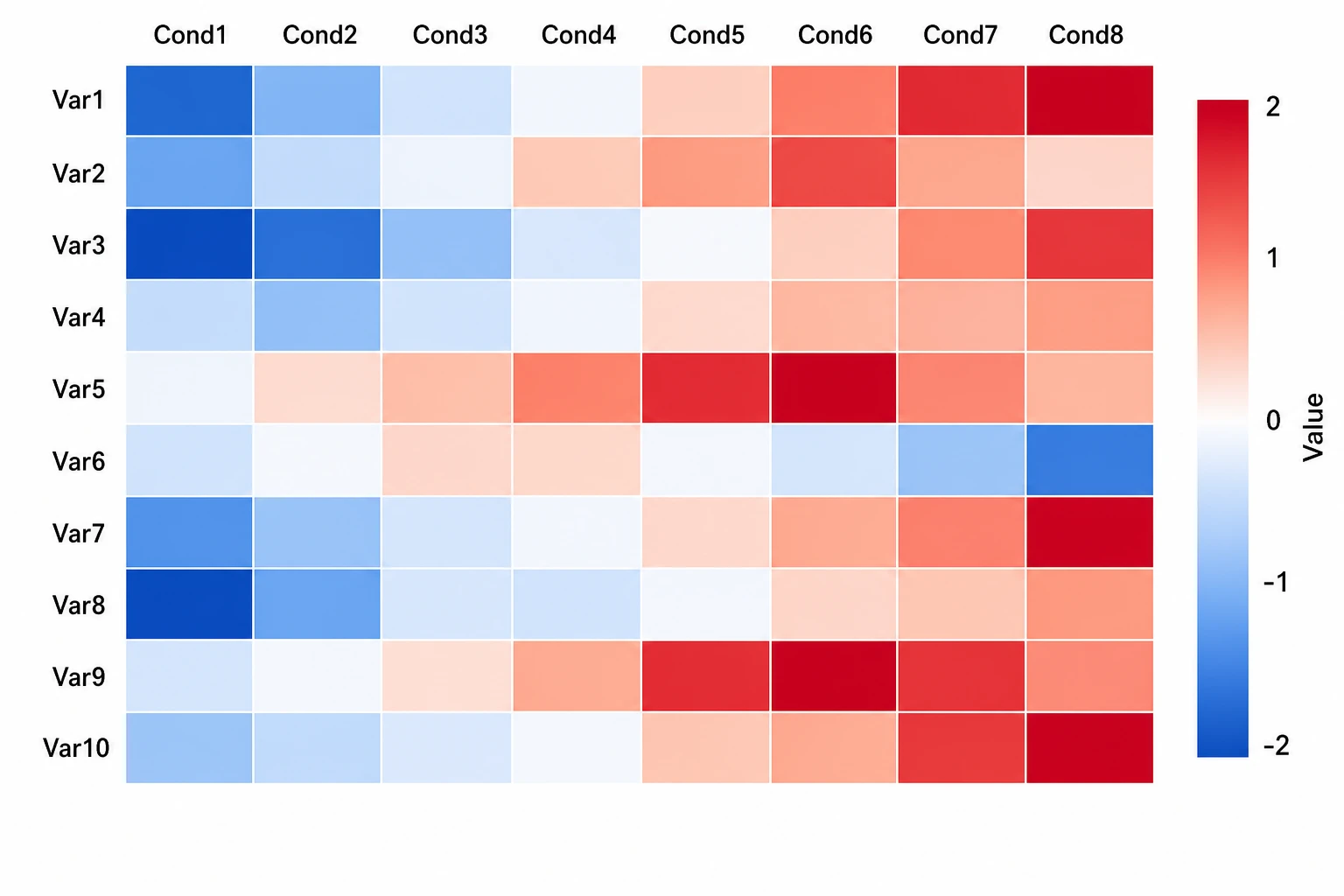
Heatmap of mouse plasma metabolites across diet groups

Present Multivariable Patterns in a Seminar

Use a matrix of measurements across samples or conditions to build a heatmap. Define the rows, columns and color scale so DataChart can present the patterns you want to discuss. The figure gives a seminar audience a shared view of the matrix instead of a dense table.

Explore this example
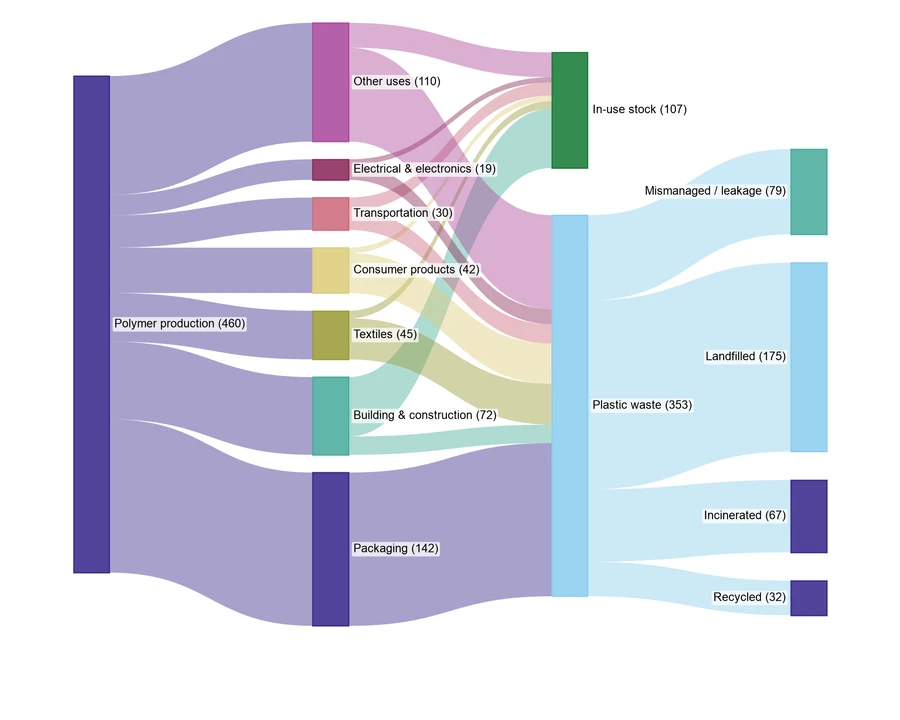
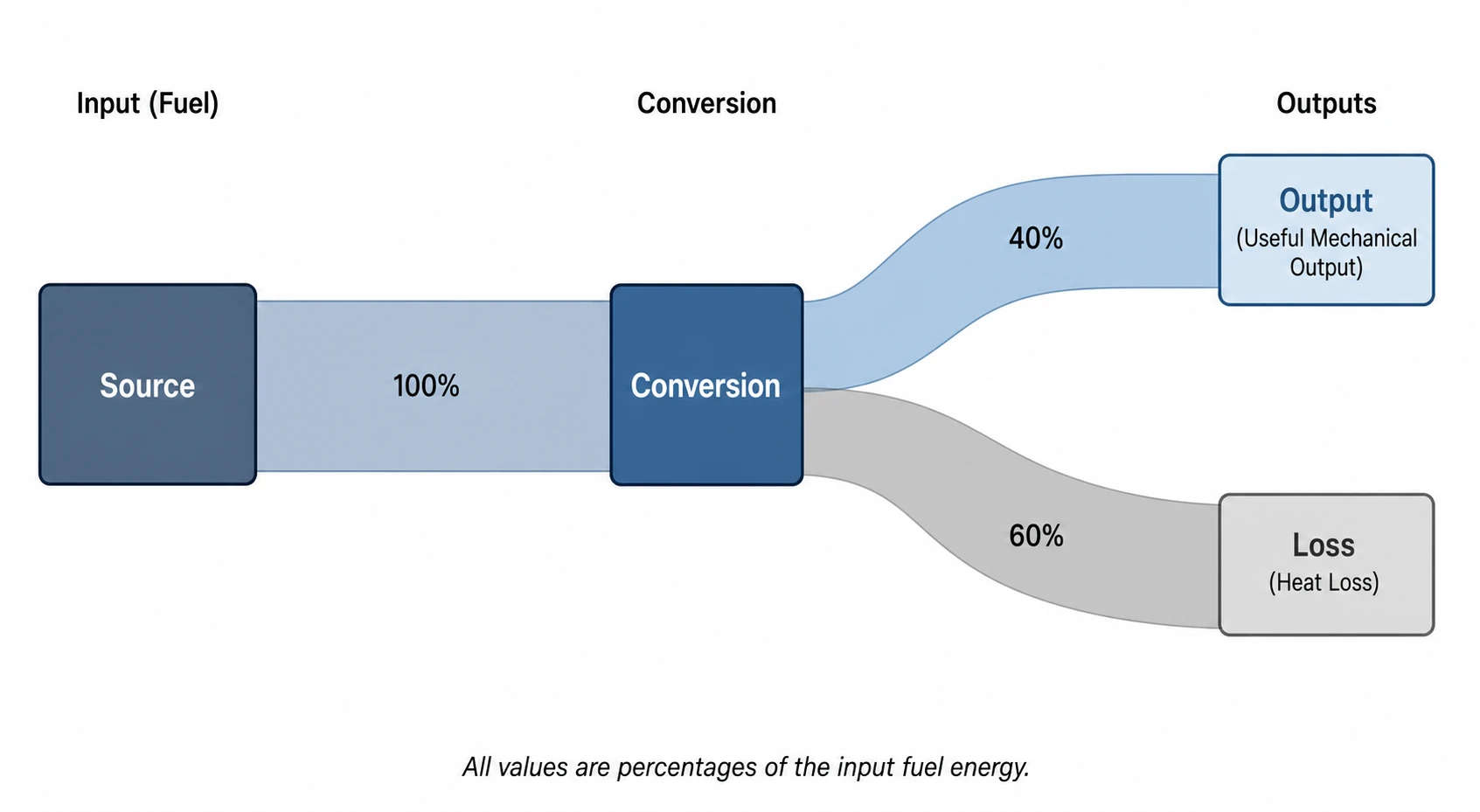
Sankey chart showing example global plastic material flows

Explain Material Flows in a Resource Report

Turn source, destination and quantity records into a Sankey chart for a material-flow or resource-allocation report. DataChart represents the connections and their relative quantities together. Add the category names and units so readers can follow where resources move and how the allocation is divided.

Explore this example
AI Chart Maker User Reviews

Research, teaching and presentation perspectives on using SciFig.

Our treatment table needed a clearer comparison for the weekly lab meeting. I used the chart maker with the CSV data, then refined the grouping, labels and colors. The exported figure brought the categories and variation into one view, allowing the conversation to stay on the experiment instead of explaining how to read the spreadsheet.
Nora Edwards

Experimental biology researcher, Stanford University

Free tools

A tool for every scientific figure

99 focused generators for the scientific figure you need — each opens in the right workspace with a matching example.

AI Chart Maker FAQs

1.

2.

3.

4.

5.

6.

Call to action background

Your Data, Clearly Presented

Turn Your Data into a Chart

Prepare Your Data

Free to start · No credit card required · Built for researchers